
A new GroupType can only be added to any of your Dictionaries by a Client Admin in System Configuration.
The Description field for a GroupType can be edited as needed by clicking on the  Edit icon in the far left column of the Description’s row, and the resulting view is in the next screen shot.
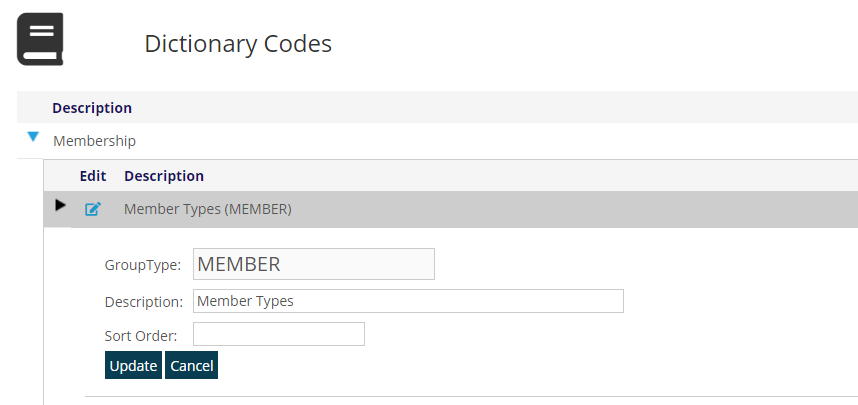
To save edits to the Description, click on the blue Update at the bottom. To exit the Edit function without saving changes, click on the blue Cancel button.
An existing GroupType cannot be deleted, not even by your Client Admin. Sometimes there are  delete icons in the Delete column for GroupCodes and MasterCodes, but each of these levels of dictionary codes represent lookup values for data in your system, so none should ever be deleted without first consulting your Client Admin, who may in turn need to consult JL Systems' staff.
You are allowed in most cases to add a GroupCode to an existing GroupType by clicking on + Add new record right above the existing GroupCodes, as seen in the next screen shot for Member Types.
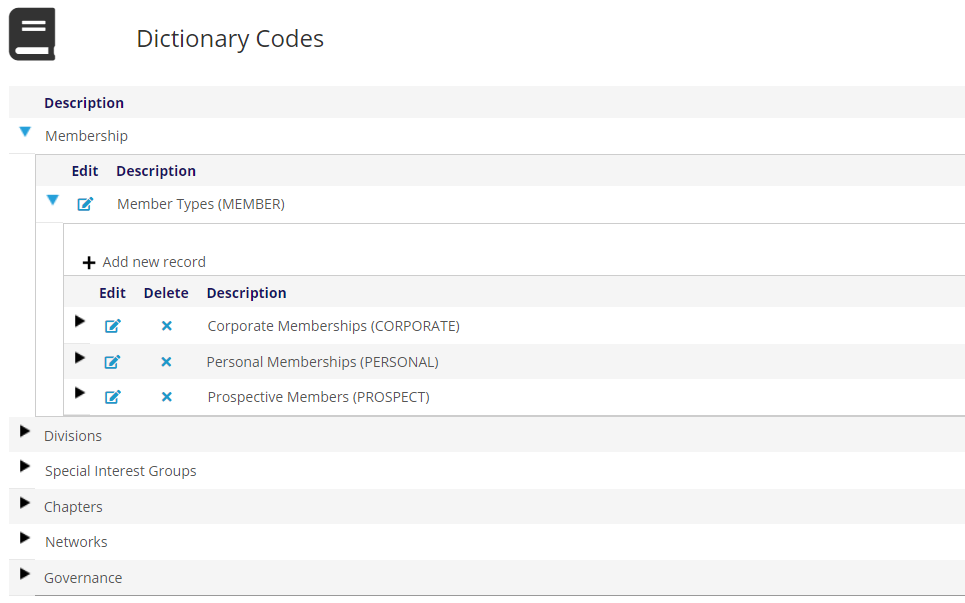
The resulting view after clicking on + Add new record is in the next screen shot.
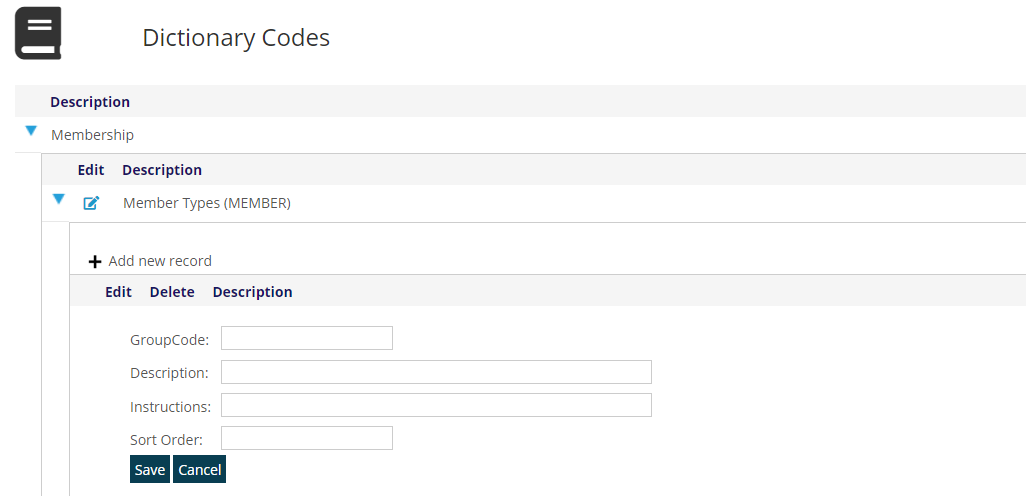
The first field is the GroupCode and cannot be edited once it is used in the system, since it will already be in use with your data. It has a maximum of 10 alpha-numeric characters, no spaces or special characters.
Entries in the Description field can be edited once created, and this is the field that determines what appears throughout the AMS.
Instructions are optional control codes that trigger behavior in the system to perform an automated function. Within each Dictionary section of this knowledge base, use of Instructions that are specific for a particular GroupCode will be identified. In some cases, association staff can add and edit Instructions for GroupCodes. In other cases, only JL Systems staff manage them. If in doubt as to who is authorized to add or edit Instructions contact your a Client Admin.
Sort Order is used to display GroupCodes in an order other than the default, which is alphabetically by the Description field. An alpha-numeric sort is used, so if just numbers are being used, remember to put a zero before 1 through 9 so that “10” will display after “01” up through “09.” You can use letters and numbers in combination, such as “A01” then “B01”. Sort Order fields can be edited as needed.
To Save a new GroupCode, click on the blue Save at the bottom left below the Sort Order field. To save edits to an existing GroupCode, click on the blue Update at the bottom left below the Sort Order field. To Exit the Add or Edit function without saving any changes made, click on the blue Cancel button also seen below the Sort Order field.
Your association staff are allowed in most cases to add a MasterCode to an existing GroupCode by clicking on + Add new record right above the existing MasterCodes, as seen in the next screen shot for Personal Memberships.
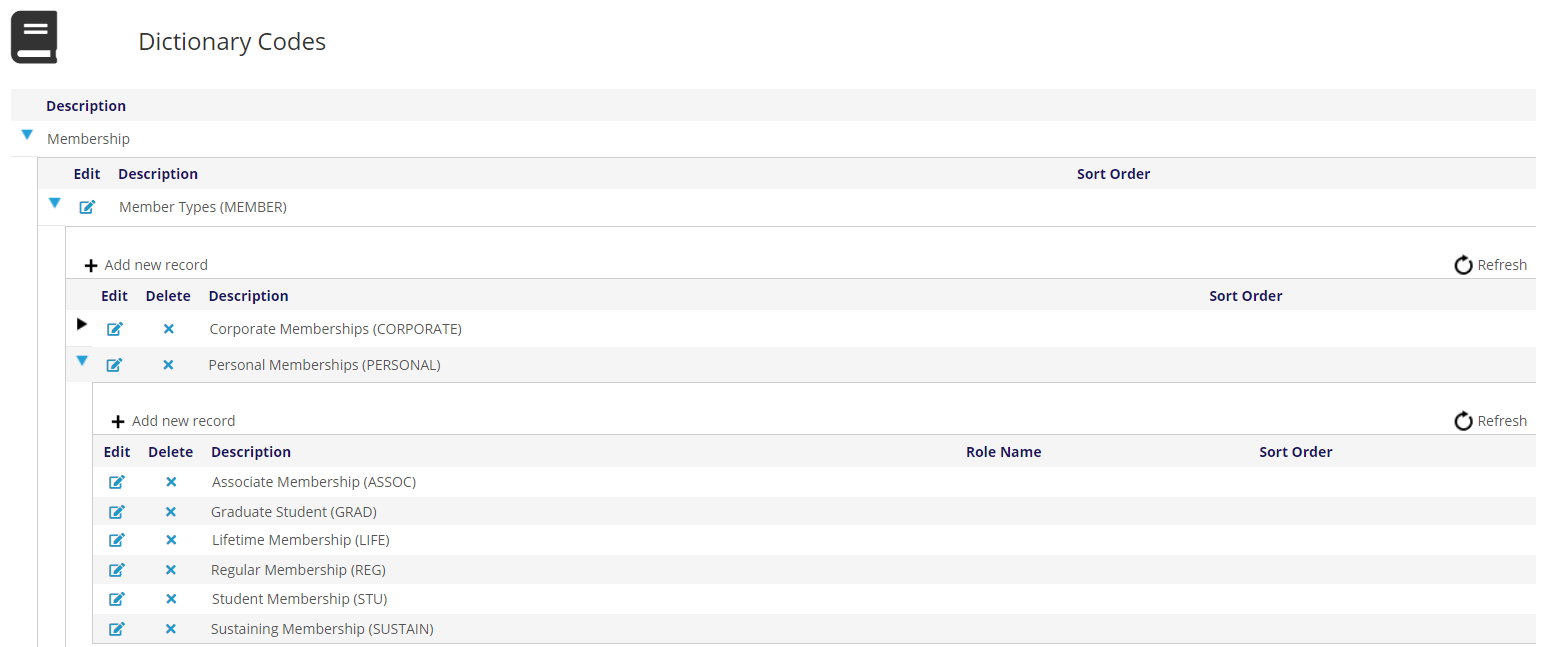
The resulting view after clicking on + Add new record is in the next screen shot.
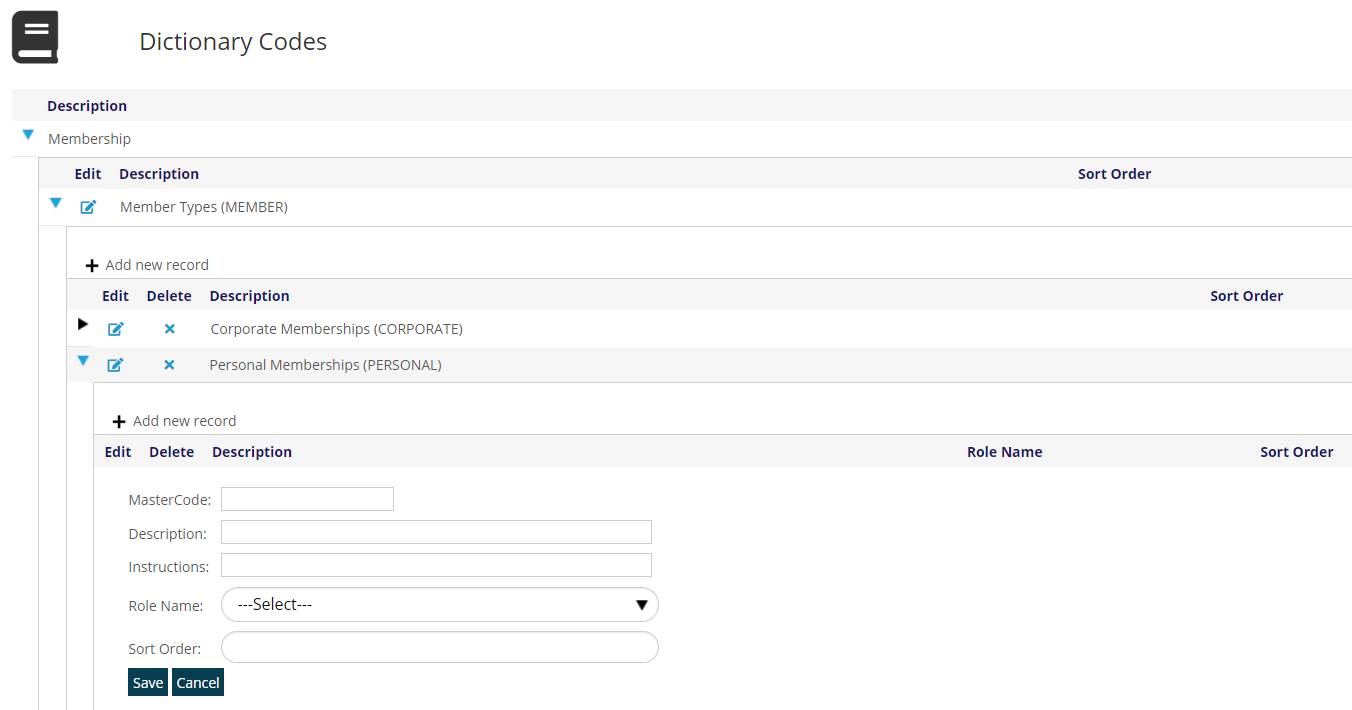
The first field is the MasterCode and cannot be edited once it is used in the system, since it will already be in use with your data. It has a maximum of 10 alpha-numeric characters, no spaces or special characters.
Entries in the Description field can be edited once created, and this is the field that determines what appears throughout the AMS.
Instructions are optional control codes that trigger behavior in the system to perform an automated function. Within each dictionary section of this knowledge base, use of Instructions that are specific for a particular MasterCode will be identified. In some cases, association staff can add and edit Instructions for MasterCodes. In other cases, only JL Systems staff manage them. If in doubt as to who is authorized to add or edit Instructions contact a Client Admin.
Role Name is a drop-down of the Roles available on your website. This allows you to tie this MasterCode to a Role. Contacts assigned this MasterCode who login to your website will be automatically assigned this Role so those members can receive a particular experience on your website. This can be used for Master Codes associated with Folders (i.e. Membership and Committees), List Codes, and Program Codes. Master Codes related to Folders will also have the associated end date associated with the role, so when the membership or committee assignment is over, the associated role is terminated. This is not true for Program Codes and List Codes, those need to be removed from the contact for them to be removed from the associated role.
Sort Order is used to display MasterCodes in an order other than the default, which is alphabetically by the Description field. If just numbers are being used, remember to put a zero before 1 through 9 so that “10” will display after “01” up through “09.” You can use letters and numbers in combination, such as “A01” then “B01”. Sort Order fields can be edited as needed.
To Save a new MasterCode, click on the blue Save at the bottom left below the Sort Order field. To save edits to an existing MasterCode, click on the blue Update at the bottom left below the Sort Order field. To exit the Add or Edit function without saving any changes made, click on the blue Cancel button also seen below the Sort Order field.
NOTE: There can be extra permissions on Dictionary items that can prohibit users from deleting or changing important ones.