
When requesting multiple choice answers or anytime the answer needs to be exact it is best to create lists of acceptable answers.
For example, if you ask a simple question like “Is the sky blue?” you would most likely be expecting a “yes” or “no” answer. However, if you use a textbox for the presentation method then you can receive all of the following answers and more.
[Yes, No, YES, NO, Y, N, Maybe, sometimes, Yellow, lunchbox]
While it may be possible to ascertain the meaning of most of the responses, you still need to quantify the responses each time you evaluate the data. By using a predetermined list you can avoid a lot of hassle and confusion.
Select the Dictionary from the Repository section. Expand the Repository Attributes area and the Repository area. Here you will see all of the lists that have been created thus far. At the very least you will see the lists that are used in the Document Data form we worked with earlier.
These include the Data Type, Presentation Method and Web Editing Permissions drop down lists you have used.
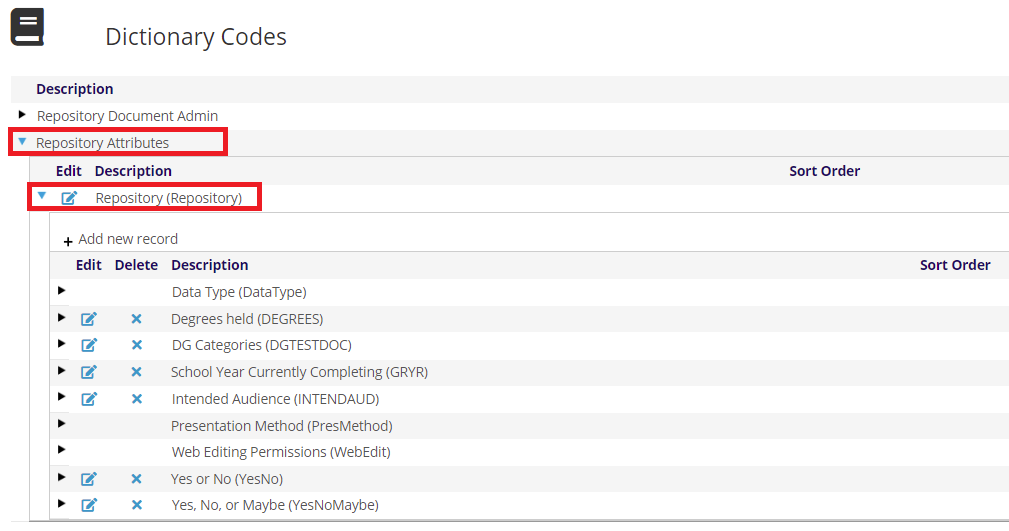
Click on + Add new record to add a new list.
For the GroupCode, enter up to ten characters that define the purpose of the list. (YESNO) There should no spaces or punctuation in GroupCodes or MasterCodes, however underscores (_) are allowed.
The Description should be a brief description of the list. (Yes or No)
There are no Instructions. Sort Order is optional. By default, the lists are ordered alphabetically by GroupCode.
Click on the Save text.
Now we can start adding responses to this list.
Expand the list, then click on + Add New record.
For the MasterCode, enter up to ten characters that describe the response. (Yes)
For the Description use the response as it should be displayed in your forms. (Yes)
There are no Instructions or Roles in this case. Sort Order is optional, however use it in this case, since without it the list would default to alphabetical order by GroupCode and by default, “No” would be listed before “Yes”. (05)
Click on the Save text.
Add another new record to include an option to answer “No”. Click on + Add New record.
For the MasterCode, enter up to ten characters that describe the response. (No)
For the Description use the response as it should be displayed in your forms. (No)
There are no Instructions or Roles. Sort Order is optional, however use it in this case to set how the responses will be displayed. (10)
Click on the Save text.
Example Questions
1. Is this your first conference?: Radio button List, Yes or No responses.
Description: first conference
Sort Order: 25
Data Type: String
Presentation Method: Radio Button List
Web Edit Permission: Author
Web Caption: Is this your first conference?
Web Tooltip Message(?): Is this your first conference?
Group Type: Repository
Group Code: Yes or No
No other changes made
