
Each contact record’s Address tab in the AMS contains the root information common to all addresses, including address Type and whether or not the address is On Hold. Criteria can be set under Addresses for the fields seen in the next screen shot.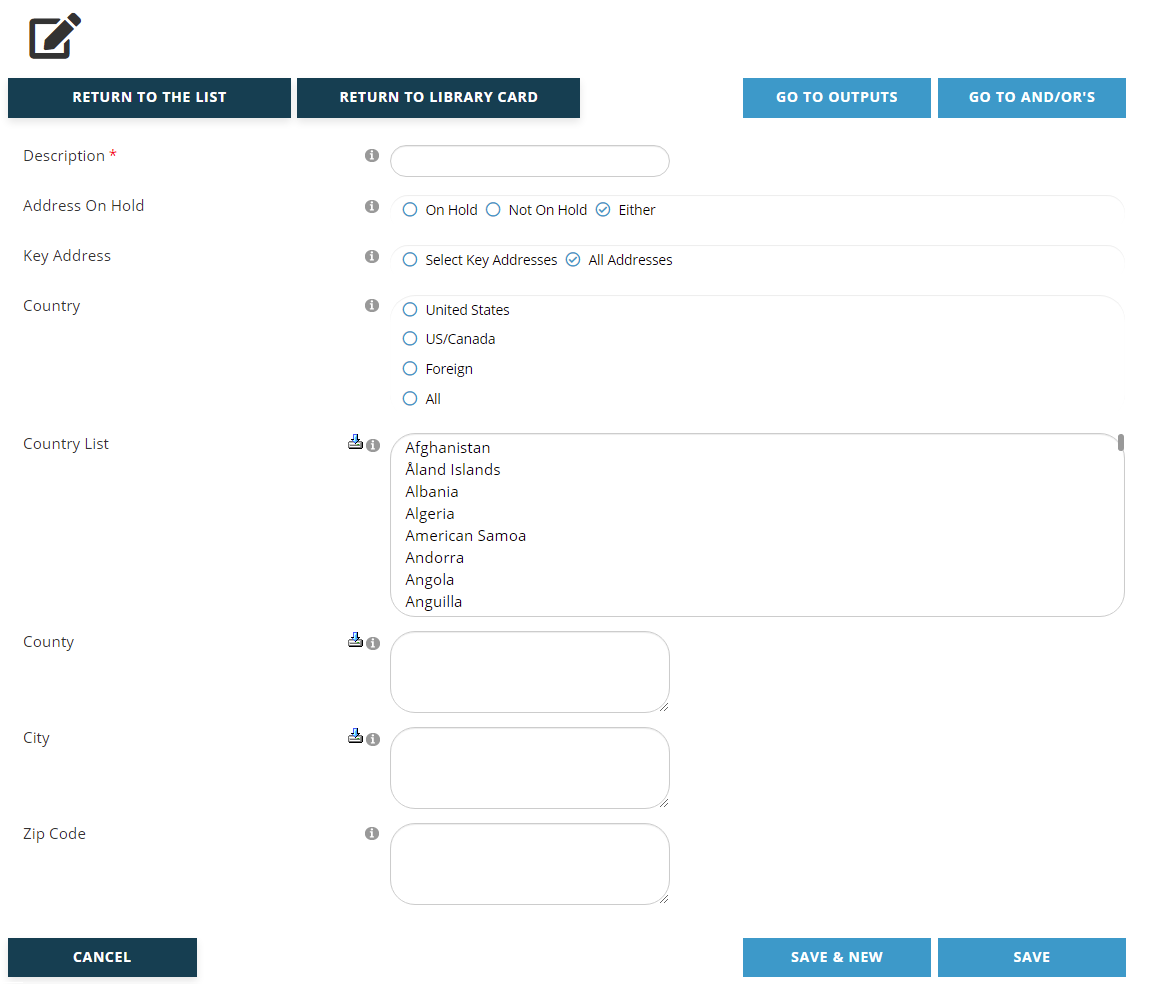
A Description of the purpose of the criteria must be entered in the first field, which is a mandatory text box. Enter this value before entering any criteria. This description should match the exact criteria you are creating. For example, if your Library Card is targeting people not yet registered to your annual meeting and you want to omit people who live in Virginia, you would create a criteria for contacts with Virginia addresses to remove them from the group. You would then want to name this criteria something similar to “Virginia Contacts”. This becomes important later when you are applying the And/Or logic to your criteria, where each criteria being named for their exact filter makes it easier to set up the logic to be applied.
Address on Hold is a radio button field that corresponds to the “Hold” check box in the Contacts Address tab that is used to flag a bad address. Addresses flagged as on Hold are automatically excluded from Reporter output. The Address on Hold field for Address criteria defaults to “Either”, in which case contact records will be included in the output whether or not the record has a bad address, as some records have more than one address. You can get a list of contacts that have only good addresses by selecting the “Not on Hold” radio button. There is an option to search for contacts with addresses “On Hold” so you can find out how many addresses are flagged as bad in the system and which contacts have those flags. Remember the system automatically prompts all contacts with an address flagged as on “Hold” to update that address when they log into their account, so it is very important to remember to use the “Run this Job” function every time a Library Card with Address on Hold criteria is used, even if it has been minutes since it was last run.
Every contact record must have one address designated as the Key Address. This radio button field defaults to include “All Addresses” but there is an option to “Select Key Addresses” only.
There are radio button controls for the optional Country field and when “United States” or “US/Canada” are selected, the page updates to include a State field, as seen in the next screen shot.
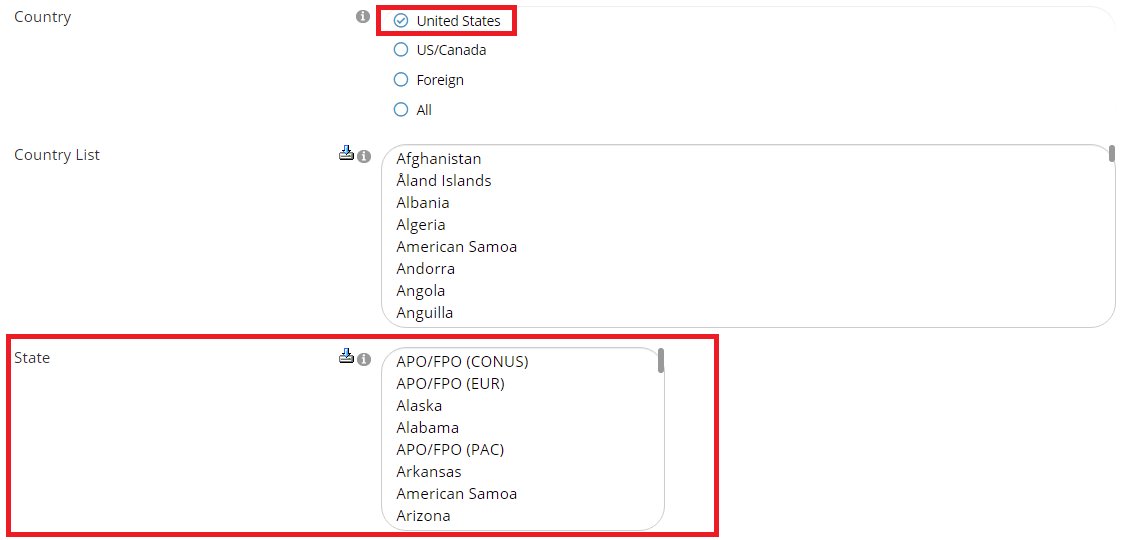
One or more of the states in the list can now be selected.
Similarly, selecting the “Foreign” radio button for the Country field allows you to select one or more of the options in the Country List multi-select box.
The County, City and Zip Code fields are list boxes where you type in exactly what you want the search to include for those fields. The search will only find exact matches to what is typed, and thus can exclude needed records if typos occur in the list box, so carefully double check your list for errors before saving the Criteria.
Click on the Save button to save any changes made. Click on the Cancel button to exit the page and discard any changes made. Click on the Save and New button to save the Address Criteria you have been working on and immediately start creating another Address Criteria for the same Library Card.
Clicking the Save button brings up a View page for the new criteria. The same process applies when an existing Addresses Criteria has been edited. Double check the criteria to make sure the fields were set correctly. If you need to make changes, click on the Edit button below the summary. If everything is correct, click on the Go to And/Or’s button and set your And/Or preferences. That process is described later in this chapter.
More information on Addresses and Address Types can be found in the Profiles and Contacts Dictionary sections.