
The Adjustment Wizard allows those with permission to modify the items and payments associated with an Invoice. The Adjustment Wizard can be opened using
- the ADJUSTMENTS button at the top of the Profile screen
- the
 adjustment icon in tables like Sales History and Payments on a Profile, which will open the Adjustment Wizard for that invoice
- the AMS Menu, under Money, Adjustment Wizard
Most organizations will have a naming convention for Adjustment Batches, that are to be opened when using the Adjustment Wizard so transactions done in the wizard are more easily tracked. It is also good as a general rule to post batches that were used for items in an invoice before making changes to those items in the Adjustment Wizard. You will lose transaction history if you do not do so, for instance, the record of the cancellation would be lost.
Depending upon where the screen is opened from, information may be passed about a specific Invoice. There is help text on the left to guide you thru its use are several buttons at the bottom of the Adjustment Wizard to help you navigate:
- Search- The Search button will take you back to the starting page of the wizard to allow you to search for an invoice
- Invoice-The Invoice button will take you to the summary screen for the invoice which displays all items and payments for the invoice
- Save- The Save button will save your changes and process the screen you are on
- Cancel- The Cancel button will drop your changes and return you to the previous screen
- Stop- The Stop button is used to stop payments and is only active when editing a payment
- Email- The Email button is used to send a copy of the invoice by email
- Close- The Close button is used to exit the Adjustment Wizard
Search
Use the Search By pull-down list to select the method for your search. Options include
- Name- allows you to search for individuals by first and/or last name
- Company- allows you to search for companies by name, including different SubTypes
- Acronym- allows you to search for companies by acronym, including different SubTypes
- Invoice#- allows you to search for a specific invoice
- Check#- allows you to search for a specific check number entered on an invoice
- Credit Card#- note that the full credit card numbers are not stored in the AMS, only the last 4 digits of the card number are stored for reference and this is what is searched
- Batch Id- allows you to search for invoices by Batch Id.
- Invoice Date- search for all invoices by date range
After selecting a search option, enter the value you wish to search by. You need only enter the first few characters and it will find all entries that start with that value. For example, if you pick to search by name and enter "J" as the first name and "Ada" as the last name, it will list all individuals whose first name starts with "J" and whose last name starts with "Ada". The search is not case sensitive.
If you pick to search by invoice number and enter 123, we will list all invoices that contain a starting value of 123 such as 123, 1237, 123884 or 123448322.
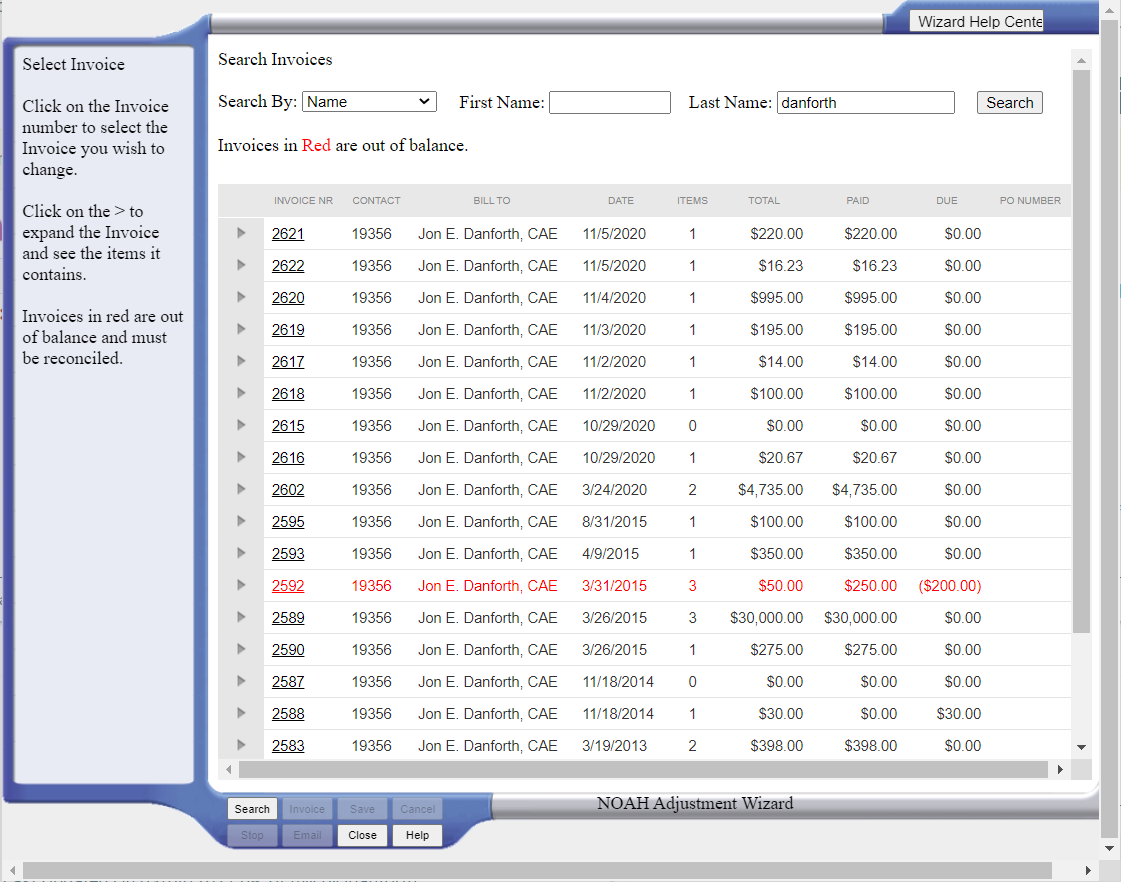
After searching, you will see the results in the grid. You may sort the columns by clicking on the column titles to help you find the item you are looking for. Invoices in Red are out of balance and need to be Reconciled.
Click on the underlined Invoice number to select the Invoice you wish to view. Click on the arrow to the left of a row to expand the Invoice and see the items it contains.
View Invoice
The invoice contains three parts: the Invoice header, the Payments and the Items within the invoice. Each of these parts may be adjusted by clicking on the  edit icon on the row you wish to view or adjust. Click on the arrow to the left to expand any row to see the detail for the payment or item.
The item quantity, price, and total include any adjustments you may have made to the item. The paid and due columns are the result of how you have applied incoming payments to the item.
You may also click on any of the active buttons at the bottom of the panel to return to the search page, proceed to add a payment to the invoice, close the Wizard.
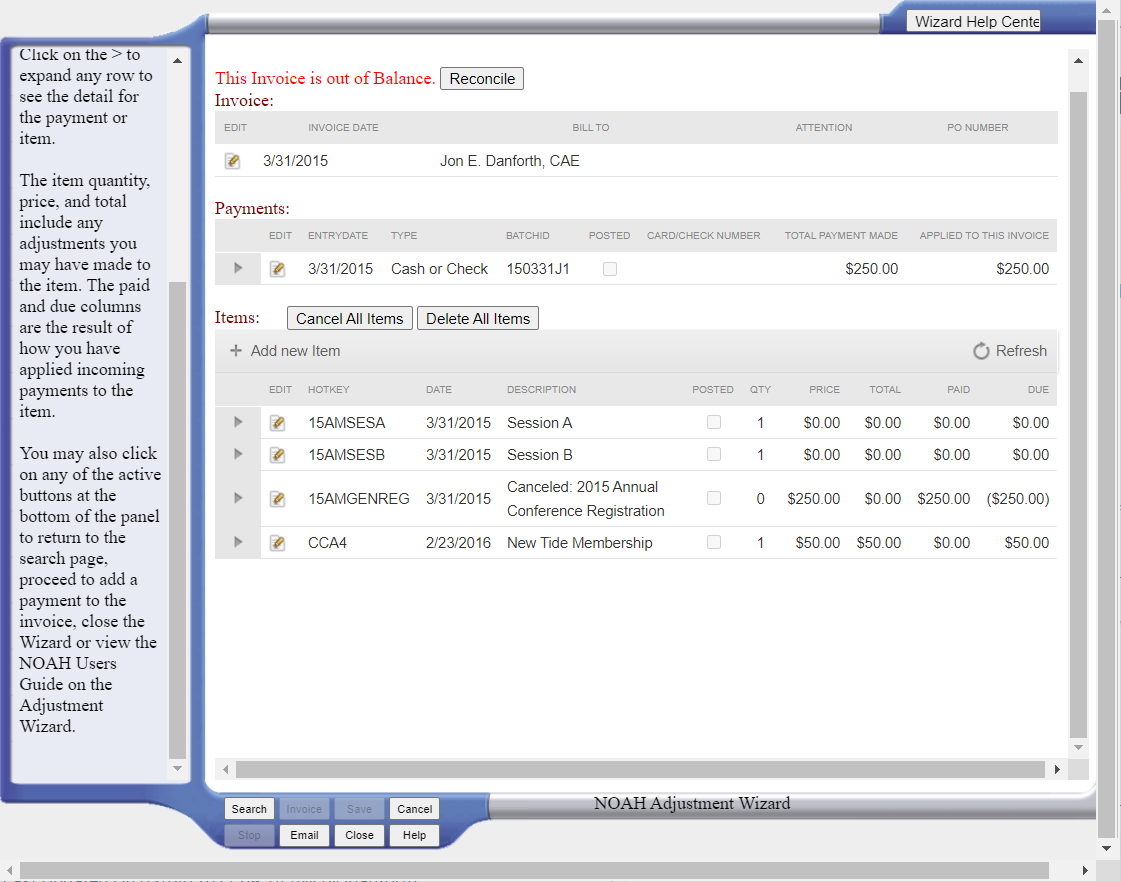
On the Invoice, there are several items you can edit using the edit icon.
Edit Invoice
The invoice header contains information that applies to the entire invoice. Included are the date you created the invoice, any Purchase Order (PO) number the client may want on their invoice, an attention line to direct the mailed invoice to a particular person or office, and the contact responsible for payment. Using the edit icon will allow you to update these fields:
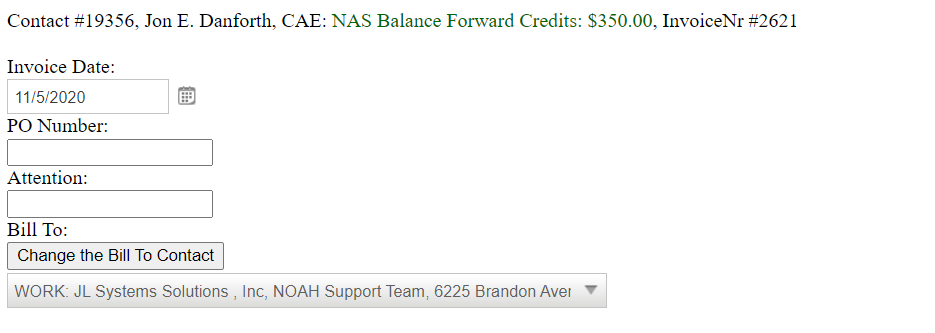 You may change the contact responsible for payment by clicking on the Change the Bill to Contact button and searching for another contact. There is a check box when changing the Bill To for updating all the items with the same Ship To with this new Bill To as well.
You must click the Save button to record your changes or the Cancel button to go back with no changes.
To delete an Invoice, you must first have removed all payments and all items associated with that Invoice.
Edit Payment
Using the edit icon next to a Payment will allow you to view and edit it.
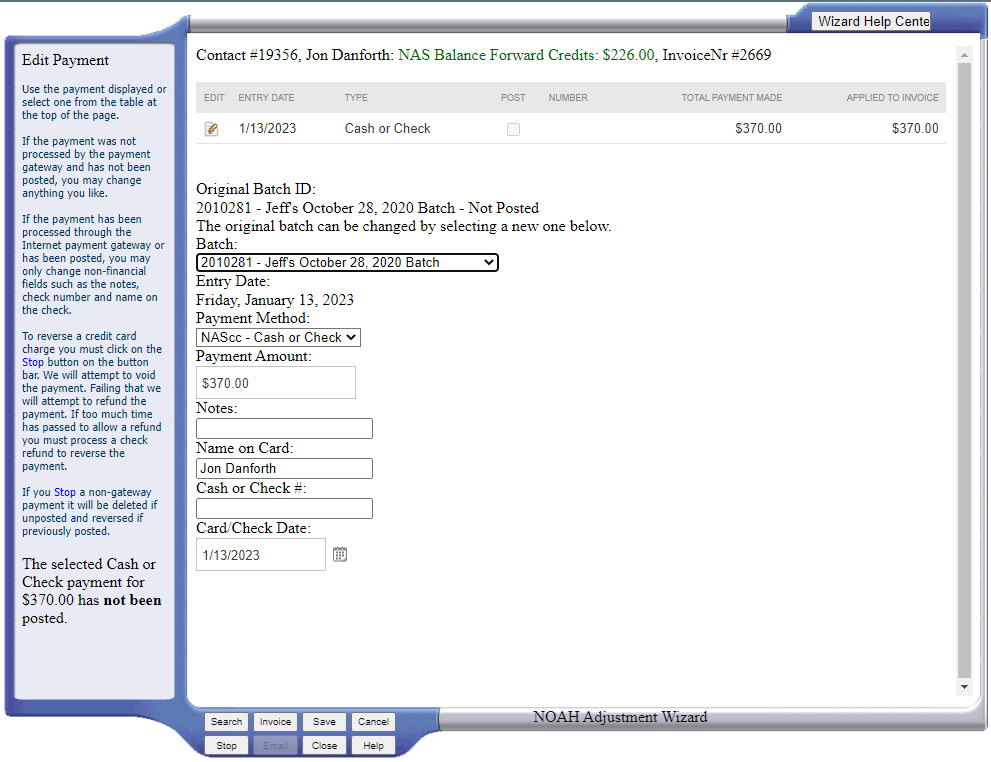
If the payment was not processed by the Payment Gateway and has not been posted, you may change anything you like. If you Stop an unposted, non-Payment Gateway payment, it will be deleted from the invoice and from the batch.
If the payment has been processed through the Payment Gateway or has been posted, you may only change non-financial fields such as the notes, check number and name on the check.
To reverse a posted payment, not processed through the Payment Gateway, click on the Stop button at the bottom. You must have a batch open to track this reversal, and a new payment will be created on this invoice and in that batch reversing the original payment.
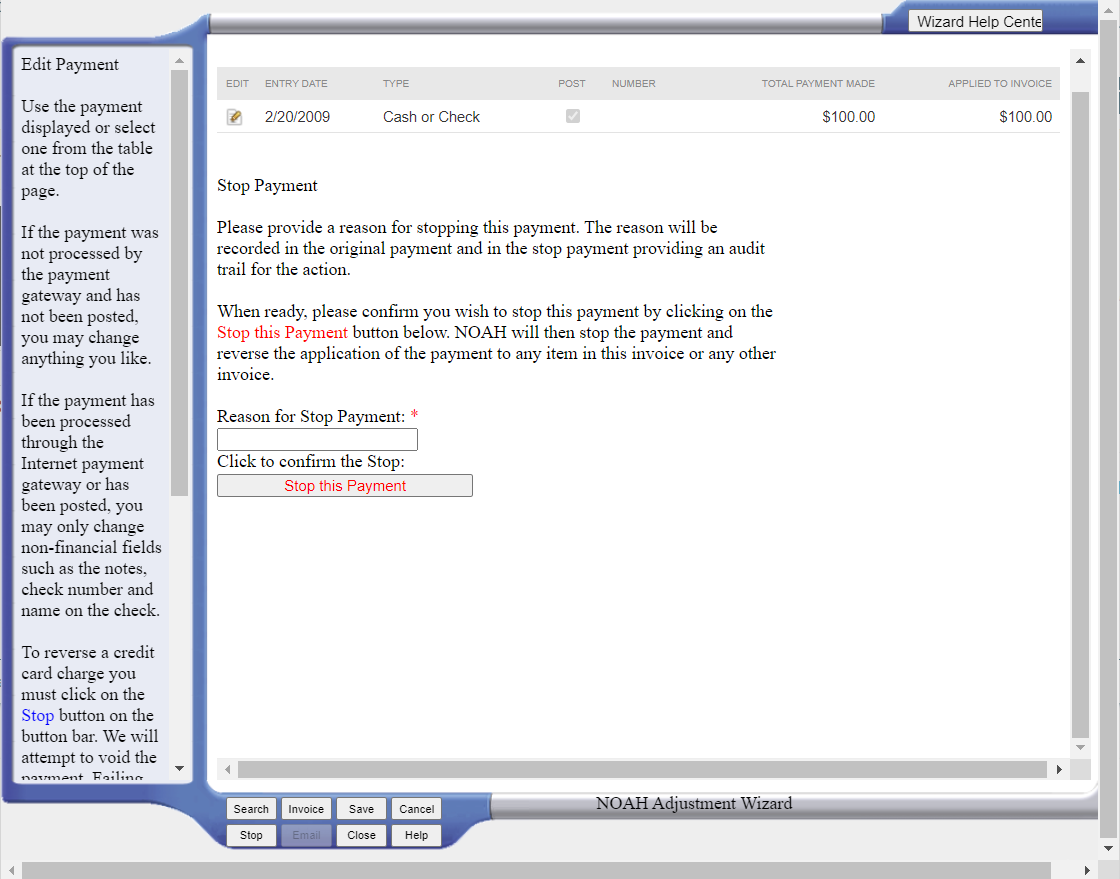
To reverse a credit card charge previously processed through the AMS and your Payment Gateway you must click on the Stop button at the bottom. You must have a batch open to track this reversal, and that batch must be a CHARGE CREDIT batch to void or refund the payment in your Payment Gateway. You can choose a DO NOT CHARGE CREDIT CARD batch that does not process credit cards if you wish to reverse the payment in the AMS without actually voiding or refunding the credit card through your Payment Gateway.
The AMS will first attempt to void the payment in the Payment Gateway. Failing that, it will attempt to refund the payment. If too much time has passed to allow a refund (usually 90 days, but that depends on your Payment Gateway) you must process a check refund to reverse the payment.
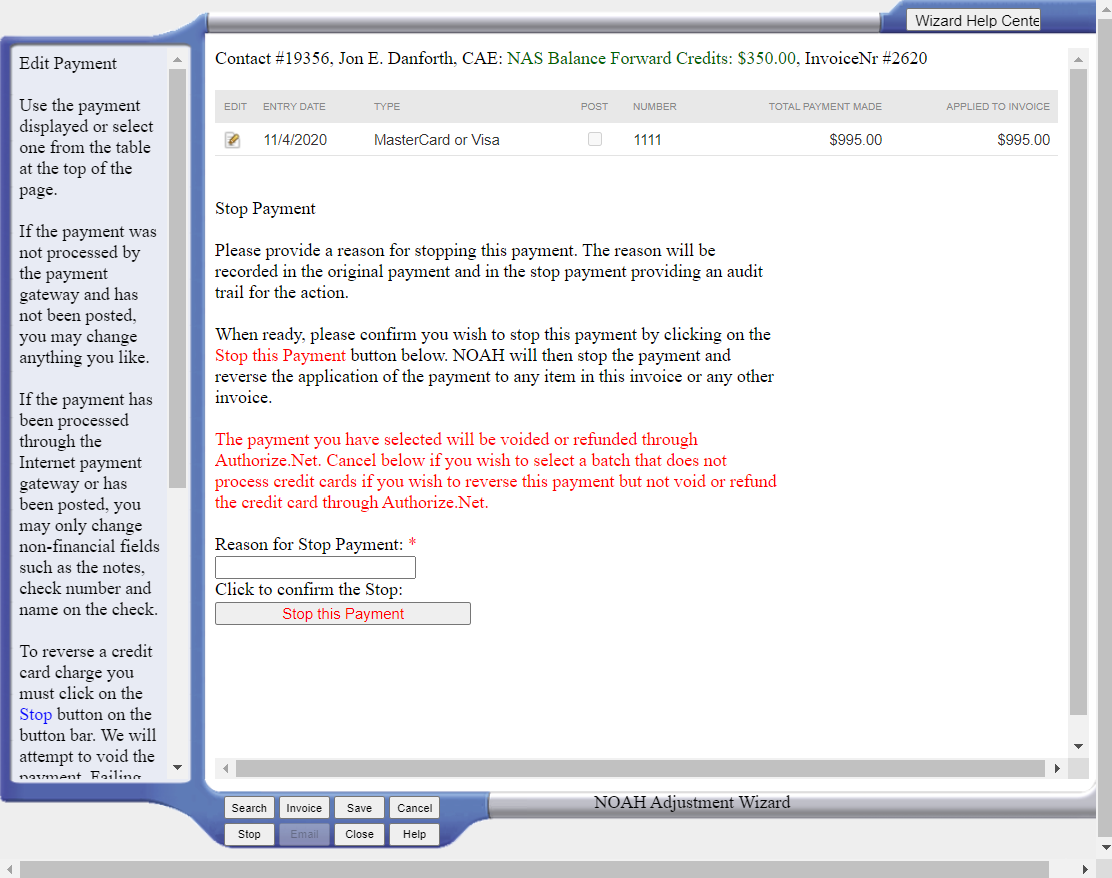
If you wish to partially refund a credit card payment, then you must first adjust the item(s) to which the payment is applied. By adjusting the amount or quantity of the item you will have lowered the amount to be charged, and can then refund that partial amount on the credit card. If you wish to refund the entire amount of the credit card, then you do not need to adjust the items.
NOTE: You cannot change individual items on an invoice that was paid by credit card -- price, quantity, or cancellation – on the same day the charge is made (before the payments are settled in the Payment Gateway). Unsettled transactions can only be voided. They would look correct in the AMS, but no payments would actually be received.
Under Payments, you may also change information related to a payment by clicking the edit pencil icon for a payment. This includes the Batch a payment was in (the dropdown shows open batches in the current Accounting Company to choose from), the Payment Method, the Amount, and other related information.
Edit Items
You may enter changes for any of the fields that have boxes on the page. If the item has been posted to accounting, the AMS will make the necessary adjustment entries including adjusting deferred income.
You may change the name and/or address of the contact receiving the item by clicking on the Change the Ship to Contact button.
If you make changes to either the start or expiration dates and the item has been posted, it will be your responsibility to go to the appropriate folder or list code and update the entitlement dates found there.
When cancelling items, you should set the quantity to zero (0). Updating the quantity to zero will keep the item on the invoice, but free the funds associated with it. Changing the Price to $0 does not cancel an item, but gives it away for free. If you want to write-off an item, you an set the price to zero.
The Cancel All Items button will reverse all items.
Items can be cancelled at any time, even if it is posted or has a payment against it. If the item has not been posted and does not have a payment against it, the quantity will be set to zero and will be marked as cancelled. If it has been posted of has a payment against it an adjustment item will be added to the invoice with a negative quantity to match original quantity of the item, yielding a net quantity of zero. The original item will be marked as cancelled.
If the cancelled item had a payment against it, you will have created an out of balance status for the invoice. This is because you have received payment for an item that no longer has a fee, and thus it is overpaid. When this happens, you will see This Invoice is out of Balance at the top of the screen with a Reconcile button that will allow you to either refund or reapply the difference or add it to the contact's balance forward balance.
You can’t cancel a parent item unless all children are already canceled – which includes discounts. If cancelling an item that has a discount applied to it, first edit the discount in the adjustment wizard to make it apply to the invoice, not the item to be cancelled. It's a drop down selection. Then you can cancel the item and the discount.
Recurring items may only be cancelled. Once the subscription has been created in Authorize.net, it can only be cancelled and any changes would require a new purchase of a recurring HotKey and new subscription in Authorize.net.
If there are items that can be deleted, you can click on the Delete All Items to delete them from the invoice. An item can be deleted if it is not posted and does not have a payment against it. Do not delete an item if you wish to maintain a history of the item being on the invoice; instead cancel it.
New items can be added using +Add new Item at the top of the grid. If there are administrative/cancellation fees, those are setup as a separate Program Code and can be added to the invoice. Similarly, if a refund is due for cash, check, or credit card that can't be refunded thru the Payment Gateway, a refund Program Code can be added to the invoice. To indicate that a check refund will be sent to the contact when a cancellation is made, add the refund Program Code to the invoice before reconciling the cancellation. There is a report Monthly Business Report for Refunds.
Reconcile
The Reconcile button is used to reallocate payments that have been collected for items that have been cancelled or reduced below the amount of payment previously collected on the items. The total amount to be allocated is shown at the top. You must allocate this total among all of the sections that follow in order to reconcile the invoice. You can allocate any amount you wish on any individual line up to the total required.
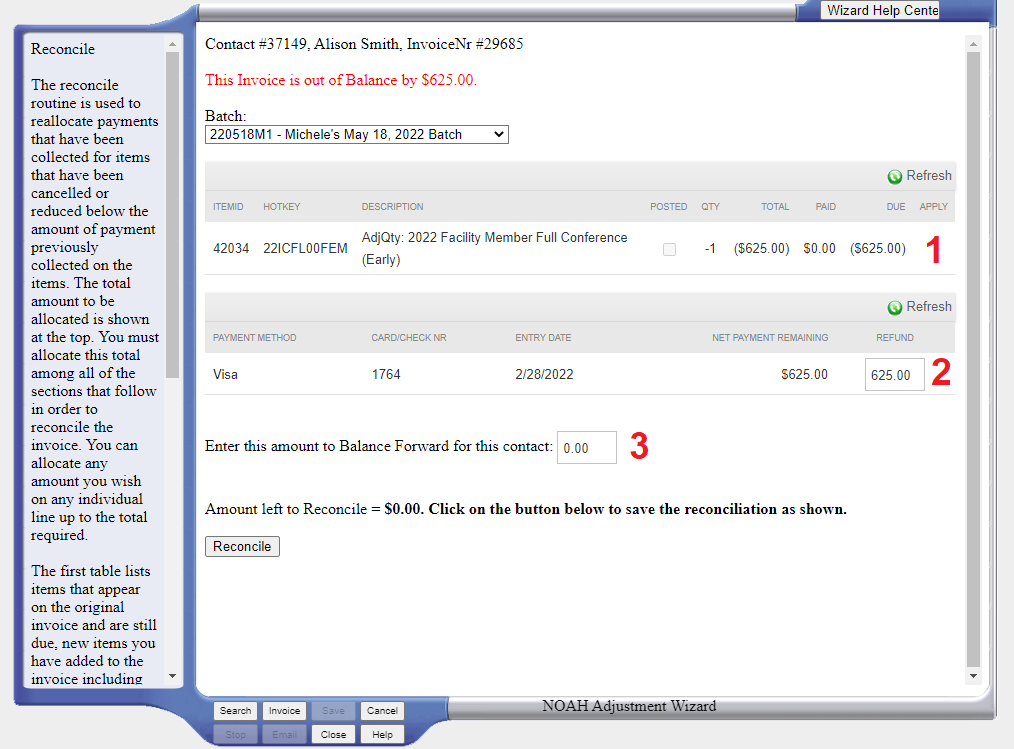
The first table lists items that appear on the original invoice and are still due, new items you have added to the invoice including cancellation fees and check refunds and adjustments for items that have been cancelled or reduced.
The second table lists any payments that have been processed through the Internet payment gateway for this invoice that have not been previously voided or refunded. This table will only display if gateway payments exist that have not been fully voided or refunded previously.
The final box is used to indicate an amount you wish to add to this contact's balance forward balance for use on a different invoice.