The viewing and printing of Adobe PDFs generates a lot of support questions so we want to pass on the information below.
We have not changed how PDF outputs are created; they are done so through Adobe and Microsoft as they have been since we first started providing exports. The way the reports are displayed and printed are handled in your print settings within Adobe. They are not dictated by the PDF document we create, although we do orient the report output expecting that you will keep the orientation when you view and print them. You must follow the steps below in order for it all to be automated for you.
These are the steps to follow to open and print .pdf files hassle-free.
- Do not use the browser to view documents unless you are not trying to print them. The browser versions generally do not read or save settings and preferences, and are also not full versions of the Adobe reader. This is why it is ignoring the portrait/landscape orientation and not fitting to a page correctly.
- Be sure to download the free Adobe Acrobat Reader- https://get.adobe.com/reader/
- Be sure to download the .pdf file, and then open it from your downloads folder. Clicking on the document at the bottom of a browser, like Chrome, typically opens the document in the browser. Again, this generally ignores your settings which is the issue you are running into. Open the document directly, so that it opens using the Adobe reader which will load your preserved settings.
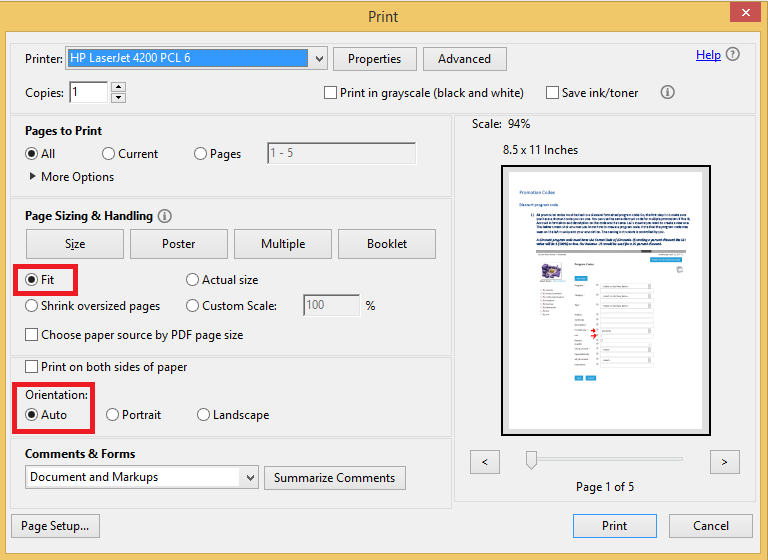
- When you go to print the document, open the printer preferences if it does not do so already. Be sure to set Page Sizing & Handling to Fit. Be sure to set Orientation to Auto. Both of these are shown below. If you have opened the document in the browser version, you can still choose these settings but will typically have to do so every time you open a file. Using the Adobe Acrobat Reader alleviates this issue.