
The Badge Kiosk is a program that accepts a registrant's information and prints their badge. The program is a Windows executable and you may choose to use a regular computer or one with a touch screen for attendees to interact with. NOTE: JL Systems does not provide any hardware for this process.
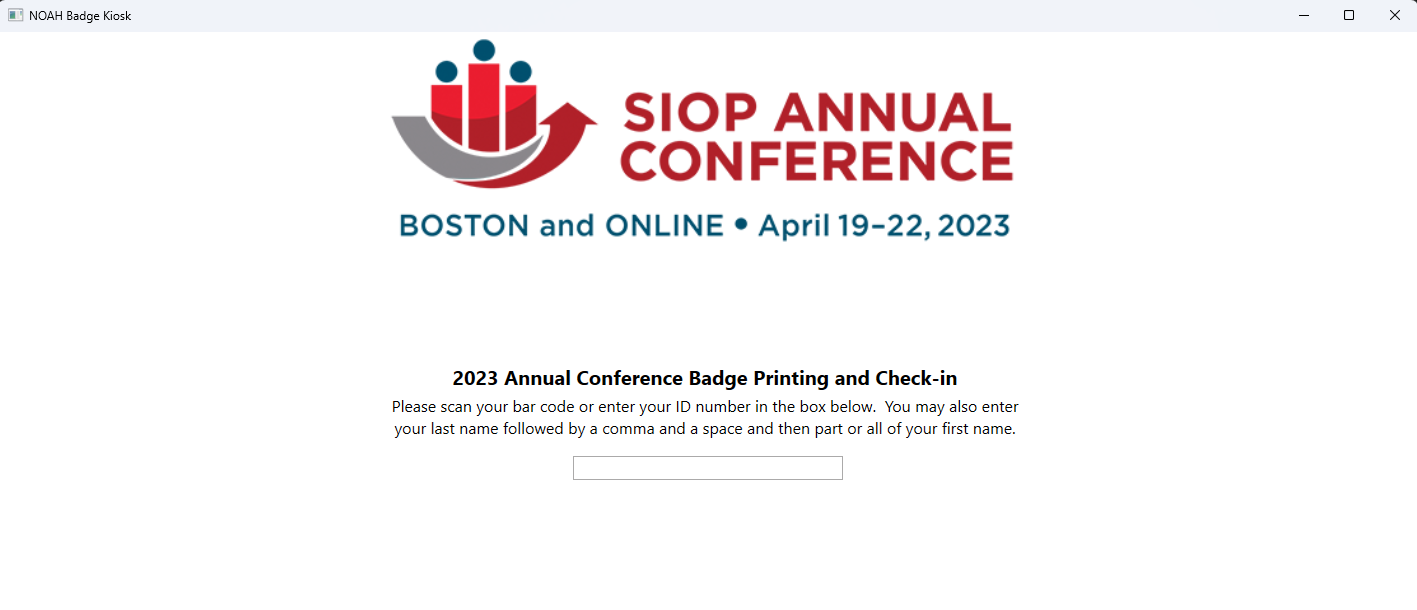
The screen below is an example, where an attendee and enter their name or their Contact ID from the AMS. NOTE: if you have provided your attendee with a bar code or QR code that contains their Contact ID, you can configure a scanner to read that into the field on the screen and add an enter key stroke to do the search.
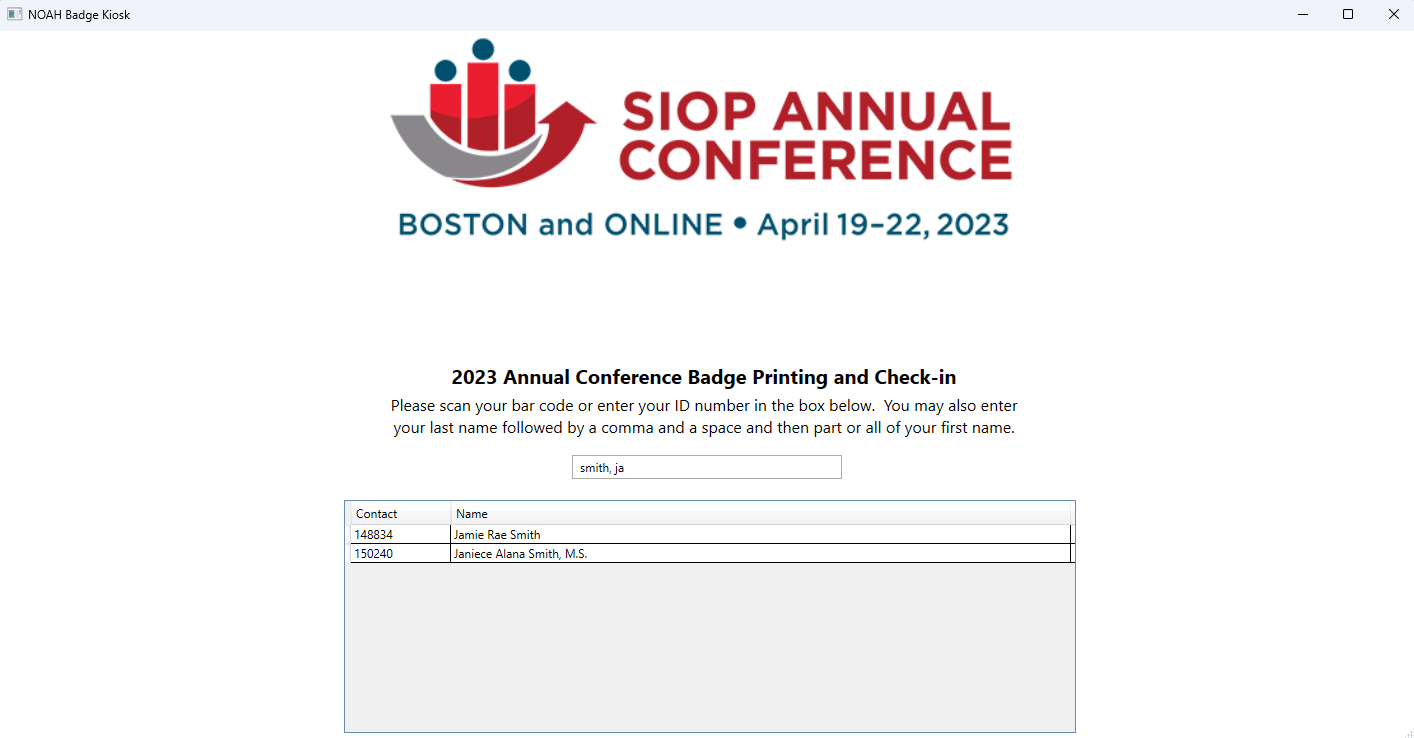
If more than one registrant is found, a grid is shown so that the attendee and select the badge they want to print.
If a registrant can't be found by the entered name, a blank grid is shown. If a Contact ID that can't be found is entered, an error message is shown.
Once an attendee is selected, or only one registrant is found, the badge will print, and a note shown on the screen while printing.
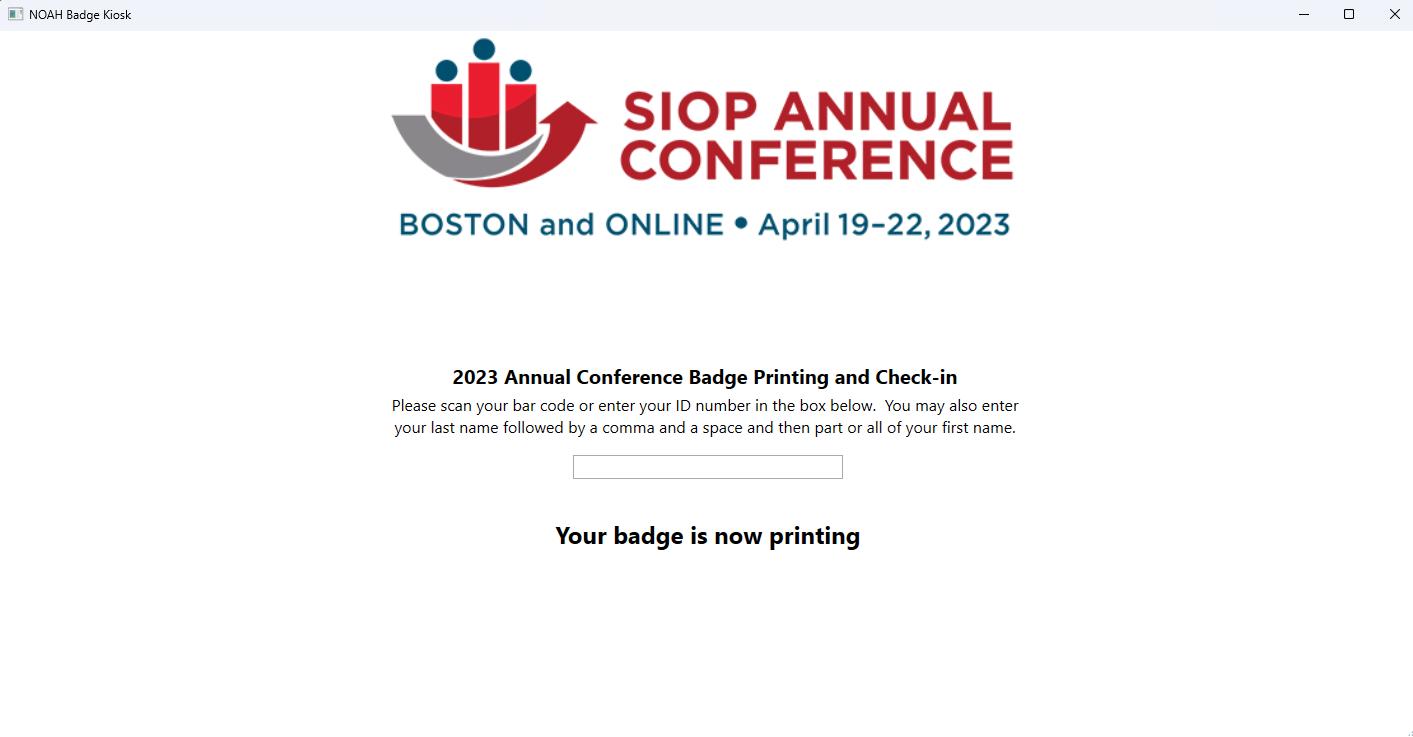
The badge printed is the standard AMS badge configured and selected with the registration hotkey used. NOTE: JL Systems does not provide the badge printer or badge stock.
Configuration
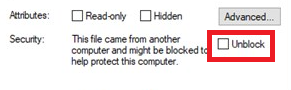
The Badge Kiosk is setup for you by JL Systems and typically takes about 4 hours to implement. You will receive a .zip file from us with the program already configured. If you have problems running the setup.exe file, make sure to open the Properties of the .zip file and check the Unblock box to allow your PC to access this file.
When running you can use Alt-S to access the settings screen.
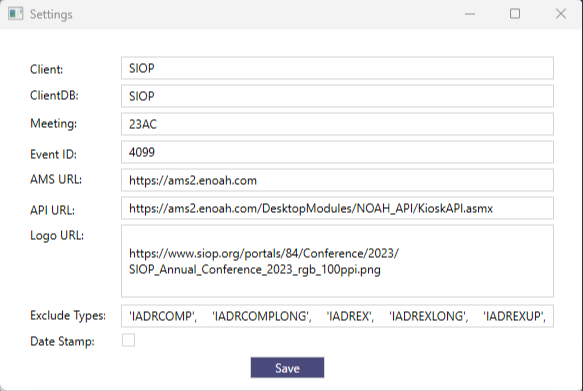
- Client & ClientDB are set to your instance of our software and should not be changed.
- Meeting is the meeting you are printing badges for.
- Event ID is the Registratn event that attendees have registered for.
- AMS URL is the location of your AMS and should not be changed.
- API URL is the location of the web methods used by the Badge Kiosk and should not be changed.
- Logo URL is the location of the file to be used as the logo on the Badge Kiosk screen.
- Exclude Types are hotkeys to be excluded from badge printing.
- Date Stamp marks badges as printed so they can only be printed once.
If you want to use the Badge Kiosk, or want more information, please Contact Support.