
 Blue Sky eLearn provides a full range of learning technologies that include a proprietary learning management system and a complete set of virtual event services. We help organizations capture educational content from either live or virtual settings, then manage and deliver that content to a global audience through our learning platform. Blue Sky eLearn's Path LMS is integrated with the AMS.
The integration has 3 main components:
Setting up your integration will take several hours of billable work, depending on how complex your need are. Please a create a support ticket so the integration can be configured appropriately.
More information on this integration can be found in the Path LMS Help Docs.
Single Sign-On (SSO)
Learners login to the Path LMS using the same credentials they use with the AMS website. Clicking the Login button in the Path LMS directs learners to the login page in the AMS website, where they login and are directed back to the Path LMS. The Path LMS will then know who they are and has access to these fields from the AMS:
- First & Last Name
- Member (True/False)
- Member Type
More information on this SSO integration can be found in the Path LMS Help Docs.
eCommerce Integration
Courses in the Path LMS are created with information about the related event in the AMS, and shown in a course catalog. When a learner finds a course they want to take they are directed to the AMS web shopping cart where they can purchase the course. Once purchased, the AMS notifies the Path LMS and the learner is granted access to the course. A message on the Thank You page of the AMS web shopping cart can direct the learner back to the Path LMS to take the course.
The linkage in the AMS is setup on the Event the course is tied to. When editing the Event, towards the bottom of the screen, add an Instruction for BSKY= the External Product Id in the Path LMS. The External Product Id should be only letters and number, no spaces or special characters.

In the example above 1234 is the External Product Id in the Path LMS. This is set on the Course in the Path LMS. Edit the Course and navigate to the Advanced tab.
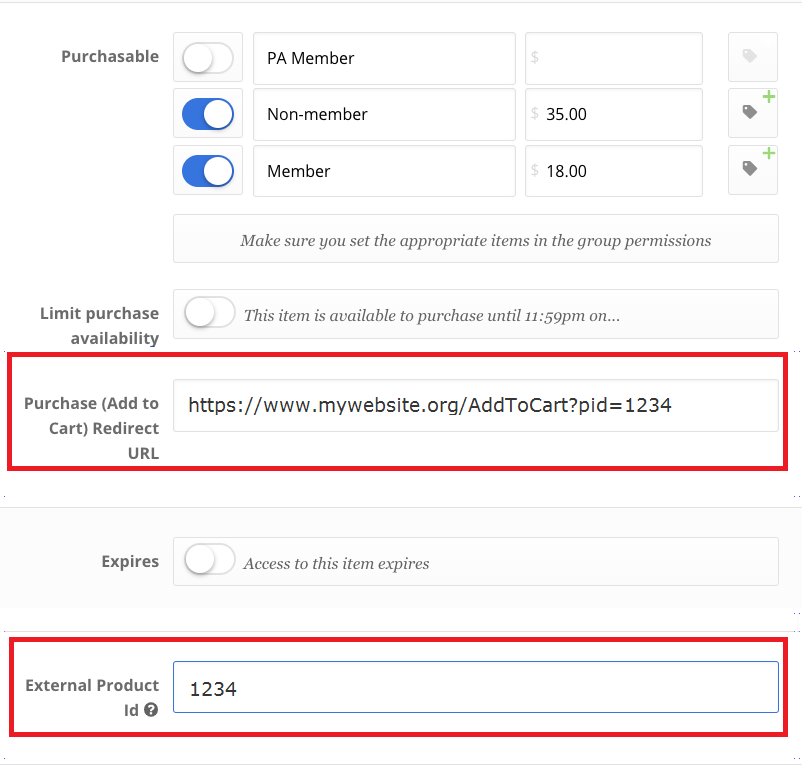
There are two places to add the External Product Id in the Path LMS:
- Purchase (Add to Cart) Redirect URL- this is the URL on your AMS website for the AddToCart page, with a parameter for the pid (Product Id), which is also the External Product Id
- External Product Id- enter the External Product Id
You will also want to set the appropriate pricing in the Path LMS. This is what displays in the Path LMS catalog, and needs to be manually set to match the pricing in the AMS, where the purchase actually happens.
When this External Product Id is passed to the website shopping cart, the AMS will find this event and put the corresponding HotKey in the shopping cart for the logged in user (for example the Member or Non-Member HotKey).
When the purchase has been made, the external product id is communicated back to the Path LMS for the user so they gain access to the course.
If CEU credits are to be written back to the AMS (see next section), they must be added as well when Editing the Course on the Advanced tab. These will need to match the credit type setup for the event in the AMS.
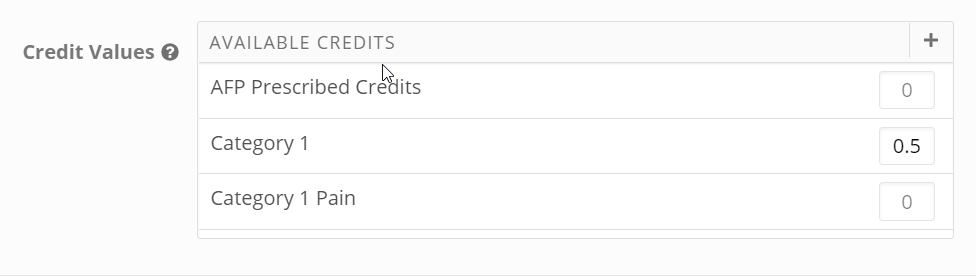
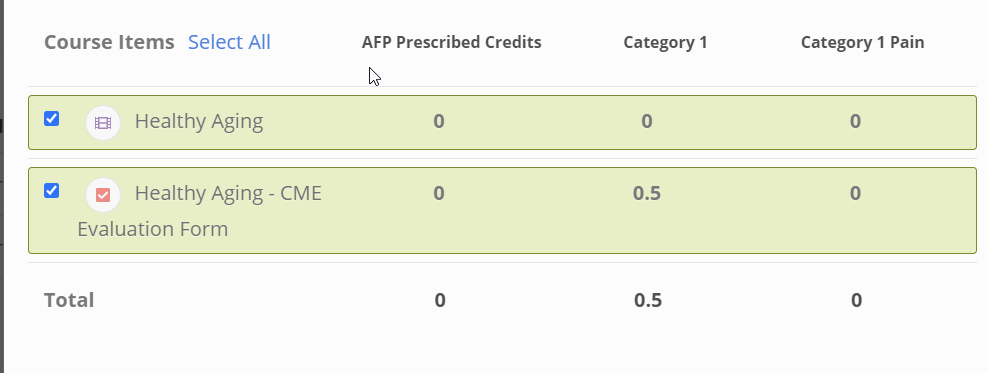
If you are working with certificate writebacks you will need to ensure that the items that are spread throughout the course have the proper credits and credit types attached to them.
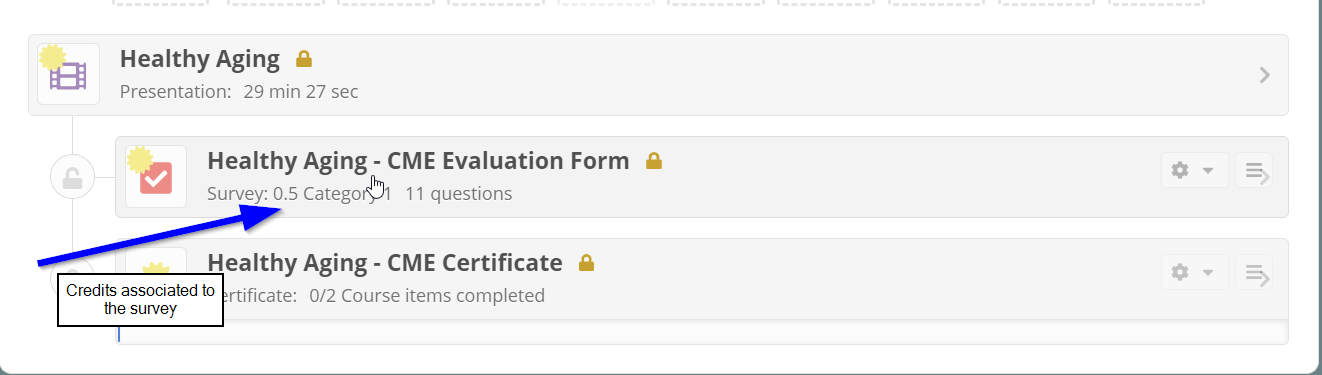
Once you have ensured that the proper credits have been added to the items in the course, you will need to navigate to the certificate itself and make sure that you select those credits to be attached to the certificate. You will need to navigate to the certificate, click on ”Edit,” under the ”Basic” section you can assign credits to the certificate by selecting the required items that are needed to earn the certificate.
More information on this eCommerce integration can be found in the Path LMS Help Docs.
Activity Writeback
As the learner completes the course, there are 2 milestones that can be selected from to be written back to the AMS:
- Assessment Completed- when an assessment is completed and submitted. Information written back includes:
- PassFail: This is a true of false state. This tells us whether the user passed of failed the assessment.
- CompletionDate: Date in which the item was submitted or completed.
- CreditType: Type of credit earned by the user; this will need to match the credit type setup for the event in the AMS.
- CEU: Value of credits earned by the user.
- Certificate Issued- when a learner has earned a certificate. Information written back includes:
- CompletionDate: Date in which the item was submitted or completed.
- CreditType: Type of credit earned by the user; this will need to match the credit type setup for the event in the AMS.
- CEU: Value of credits earned by the user.
Once enabled by the Blue Sky team, the writeback activity will begin populating on learners' related folders in the AMS. To confirm the activity, you can check the information against the Integration logs found in the Admin dashboard.
Any writeback activities can be "Rerun" by the admin by clicking the "Rerun" button. You can also "Rerun" all writebacks in a specific time period if necessary.
More information on this Writeback integration can be found in the Path LMS Help Docs.
Setup
To setup this integration, the Blue Sky Team will need at a minimum
- the Login URL
- the Web Service URL
- the API Key
The last two items will be configured for your AMS once you have created a support ticket. You will need to setup the courses and events in both platforms with the appropriate External Product Ids as described above.