
The Booth Edit button will open the Exhibit Booth Editor popup window. In the left column will be displayed all of the currently created booths, in numeric order. To the right you have the option to change the Status, Top and Left position and Height and Width (these can be decimal values) of the booth. If you make a change click the Save Changes button to commit your changes. A message will appear indicating the change was committed, such as “Your changes have been saved.” You cannot change the booth number. When you are finished you can click on the Close Window button or click on the Close in the top right corner of the popup window to close the popup.
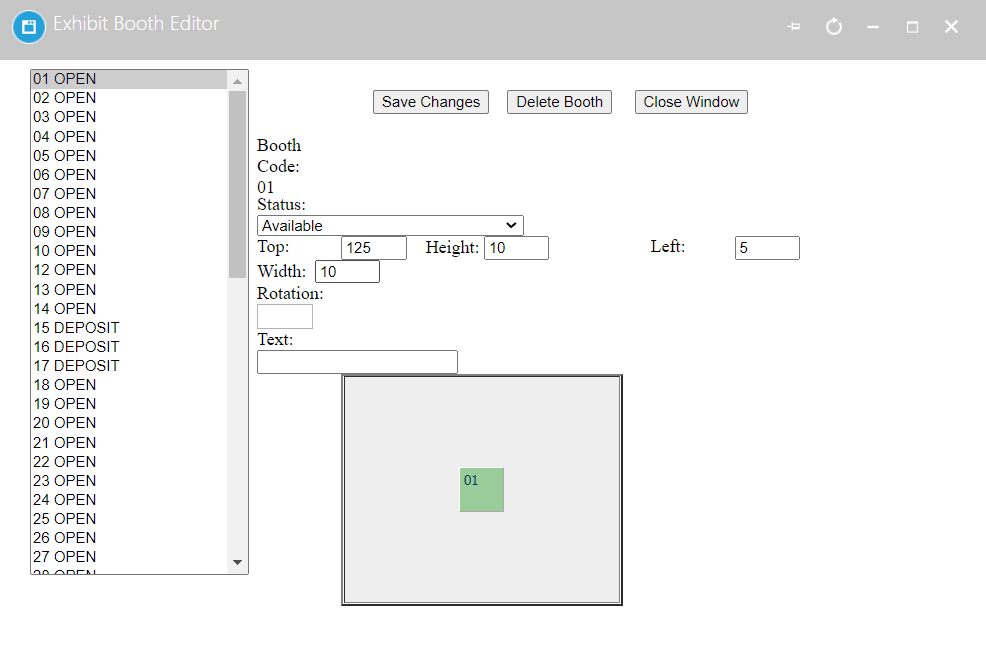
You may also click the Delete Booth button to delete the currently selected booth. A system popup will ask, “Are you are sure you wish to delete?” When you click on the OK button the booth will disappear and the popup window will automatically close. Be careful; there is no “Undelete” option. You cannot delete more than one booth at a time using this method.
Information on editing booth text can be found in the Status Setup section of this chapter.
Accessing the Booth Editor from the Show floor
Whenever you view progress of your work on the Floor Layout page, you can click on any booth to open the Exhibit Booth Editor popup. The properties of the selected booth will be displayed and are ready to be edited.
About booth rotation
Occasionally you may find that placing your booth at an angle will allow you to better utilize the floor space available or present a more interesting environment. This decision needs to be made with the assistance of conference services to make sure posts and other features allow for the layout.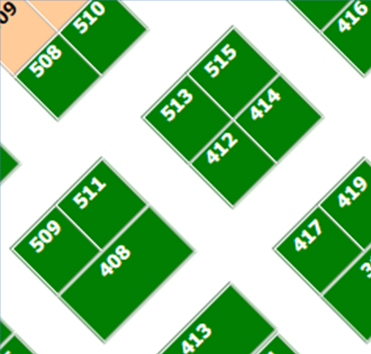
It will be slightly more difficult to create the layout in the Booth Builder. You can create a series of booths, but you will need to edit every booth individually. You will need to enter 45 in the Rotate: field and determine the location of the top left corner of each booth.
In a standard layout a lateral row of booths will all have the same distance from the top and the next booth will have the distance from the left side increased by the width of a booth or the width of an aisle.
With a 45° diagonal layout, each 10 ft. booth in the diagonal row will have an upper left hand corner 7 feet closer to the top and 7 feet further from the left side than the previous booth. It might be useful to use a spreadsheet to calculate the position for each booth.
At this point in time it is not possible to see the rotation affect within the AMS, so what you will see in the Floor Layout will look like this:
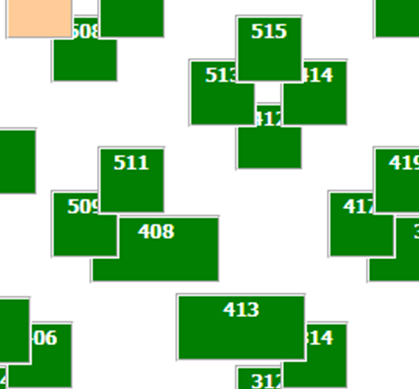
The main thing, however, is how it looks on the website, and how it matches the actual Show Floor.