
Once your applicants have submitted documents via the Repository module on your website that contain the submission data you requested, your process may shift from collecting that information to analyzing that information. The Repository has an optional review process built right in that can be used as needed.
For instance, in the case of submissions that are applications for a scholarship or other kind of award, the next step in your association’s process may be to have reviewers determine whether or not each application qualifies for consideration. Further analysis can then be done on each qualified submission in accordance with your criteria for final determinations, such as scoring qualified submissions to select which applicant(s) win an award or scholarship.
The Repository Reviewer Documents in the AMS allow your staff to build standardized review questions that your designated reviewers answer as they analyze submission data. When reviewers complete the reviewer document on your website, their answers are saved in the AMS for your future reference. Your staff can assign the review of one or more submissions to particular individuals or committees. Reviewer Assignment is discussed in a later section of this chapter.
To create a Reviewer Document, first expand the Repository Document Admin section of the Repository Dictionary by clicking on the carrot found to the left of that Description. 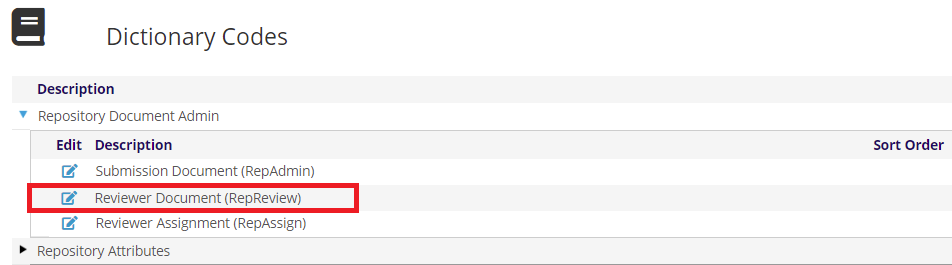
Then click on the  edit icon to the left of Reviewer Document to see a grid of the reviewer documents already available.
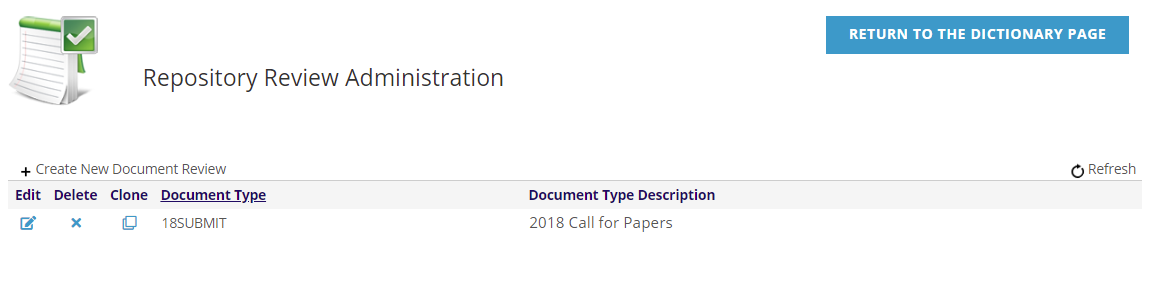
You can create a new or edit an existing reviewer document via this grid.
You can also Clone and then edit an existing reviewer document that you know to have components that closely match a new need. This cloning option is very useful for more efficiently creating documents for recurring functions such as awards, fellowships and calls for papers or presentations.
To clone a reviewer document, click on the  clone icon in the same row as the one you want to duplicate. The AMS will ask Are you sure? you want to clone the document, with the answer default of “Yes” pre-checked. Click on that “Yes” to continue, or click on “No” to cancel the clone request.
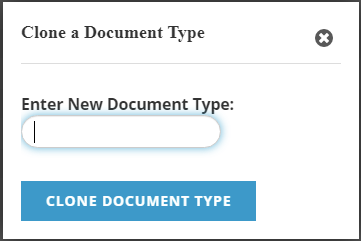
Once you click “Yes” to clone, a pop-up box will appear and you enter the exact Document Type from the corresponding submission document for the new version. Click on the blue “Clone Document Type” button to create the clone. To cancel, click on the “x” at the top right of the box. The reviewer document grid will reload with the new document listed. Click on the edit icon in its row to edit the Review Questions as needed to suit the updated purpose. The Document Type and Description fields are populated from existing submission document data.
You can also Delete an existing reviewer document through this grid, but we recommend only doing so if no reviews have been submitted for it. Even if you are no longer accepting reviewer input for one of these documents, keeping it in the grid can be greatly helpful in the future, as it can be cloned if a similar reviewer document is needed again. It can also be helpful to keep it as a reference for how certain questions were built.
The Reviewer Document setup is very similar to the Submission Document setup, only much simpler. There is a section for Review Questions that uses a form that is similar to the Document Data form for creating submission questions, but there is no Document Categories section.