
No matter what type of Repository function you choose, it all starts with building an electronic Submission Document for users to fill out.When users complete the document on your website, their answers are saved in the AMS for your future use and/or analysis. You can create questions to be answered via multiple choice selection, numeric or text box fill-in answers and essay descriptions. You can also require users to upload documentation.
The Repository is accessed via the main AMS Menu. To get started, click on Dictionary under Repository. The resulting Dictionary Codes grid view is in the next screen shot.
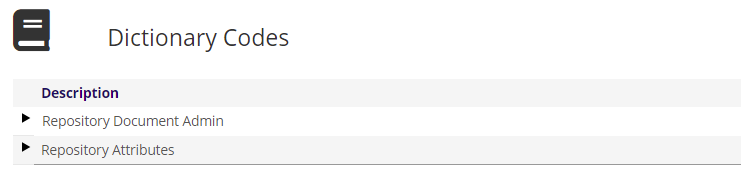
To create a Submission Document, first expand the Repository Document Admin section by clicking on the carrot found to the left of that Description. The resulting view is in the next screen shot.
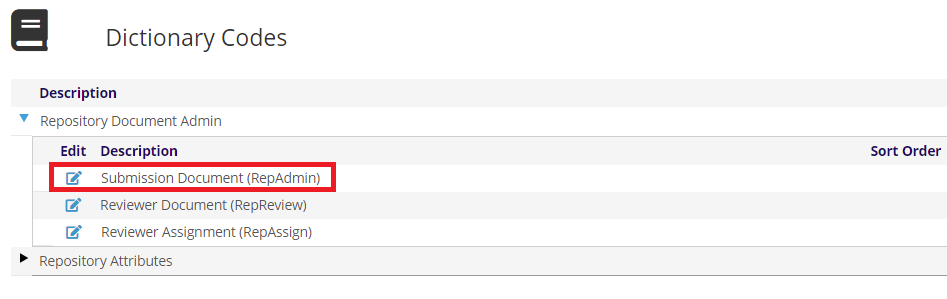
Click on the  edit icon to open the Submission Document (RepAdmin) section. You will then see a grid of the submission documents already available.
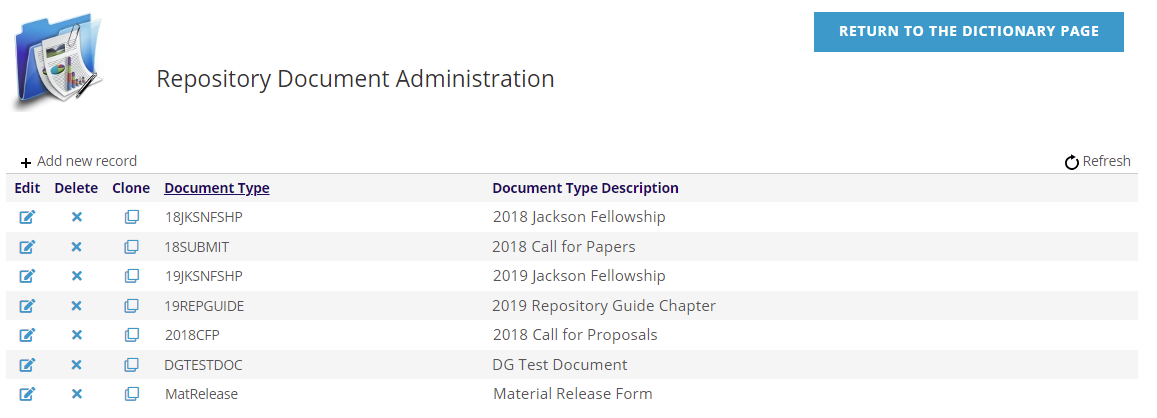
You can create a new or edit an existing submission document via this grid.
You can also Clone and then edit an existing document that you know to have components that closely match a new need. This cloning option is very useful for more efficiently creating documents for recurring functions such as awards, fellowships and calls for papers or presentations.
To clone a submission document, click on the  clone icon in the same row as the one you want to duplicate. The AMS will ask Are you sure? you want to clone the document, with the answer default of Yes pre-checked. Click on that Yes to continue, or click on No to cancel the clone request.
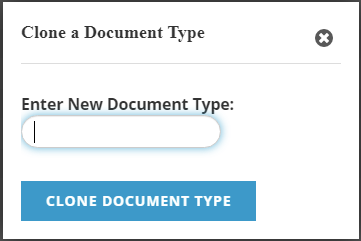
Once you click Yes to clone, a pop-up box will appear and you enter the unique New Document Type for the new version. Click on the blue Clone Document Type button to create the clone. To cancel, click on the x icon at the top right of the box. The submission document grid will reload with the new document listed. Click on the edit icon in its row to edit the Document Type Description, and any other fields in any part of that document to suit the updated purpose. The Document Type and Description fields are discussed in the next section of this chapter.
You can also Delete an existing submission document through this grid, but we recommend only doing so if no submissions have been made for it. Even if you are no longer accepting submissions for one of these documents, keeping it in the grid can be greatly helpful in the future as it can be cloned if a similar submission process is needed again. It can also be helpful to keep it as a reference for how certain questions were built.