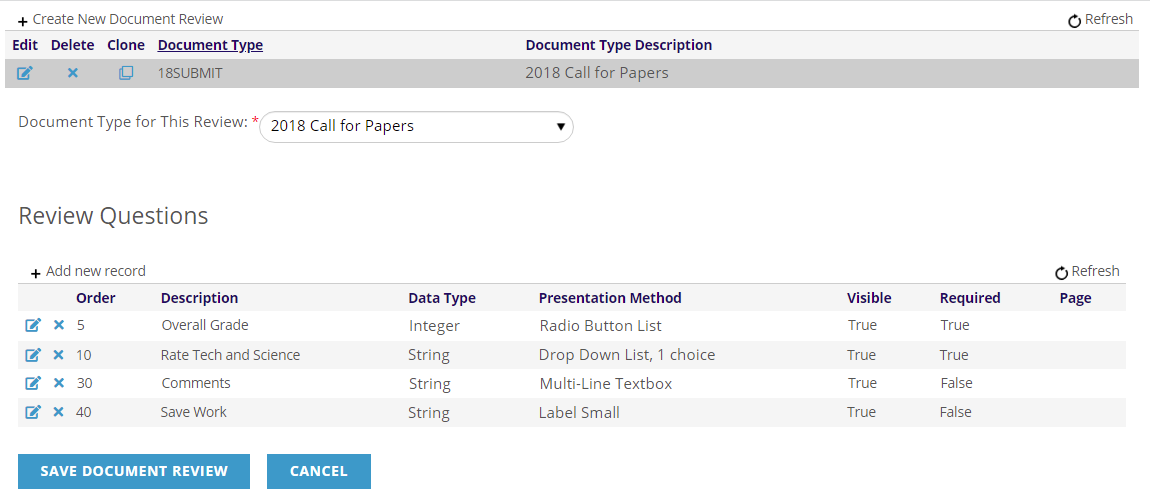
Once you have created the reviewer document as described above you can build all of the questions you need reviewers to answer under the Review Questions section. Whether you need multiple choice input questions, text box fill-in answers, long essay descriptions, or all of the above, staff create those review questions in the reviewer document that is tied to the corresponding submission document.
The next screen shot shows a review document with two questions, but you can create as many review questions as you need. Click on +Add new record to add a new review question. 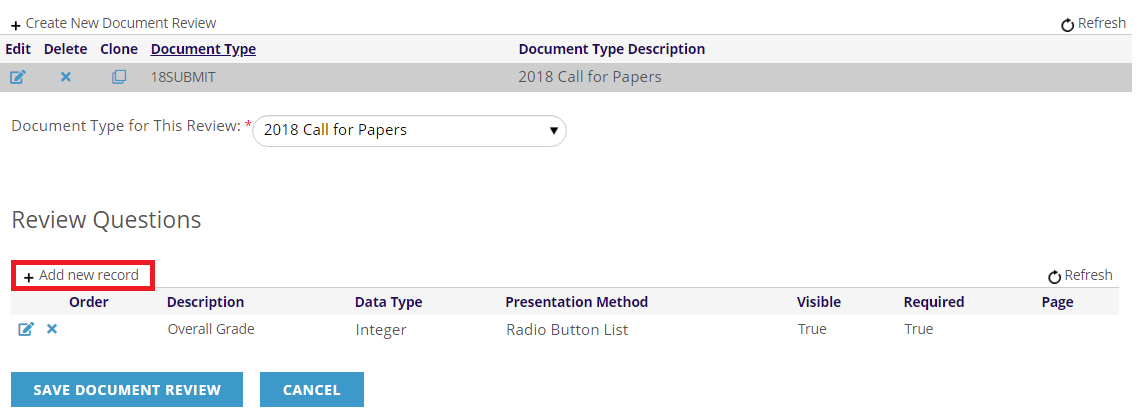
To Edit an existing review question, click on the edit icon found to the far left in the same row as the question you need to work on. Click on the
 delete icon to Delete a question. When you click to add or edit a question, the page will reload with the following fields.
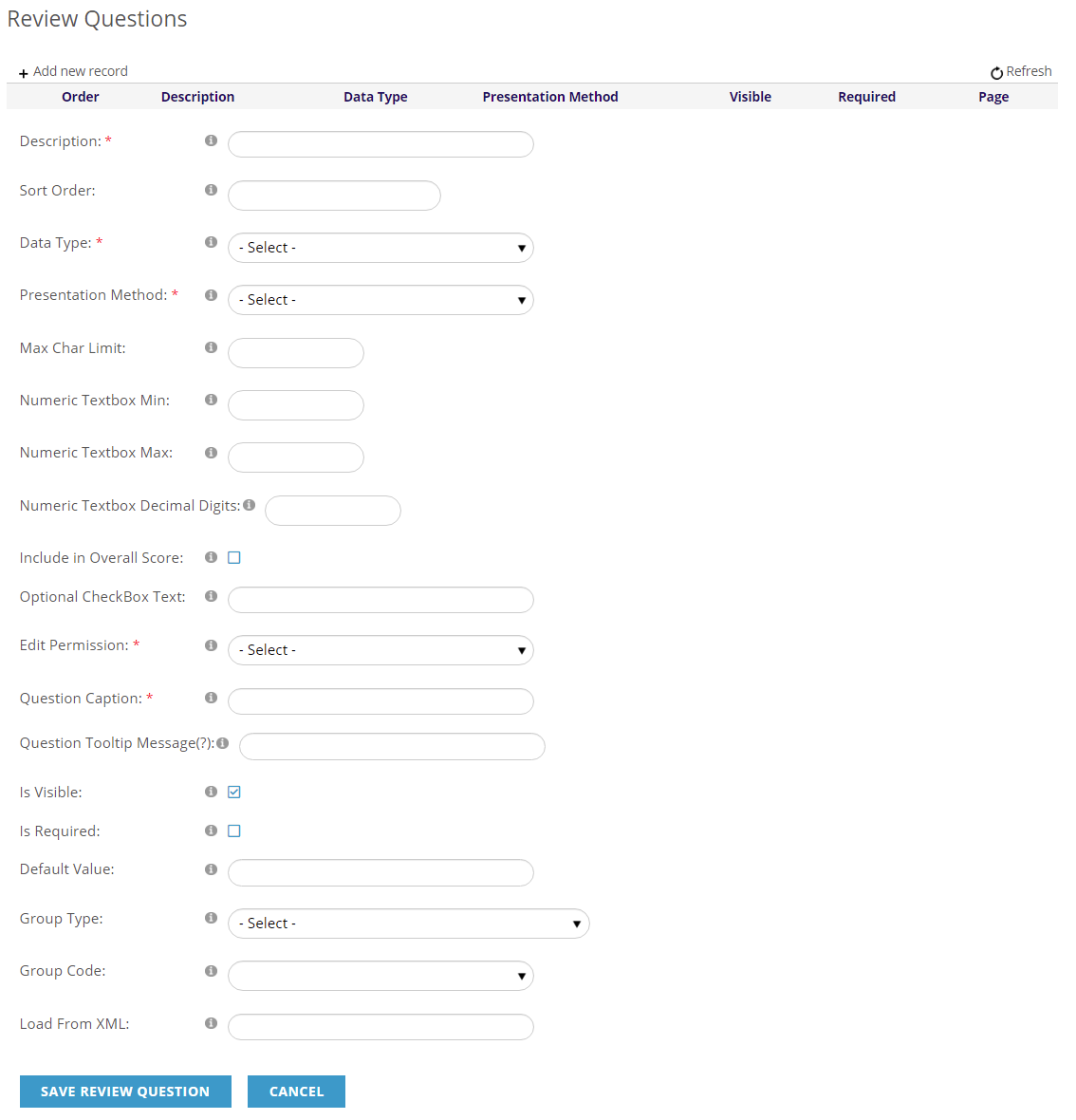
The data form to build a review question is very similar to the one used to create submission questions, with fewer fields overall. The same fields that are mandatory for submission questions are mandatory for review questions, and are used in the same way. This section will discuss one field that is in this form that is not on the submission question form. All other fields are discussed in the earlier section of this chapter on Building Submission Questions in Document Data, including the options in the Data Type and Presentation Method drop down menus. This section will only mention the repeated fields in discussion of what is mandatory and in different example review questions.
Help text for each field is visible when you hover over the  information icon found next to each field.
There is also an Appendix of these fields at the end of this chapter for your future use, when you need quick reminders rather than full explanations.
The mandatory fields are Description, Data Type, Presentation Method, Is Visible and Is Required.
The Include in Overall Score check box field, found below the Numeric Textbox fields, defaults to unchecked. This field is optional and should only be checked when you want to include numeric scoring data entered by the reviewer for this item in the overall score computation. The field must be filled with a number, or selection of a number from a drop down list or you will get errors when you run the score results export. The scores that are calculated include the total and average for each question and each submission in total. More information on Repository reports is found in a later section of this chapter.
Review questions have the same options for Data Type and Presentation Methods as submission questions. Review questions for Calls for Papers that are tied to use of the Presenter Center are discussed in the Presenter Center chapter of the NOAH User Guide.
Remember to click the “Save Review Question” button to Save a new review question or any changes made after editing an existing question. Click the “Cancel” button to discard the new question or any changes made since the last save of an existing question.
It is recommended practice to have your staff figure out what questions you need, the order in which you want them to appear to the reviewer, the presentation method to be used and all sets of pre-defined answers to be used for each one before you create them in the review document.
Staff can use the same process to build dictionaries of answers to review questions as is used for submission questions, in order to accommodate any criteria you need reviewers to follow. More information on creating those answers in the dictionary for typical review questions is found later in this section.
Here are just a few examples of how to build review questions that are typical of awards and other competitive processes.
An example of how to create a review question that asks the reviewer to choose a score from a pre-defined list of answers in order to rate an award submission on the soundness of its technical and scientific basis is in the next screen shot. Remember that the reviewer will see what’s entered in the Question Caption field, and the Description in the topmost field only appears in the Review Questions grid in the AMS.
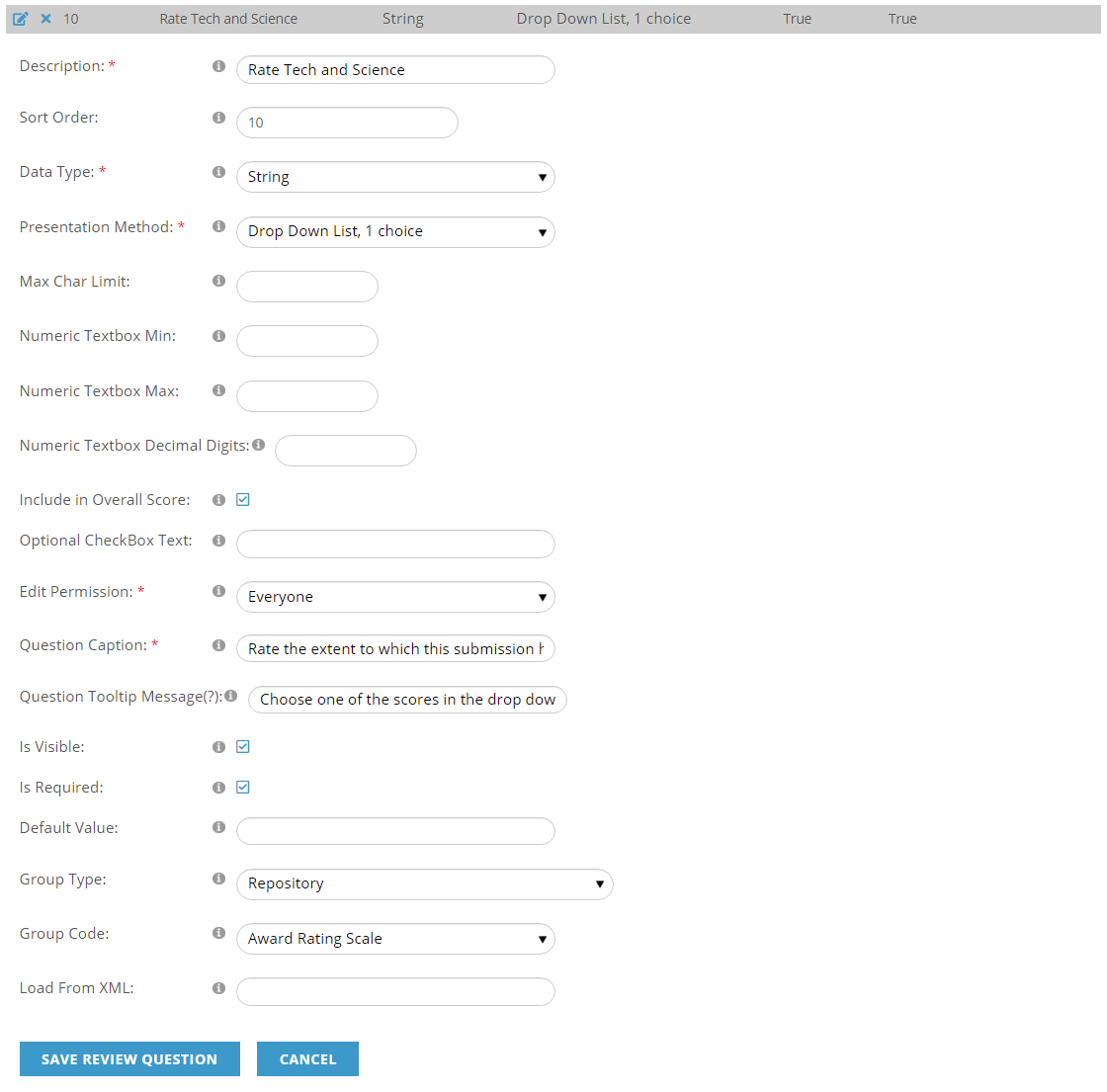
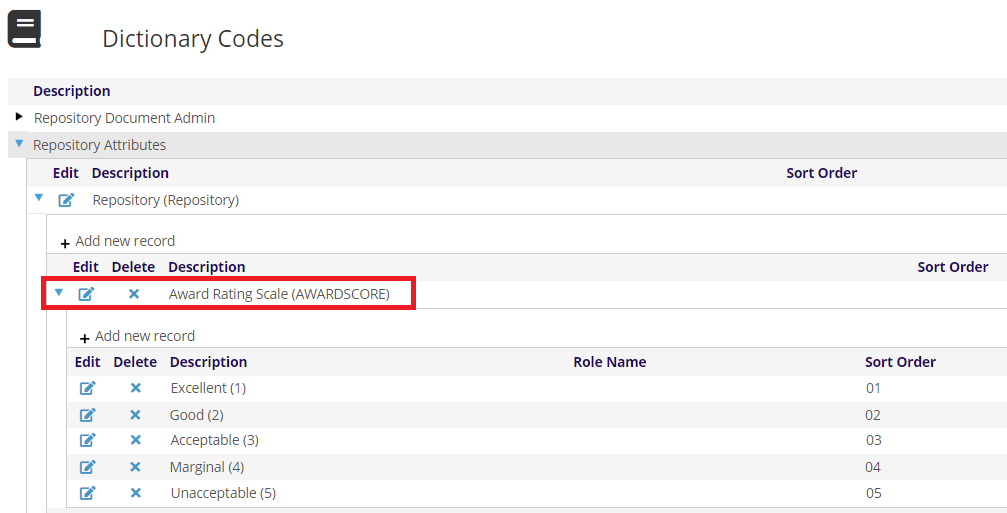
An example of a possible set of answers for the Awards Rating Scale Group Code selected for the sample question above is shown next. Note that the MasterCodes (seen in parentheses, are numerical characters and the Description field) lets the reviewer know what analysis corresponds to each number. Since the review question includes a checkmark in the Include in Overall Score field, the Group Code selected must have numerical MasterCodes, as discussed earlier in this section.
Here is an example of a review question with a Multi-Line Textbox answer with a maximum character limit of 1,000 that asks the reviewer to provide comments on the submitted application.
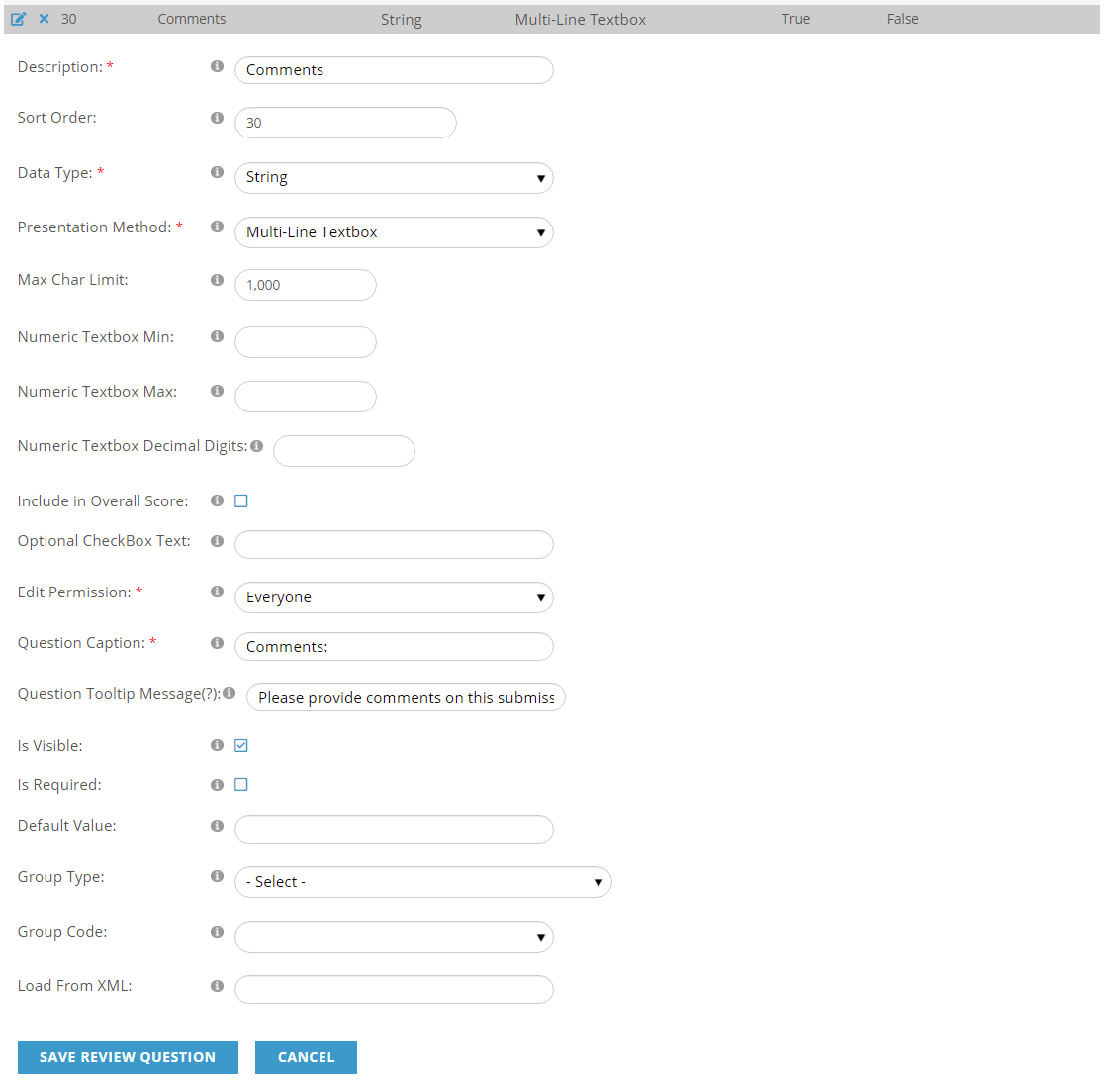
No Group Code needs to be selected in the above case.
Use of Labels help the reviewer successfully and accurately complete the web version of the review form, and work just like they do for submission questions. Here is an example of a Label that reminds the reviewer to save any changes before submitting a review.
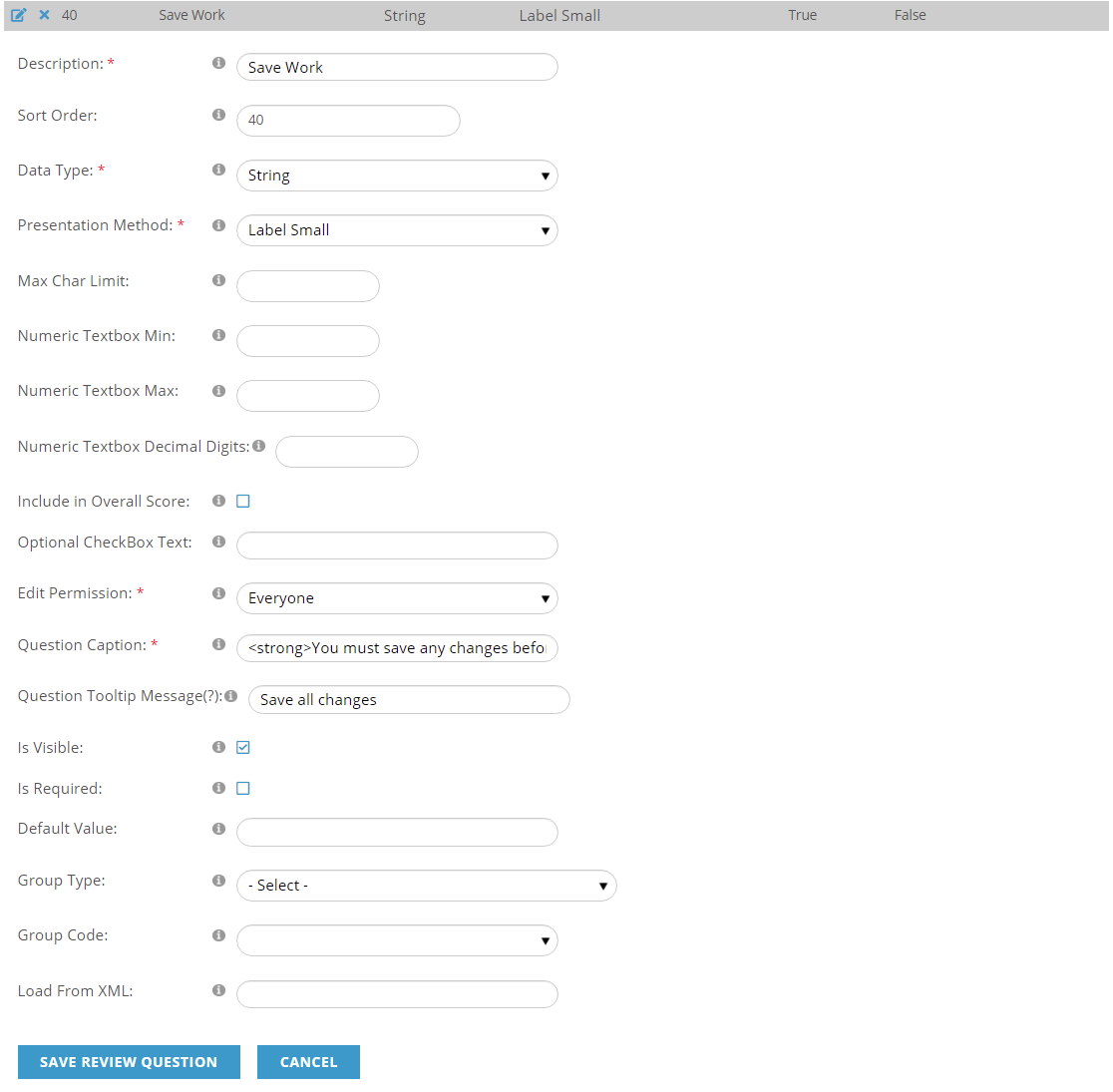
No Group Code needs to be selected in the above case.
Once you have entered all of your review questions, you can see them all at a glance in the review document, similar to the view in the next screen shot.