
Once you have created the submission document as described above you can build all of the questions that you need users to answer under the Document Data section. 
Click on + Add new record, found above the grid, to add a new submission question. To Edit an existing question, click on the edit icon found to the far left in the same row as the question you need to work on. Click on the
 delete icon to Delete a question. When you click to add or edit a question, the page will reload with the following fields.
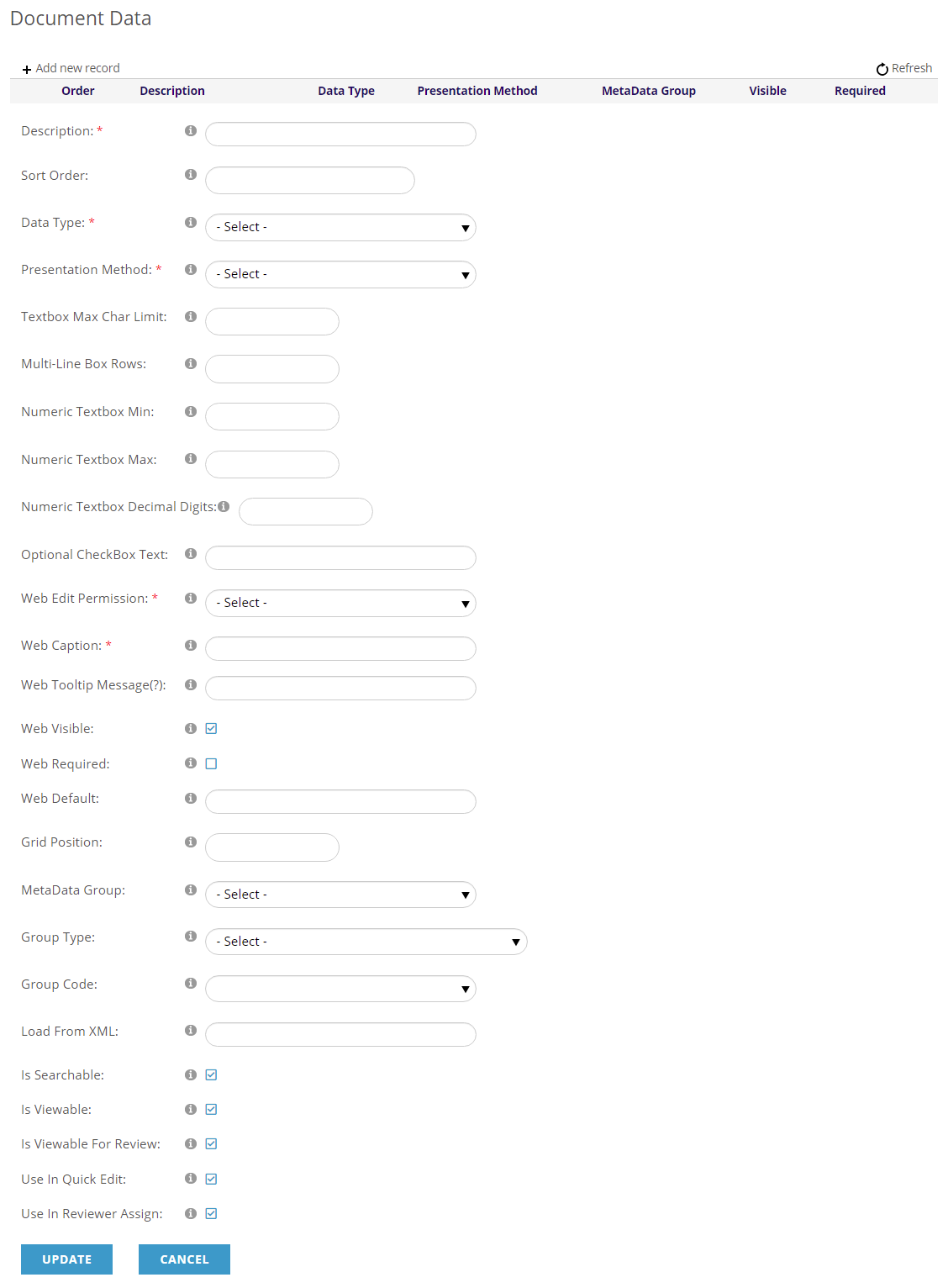
Since this data form is longer, we will tackle it in different parts. There are mandatory fields for each question, and the other fields may or not be used depending on the purpose of your submission document. For example, use of fields will be different for questions when the document will be used to accept applications than a document that lets users contribute to a document library. The discussion of each field or group of fields will cover different scenarios as needed. Once you learn to build different kinds of questions, the process becomes easier.
Help text for each field is visible when you hover over the  information icon found next to each field.
There is also an Appendix of these fields at the end of this section for your future use, when you need quick reminders rather than full explanations.
The mandatory Description field is a textbox for a brief description of the question. This description will appear in the Document Data grid in the submission document and will not be seen by the user in the web form, so choose words that will help staff distinguish it from other questions.
The numerical Sort Order field isn’t mandatory, but it can be used to organize the order in which your questions appear in the Document Data grid. This field does not affect where the question appears to the user in the web form.
The Data Type drop down menu is a required field where you select the type of data to be entered when a user answers this question. These choices are defined by the AMS:
- String- A small amount of plain text (1500 characters)
- Large Plain Text- A larger amount of text
- Large HTML- A larger amount of text which can contain HTML
- Hyperlink- Text representing a website address (URL)
- Email- Text representing an email address
- Integer- A numeric value represented in 32 bit
- Long- A numeric value represented in 64 bits.
- Decimal- A numeric value with decimal places
- Currency- A numeric value representing a monetary amount
- Boolean- A binary value representing On/Off or True/False
- Date- An alphanumeric value representing a date
- Time- An alphanumeric value representing a time
- Single- A single precision floating point format value
- Double- A double precision floating point format value
The most common selection in this field is String, which is used when answers are entered as general text, when the values don’t have to be numeric or specialized.
When the answers have to be numeric select Long for whole value integers and Double when allowing decimal places.
When the answer is made by a check box use Boolean. Please note that all other check box methods use String.
When an answer is a website address, select Hyperlink.
Select Email when asking for an email address.
This field can also be set for the user to answer with a Date or a Time.