
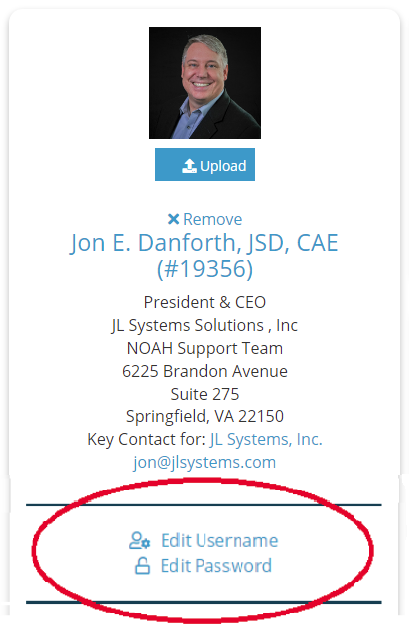
 The Profile Header includes two controls, Edit Username and Edit Password, that allow you to change your website users’ usernames and passwords.
NOTE: you can only change a username and/or password if the contact has already created an account on your association’s website; if a contact has not created an account yet, you will not see the options to Edit Username and Edit Password in the Profile Header.
First make sure you were using the correct contact record. If you were, the contact or one of your staff would need to create their website account on your association’s website, at which time the preferred username and password can be entered. In such cases, have the contact create the account themselves whenever possible.
When you need to make such changes to a contact with a website account, first bring up the corresponding contact record via the Contact Search function. Then select Edit Username or Edit Password from the Profile Header. The first option opens the page with the view in the next screen shot.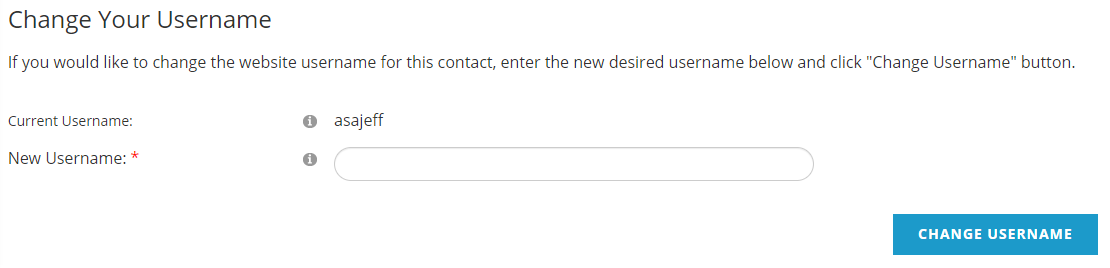
Enter the New Username and then click the Change Username button. NOTE: some AMS clients are in shared environments and all usernames must be unique across all the organizations in a shared environment.
When you select the Edit Password option in the Profile Header, the page reloads with the following view.
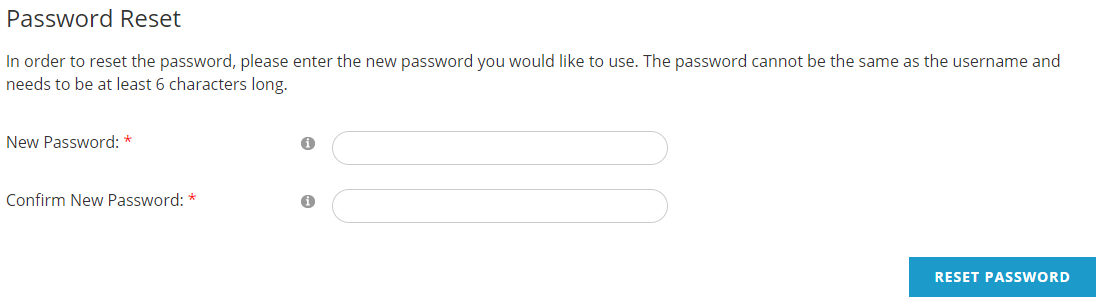
The New Password and Confirm New Password fields are both mandatory and the entries in each much match exactly in order to make the change once you click the Reset Password button.
This view includes a reminder that “The password cannot be the same as the username and needs to be at least 6 characters long.” As you type characters into the New Password field, a password strength indicator appears to the right of that field to let you know that the characters entered thus far comprise a password that is Very Weak to Very Strong. A stronger password is of course preferred. If you are helping a contact and they ask you to reset to a password that tests as Very Weak or Weak we recommend you consult with them to create a stronger password in the interest of better protecting access to their data. Including upper and lower case letters, numbers, special characters, and a greater length will increase a password's "strength."
NOTE: there is a list of "banned" passwords that are not allowed because they are common, profane or easily guessed. Attempting to use one of these will give a message that The new password is not valid. Please make sure it is at least 6 characters long. If you get this message, please try a more complex password.