
Clone Perpetual Invoices can be found in the AMS Menu under Money, Clone Perpetual Invoices. This utility will create new 12 month invoices for those with a perpetual Authorize.net recurring payment plans that have fully paid their prior invoice.
First, you must select or create a Batch for the cloned invoices that will be created. Since this process is only creating invoices (there is no communication with Authorize.net), the batch may be either a CHARGE CREDIT or DO NOT CHARGE CREDIT CARD batch.
NOTE: Be sure to select the correct Accounting Company at the top of the screen (Acct Co) as you must create the batch in that Accounting Company and only invoices for that Accounting Company will be created. If you have Perpetual Invoices in multiple Accounting Companies, you will need to have batches in each and run this process for each.
Once the batch is identified, you will see more fields on the page.
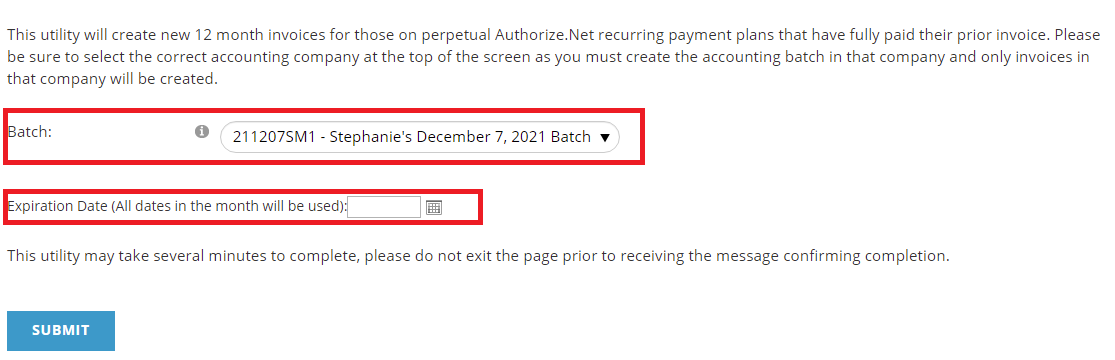
Next, you will pick the Expiration Date. The utility will select any fully paid invoices expiring in the same month and clone them for the following year.
For example, if you processed the Authorize.net payments for September, then presumably some of those payments where the 12th and final monthly payment on invoices of some of those members. After the September payments have been processed and before processing the October payments you would want to run this Clone Perpetual Invoices process and enter a September date. You can enter an Expiration Date of 9/1/2021 or 9/30/2021 or anything in-between, only the month and year are important. The process will look for any invoices that are fully paid that cover membership through any date in September and create a new one for the following October-September. That way you have a new invoice to then put the October payments against, and then the subsequent months until the next September’s expiration.
Finally, click the Submit button to start the process of creating the invoices. Please remain on the page until the process finishes, which can take several minutes. When done, a note is displayed in red by the Submit button stating how many invoices were created under the selected batch.