
The Communications section of a Contact Profile contains phone numbers, fax numbers, email addresses, website addresses and any other types of communication you track for a contact. This section is also where a key phone, fax, email and website is designated for each contact, though this is not required. The fields for Communications criteria are in the next screen shot.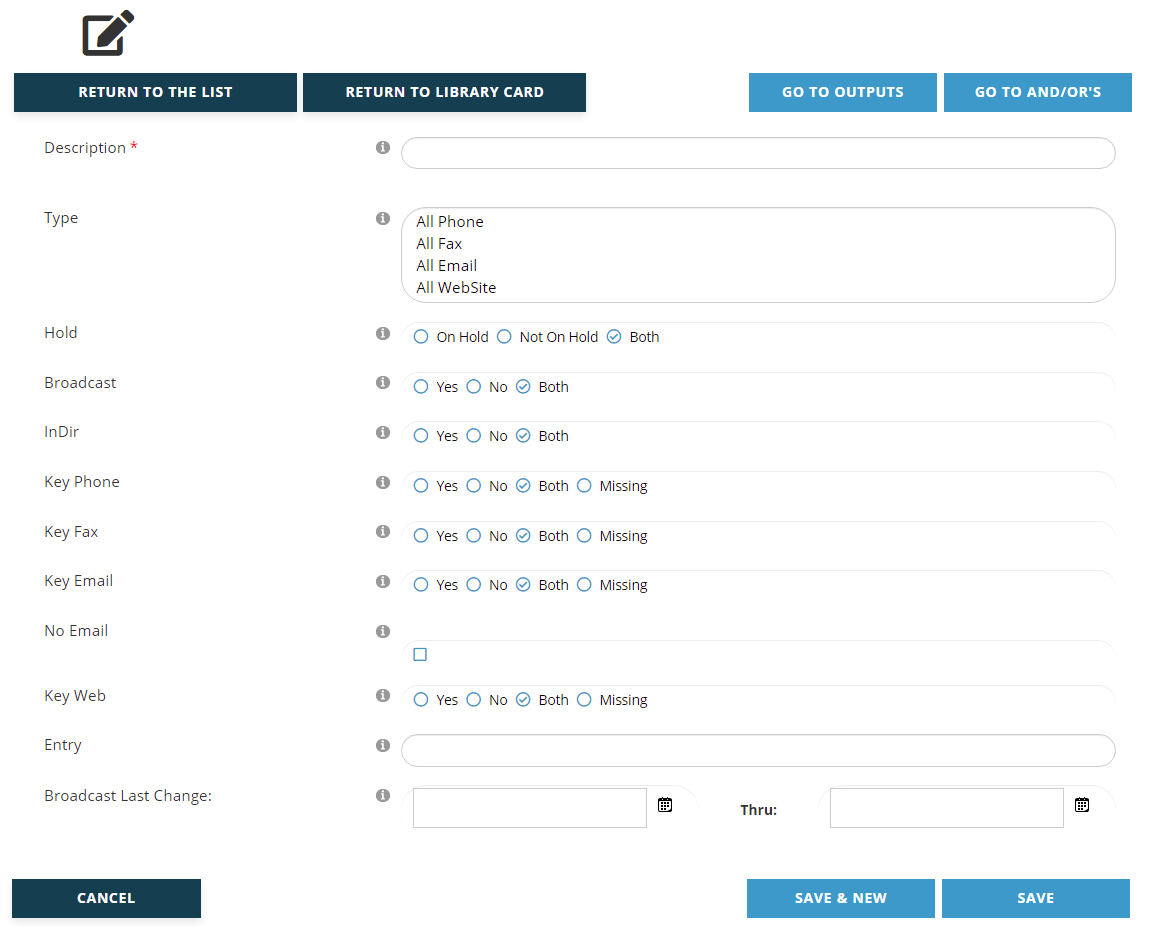
A Description of the purpose of the criteria must be entered in the first field, which is a mandatory text box. Enter this value before entering any criteria. This description should match the exact criteria you are creating. For example, if your criteria is targeting contacts whose Key Email is missing, the description should be “Key Email Missing” or something similar. This becomes important later when you are applying the And/Or logic to your criteria, where each criteria being named for their exact filter makes it easier to set up the logic to be applied.
The Type field is a list box where you can select one of the Communications Types defined in your Dictionary. Only one Type is allowed per criteria, but you can add other criteria to the same card with parameters for another Type as needed.
Seven of the next eight fields are radio button controls.
The Hold field defaults to “Both” to include all addresses but can be changed to search for addresses designated in your system as “On Hold” or those that are “Not on Hold”.
The InDir field when activated in a record indicates which address the contact wishes to be published with his/her name in the Member Directory. The field in Criteria defaults to “Both” to cover all addresses but can be changed to “No” to find addresses that are not designated for the Directory, or “Yes” to search for only the addresses designated as such. The latter option is critically helpful in finding those addresses every time the Member Directory is to be updated.
Key Phone, Key Fax, Key Email and Key Web, for website addresses, all default to “Both” in order to include those that are both Key and not Key of a Communication Type. This setting can be changed to search out those that are designated in the AMS as the Key of their respective Communication Type for a record by clicking “Yes”. Those that are not the Key can be searched by selecting “No.” The fourth option, “Missing” is a handy way to seek out contact records that have communication data but are missing a needed Key designation, such as Key Email.
No Email is a check box that defaults to blank. It can be checked to find contacts that have no Email address.
If you enter the @ symbol and domain name of an email address in the Entry textbox, you can filter all emails for a single organization. This is helpful when testing email messages as it could be used to select all staff contacts with your email domain.
The Broadcast Last Change fields allow for setting a date range with calendar controls to query when the “OK to Broadcast” for a contact’s email address has been turned on for inclusion or off for exclusion from blast emails. This is most common with Canadian email addresses in conjunction with the CASL regulations where individuals must explicitly opt in or out of mailings.
Click on the blue “Save” button to save any changes made. Click on the blue “Cancel” button to exit the page and discard any changes made. Click on the blue “Save and New” button to save the Communications Criteria you have been working on and immediately start creating another Communications Criteria for the same Library Card.
Clicking the blue “Save” button brings up a View page for the new criteria. The same process applies when an existing Communications Criteria has been edited. Double check the criteria to make sure the fields were set correctly. If you need to make changes, click on the blue “Edit” button below the summary. If everything is correct, click on the blue “Go to And/Or’s” button and set your And/Or preferences. That process is described later in this chapter.
More information on Communications can be found in the Profiles section.