To create a new submission document, click on + Add new record found at the top left above the Repository Document Administration grid. The resulting view is in the next screen shot. 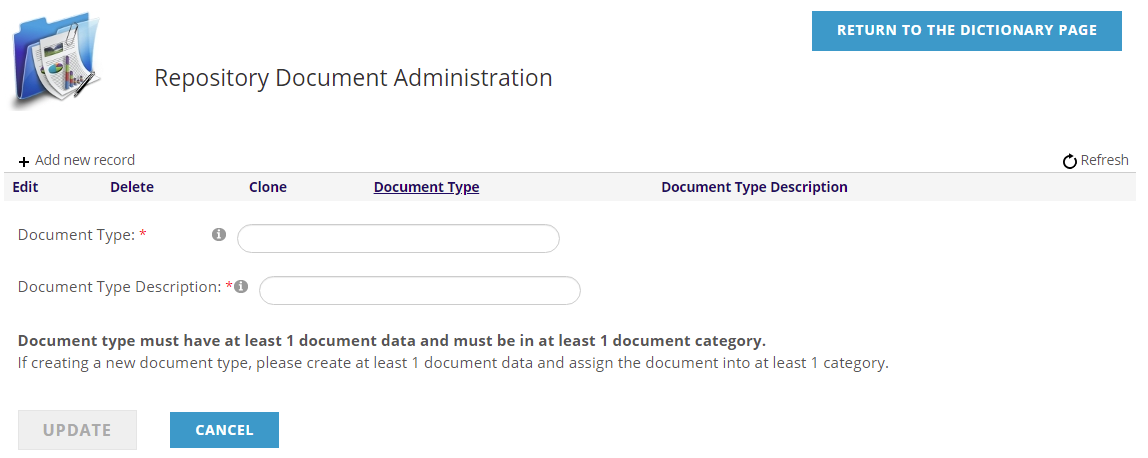
Document Type is a mandatory field where you enter a short label for this particular submission document. It can be no more than 10 characters, with no spaces or symbols. The first two characters should usually be the last two digits of the year in which the document will be put to its purpose. The rest of the label should use specific jargon that can be easily understood by staff. This recommended approach makes for less work going forward if you will be likely to clone the document for the same purpose in future years.
For instance, a form created for users who wish to apply for the 2019 Jackson Fellowship could have Document Type “19JKSNFSHP”. Each year that the form is needed in the future you could clone the 2019 version and just change the first two digits to “20” to reflect the 2020 fellowship year and keep all the other characters the same.
Use the mandatory Document Type Description field to be more descriptive as to the document’s use, with no limits on label size or special character restrictions. This description will appear alongside the document type in the grid that lists all of your submission documents, so make it concise but clear as to the document’s purpose.
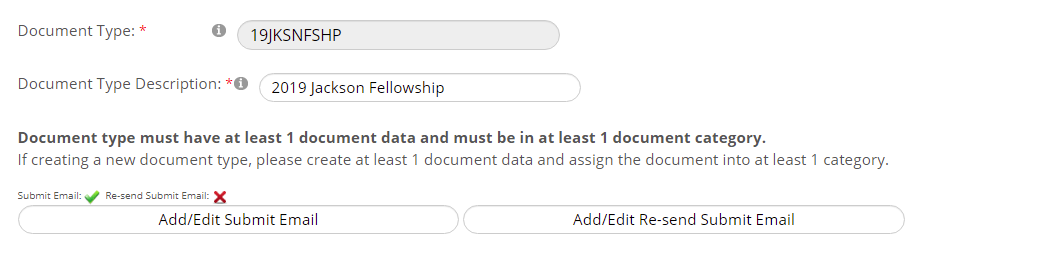
There are at most three more steps to the process when creating a submission document, and the corresponding sections of the submission document appear once the previous one has been activated.
In order to save a new submission document, one question must be created under Document Data, and the Group Type and Group Code fields must be entered under Document Categories. More information on those areas is in the next sections of this chapter. Once you have made those additions, click on the Update button to create the Document Type in the AMS. You can continue to add to and edit the Document Data and Document Categories sections going forward.
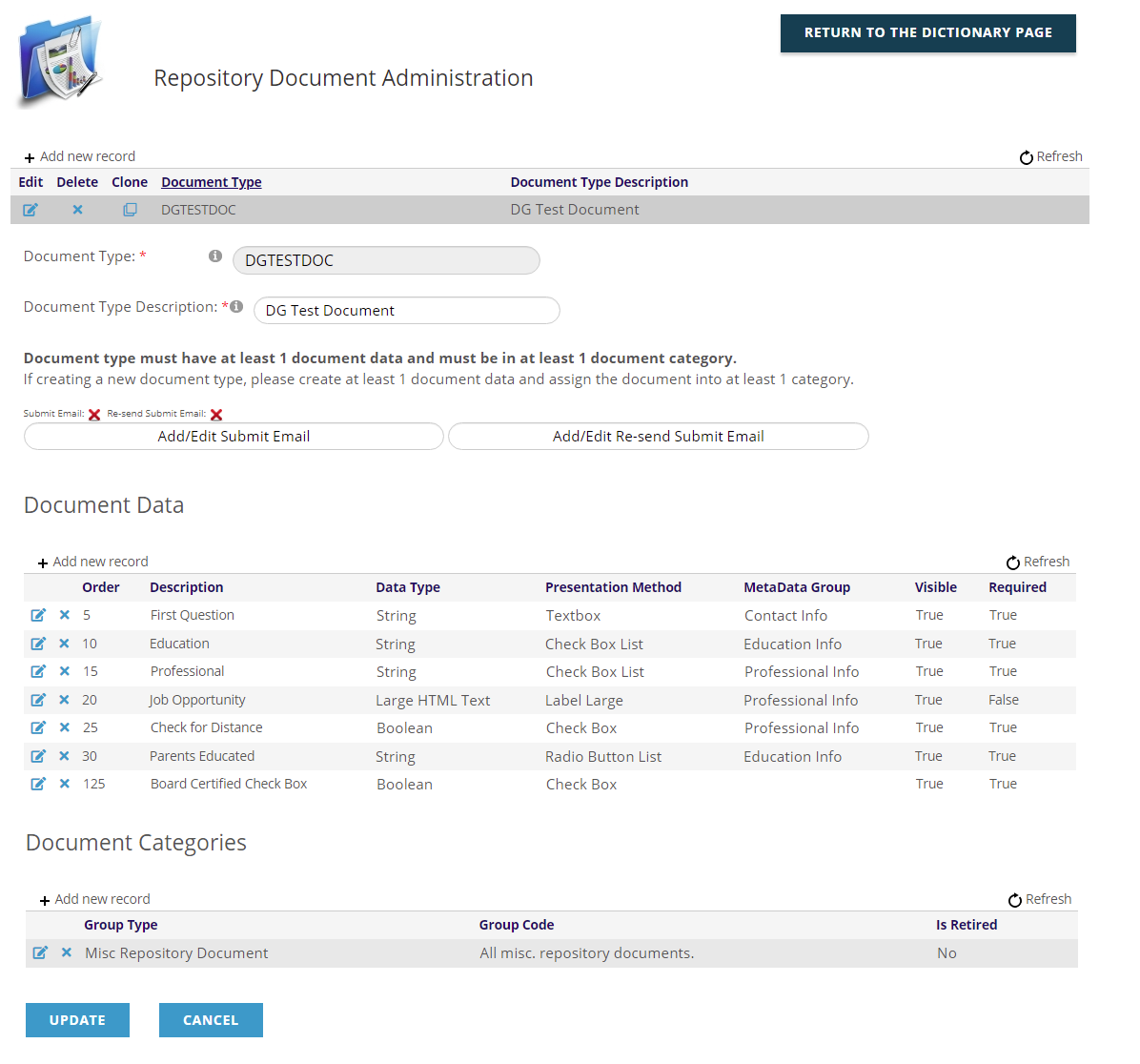
A later version of a different sample submission document with multiple questions created under Document Data is in the next screen shot.