
For each link you want to track for click-throughs you will need to create and define a unique EmailTrack™ Code.
EmailTrack™ Codes must always begin with the corresponding blast email’s Key Code, so make sure you know it before you start. You can find it in either view or edit mode. For the sample email newsletter that we will use in this section, the Key Code is 1801News.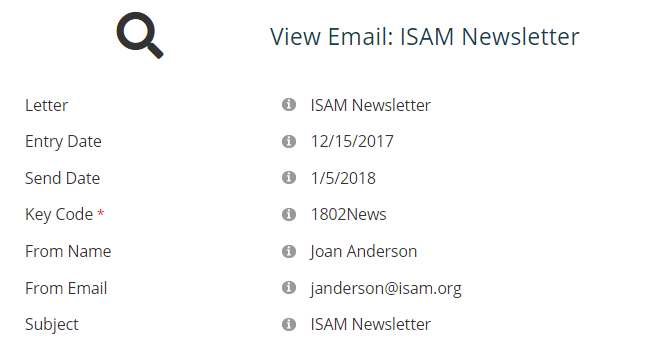 In our example we want to create EmailTrack™ Codes for three links in our sample email for a newsletter, and the first one when clicked takes the reader to a page on the website that has the latest newsletter on it. After opening the Hyperlink Manager on the link text, the following is entered in the URL field: [onClick=1801NewsPage]
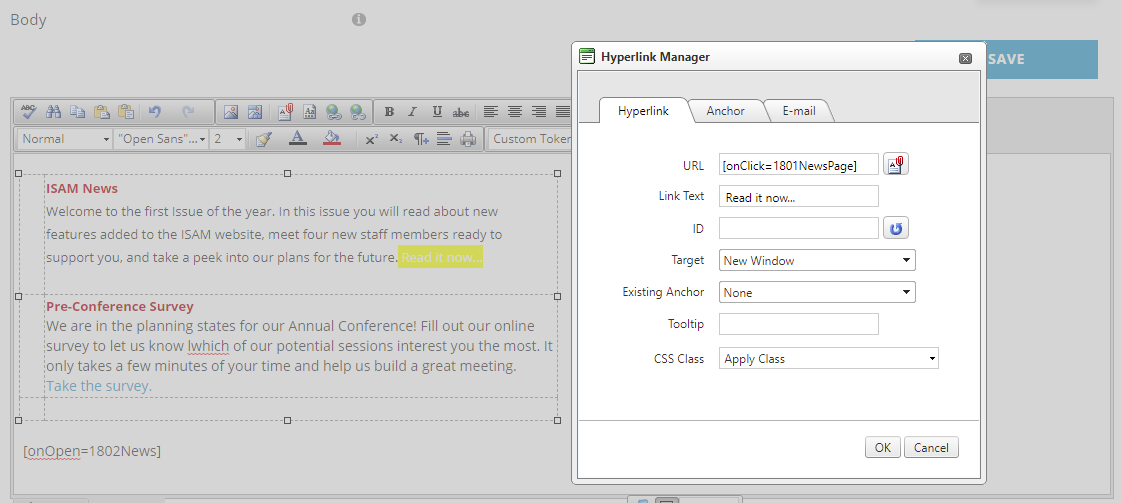
The [ ] brackets tell NOAH this is an insert to be expanded. The onClick= tells NOAH this is a click-through tracking command. And the EmailTrack™ Code is “1801NewsPage”. The EmailTrack™ Code of 1801NewsPage is defined in the EmailTrack™ Dictionary, which is where you indicate what action is to occur when clicking on the link. This is different than a standard link in that you do not link directly to the page or file you wish to redirect to, but instead use the track code which is then read when the person clicks to then determine the action to take while tracking the link was clicked. Thus there is an intermediate step in which NOAH interprets the click before the contact is ultimately sent to the page or item in the link. This is triggered by the full link syntax, which in this example is again [onClick=1801NewsPage]. Completing the information in the EmailTrack dictionary for your code is described later in this chapter. You can create your links and codes in your email first if you wish, then define them and their actions in the dictionary.
If you choose to define the codes and actions after creating them in you links, be sur to write down the Email Track codes you created since you will need them later when you define their respective actions in the EmailTrack™ dictionary as well as the instructions for NOAH to follow on the click-through action.
Click the “OK” button to save your code in the Hyperlink Manager. Click the “Cancel” button to discard a new code, or any changes made to an existing code.
Here are two more examples of EmailTrack™ Codes entered in the URL field via the Hyperlink Manager:
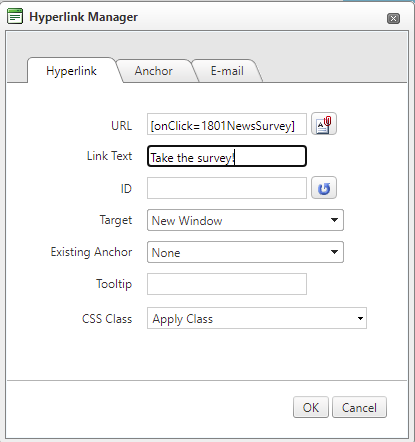
“1801NewsSurvey” for a link to an external website for a survey…
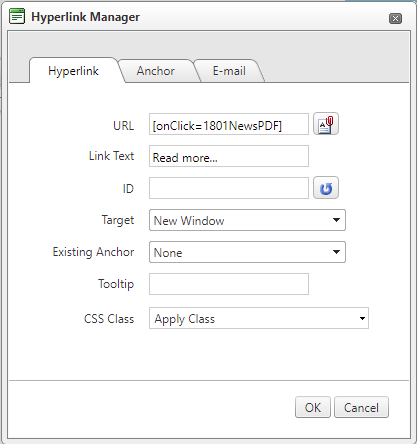
…and “1801NewsPDF” for a link to the newsletter in the form of a pdf file.
If you have multiple links for the same type of target in an email, include characters more specific than “Page” or “PDF” in their respective EmailTrack™ Codes.
When you have added EmailTrack™ codes to all of the links where you need them, click on one of the blue “Save” buttons found above and below the email body, and when the View page appears, re-click on the blue “Edit” button to return to Edit mode. If you need to add EmailTrack™ codes to four or more links in the same email body, it’s a good idea to save more often rather than waiting until you’ve added all of them. Remember to write down which code was assigned to each link since that is crucial to the next step in the process.
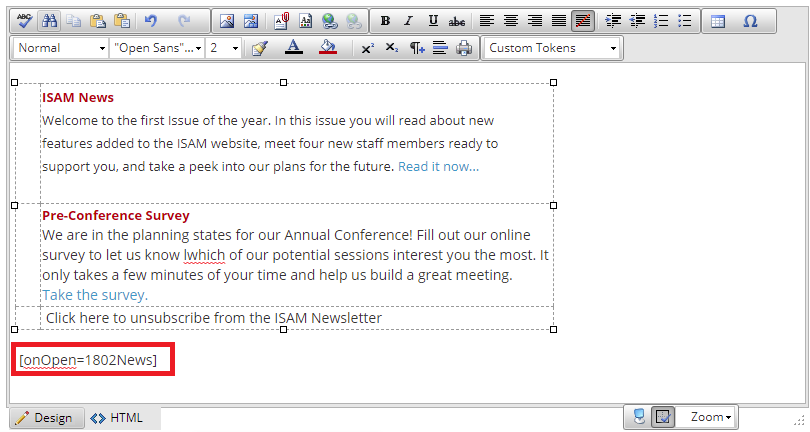 There is an additional tracking code that is automatically added to each email body and maintained by NOAH. It is the onOpen code which tracks when an email has become visible to the recipient. NOAH automatically inserts the command at the bottom of your email and it will appear as [onOpen={code}]. In our example the {code} is 1801News, the Primary EmailTrack™ Code defined for all of our examples.
This command will not be visible to the email recipient when they read the email, but you can verify it has been added by NOAH in Edit or View mode for the email output product you are using to send the blast email.
If you copy and paste an email body to create another email output product, NOAH will automatically update the corresponding EmailTrack™ Code.