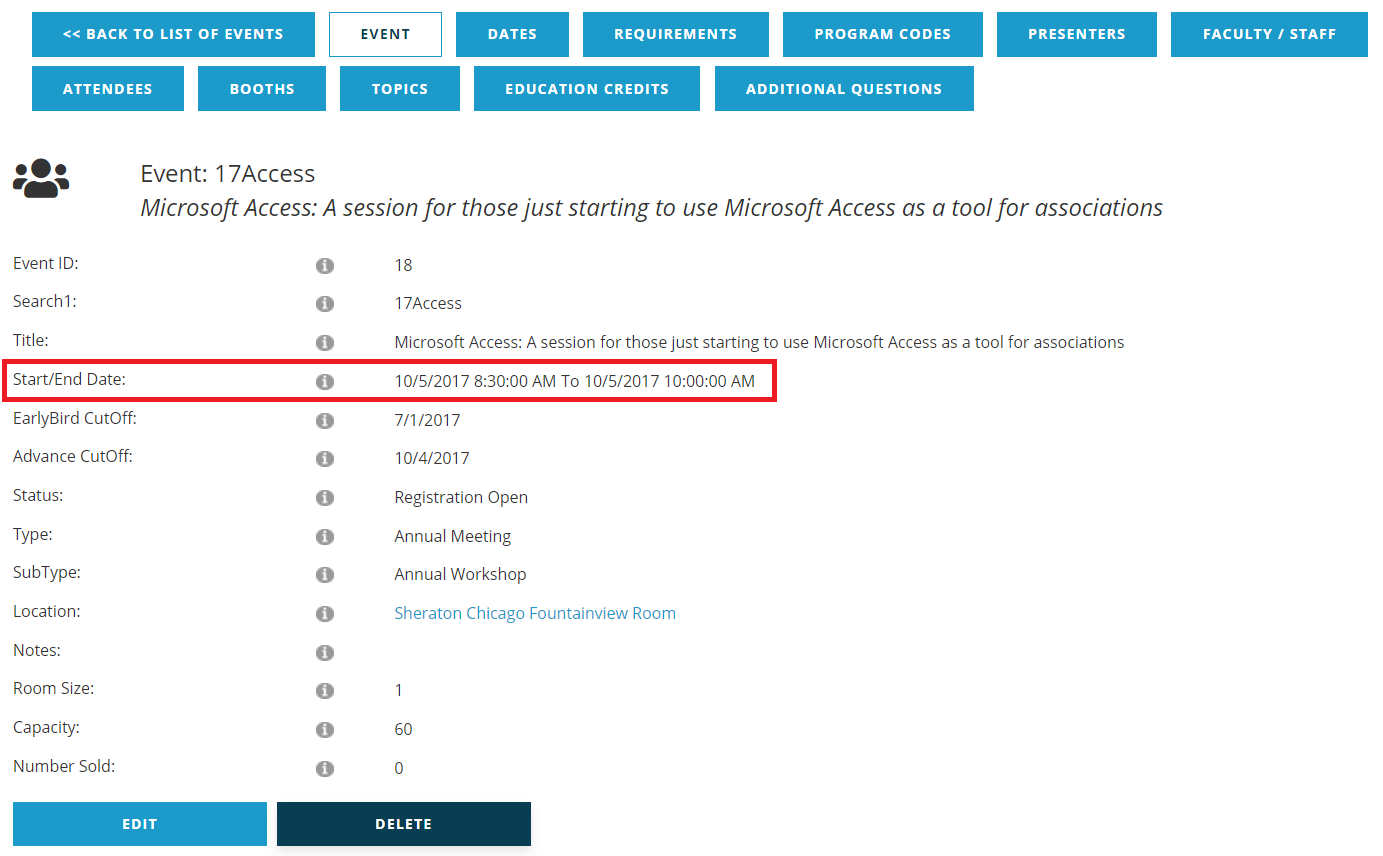
The Dates tab is critically important as part of initial event setup. The date data created here is programmed to flow over to the Events tab. When a new event is added, it won’t have Start and End Dates at the event level until it is created in the Dates tab. The landing screen for the Dates tab appears in the following Screen Shot. 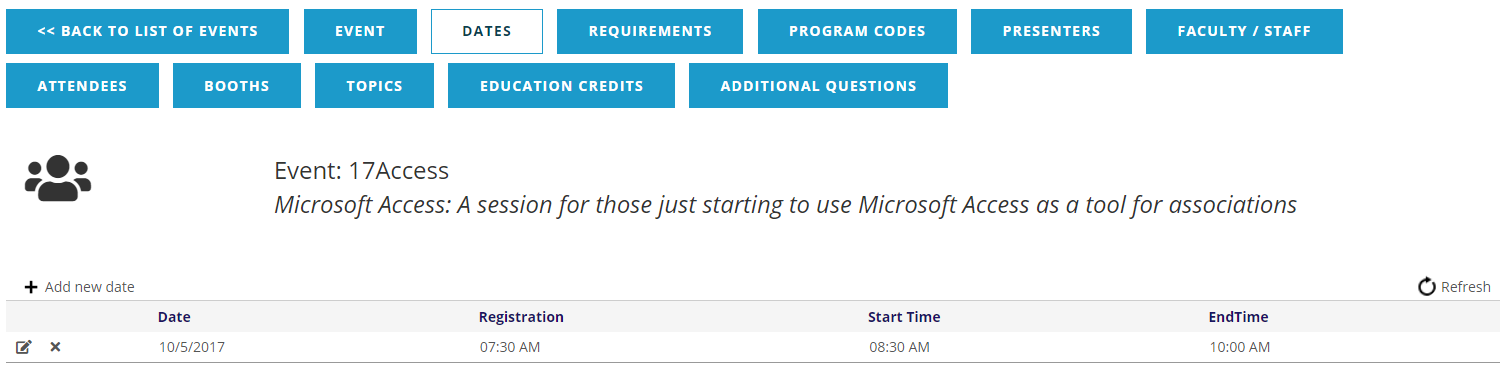
To get started, click + Add new date at the top left above the date grid. The data fields will become available, as seen in the next screen shot.
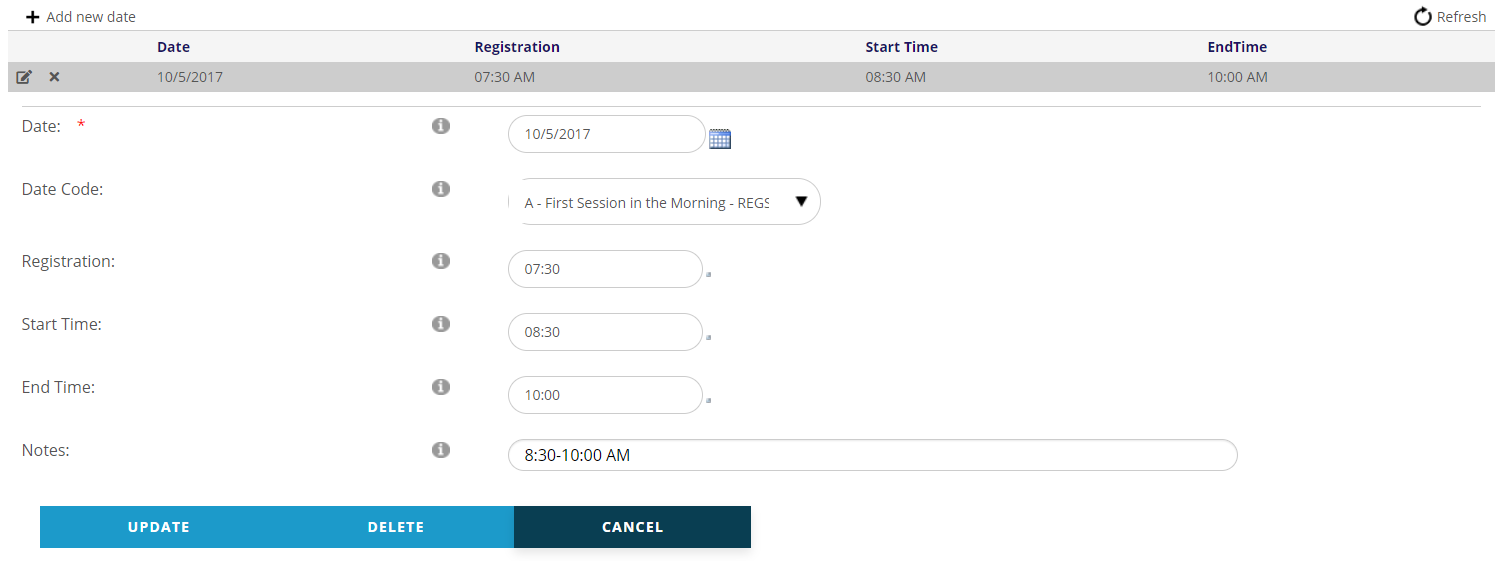
Only the Date field is mandatory, which is the first date of the event.
The Date Code field is an optional drop down with selections from your Dates Dictionary. These are pre-defined codes that are customized on your end to correspond with the timing of your sessions. Examples are pre-loaded for checking start and end times, saving you from having to enter them every time.
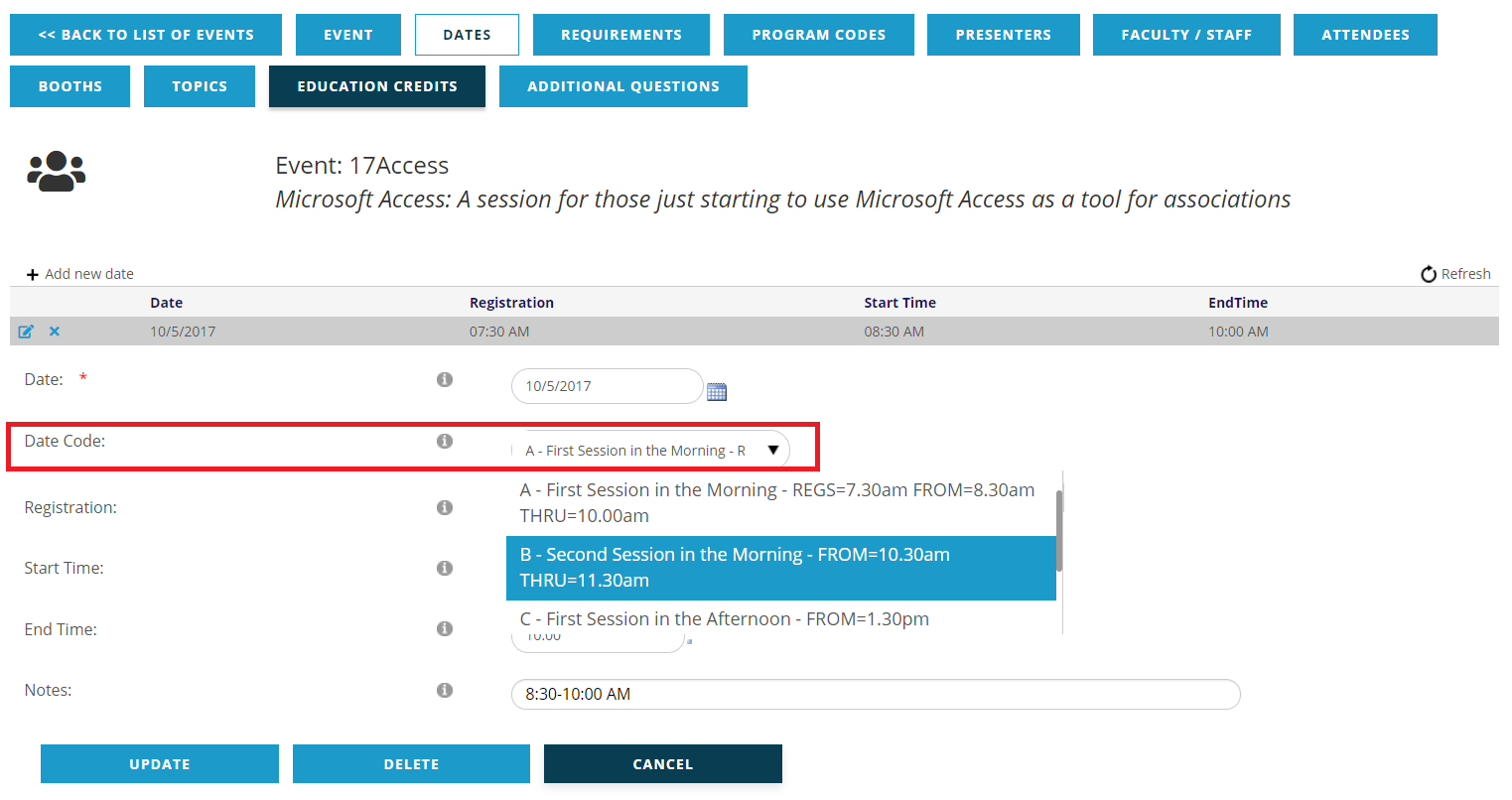
Once a Date Code has been selected, the Start and End Time are populated automatically. Double check these just in case, as you can then catch any mistakes made with Date Code selection. It’s also where the same info should be edited if the date and/or time are changed.
The Notes field is an optional setting where you can make notes to be used internally, at the staff level.
Be sure to click the Update button to save a new Date entry or to save edits to an existing one. Click the Cancel button to discard any changes made, or to exit having made no changes.
If an event spans more than one day, or occurs multiple times as a single event, create an additional date record for the end date and save it. When you go back to the event summary you will then see the entire span of dates in the Start/End date field.