
When adding or editing an event in its Events tab in the AMS, the Location field is filled via selection from a drop down menu, as seen in the next screen shot. 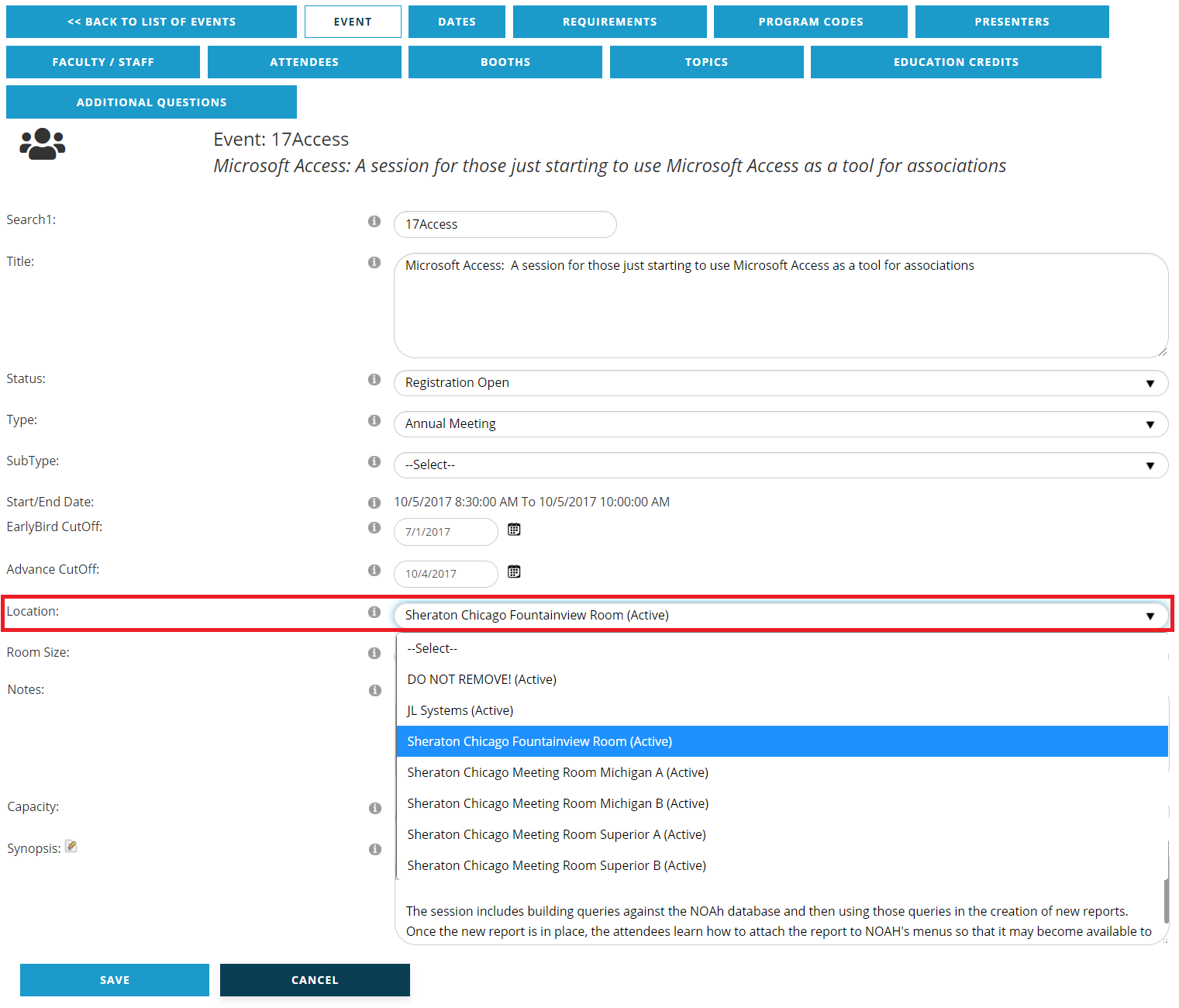
The customizable choices available in this menu are driven by room codes, which can be added and edited by clicking the  edit icon to the left of the Edit Locations header under the Meeting Dictionary’s Events menu, which opens the page seen in the next screen shot.
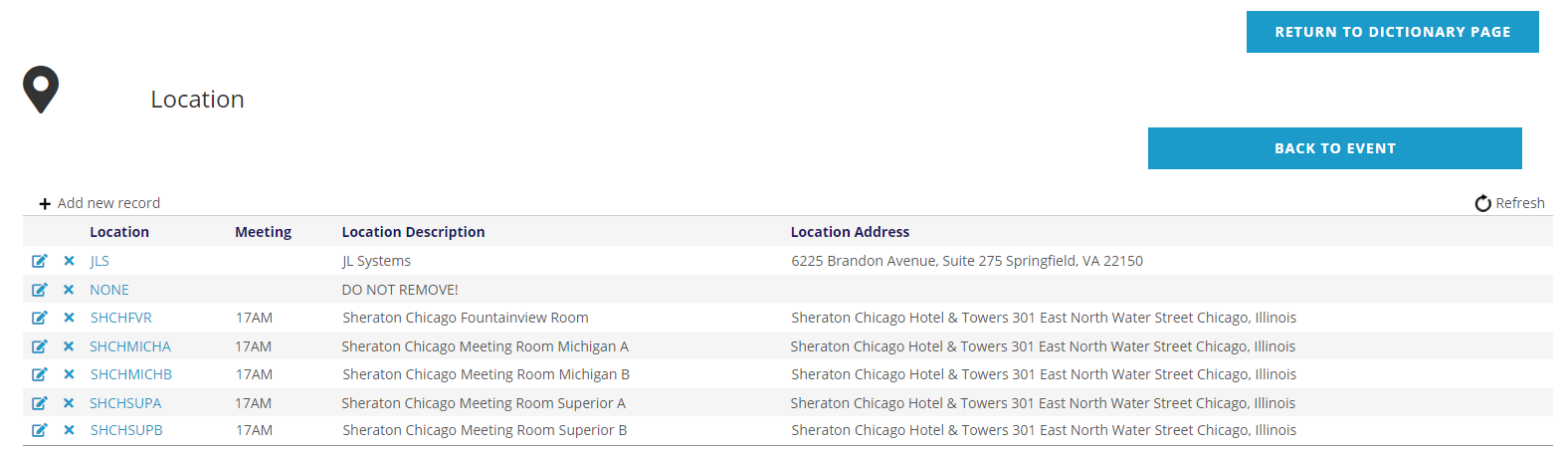
All existing room codes are in the grid with column headings for Location, Meeting, Location Description and Location Address.
There is no limit to the number of room codes that can exist in the AMS. If there are more than 20 Locations on file, the grid will display the first 10 and allow you to page through 10 Locations at a time. You may change the number displayed to 10 or 50 per page, and use the page numbers to see the other pages.
To edit an existing room code, click on the edit icon to the far left of the code to be edited. To create a new room code, click on the + Add new record above the top left of the Location grid. The fields seen in the next screen shot appear for both the add and edit functions for room codes.
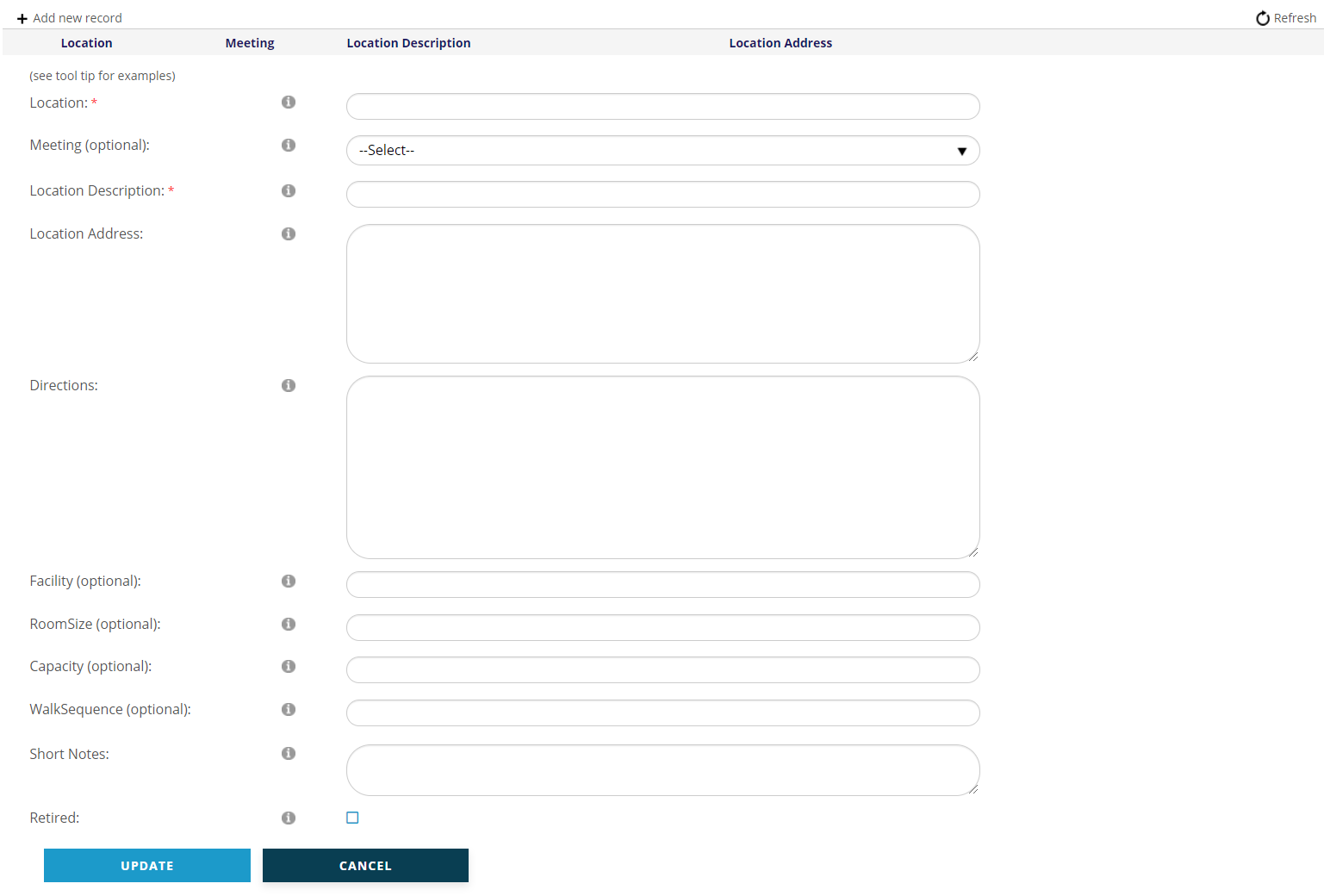
The Location field is a mandatory field that must be unique and has a maximum of 10 alpha-numeric characters that cannot be changed once created.
If more than one room in the same building needs a room code, it is important to begin each code with the same characters that are chosen to represent the building. This keeps them grouped together in the drop down menu and the grid. Then follow those with characters that are an abbreviation of the room name and/or number. For example, our sample Locations for the Sheraton in Chicago have room codes that all begin with ”SHCH” and are followed by characters that are abbreviations of the room’s name and/or number in a unique combination for each room.
The room code can then be an abbreviated version of the Location Description, a field that will be described later in this section. Here are some other examples of Locations and possible Room Codes for each:
For room 145A at the Donald E. Stephens Convention Center: DES145A
For the South Shore Golf Course: SOSHGOLF
For room 201 in the Henderson building at the University of Your State: UYSHEND201
For Trinity Hospital: TRINHOSP
For Locations at your own office, the Room Code could begin with your association’s acronym and be followed by characters that correspond to the room, such as “CONF” for your conference room.
Room codes can be created to always appear in the Event tab Location field drop down menu, seen in the first screen shot in this section, or to only appear in that drop down menu for events that are the children of a specific parent meeting by using the Location’s optional Meeting field. Thus if you add a Meeting, this location is only available in that Meeting.
For example, in the sample Location grid seen in the screen shot before the previous one, the Meeting column is either blank or lists “17AM”, which is the meeting ID for our sample annual meeting. Those Locations with “17AM” in the Meeting field will not appear in the Location drop down menu for an event unless that event is a child of that parent meeting. You must enter the exact Meeting ID that is defined for the parent meeting in this Meeting field to connect a Location to that parent meeting. The Meeting ID does not have to be included in the room code, and it should not be included if multiple meetings or events, each with its own unique ID, will be held in that room over time.
It is strongly recommended that you use the Meeting field for larger meetings so that the Location drop down menu doesn’t get too long over time. This practice also allows you to easily group multiple Locations for a meeting together in the Location grid using the clickable “Meeting” column title. Even if you have a large meeting that takes place at the same on multiple occasions, use the Meeting field to make it easier to keep track of the event Locations.
Location Description is a mandatory field that appears in the Location grid. This field allows for a fuller description of the location, and should correspond to the name of the room at the physical site where the event will take place. It should include words rather than abbreviations. This is what shows with an event in agendas, registrations, etc. when viewed by attendees.
Location Address is an optional field for the street address for the Location’s building. Note that there are Event module settings that when turned on can include the Location Description and/or Address on the Events dashboard. If you are using these online modules be sure to always enter a location address.
Directions is an optional field where written directions can be entered as to how to get to the Location Address.
Facility, Room Size, Capacity, Walk Sequence and Short Notes are optional fields that are for your internal staff use only, and do not flow through to other fields in the AMS.
Retired is a check box that when checked, retires the Location from use in the AMS. For locations that will no longer be used for any meetings or events, it is recommended practice to retire them to keep the Location drop down selection menu and the Location landing page grid from becoming too long. Locations that have been used in the AMS cannot be deleted, they can only be retired.
To Save a new Location or save changes to an existing Location, press the Update button found at the bottom left. To cancel a new Location or any edits to one, press the Cancel button.
More information on the use of Locations is in the Events section of the Meetings section of this knowledge base.