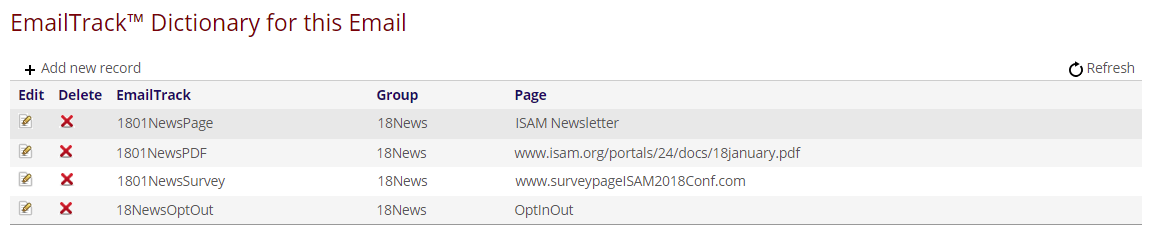
Your EmailTrack™ codes are not complete until you have added them to the EmailTrack™ Dictionary, which is found at the bottom of the email output page as seen in the next screen shot. This is where you define the action to take when a person clicks on the link. Please note, since the page or document being linked to is defined in this dictionary that means that you do not have to resend your email if you specified the wrong webpage or document, or misspelled it in the Dictionary. The email itself only has the tracking code, any edits to the page or file linked are immediately active as the dictionary is read on each click. 
Click on + Add new record at the top left and the following page will open: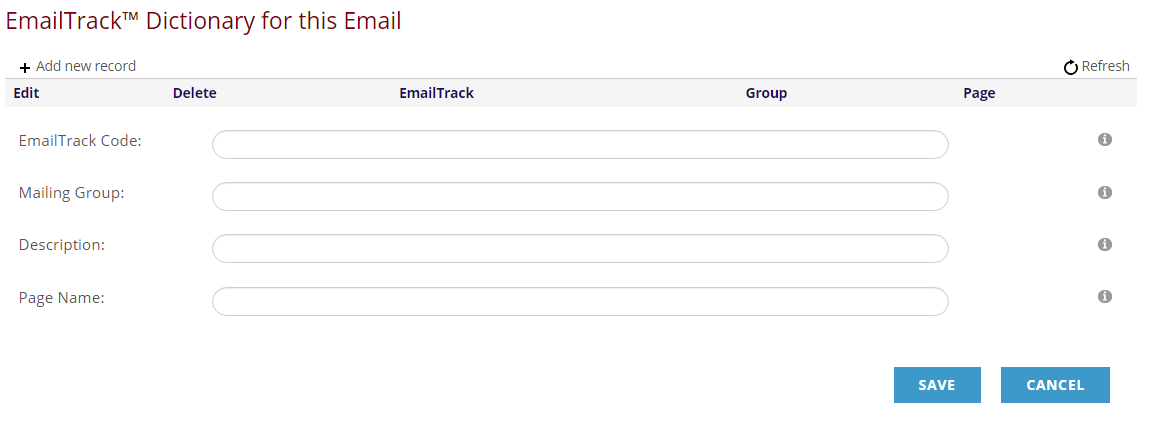
To define the EmailTrack™ Code for the first link example, for the association newsletter page, type 1801NewsPage in the EmailTrack™ Code field. The entry here has to match the code you entered as part of the text in the url field in the Hyperlink Manager, which was [onClick=1801NewsPage].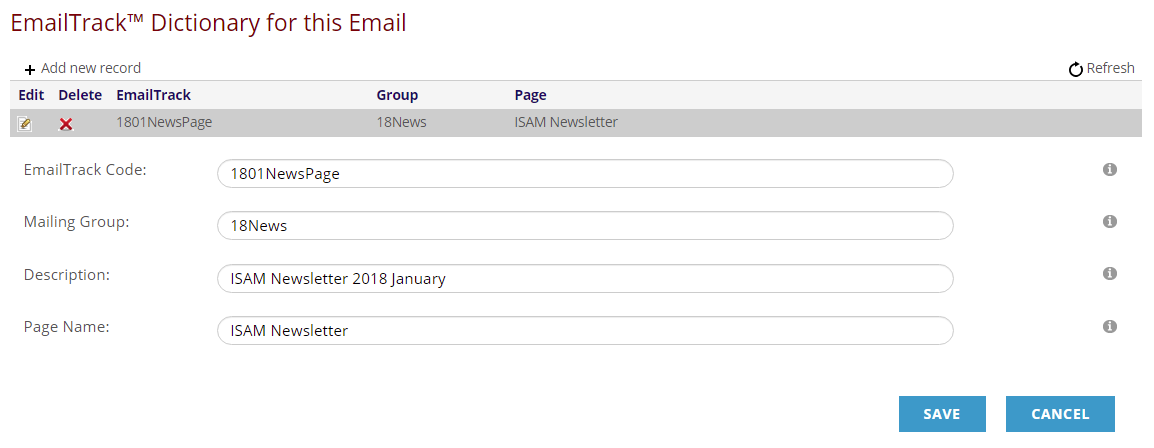
Then the Mailing Group should be typed into the second field, which in our example is “18News”. This is used to group multiple related track codes if you will have several in one email message. For example, if you have a number of page redirects for an annual meeting message for various hotels, then a number of them for pages in the site or fun things to do in the area, you may wish to group them by subject. Thus you may choose to create 18NewsHotels, 18NewsSite, and 18NewsFun for example.
Then type a Description that better states the purpose of the tracking code, in this case that it is a web page for the January 2018 newsletter. The Page Name field is used to indicate the page or file to link to, and should be filled with the exact page name or filename of the document. If the page resides in your website, you do not need to use the full domain path in the url. In our example the page name is “ISAM Newsletter” because it is a page in our website. If the link is to a page in an external site you must include the entire url, such as www.google.com/about.
Click on the blue Save button to add this new code to the dictionary.
The next dictionary entry for the second Click-Through EmailTrack™ Code for the survey is entered in the same manner, with corresponding changes in the four fields. “1801NewsSurvey” is the EmailTrack™ Code. The Mailing Group is still “18News”, the Description makes it clear that the link goes to an external site instead of your own, and the Page Name is the target website address. Click Save to record this new entry.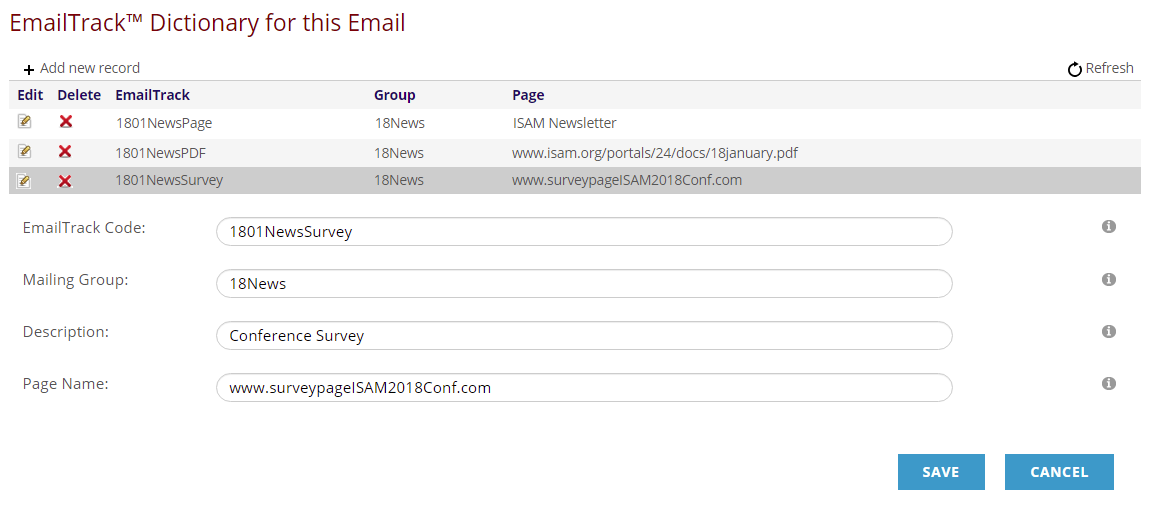
The next dictionary entry is for the Click-Through pdf Link. The EmailTrack™ Code is “1801NewsPDF”, the Mailing Group is still “18News”, the Description is whatever you choose and the Page Name is the complete path to the document, which is so long in this example that you have to scroll right in that field to see it all. Click Save to record this new entry.
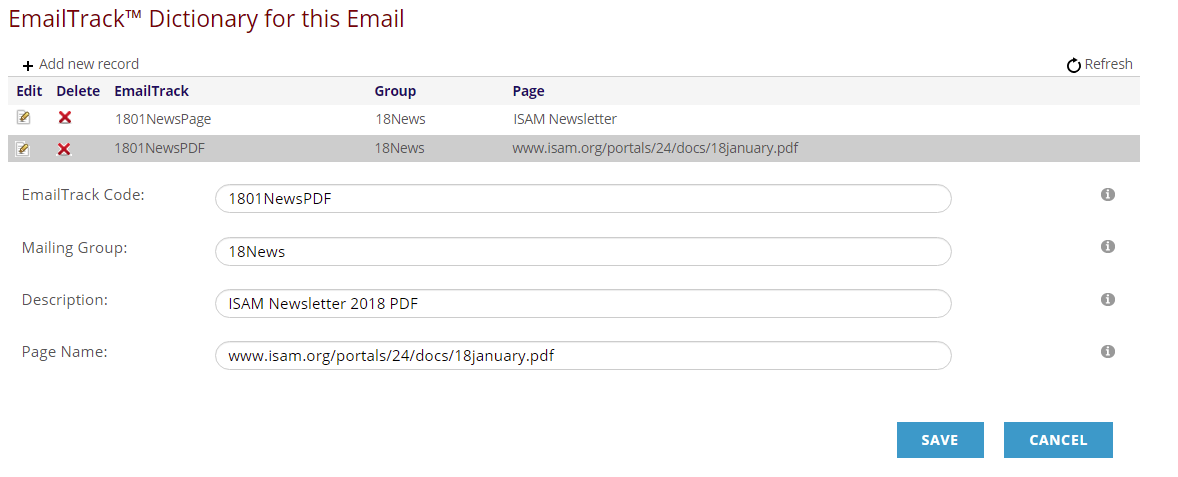
Every EmailTrack™ Code you add to an email output product will display in the EmailTrack™ Dictionary grid under the email body, in both Edit and View modes, as seen in this screen shot of the Edit page for all of our EmailTrack™ examples seen in this section thus far.