
EmailTrack™ has a series of reports that provide statistics by EmailTrack™ Code together with the value of items purchased during the active session.
These reports are already built in the AMS, so you don’t need to create them inside the Reporter. They are located under the Contacts menu via this path: Contacts >> Reporter >> EmailTrack Analysis
When you select EmailTrack Analysis as seen in the previous screen shot, the page for those reports will load.
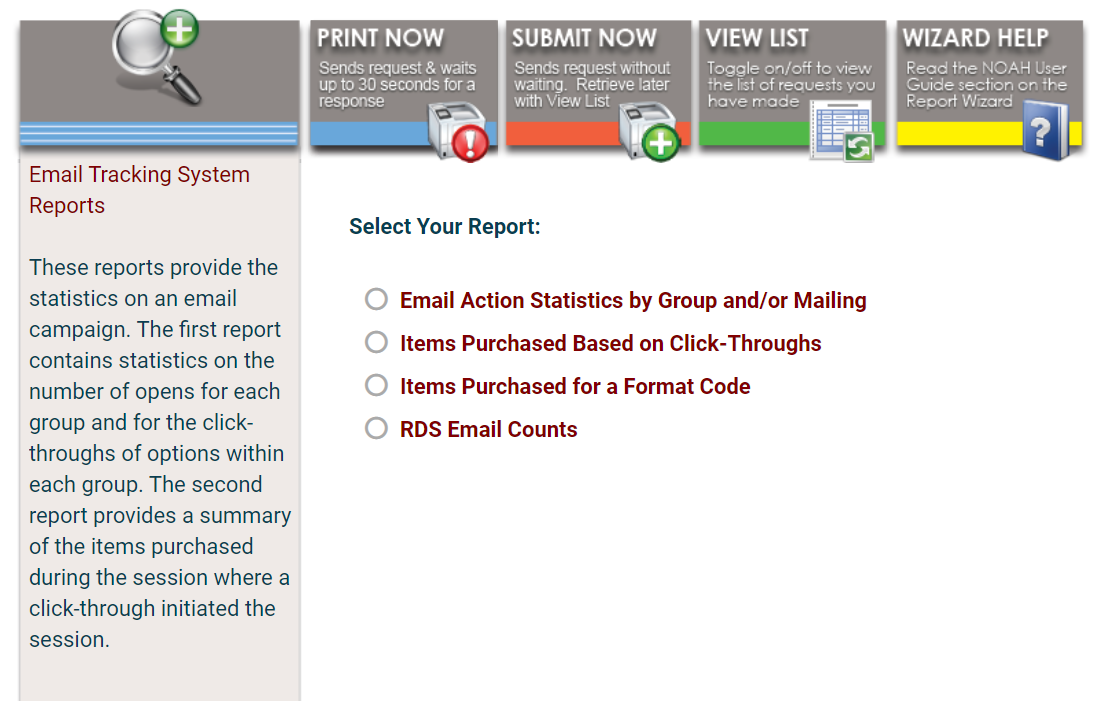
There are reports for:
- Email Action Statistics by Group and/or Mailing- contains statistics on the number of opens for each group and for the click-throughs of options within each group
- Items Purchased Based on Click-Throughs- provides a summary of the items purchased during the session where a click-through initiated the session
- Items Purchased for a Format Code- is a filtered list of items purchased during a click-through.
- RDS Email Counts- an Excel list of counts of messages sent in a given date range, with send start & end, and any errors.
When you use the radio buttons to Select Your Report, the page will reload with fields for you to use to set your parameters. All three reports have the following fields:
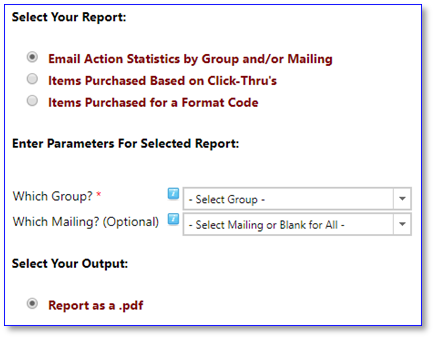 Which Group? is a mandatory drop down menu field where you select the Mailing Group for the report.
Which Mailing? is an optional drop down menu field that populates based on the mailing group selected in the previous field. Make a selection here when you want the report to focus on a particular set of tracking codes within that group. If you make no selection, NOAH will report on all codes that belong to the selected mailing group.
There is an additional mandatory field for the report of Items Purchased for a Format Code.
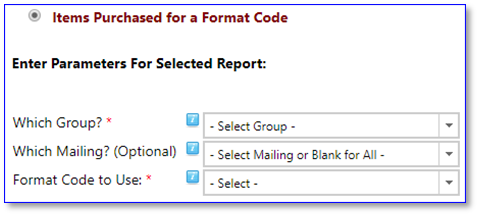
The Format Code to Use is a required drop down menu field where you select which of the available format codes the report should use.
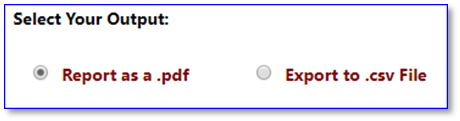 Select Your Output is a radio button field where you select which kind of report you want NOAH to create. The first two reports can currently only be created as a pdf and the third report can be a pdf or a csv.
Once you have made selections in all of the relevant fields, you can choose to Print Now or instead Submit Now for viewing or printing later on. If you leave the page or use the View List toggle without clicking on one of those first two options, you will have to start over on setting your report fields.
 More extensive training on EmailTrack™ reports can be arranged by contacting support.