
The Faculty/Staff tab is where to track other liaisons in the room for an event who are not presenters. There could be association staff assigned to assist presenters or attendees, or to perform other tasks. Or, for an exam event that entails an educational certification test there could be an exam proctor. Unlike Presenters, Faculty/Staff get assigned list codes instead of folders in their contact record. 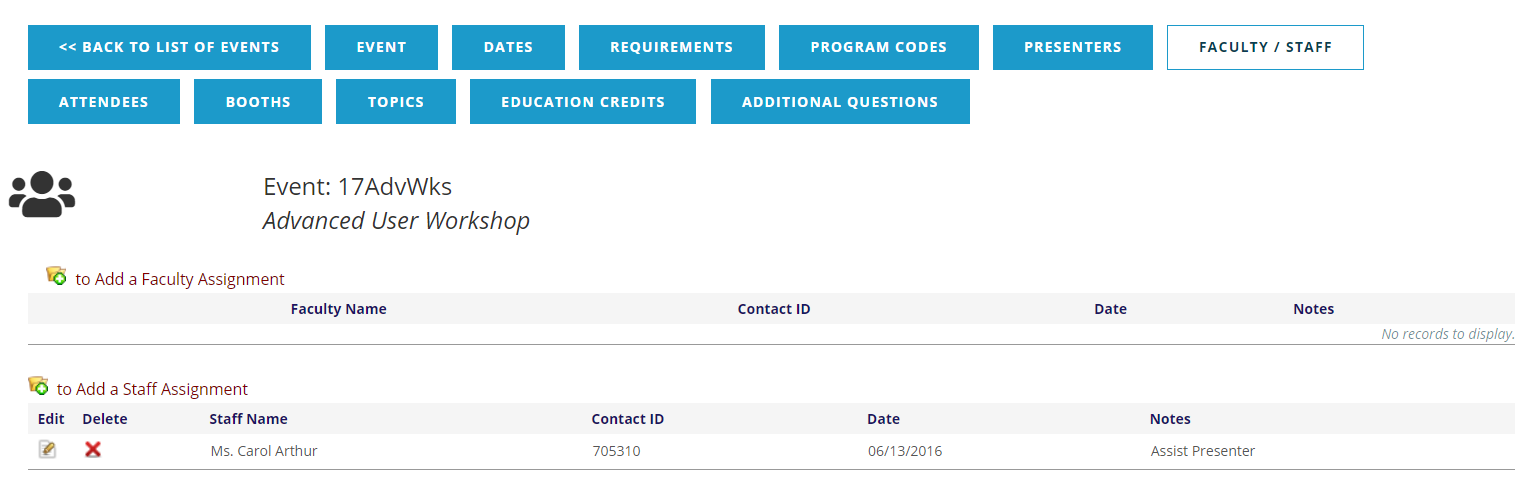
To create a Faculty or Staff Assignment, which are tracked in two separate grids under this tab, click on the  add icon above the grid next to Add a Faculty Assignment or Add a Staff Assignment, as seen in the above screen shot. This opens up the contact records search function. This allows you to search existing contact records for the Faculty or Staff by Name. In this example, the last name of a Staff person to be assigned is Danforth, thus entering “%dan” in the Last Name field then clicking on the Search button at the far right yields the results in the following screen shot.
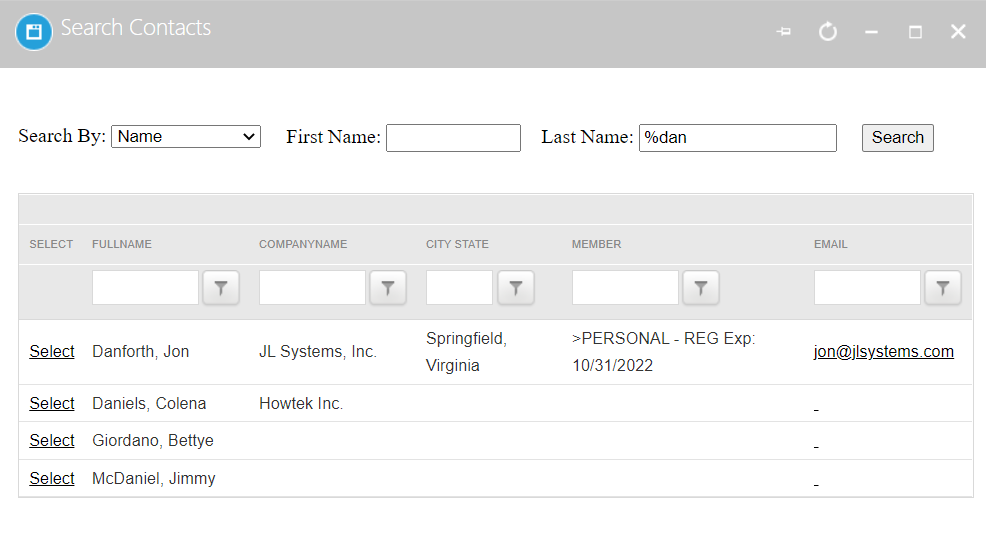
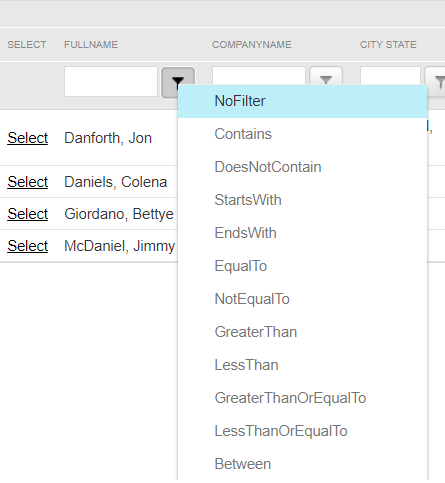
The names of contacts that include “dan” within the Last Name field are displayed in alphabetical order. You will also see any Company Name, City/State, Member status and email address info from Profiles in the AMS, and can sort the results by clicking on the funnel icon next to the field being used to narrow the list. In the next screen shot, the funnel icon next to Full Name has been clicked, and a drop down of options is seen.
If the correct contact record is easily spotted, simply click on the word Select in the left of its row to create, in this example’s case, a Staff record and the results, which provide identical fields when assigning Faculty, are seen in the next screen shot.
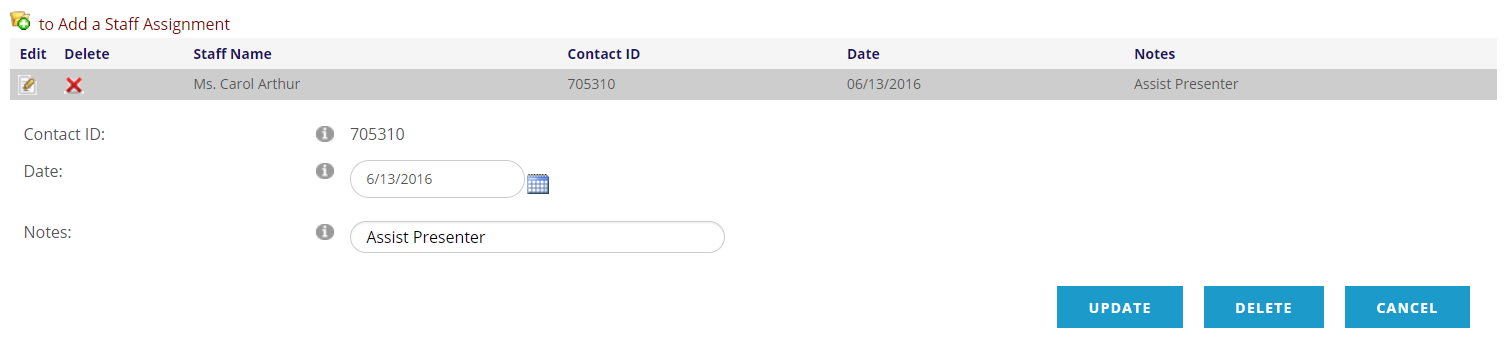
The Contact ID is automatically filled in based on the contact record selected in the previous step. If the wrong contact has been selected, the new Faculty or Staff event record should be deleted using the Delete button and the above process repeated with the correct contact record.
The Date field pre-fills with the current date to reflect the date the Faculty/Staff assignment was created, NOT the date the event takes place. This date can be changed by clicking on the calendar icon to the right of this field, or by typing in the field itself.
The Notes field is optional but can be used to describe what the assigned Faculty or Staff are supposed to do for the event. In this example, Carol Arthur’s record was selected for a Staff assignment and “Assist Presenter” has been typed into the Notes field.
Click on the Save button to finish the process. Click the Delete button to delete the entire Faculty or Staff list code. Click the Cancel button to discard the data entered into those fields, but keep the new list code assigned to the chosen contact.
To edit any Faculty/Staff assignment, simply click the  edit icon at the far left of its row, and the same view in the above screen shot will appear. Once the changes have been made, click on the Update button. If you change your mind and wish to keep the record as it was before with no changes, click the Cancel button.
To delete a Faculty/Staff assignment, you can click the  delete icon in the Delete column of its row, but it’s also possible to select the edit icon first to see more information and make sure you have selected the correct record, and if so, click the Delete button. If you change your mind and wish to keep the record click the Cancel button.