
The NOAH Governance module is designed to display a listing, or roster, of committee members. The module is very configurable and can allow users to select the committee they want to view, or it can be put on multiple pages to display specific committees on each.
When adding a module to a page in DNN, you may search for Gov to easily find this module.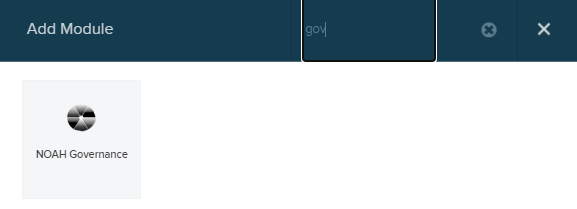
When editing this module on a page, there are three separate areas under the NOAH Governance Settings tab:
- General- controls general display information for the module
- Date Related- controls date information so the correct members are displayed based on their terms
- Appearance- controls what is displayed for committee members in the roster
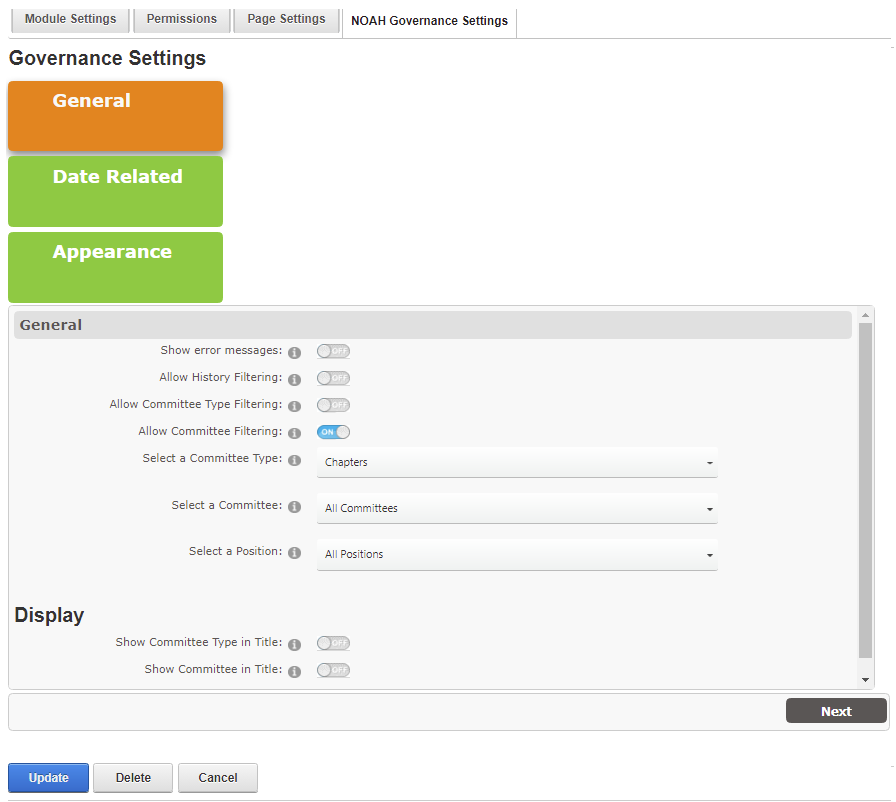
The General area has several toggles to control
- Show error messages- Show error messages, if any errors occur
- Allow History Filtering- Enable or Disable users to be able to filter Governance roster by years
- Allow Committee Type Filtering- Enable or Disable users to be able to filter Governance roster by Committee Type
- Allow Committee Filtering- Enable or Disable users to be able to filter Governance roster by Committee
- Select a Committee Type- Drop down to select a Committee Type for display, if you want to limit this to a selected committee type
- Select a Committee- Drop down to select a Committee for display, if you want to limit this to a selected committee
- Select a Position- Drop down to select a Position for display, if you want to limit this to a selected position
- Show Committee Type in Title- Show the Committee Type in a Title above the listing
- Show Committee in Title- Show the Committee name in a Title above the listing
To move to the Date Related area, click the Next button at the bottom or the Date Related button at the top.
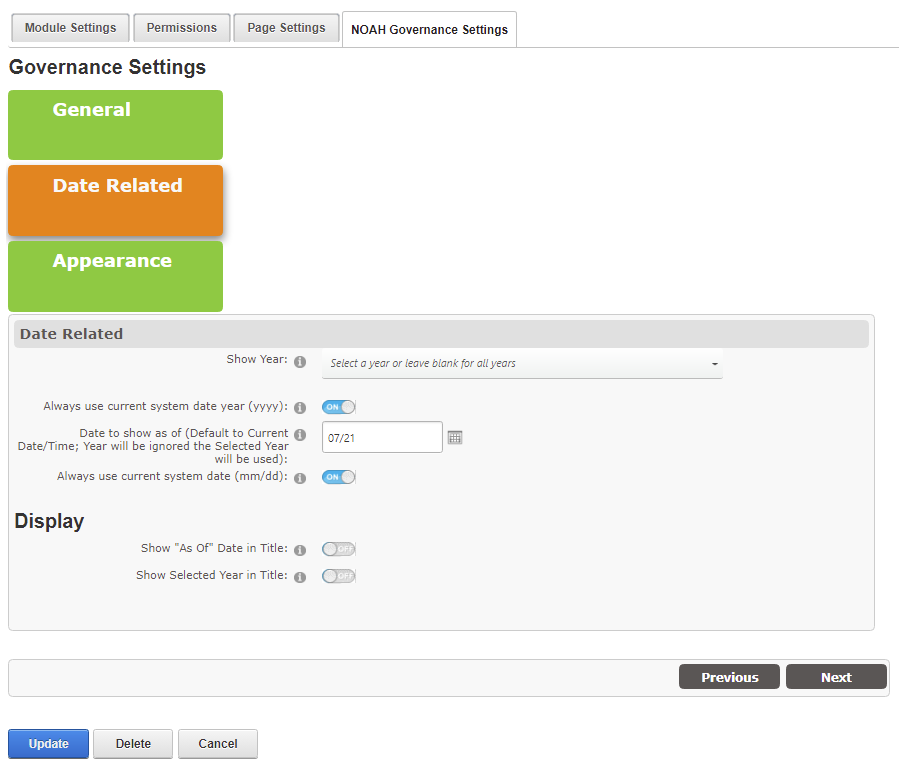
The Date Related area allows you to choose the committee terms displayed based on a date:
- Show Year- Select a year to display to show those with terms in a selected year, or leave blank for all years
- Always use current system date year (yyyy)- Override Show Year and always use current system date year (yyyy)
- Date to show as of (Default to Current Date/Time; Year will be ignored the Selected Year will be used)- A date which describes when the information is valid as of (use the calendar icon for a date picker); if your committee terms have shifting start and end dates it is best to show as of Today for the year selected
- Always use current system date (mm/dd)- Override Date to show as of and always use Today (mm/dd)
- Show "As Of" Date in Title- Display "As Of" the date for this roster in the title
- Show Selected Year in Title- Display the Year for this roster in the title
To move to the Appearance area, click the Next button at the bottom or the Appearance button at the top.
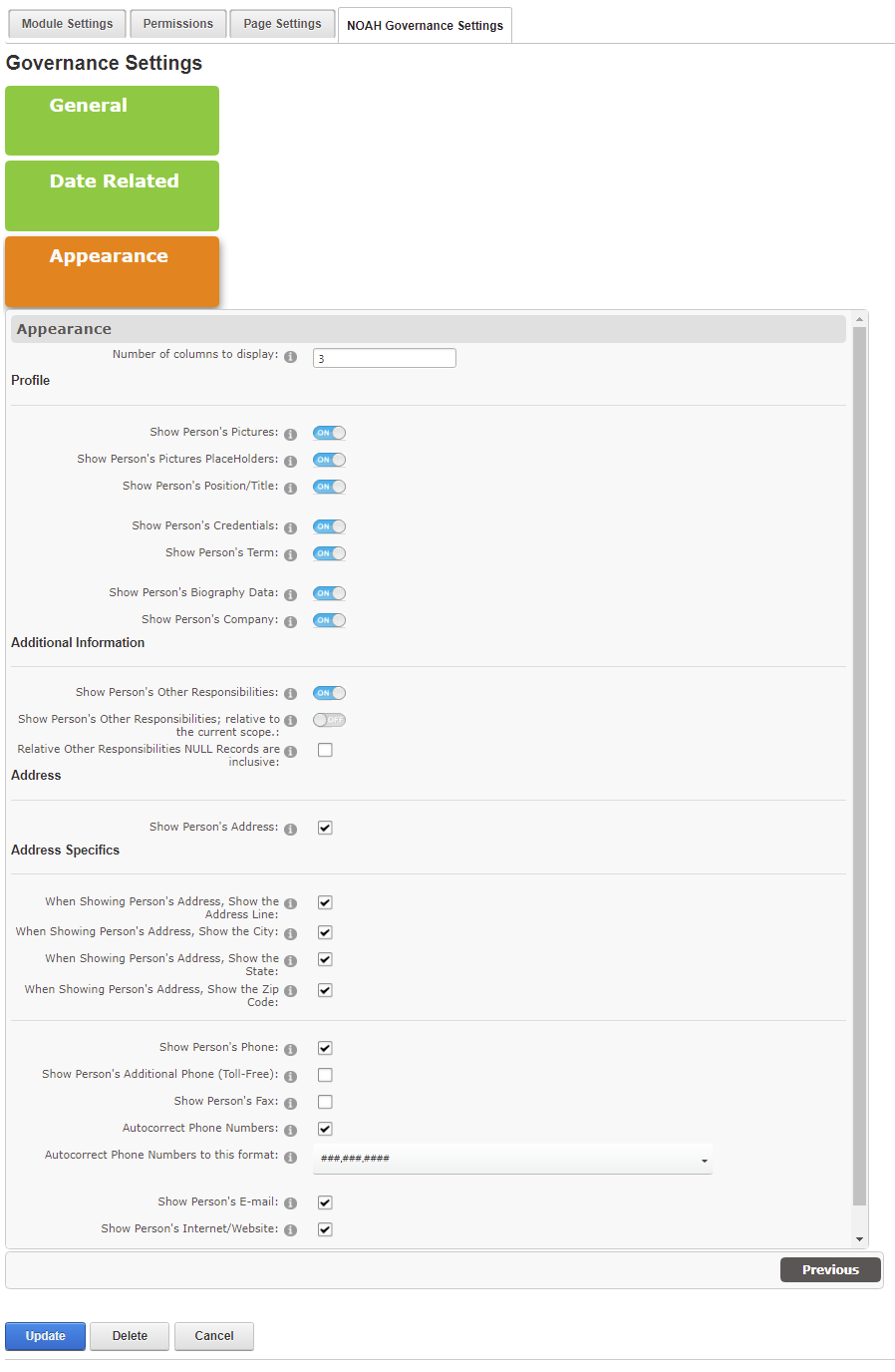
The Appearance area has many options as to how the roster is displayed:
- Number of columns to display- Set the number of columns to display members in, usually 2 or 3
- Show Person's Pictures- Enable or Disable viewing a Person's Profile Pictures
- Show Person's Pictures PlaceHolders- Enable or Disable viewing a Person's Profile Pictures if it is a PlaceHolder (a generic image)
- Show Person's Position/Title- Enable or Disable viewing a Person's Position Titles
- Show Person's Credentials- Enable or Disable viewing a Person's Credentials
- Show Person's Term- Enable or Disable viewing a Person's Term
- Show Person's Biography Data- Enable or Disable viewing a Person's Biography Data; this is shown as a link that opens a pop-up with the bio information.
- Show Person's Company- Enable or Disable viewing a Person's Company
- Show Person's Other Responsibilities- Enable or Disable viewing a Person's Other Responsibilities
- Show Person's Other Responsibilities; relative to the current scope- When showing Other Responsibilities, show only Responsibilities relative to the current scope
- Relative Other Responsibilities NULL Records are inclusive- check box to Include Other Responsibilities NULL Records where the search column criteria is NULL
- Show Person's Address- Enable or Disable viewing the Key Address
- When Showing Person's Address, Show the Address Line- Enable or Disable viewing the Key Address Line
- When Showing Person's Address, Show the City- Enable or Disable viewing the Key Address City
- When Showing Person's Address, Show the State- Enable or Disable viewing the Key Address State
- When Showing Person's Address, Show the Zip Code- Enable or Disable viewing the Key Address Zip Code
- Show Person's Phone- Enable or Disable viewing Person Phone
- Show Person's Additional Phone (Toll-Free)- Enable or Disable viewing the Phone (Toll-Free)
- Show Person's Fax- Enable or Disable viewing the Fax number
- Autocorrect Phone Numbers- Autocorrect Phone Numbers and standardize the phone number format (see next option)
- Autocorrect Phone Numbers to this format- Drop down to select the format to autocorrect phone numbers to, if Autocorrect Phone Numbers is selected above
- Show Person's E-mail- Enable or Disable viewing the e-mail address
- Show Person's Internet/Website- Enable or Disable viewing the Internet/Website
Remember to click the blue Update button to save your changes, or the Cancel button to ignore your changes.