
Import Authorize.net Recurring Billing Payments can be found in the AMS Menu under Money, Import Authorize.net Recurring Billing Payments. This steps you thru the process of importing recurring payments from Authorize.net.

This process has 3 steps
- Import Payment Info. This step will clear the work file and import successful payments in a spreadsheet you received from Authorize.net (emailed on the day the recurring charges are processed)*more. Only do this once you are ready to complete the entire process listed on this page for a single file from Authorize.Net at a time. Be sure to not upload the same file more than once if you have completed the entire process for it and created in payments in the AMS, as doing so will create duplicate payments in the AMS.
NOTE: Please be certain there is only one sheet in your workbook and that it is named Sheet1.
NOTE: Microsoft SQL’s import feature for the files from Authorize.net do not process the monetary amounts correctly. The column labeled AMOUNT must be highlighted and its type changed to Accounting to ensure that rounding errors do not occur before you upload each file.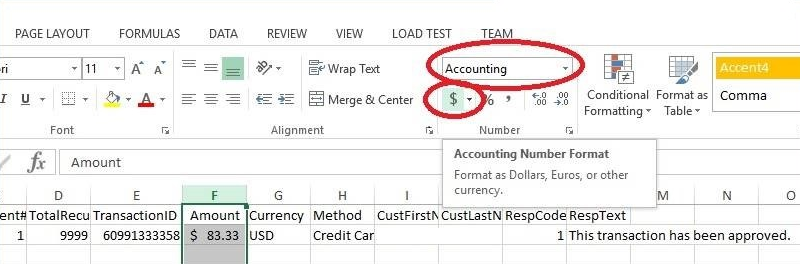
- Import Error Check. This step will check the file against the invoice data to verify all plans are found, with a balance due of at least the amount of each payment you imported. If any errors are found a report of them will be generated automatically. You may process the payments that do not have errors, but once you do be sure to not import that file again or else the payments will be duplicated. Re-check for errors every time you upload a new file.

- Create Payments. This step will create payments in NOAH from the imported file for any imported payments that do not have errors. Be sure to process this step only once per uploaded file to avoid creating duplicate payments. You will need to
- Select or Create a Batch- all the payments imported will be associated with the batch and you will want to have different batches for each import. This should be a CHARGE CREDIT batch.
- Select the Actual Payment Date for when the money should be applies to the invoices.
- Apply to Oldest Invoice for each Contact is a check box that will apply the money to the oldest invoice that is not paid in full, as opposed to the current invoice.
- Click Submit when you are ready to start the process. A message in green will appear below the button when the process is complete.

NOTE: This utility may take several minutes to complete, please do not exit the page prior to receiving the message confirming completion.
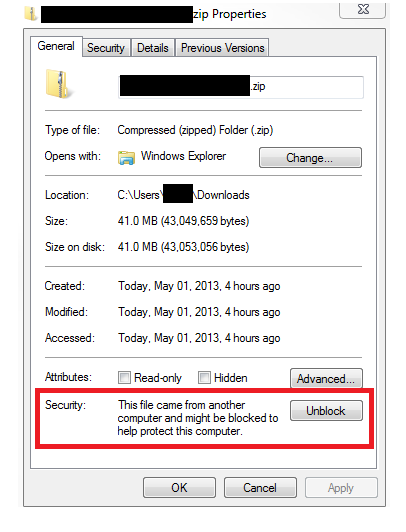
If you are having problem accessing the raw data import file, you may need to unblock the file. To do this, go to your File Explorer, find and right click on your import file and choose Properties. Next click the Unblock button.
Other error messages:
- You are missing payment methods for ARB Payments or GL Accounts for those payments- This error is referring to the Payment Methods used by this process. In the Money Dictionary, under Invoice Payment Methods (PayMethod), you'll need the ARBCC & ARBEFT payment methods defined with a GL account for recurring credit card charges & echecks, respectively.
*If you are not receiving the file from Authorize.net, setup the Email Notifications as described in this article- https://support.authorize.net/knowledgebase/Knowledgearticle/?code=KA-04444
The Daily Transaction Summary (A daily summary of transactions associated with your ARB subscriptions. This e-mail type includes a CSV file each for successful and failed transactions) will give the file to be uploaded.