
The AMS provides an interface for staff to set up discount and shipping rules to be used with inventory items. The dictionary for inventory rules set up is under Money, Dictionary menu option.
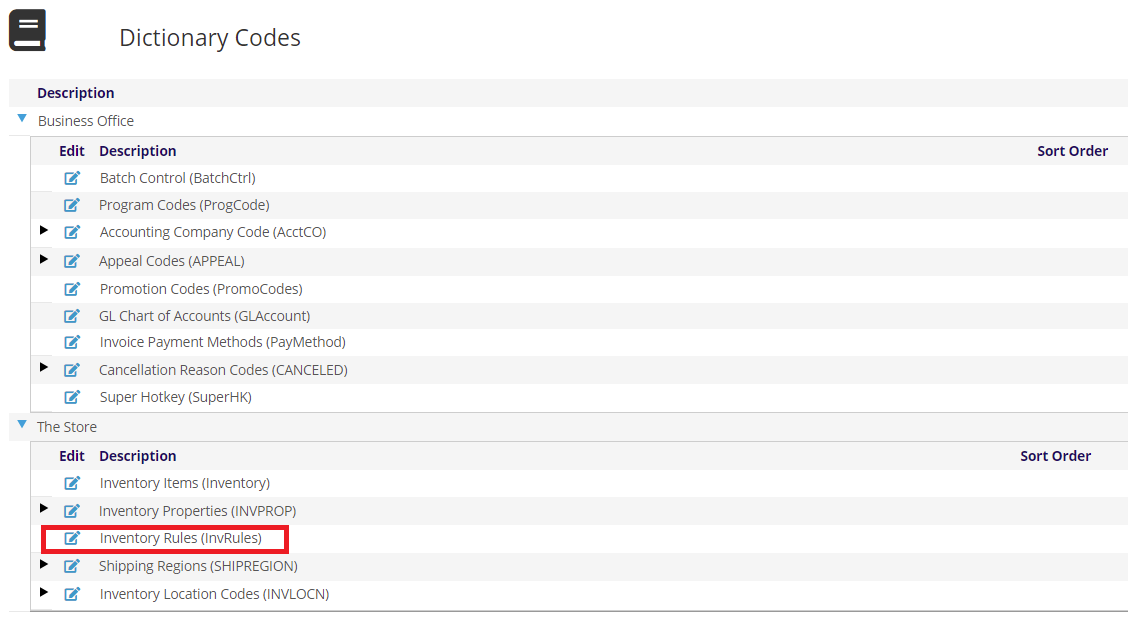
The dictionary page can be accessed by selecting the  edit icon the Inventory Rules (InvRules) option under The Store section.
You can set up as many rules as required. Each Inventory item can be linked to 1 shipping rule and 1 discount rule. You could set up a separate shipping rule for each item or have 1 shipping rule and have all of the items linked to it. Any other combination in between is allowed. The number of shipping/discount rules would depend on your organization's needs.
To add another inventory rule, click the + Add new record at the top left of the grid. To edit and existing rule, click the  edit icon on the left side of the grid next to the rule you want to edit. Either Adding or Editing will open similar area about the rule.
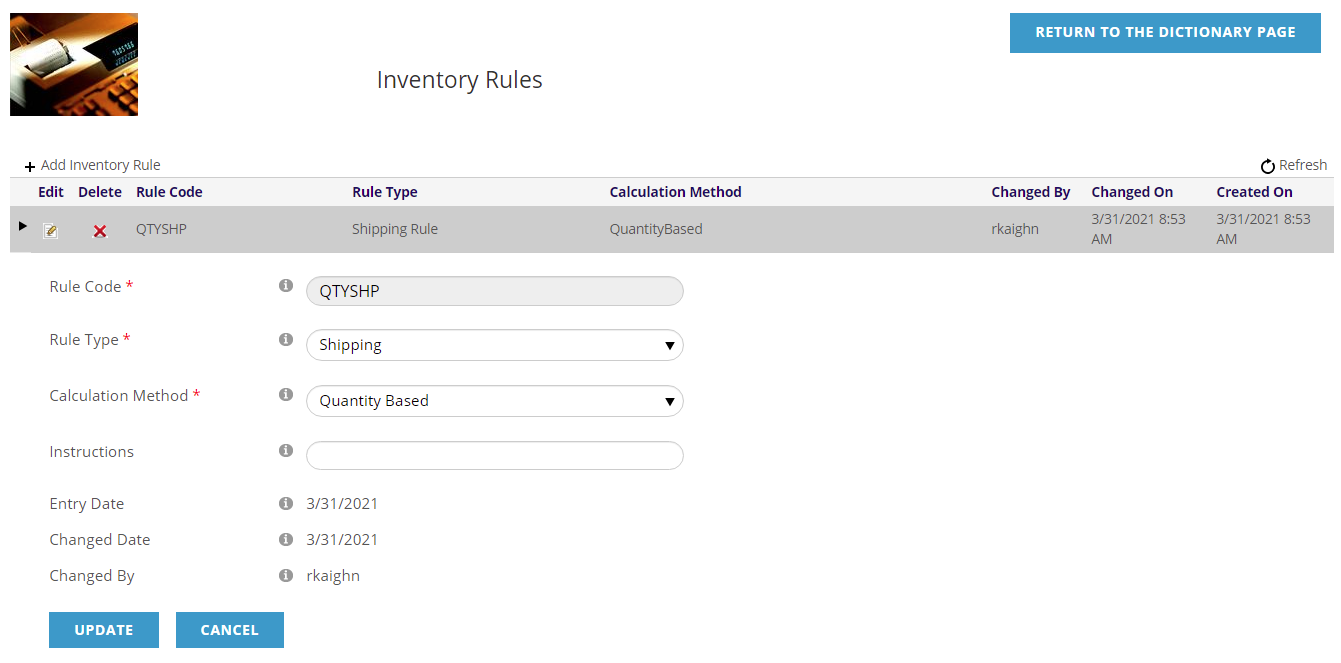
The Rule Code is the name of this rule. It can not be changed once created, and will be attached to an Inventory item.
Rule Type will either be
- Shipping- calculate the shipping fee charged for inventory items
- Discount- calculate the bulk discounts for inventory items
There Calculation Method has four options that a shipping rule could use:
- Flat Amount- The shipping rule using this calculation method will always add the flat amount specified to the total of the invoice as long as there are items in the cart that qualify for this rule (are linked to it). The amount will stay the same regardless of the quantity of items in the cart.
- Quantity Based- This shipping rule calculation method will add the specified amount multiplied by the quantity of items using this shipping rule in the cart. It is similar to the Flat Amount method; however it takes the quantity of items into account.
- Quantity Range- This shipping method allows staff to set up different quantity ranges with different amounts. The amount that will get added to the cart will depend on which quantity range items fall into. For example, one amount can be applied if the quantity of items is between 0 – 50, and another amount for quantities 50 and above.
- Price Range- This shipping rule calculation method is exactly the same and the quantity range method, except it uses item price ranges.
Instructions can also be added.
For each rule, you will add Rule Properties to define how the shipping/discounts are calculated based on the method selected above.
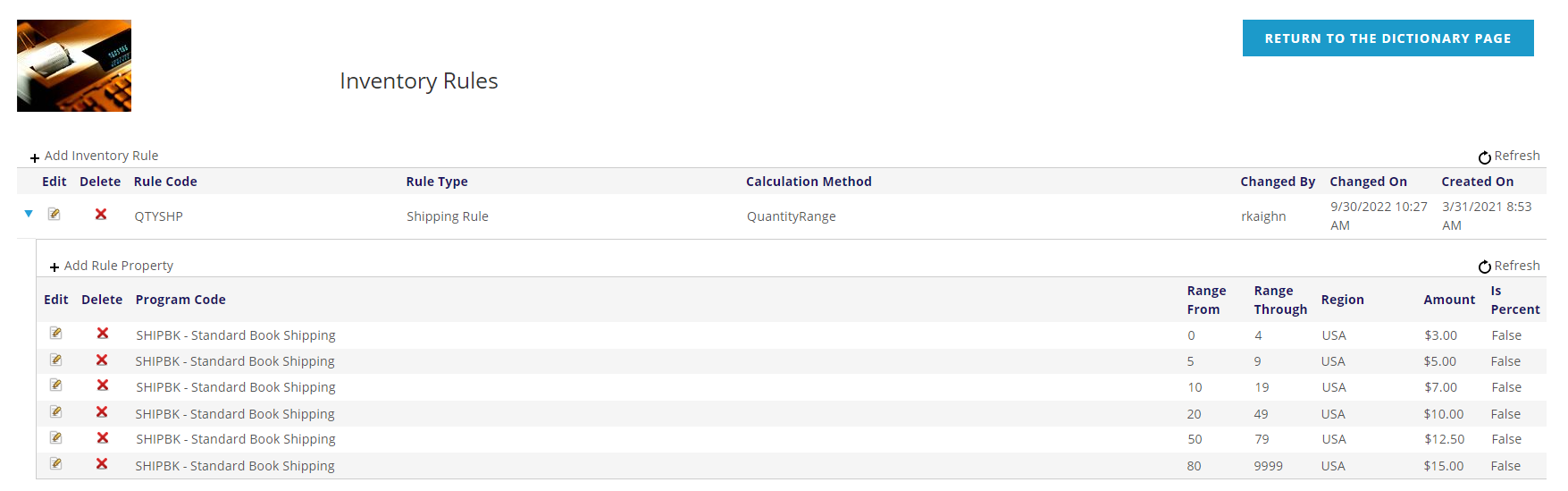
To add another inventory rule property, click the + Add new record at the top left of the grid. To edit and existing rule property, click the edit icon on the left side of the grid next to the rule you want to edit. Either Adding or Editing will open similar area about the rule property. Here you can setup the pricing for a range of values, if that is the calculation method you selected, or a single entry for flat rates.
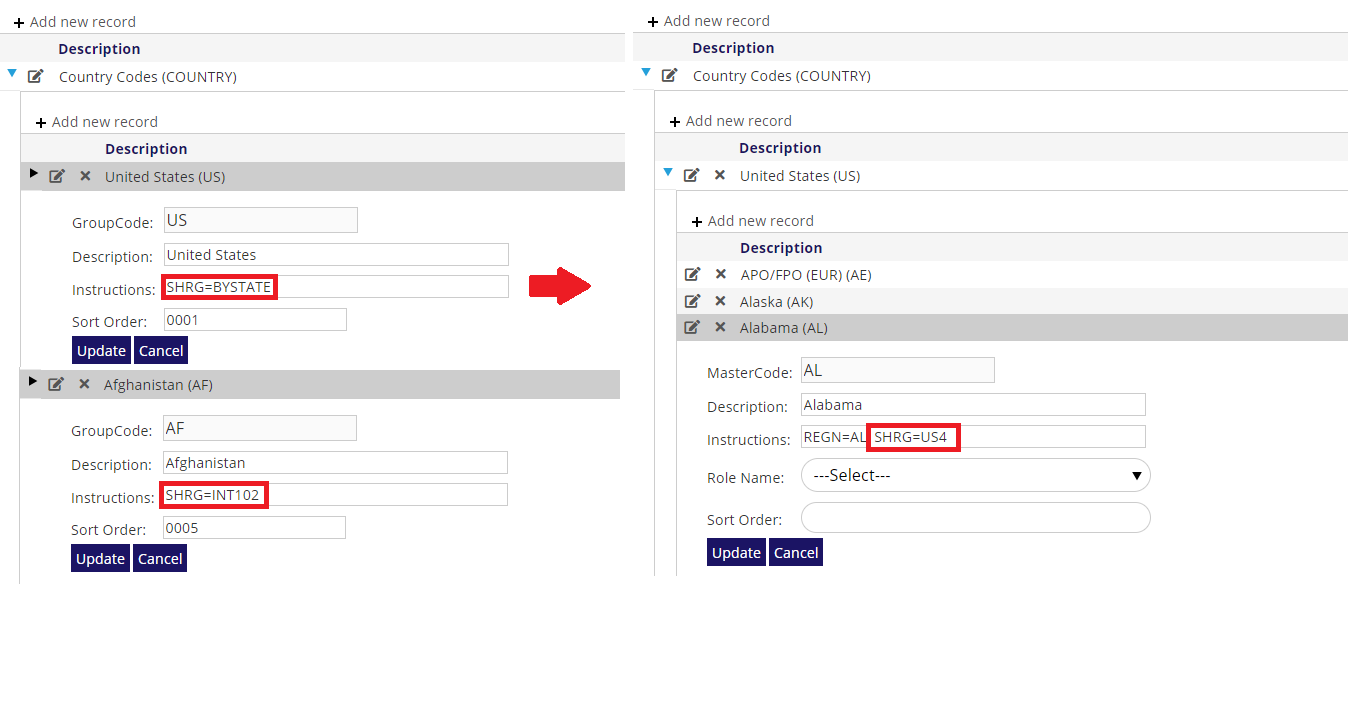
The Region is defined in the Money Dictionary under Shipping Regions (SHIPREGION) and allows charging different rates based on the ship-to address location. NOTE: The Region field is only visible on this screen if Shipping Regions have been defined.
The regions are assigned to locations in the Dictionary under Country Codes (COUNTRY) with the SHRG= Instruction. You may add the Instruction to the country or use SHRG=BYSTATE to set the region on a per state basis.
Is Percent is a flag that specifies if the Amount defined is a percentage or dollar amount. For example, shipping may be $10, or 10% of the Invoice item amount.