
List Codes have a very wide application within the AMS. List codes are used to track smaller bits of data than folders but are similar in that they define a type of data and when applicable, a date range that they are in effect. They are used to record Demographics for each type of contact in the AMS, special needs and badge information for meetings, mailing lists, Opt In/Out lists, and bookmark flags you place on a contact so that you can later select them for a list, label or blast email.
Click on the List Codes button from a Library Card to bring up the List & Demographics Search. When you click on the Add New Criteria button, the page with List Codes Criteria fields appears, as seen in this example.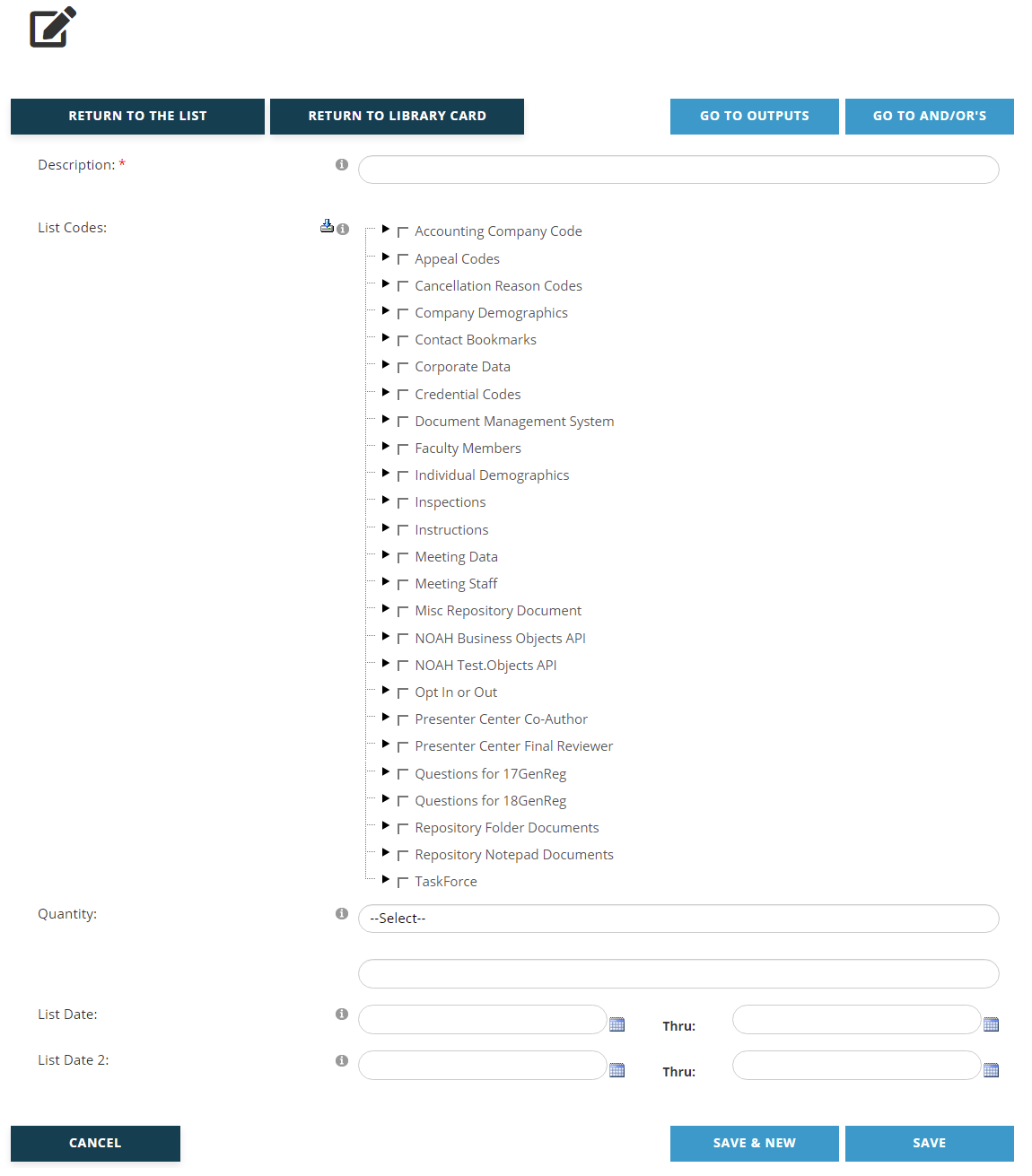
A Description of the purpose of the criteria must be entered in the first field, which is a mandatory text box. Enter this value before entering any criteria. This description should match the exact criteria you are creating. For example, if your Library Card is targeting contacts whose Demographic profile include a declared interest in Finance, you should name that criteria “Interested in Finance” or something similar. This becomes important later when you are applying the And/Or logic to your criteria, where each criteria being named for their exact filter makes it easier to set up the logic to be applied.
There can be hundreds of List Codes in a typical system setup, and they are accessed in Criteria via an expandable check box tree at up to three levels, as seen for Individual Demographics in the next screen shot.
If we explore the example from above for interest in Finance, we must first click and expand “Individual Demographics”, then expand “Interests” and finally, check the box for “Finance”.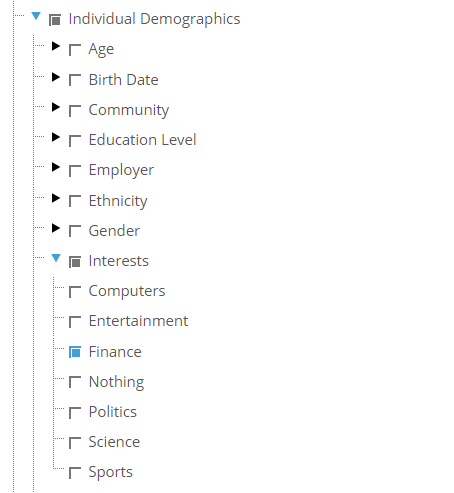
Note that if you check more than one of these or other list codes in the same List criteria, the query will search for contacts that have any of the ones you chose. If instead, for example, you need to find contacts that declared Interest in Finance AND Politics, you would need to create two separate List criteria for each interest on the same Library Card and use the “And” function of the And/Or operators, described later in this chapter, to get the desired results.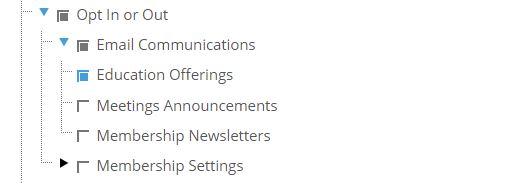
You can set criteria for Opt In/Out settings here as well. If you have Opt In/Out settings for “Education Offerings”, or something similar, and you want to send those contacts who have selected that option in their profile a blast email about upcoming education courses, you can create a List Code criteria to find those records by using the check box tree as seen here.
The Quantity fields combine a drop down menu of qualifiers with a textbox where a number can be entered. This field will only be relevant for criteria set on list codes where the data collected is a number. You could select such a list code from the check box tree and then search for those records with a matching number, or a number greater than or less than a certain number to get a range.
The use of List Date fields depends on what codes you are querying. For example, certain Demographics questions are answered with a date. If, for example, your contacts provide their date of graduation, you can use the first List Date field, not List Date 2, to find those records that have entered a particular date or a date within a range.
Other uses of List Date fields will depend on use of those fields as customized by your association. In many cases where the data collected is not a date, the first list date field is automatically updated by the AMS to reflect the last time the list code was saved. You can verify which date field you are using for a specific list code choice by viewing a contact’s profile record that has one selected.
Click on the Save button to save any changes made. Click on the Cancel button to exit the page and discard any changes made. Click on the Save and New button to save the List Codes Criteria you have been working on and immediately start creating another List Codes Criteria for the same Library Card.
Clicking the Save button brings up a View page for the new criteria. The same process applies when an existing List Codes Criteria has been edited. Double check the criteria to make sure the fields were set correctly. If you need to make changes, click on the Edit button below the summary. If everything is correct, click on the Go to And/Or’s button and set your And/Or preferences. That process is described later in this chapter.
More information on List Codes, including Demographics and Opt In/Outs, can be found in the Profiles and Contacts Dictionary sections.