
Below the general setup of a Matrix is where you set how many pages your Matrix consists. All the questions will be on pages and you can control how many pages there are and which questions are on which page.

In the middle, you will see the pages in white with the page number, and an arrow under one to indicate which page you are currently on, and the related questions on that page are shown in the Questions area below. To add a new page, click the  white and green plus button on the right. To delete a page, use the
 red x button on the right. NOTE: before you delete a page you must first empty the page of all Questions and Responses by retiring them.
To navigate between pages, you can use the left and right arrow controls on either side of the pages, or simply click on the page you want to be on. The next step is to add Questions to that page.
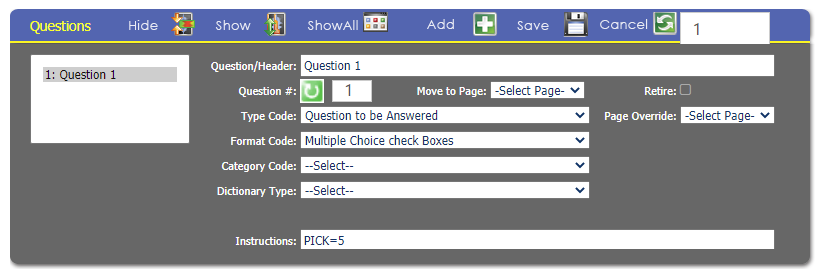
Click the white and green plus button to add a new Questions, or click on the Question on the left that you want to view/update. NOTE: make sure you save your changes using the  Save button in the Question area (not in another area) before moving to a different Question or your changes will be lost.
Each Question has several properties:
- Question/Header- this is the question you are asking, or the header to a section. This will respect added HTML code (usually text formatting and links) when displayed on the web. Questions are limited to 1024 characters (including spaces and HTML code).
- Question #- the Question number.
- Move to Page- drop down to move the selected Question to another page.
- Type Code-
- A branch based on data entered
- A recommendation
- General rules for the session. Should be on page 1.
- Pause for a summary, specify the grid type to use
- Question to be Answered
- Format Code- specifies the type of information being collected. NOTE: you may only have 5 Questions on a Page with the same Format Code.
- Date data, specify format-
- Drop down list, specify the dictionary source- used in combination with the Dictionary Type to determine what options are in the drop down list.
- Floating point number, specify decimal places-
- Large text box, specify number of lines- a text box for unstructured responses; use the ROWS instruction to specify the number of lines.
- List panel, specify the dictionary source-
- Multiple Choice check Boxes- check boxes allows for multiple options, and possibly more than one selection.
- Multiple Choice radio buttons- radio buttons allows for multiple options, but only one selection.
- Show no Grid or step is not visible- not a question; used as a header or to give information.
- Slider- shows a line with tick marks and a slider the user moves back an forth to pick a value.
- Text box- a single line of text for a short string.
- Time data, specify format-
- Whole number value-
- Category Code- from the Matrix Dictionary, Matrix Category Codes for grouping questions (CATEGORY) populates this drop down. It can be used to categorize your questions.
- Dictionary Type & and Group- when a Drop down list or List panel are are used for the Format Code, this specifies the Dictionary entries to use. NOTE: the Group drop down will appear once the Dictionary Type is selected.
- Retire- a check box to retire this question. NOTE: all Answers must be retired before a Question can be retired.
- Instructions- optional instructions to add functionality. As with all instructions, the parameters are separated by a single space, and their values are not.
- REQD- makes the question required; no = or parameters, just REQD is all that needs to be entered.
- PICK- the number of options that can be selected; PICK=5 allows five options to be selected.
- RVAL- for questions that use the Format Code Whole number value, the instruction RVAL=1|10 in the question means the response must be an integer between 1 and 10. Any range can be used.
- ROWS- for questions that use the Format Code of Text box or Large text box, specify number of lines, this is used to specify the number of lines; for example ROWS=5 would give a text box with 5 lines.
- MLEN- for questions that use the Format Code of Text box or Large text box, specify number of lines, this is used to specify the maximum number of characters allowed (including spaces) in a response; for example MLEN=1024 would allow 1024 characters.
- MINL- for questions that use the Format Code Text box or Large text box, specify number of lines, this is used to specify the minimum number of characters allowed (including spaces) in a response; for example MINL=5 means the user must enter at least 5 characters before proceeding.
- BASE- You may limit a question to a value in the contact subtype field, the specialty field and/or their membership type. By itself this command just sets up the limitation. The following TYPE, SPEC and MEMB commands refine the limitation.
- TYPE- Can be used to limit a question to a specific contact subtype code
- MEMB- Can be used to limit a question to a specific membership type or MEMB=*ALL* if limiting to any active membership, or MEMB=NONMEMBER for non-members.
- SPEC- Can be used to limit a question to a specific specialty code
- OPER- The TYPE, MEMB and SPEC commands work together and the test may be connect them with an AND or OR operator. Since all three default to TRUE if nothing is specified, the AND operator works when one, two or three of the codes are used. But if the OR operator is used, then you must specify all three codes because any missing code will default to TRUE regardless of the other commands and the overall result will then be TRUE and the question will be displayed.
- HKEY- If the item may be purchase then the HKEY= command points tot he Program Code HotKey that controls the sale. It is this hotkey that is placed in the shopping cart and purchased.
- LINK- A HotKey in the shopping cart may be a stand-alone entry. Examples are a T-shirt, a book from the store or a meeting registration. The registration, however, may be a PARENT of many CHILD entries that document the selection of sessions, workshops, banquets, sporting events, tours and the like. Use of the LINK command binds the children to the parent. Children cannot be removed from the shopping cart but if the parent is removed, then it also removes all the children rows.
- ENDS- If the instructions contain a HKEY command, use of ENDS causes setting the start date in the shopping cart to today and the expiration date to today's date plus the number of months specified in the command. For example, ENDS=3 will set the start date to today and the expiration date three months from today.
- EVNT=CAPACITY- If the command is EVNT=CAPACITY the Marketplace will check to see if the event is full and a “SOLD OUT” message should be displayed along with disabling the option so it cannot be selected.