

The Meeting Planner tool allows you to plan your meeting using the Presenter Center submissions. This tool makes it easy to create events, specify their dates, times, and other information and assign approved presentations and presenters to those events.
Create Planner Event
In order to create events with your Presenter Center presentations, you must first create the planner event. There are two ways to create a planner event. You can use the Create New Planner Event(s) link under the Actions section on the side menu. This will only create the planner event. You will then need to assign your presentation(s) to it. Alternatively, you can click the calendar button next to each presentation which will allow you to create a new planner event and upon creation will automatically assign the presentation to it.
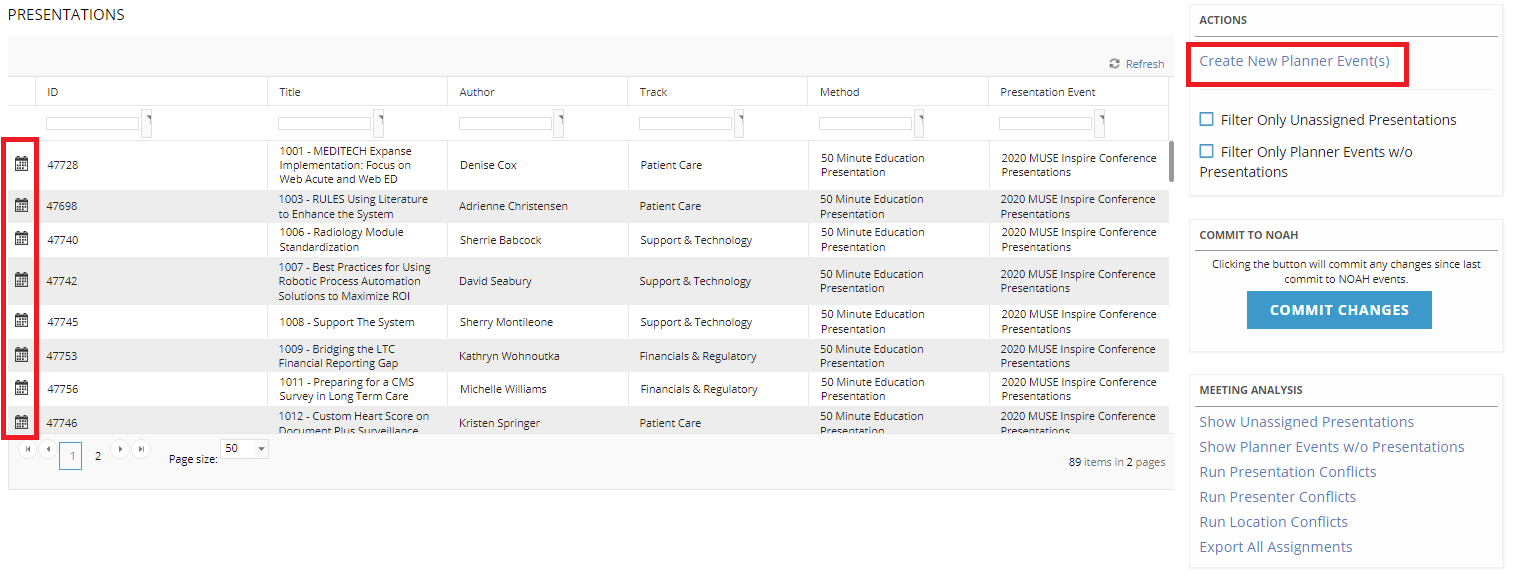
When creating a planner event, you have the option to add the location. You can also edit the planner event later to add it. You should update your Meetings >> Dictionary >> Locations so that locations can be assigned to the events. This is very important in performing location conflict analysis.
Assign Presentation(s) To A Planner Event
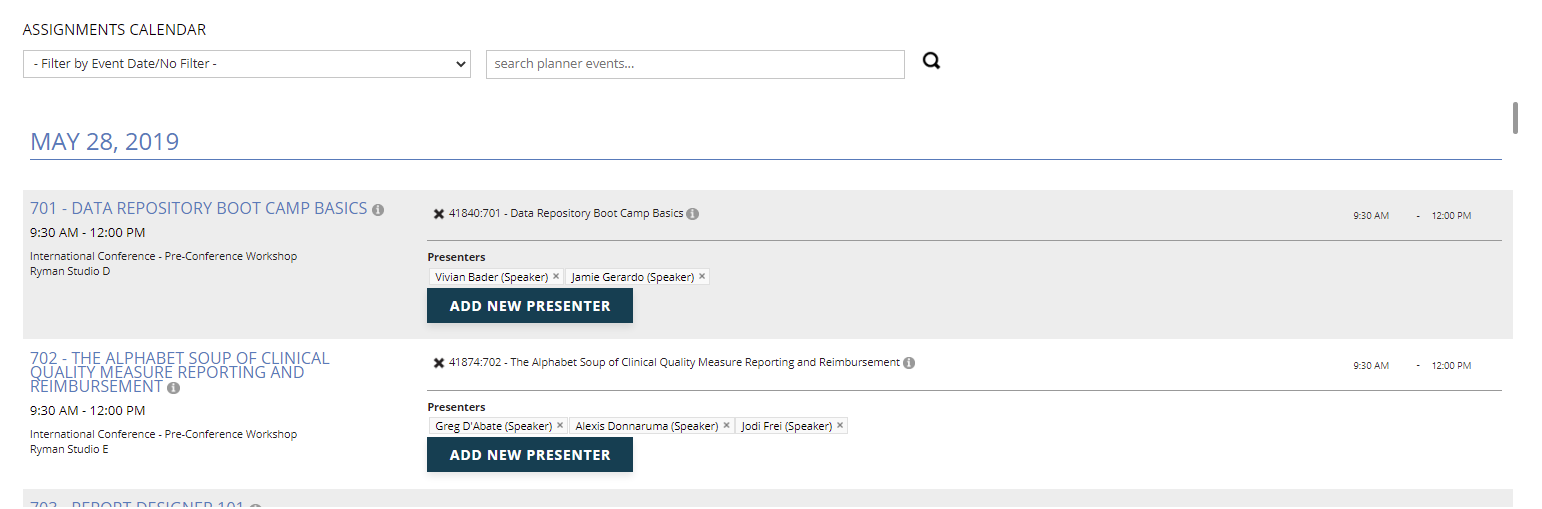
All of the approved presentations for this meeting are listed in the grid. If you selected the Create New Planner Event(s) link to start creating an event, you will now want to use the Assignments Calendar to assign presentation(s) to that event. You can drag and drop any presentation from the list on top of the event you wish to assign that presentation to.
Alternatively, you can click the calendar button next to each presentation which will allow you to create a new planner event and upon creation will automatically assign the presentation to it. The presentation times will inherit event times when assigned. NOTE: If you change the planner event time, any presentations already assigned to that event will inherit this new time.
Any authors from the presentation that indicated they will be attending the presentation will automatically be created as presenters upon assigning a presentation to a planner event. You can add additional presenters by clicking on the Add New Presenter button in each planner event.
Event Times vs. Presentation Times
Presentation times will inherit event times when assigned, but you may edit the presentation time once assigned to specify presentations order if you assign multiple presentations to an event.
Edit an Event Pre or Post Commit
The more information icon under the Assignment Calendar below allows you to edit your existing planner event. When you select it, you will see details about the event and a link to Edit or Delete. NOTE: Planner events can only be deleted if they are not committed. If you need to modify the actual assigned presentation times, and not the event time, you would select the applicable option directly below the presentation. 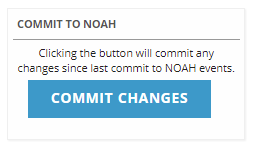
At any time, you may Commit your planner events and presentation assignments to real NOAH event data. This will create and/or modify any events as necessary and create and/or modify any presenter folders in the database. You can commit planner data by clicking the Commit Changes button. You will get additional instructions and have a final chance to confirm/decline your commit.
Meeting Analysis
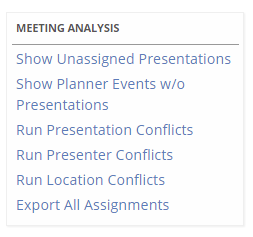 Finally, you may run meeting analysis reports from the Meeting Analysis section on the side menu at any time. Some of these reports perform conflict analysis. If any conflicts are found, you will be able to address them on the meeting analysis results screen. Most of these reports can also be saved in PDF format or exported to an Excel document.
- Show Unassigned Presentations- shows presentations that are not assigned to events
- Show Planner Events w/o Presentations- shows events that do not have assigned presentations
- Run Presentation Conflicts- gives presentation conflicts, for example when the same presentation is in two rooms at the same time
- Run Presenter Conflicts- gives presenter conflicts, for example when the same presenter has sessions at the same time
- Run Location Conflicts- gives location conflicts, when the a location has multiple presentations at the same time
- Export All Assignments- gives an Excel export of all events and assignments
These options will open the Meeting Analysis Results screen to view results, except for the Export All Assignments which generates and downloads a file.
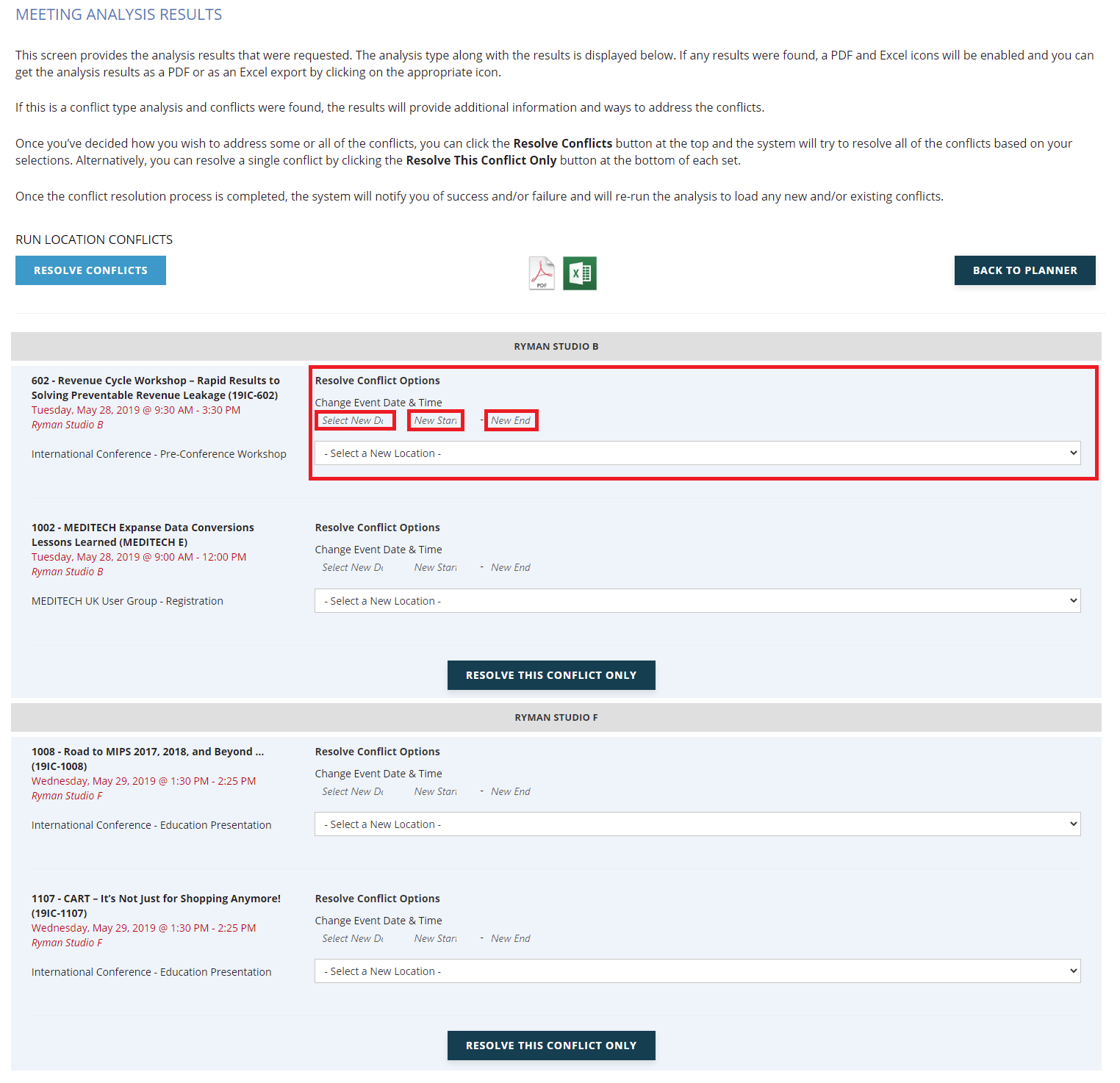
Below the explanatory text you will see PDF and Excel icons to export the results. Within displayed conflict results, you will see options on how to resolve the conflict, but resolving them is not required. For each conflicting item, you will see options to change the Event Date, Start Time and End Time, the Presentation Start Time and End Time, as well as a check box to Remove This Presentation Assignment From Event. To update a single conflict, use the Resolve This Conflict Only button at the bottom of a given conflict, and the Resolve Conflicts button at the top to update all your changes to conflicts. The Back to Planner button will take you back to the previous screen.