
The buttons found on the left side of the Library Card page, seen in the next screen shot, give you access to selection criteria that you can define for each Inquiry.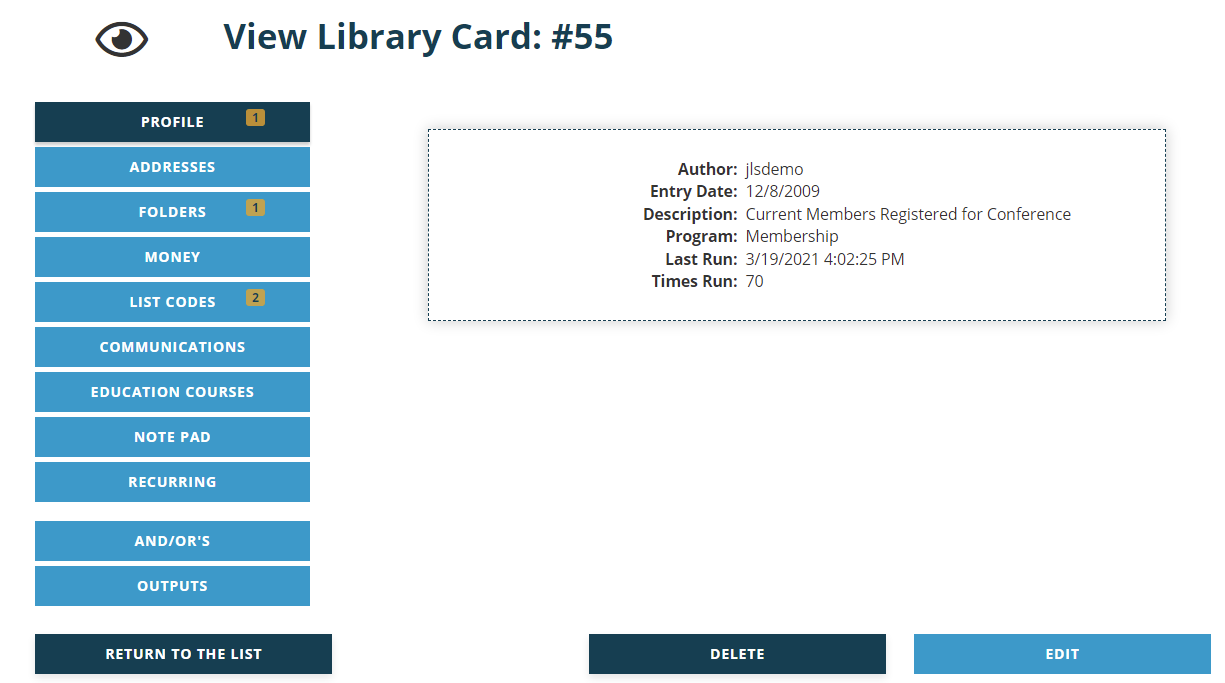
The buttons for Profile through Recurring open pages that all have the same grid view and buttons, except for Folders which also has a drop down menu. That exception will be addressed later in the Folders section. We will focus on the features common to each page in this section.
Each of these buttons may also have a number in a yellow box which indicates the number of criteria set for each category. In the screen shot above, Folders and Profile each have one.
When you click on a category with existing criteria, they are listed in the grid display seen in the next screen shot with functional View, Edit and Delete icons to the left, and the criteria’s Description to the right of those.
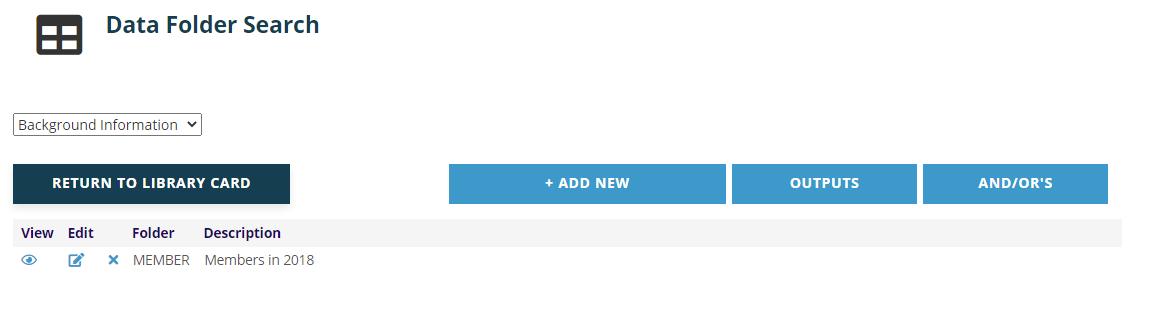
Click on the +Add New button to add a new criteria filter. Each of the pages that then load is unique to the criteria category selected and each is described in its criteria’s section of this chapter.
Clicking on the Return to Library Card button brings up the Library Card’s landing page.
There are also buttons to go to And/Or’s and Outputs. These functions are described in other sections.