
The NOAH Store module allows you to display and sell Inventory Items on your website. This module will display both a listing of items and more details of a selected item. It can also be configured to search for items.
When adding a module to a page in DNN, you may search for Store to easily find this module.
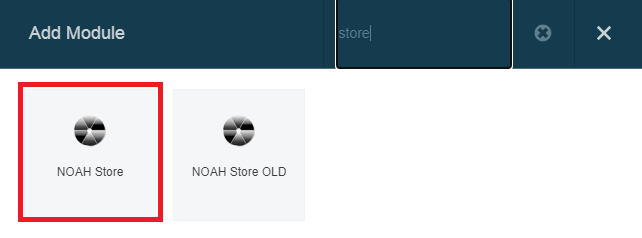
NOTE: NOAH Store OLD is a legacy module and should not be used.
When editing this module on a page, the AMS specific settings are under the NOAH Store Settings tab.
- Accounting Company this is where you select the Accounting Company for this module; each accounting company in the AMS has its own financials & products.
- Shopping Cart Page is the page on your website where items to be purchased will be put and users will check out.
- Store Search is a check box to denote this module will be used as the store search page (all other settings below are disregarded).
- Multiple Stores is a check box for when there are multiple instances of the NOAH Store module on the current page. You may do this to have different groups of items display differently, or have the module display differently to different user roles.
- NonIndividual Overrides Web Quantity Limit is a check box when having a non-individual as the ship to will allow overriding the web quantity limit. Thus you may allow companies to buy larger quantities than individuals.
- Buy Image allows you to select an image to display for when an item is to be purchased.
- Item List Template is the template that will be used when showing a list of items; see Templates below.
- Item Detail Template is the template that will be used when showing details of an item; see Templates below.
- Show Reviews in this section you have the option of displaying/collecting reviews of your Inventoried Items.
Checking the Show Reviews will show reviews for the items and allow users to add their own reviews. The Moderate Reviews check box allows you to setup an approval process for reviews (recommended), and the Moderator Email text box is where you set the email address of who will be notified of reviews that need approval; multiple email addresses can be entered, separated by a semicolon (;).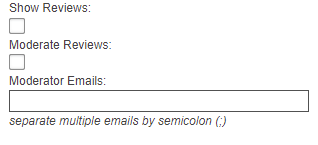
- Choose how to display items In this section you will choose how items will be displayed in this module, either by selecting categories or by selecting specific SKUs.
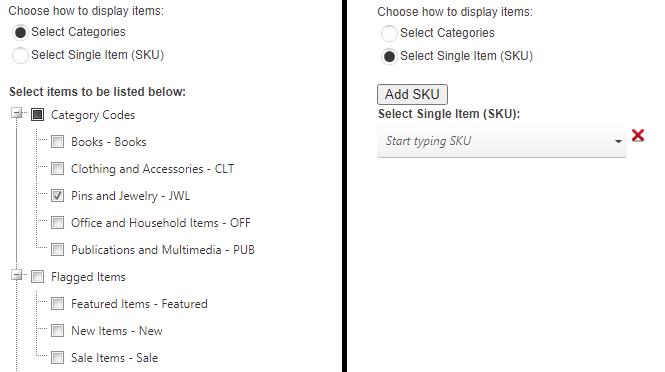
Choosing Select Categories will show a tree where you can choose Inventoried Items in specific categories to display in this module. Checking the box next to the Category will select it for display; these are from the Inventory Item Properties when the item is setup.
Choosing Select Single Item (SKU) will allow you to type in one or more specific SKUs to display in this module. The drop down will show all SKUs, and you can type in letter to filter down the list. Once you have selected the SKU you want to add, click the Add SKU button. You can add multiple SKUs this way. When you no longer want to include a specific SKU, click the red icon next to it to remove it.
Templates. The NOAH Store module also allows you to edit the templates used for display of item lists and item details. NOTE: This is advanced functionality so be cautious when editing these templates.
When editing the page, mouse over the top right of the module, hover over the edit pencil, which will give an option to Edit Templates.
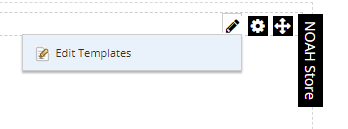
This will open a new screen that will allow you to make changes to the templates used by this module.
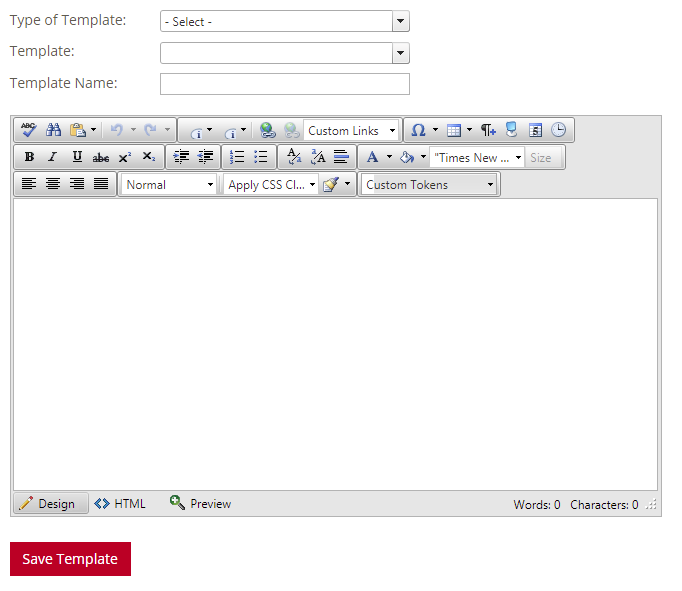
The Type of Template allows you to select between an Item List Template or an Item Detail Template. Once the type is selected, the Template drop down allows you to select from your existing templates of that type or create a new one. When adding a new template, make sure the Template Name is descriptive to its purpose.
NOTE: a best practice would be to make a copy of your existing template and make changes to it and then apply it. That way you can always go back to the previous template if you make a mistake.