
Note Pad Codes drive the captions and selections for specific Note Pad fields in the AMS that your association’s staff use to classify notes that record correspondence with and action items for a contact. In our examples, staff can log the department handling the note, the status if it is an action item, and the degree of urgency for the note. The Note Pad tab for an Individual Contact record is in the next screen shot, and shows an existing note in Edit mode.
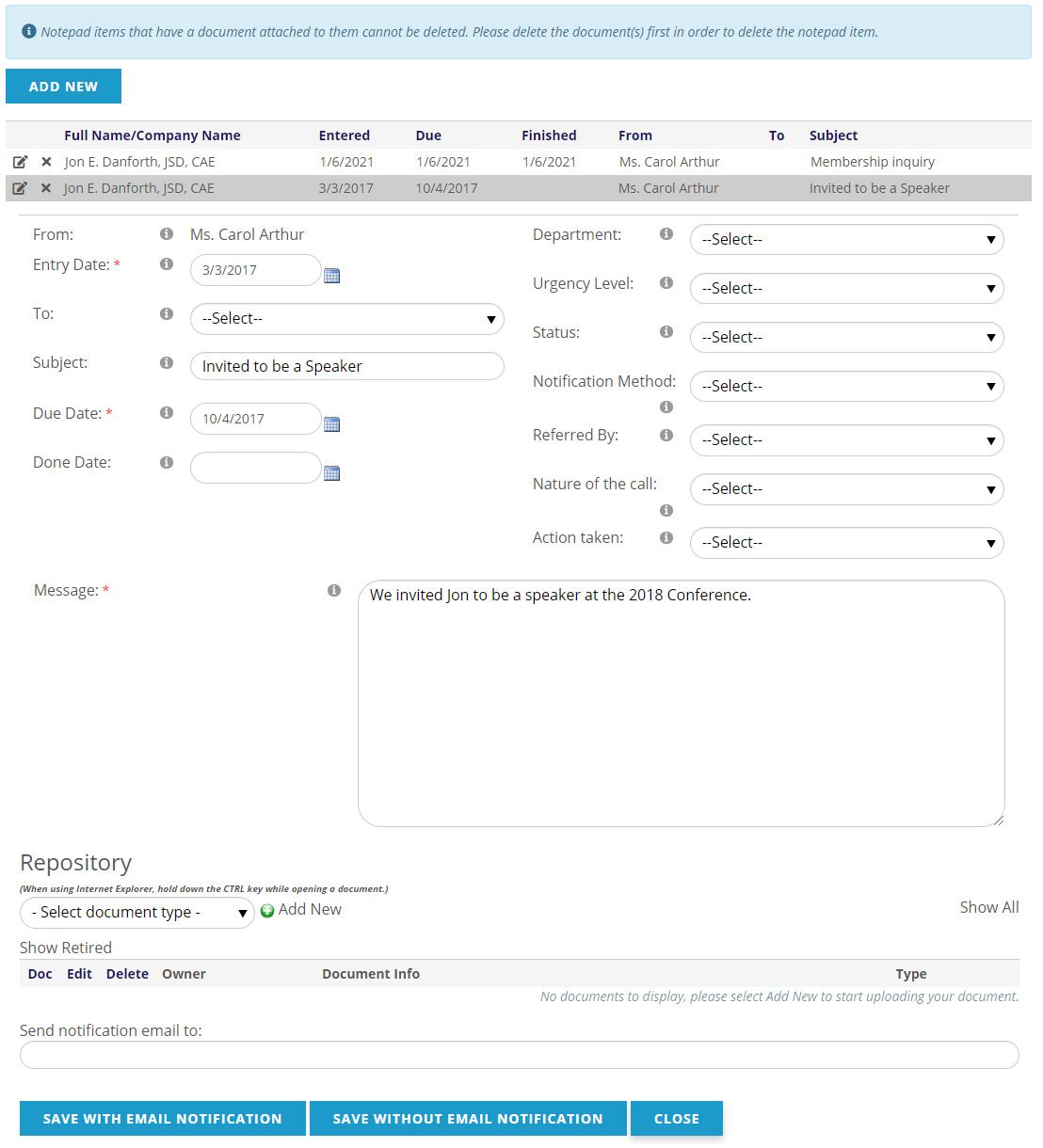
There are Due Date and Done Date fields in the AMS for notes but at times your staff might need to track progress above and beyond the calendar. For such occasions, notes can be classified with up to seven independent classification tags via drop down menus, seen in the above screen shot beginning with the “Department” field. Notes should always get classified at least one of these ways.
For example, once a Done Date is entered for a note, this indicates that all action or communication has concluded, but additional data on Status can help you catch a note that hasn’t been assigned yet by using that drop down to keep it from falling through the cracks.
The Note Pad Codes Dictionary is a grouping table that defines these classification tags. The GroupCodes for the top level GroupType “NPCODE” are in the next screen shot.
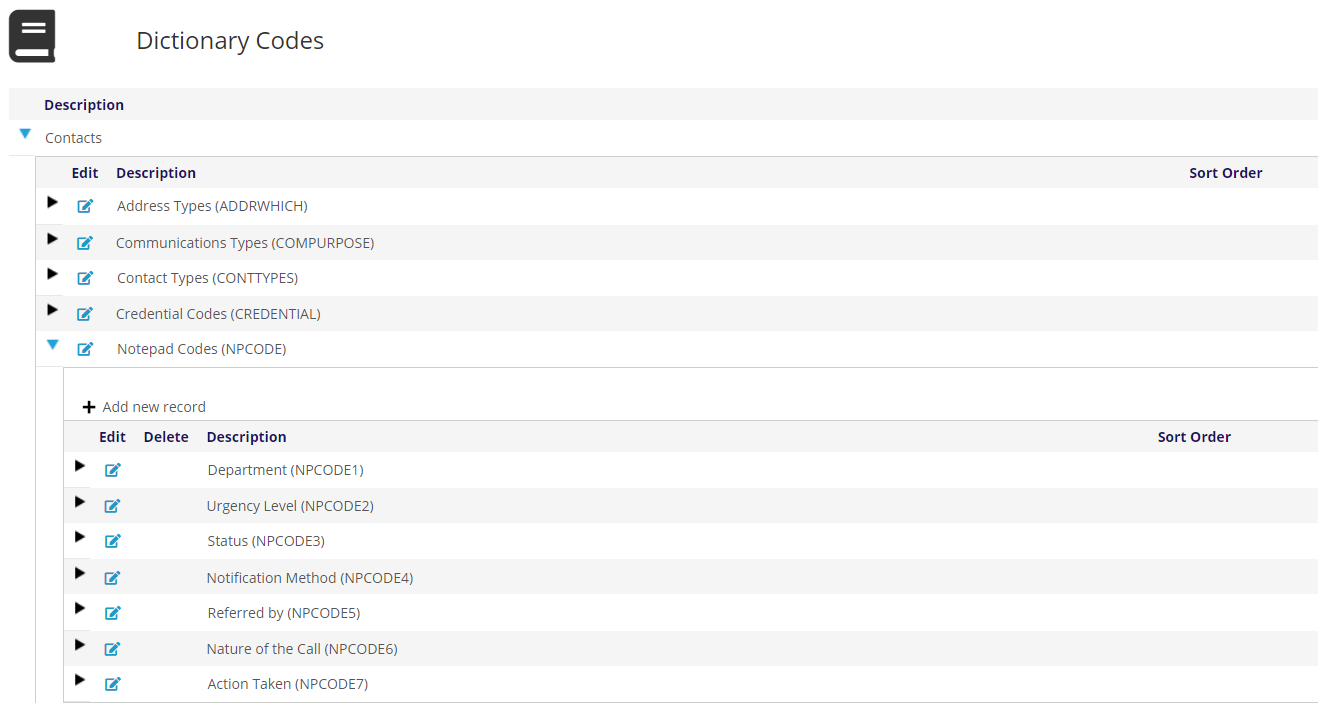
These GroupCodes are hard coded in the AMS, so they differ from others in that they can only be turned on or off at this level. New GroupCodes cannot be added and existing ones cannot be deleted. Most associations use two or three, and these can be set to be mandatory or not for every Note Pad entry. The Description for each GroupCode is used as the label for each drop down, thus if you want to change the label for the “Department” drop down, then edit the GroupCode to modify its Description.
Sample MasterCodes for the “Status” GroupCode are in the next screen shot.
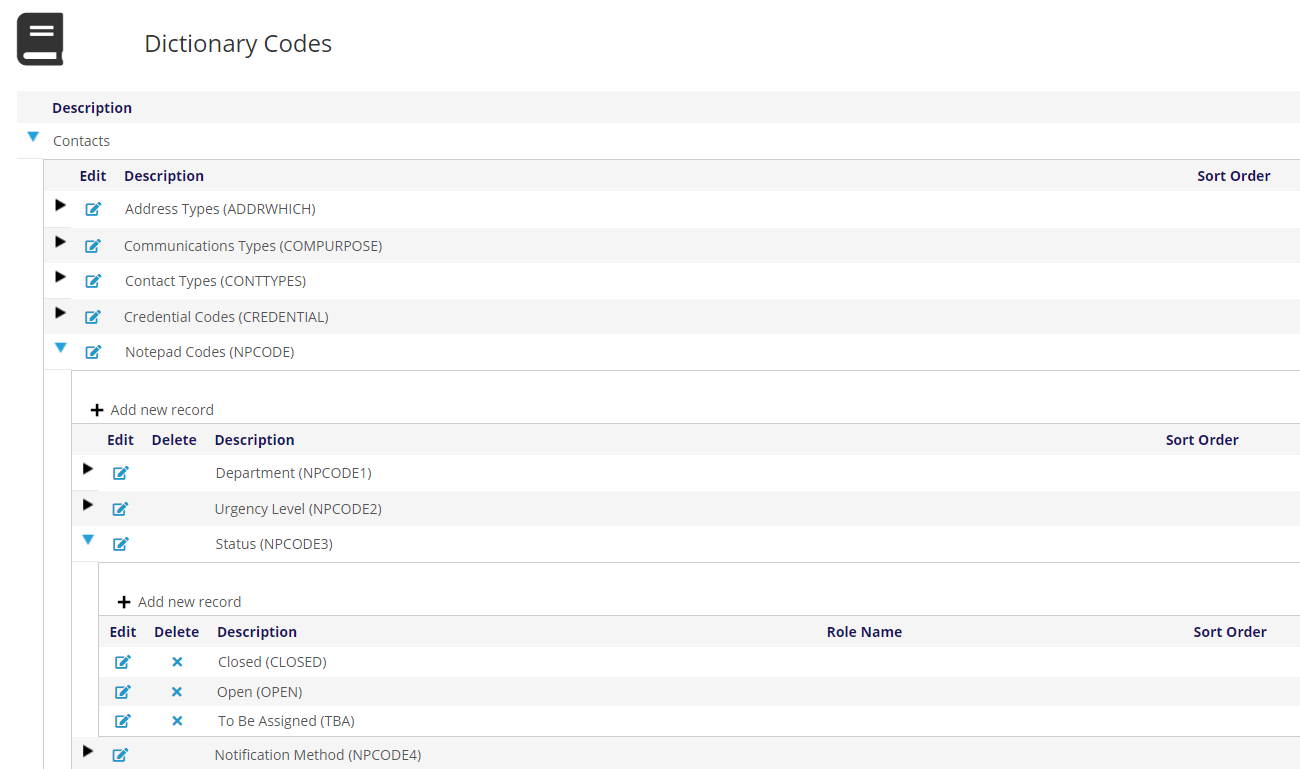
These MasterCodes flow to the drop down menus for their parent GroupCodes. Your staff can add to and edit these MasterCodes as needed to change or add an option in these drop down menus.
If you need to turn on or off any of the Note Pad drop down fields, that is governed through Page Layouts rather than the dictionary. A Client Admin has access to the Page Layouts.
More information on how the Note Pad works in the AMS is found in the Note Pad section of this knowledge base.