
Now we will return to the rest of the Document Data form to discuss six Web fields for submission questions that affect how the question appears to the user on the public facing web form generated by the submission document. 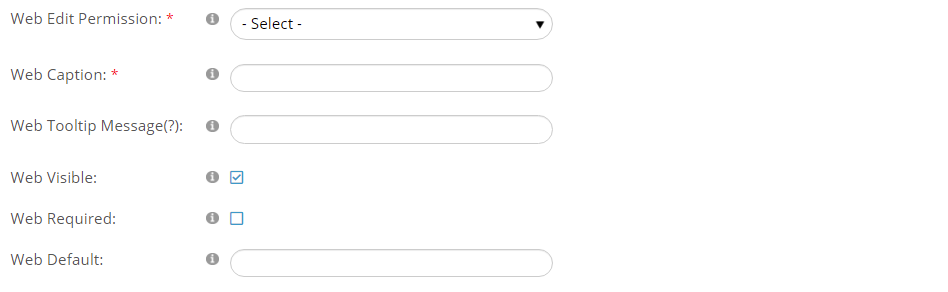
Web Edit Permission is a required field in the document set up that lets you define who can access the answer fields in the web version of the submission document.
- Everyone- open to everyone
- Association- your staff only
- Author & NOAH- are used only for custom cases, and would be covered in staff training specific to your association
Web Caption is a required textbox where you type the question exactly as you want it to appear to the user on the web form.
Web Tooltip Message is an optional textbox where you create a message that can help the user understand how to answer the question. The help message will be visible when the user hovers over the  information icon found next to the question.
The Web Visible check box defaults to checked, and allows you to turn fields on and off in the web form. If the box is unchecked, the field will not be displayed in the web form and no data will be stored in it from that point on. This feature could be used for fields that only association staff need to use that you wouldn’t want the user filling out the form to see.
The Web Required check box defaults to unchecked, but can be checked to make it mandatory for users to answer this question before they can proceed to the next one. NOTE: Do not make Label Small or Label Large Presentation Method fields required.
The optional Web Default textbox is where you can set the default value for the field. This is generally only set when the field is a drop down and you want to set one of the values to be selected automatically in a new submission. You would then enter one of the corresponding MasterCodes in the Web Default field from the dictionary defined by the Group Type and Group Codes that follow.
The next five fields to be discussed are in the next screen shot.
If you are using the online Repository module for searching and displaying documents from a library, that module can display 4 fields of data from the submission form in addition to the standard data shown for each document. In the screen shot below, the standard information is shown for a document. Up to 4 fields from the submission form data can be added to the grid, which would then be to the right of Document Info in each row.

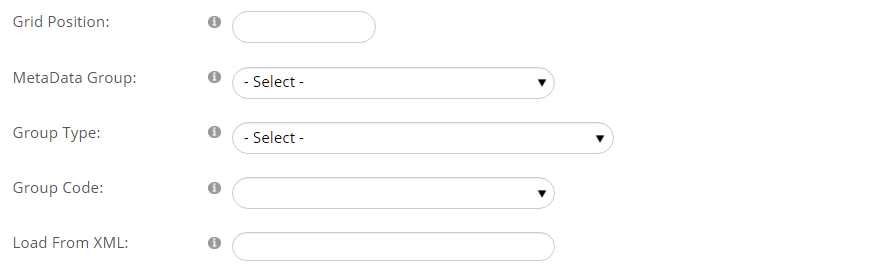
Use the Grid Position field to indicate which of the 4 columns you wish the data of that field to be displayed in. For instance, a “1” will place that question in the first column of the display grid. Do not skip numbers, always start at 1 for the first field, then use 2-4 in increasing order. You do not have to use all four columns.
If you are not using tabs you can skip the MetaData Group field, but if your form will have a large number of questions you can use this field to group them under separate tabs. This approach makes it easier for the user to navigate through the web form, especially when it contains a lot of questions. The tabs are defined in the Repository Dictionary under Repository Attributes. The process for creating tabs is described and demonstrated later in this chapter.
Select the MetaData Group value from the drop down menu to place the corresponding question in one of your pre-defined tabs.
The Group Type and Group Code drop down menu fields must be filled if you want the user to choose from one of the lists of answers defined in the Dictionary under Repository Attributes. In the next example, the Group Type for the selected question is “Repository”, and for Group Code the selected dictionary of answers is called “Intended Audience”.

The last five fields under Document Data are check box fields that default to checked, as seen in the next screen shot. 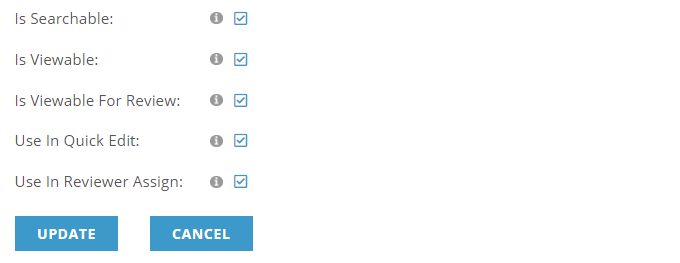
The Is Searchable and Is Viewable fields are only used when you are using the website module for searching and retrieving documents in the Repository. The most common use of this is for reference materials that can be searched and read via your website. If the Is Searchable field is checked, then the question and answer will be included in the available fields for searching for documents. If the Is Viewable check box is checked, the question and answer will be included in the results data returned by the search.
When checked, the Viewable for Review field includes the question and its answer in the information seen by reviewers. Uncheck the box for questions with answers that your staff must verify and/or track for application trends but that should not be part of the review process. This approach protects against potential informational bias by reviewers by hiding answers from them that reveal an applicant’s age, gender, ethnicity or any other private demographics or biographical details.
If the submission document is to be used within the Presenter Center module, there is a utility within it called Quick Edit. It is used by association staff to “clean up” data in approved submissions in one fell swoop that may appear in multiple places such as a conference’s program guide, website and/or app. For example, staff could run Quick Edit to correct any typos in conference session descriptions, or standardize the appearance of certain data, such as session titles. When Use In Quick Edit is checked, the data entered for the corresponding question will be accessible in that Quick Edit function.
When checked, the Use In Reviewer Assign field includes the data entered by the user in the form that staff use when assigning reviewers. Staff may need to determine which reviewers have the expertise to review each submission based on the data in the submission form, and this check box allows them to view the question and answer in the assignment routine.
When you have finished adding or editing a question under Document Data, click on the blue Update button to save your work. To discard any additions or changes, click on the blue Cancel button. Note that once you save the first question created in a new submission document, the document itself has not been saved on that click. There is a separate blue Update button at the bottom of the form, below Document Categories that applies to the full submission document.
You can add as many questions as you need whether you are using tabs to group related questions or not.