
The Presentation Method drop down menu is a required field where you select how the question and answer(s) will display on the web form to the user. The available Presentation Methods are
- Textbox- a simple text box
- Multi-Line Textbox- a bigger text box that can have a character limit
- Date- a date field
- Time of Day- a time field
- Check Box: True/False- check boxes for True or False
- Check Box List- a list of check boxes that can have multiple selected
- Radio 2-Button List: True/False- radio buttons for True or False
- Radio Button List- a list of radio buttons that can have only one selected
- NOAH CMS Editor- opens an editor so HTML can be entered
- Drop Down List, 1 choice to Drop Down List, 7 choices- several drop down options that can allow 1 to 7 options to be selected
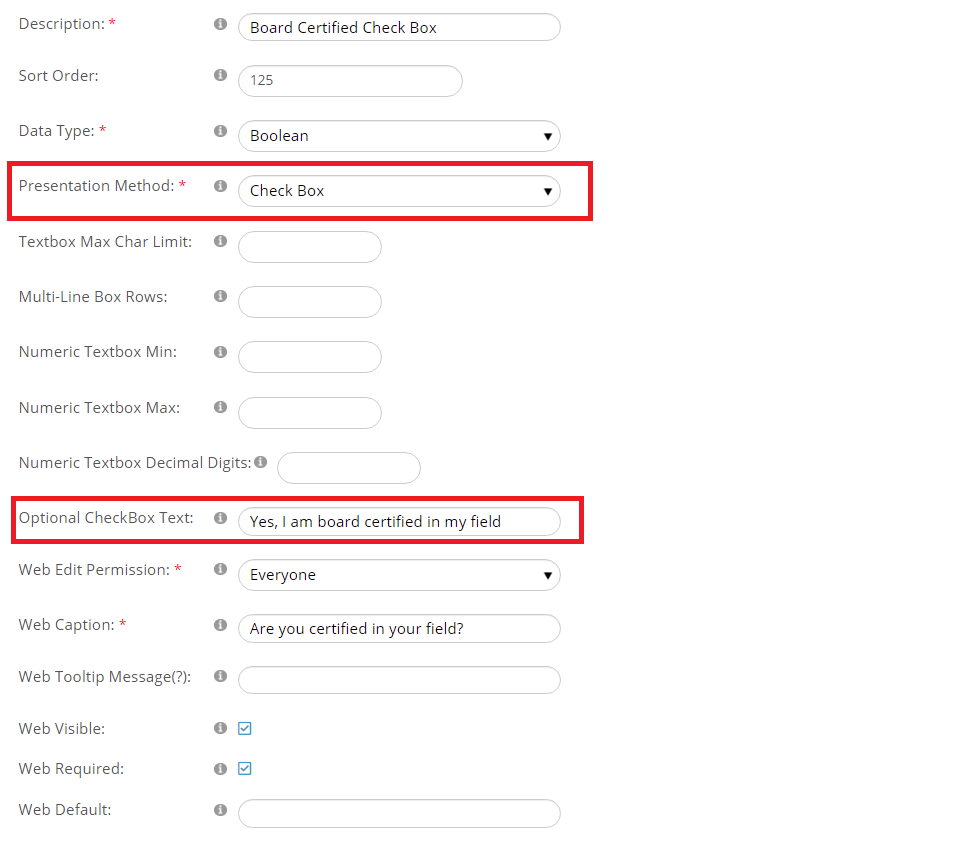
- Check Box- a check box
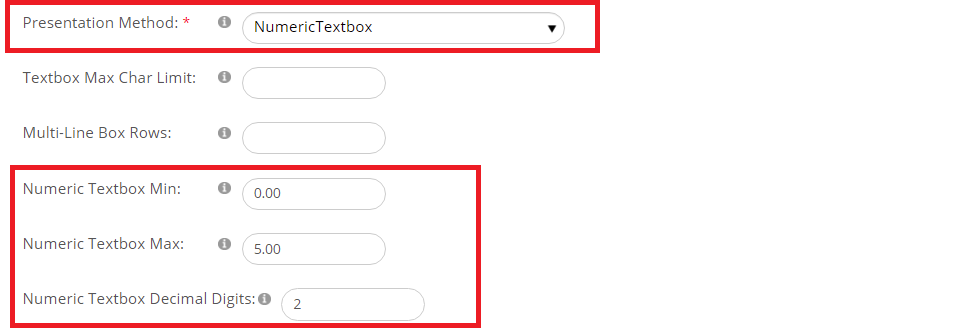
- NumericTextbox- a box to enter a number, with Min and Max values, and the number of decimals allowed
- Label Small - a small bit of text used as a label/header for a section or a note. No answer is given
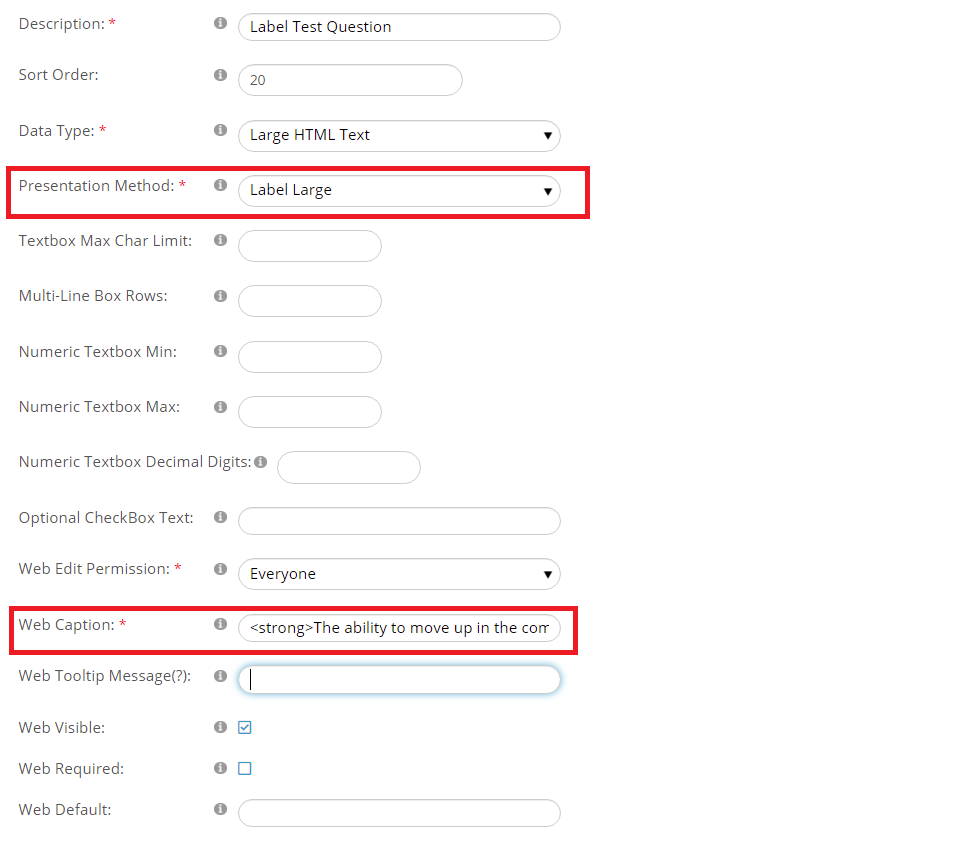
- Label Large- a large text area used as a label/header for a section or a note. No answer is given
Here are examples of different Presentation Methods, and for some there are samples of the resulting view on the web form.
You can prompt the user to fill in a Textbox to provide shorter written answers to Fill-in-the-Blank questions, as in the example below

You can choose a Multi-Line Textbox presentation method when you want the user to give a longer answer. You can limit the number of characters to be used in the textbox by putting a number in the Textbox Max Char Limit field. Note that the character limit is included in the Web Caption field so that the user knows the maximum allowed. The user’s view when filling out the web form would look similar to this:

LIST OPTIONS
All of the list options will only work if you have created a dictionary of the answers from which the user will choose one or more values. That dictionary building process for these GroupCodes and MasterCodes is described in a later section of this knowledge base.
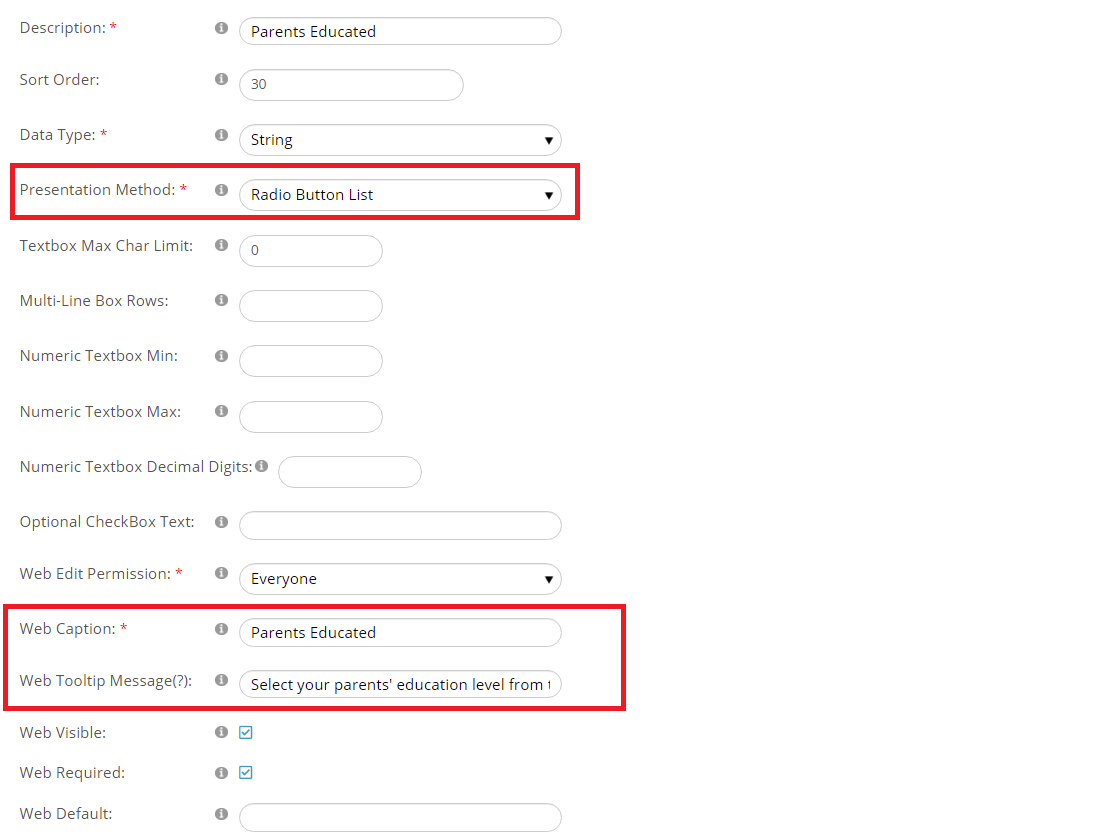
Use the Radio Button List or Drop Down List, 1 choice Presentation Methods when there can only be ONE correct answer to the question from the choices on your list. A sample entry for a submission question using the radio button method is in the next screen shot.
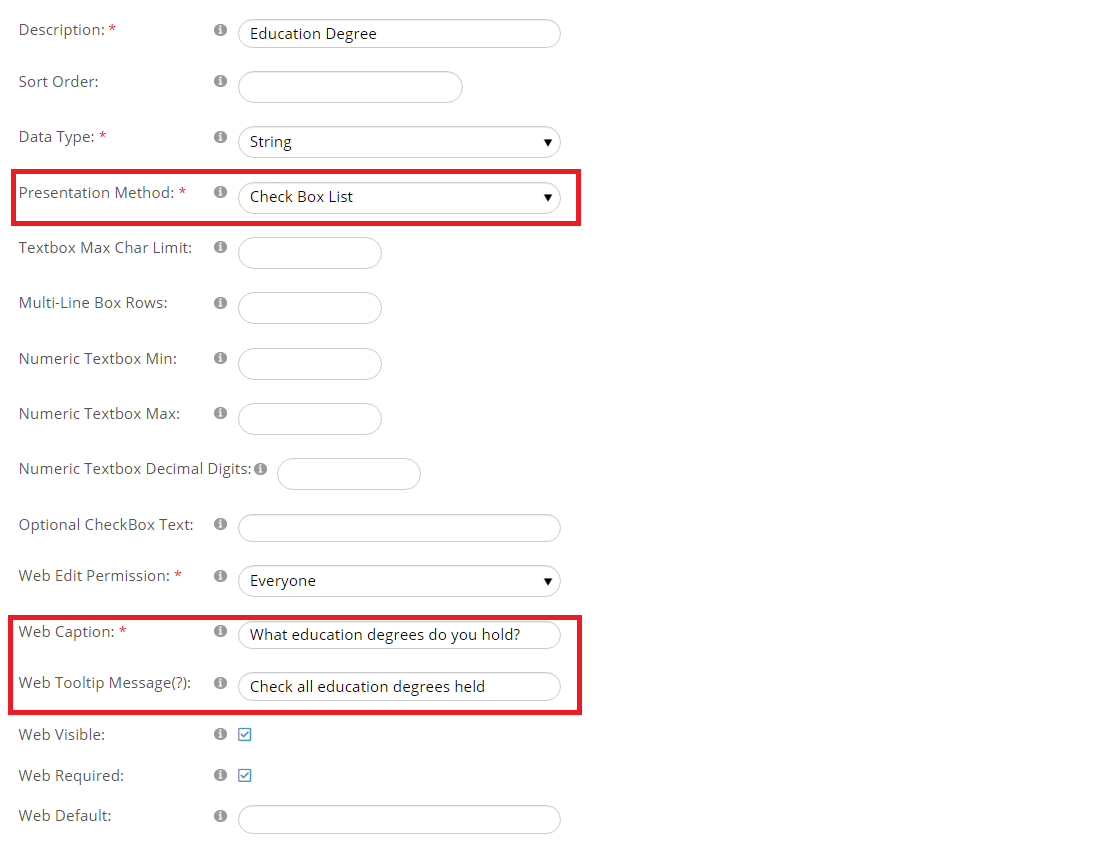
Use the Check Box List or Drop Down List, 2 choices (or more)presentation methods if you want to allow the user to select MORE THAN ONE answer from a predefined list. The next screenshot has an example of a question that uses the Check Box List presentation method.
The user’s view when filling out the web form would look similar to this:

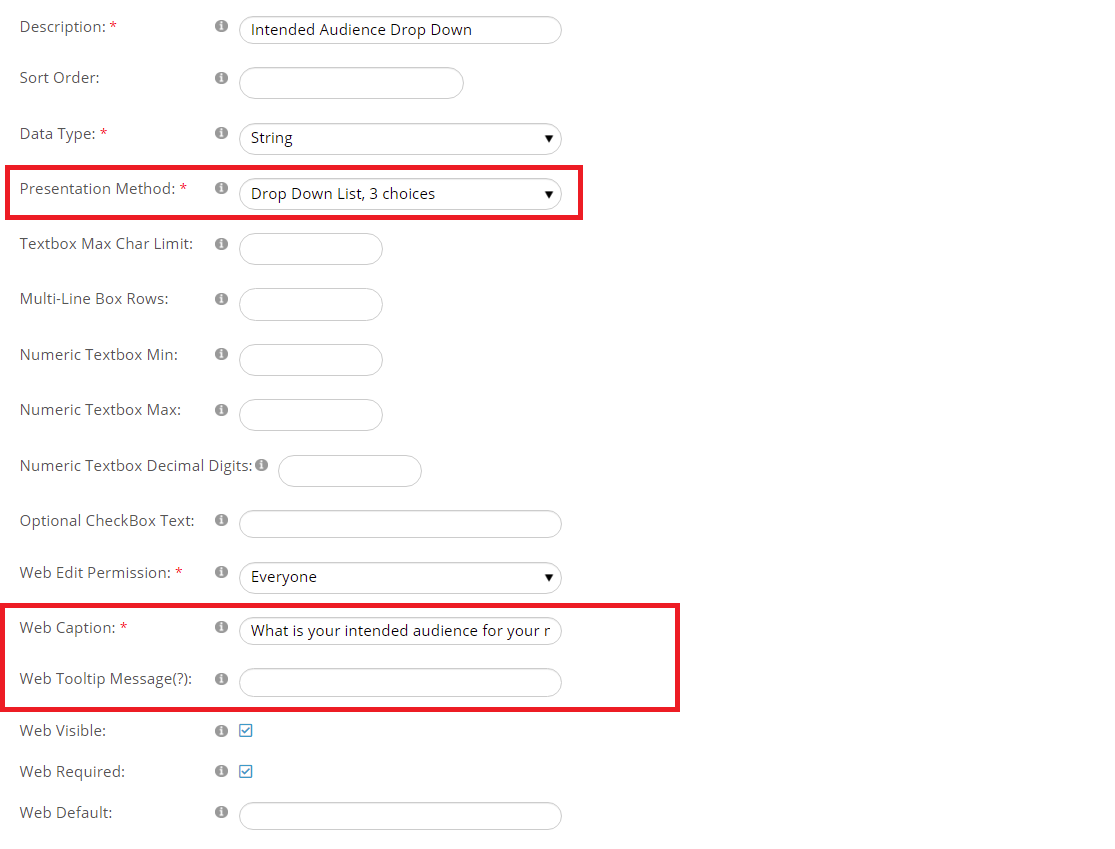
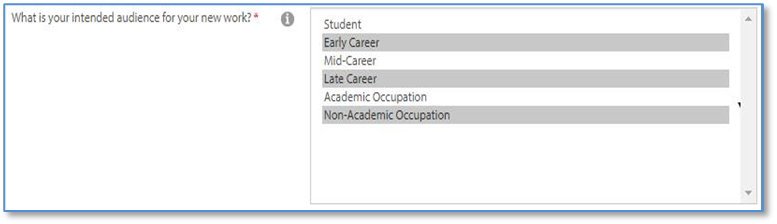
Use the Drop Down List, 2 choices (ore more) if you want to allow the user to select one or more answers up to a maximum of seven. The next screen shot has an example of a question built to allow selection of as many as three answers from a Drop Down List.
The user’s view when filling out the web form would look similar to this:
NUMERICAL TEXTBOX OPTIONS
If you have a question that needs to be answered with a number, select NumericTextbox in the Presentation Method dropdown menu. You can optionally use the fields highlighted in the next screen shot in combination with the numeric textbox to set minimum and/or maximum numbers for the answer, as well as a number of decimal digits.
TRUE/FALSE and ON/OFF OPTIONS
If you have a question for which the user will answer either “True” or “False” or “Yes” or “No”, or turn a check box answer on or off, options for the corresponding presentation method include Radio 2-Button List: True/False, Check Box: True/False or Check Box from the Presentation Method dropdown menu.
You can select Check Box for a single option that the user can turn on or off. For example, in the next screen shot a question is built to prompt the user to indicate whether or not they are board certified in their field.
The user’s view when filling out the web form would look similar to this:

GENERAL LABELS
Use the Label Small or Label Large options in concert with the Web Default field, described later in this section, if you need to provide a line or paragraph(s) of text that you need the user to read before answering the next question(s). An example of a Large Label is in the next screen shot.
The user’s view when filling out the web form would look similar to this:

The example shows the use of the HTML code in the Web Caption to bold the text.
NOTE: Do not make labels Required fields.