
The Presenters tab is used by those clients who wish to link an event to a particular contact by adding a folder to a contact record in the AMS for people who lead presentations at conferences, conventions or other meetings. This is an optional feature, and for any Meeting, you can use the Presenters tab as needed for certain events. If your association is using the Presenter Center module, Presenter information will be automatically integrated.
A Presenter link can be created for a keynote speaker, for example. For education sessions, typical presenter roles are primary presenter, co-presenter, author, co-author, discussant and moderator. Anyone who will be involved in an event can be assigned a folder in their contact record in the AMS that can include other presenter fields such as the event, event date, time and room assignment. The next screen shot displays the Presenters tab for the Advanced User Workshop from our Meeting’s List of Events.
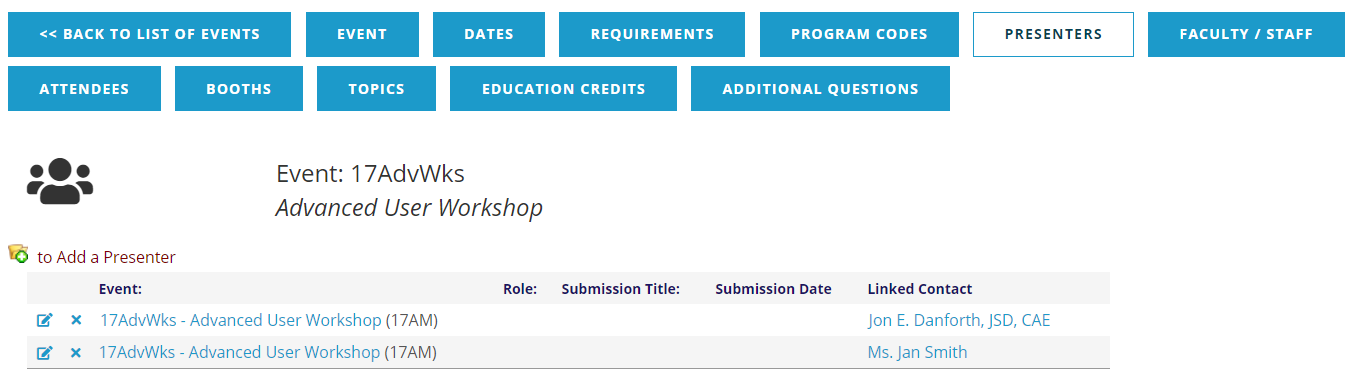
To Add a Presenter, click on the  add icon and a search box will open. This allows you to search existing contact records for the Presenter by Name. If, for example, the last name of the Presenter is Danforth, entering Dan in the Last Name field, then clicking on the blue “Search” button at the far left yields the results in the following screen shot.
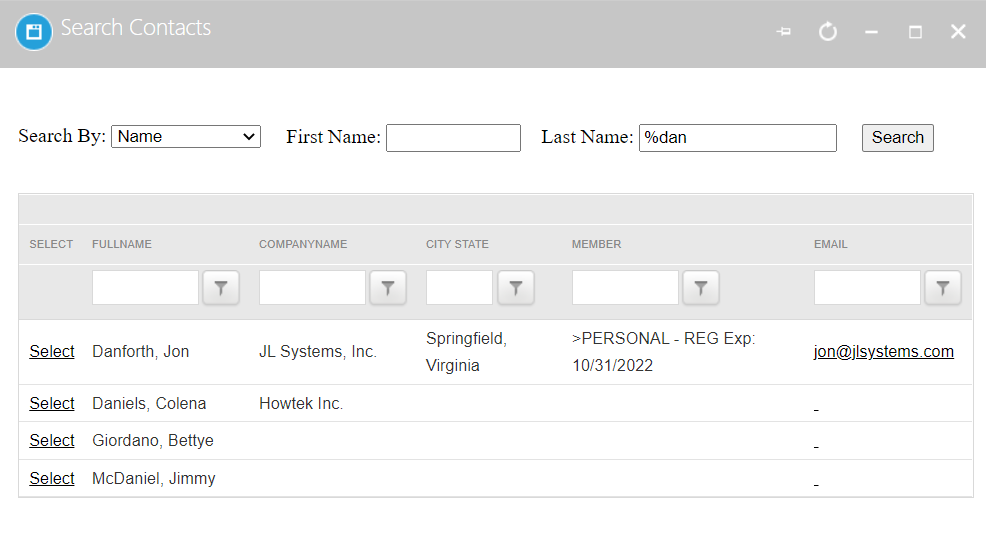
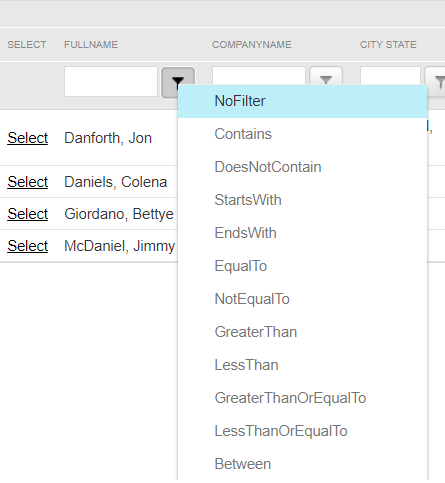
The names of contacts that include “Dan” within the Last Name field are displayed in alphabetical order. You will also see any Company Name, City/State, Member status and email address info from Profiles in the AMS, and can sort the results by clicking on the funnel icon next to the field being used to narrow the list. In the next screen shot, the funnel icon next to Full Name has been clicked, and a drop down of options is seen.
If the correct contact record is easily spotted, simply click on the word “Select” in the far left of its row to create a Presenter record, and the results are seen in the next screen shot.
By clicking on the  edit icon all the way to the left you can access the fields in the next screen shot.
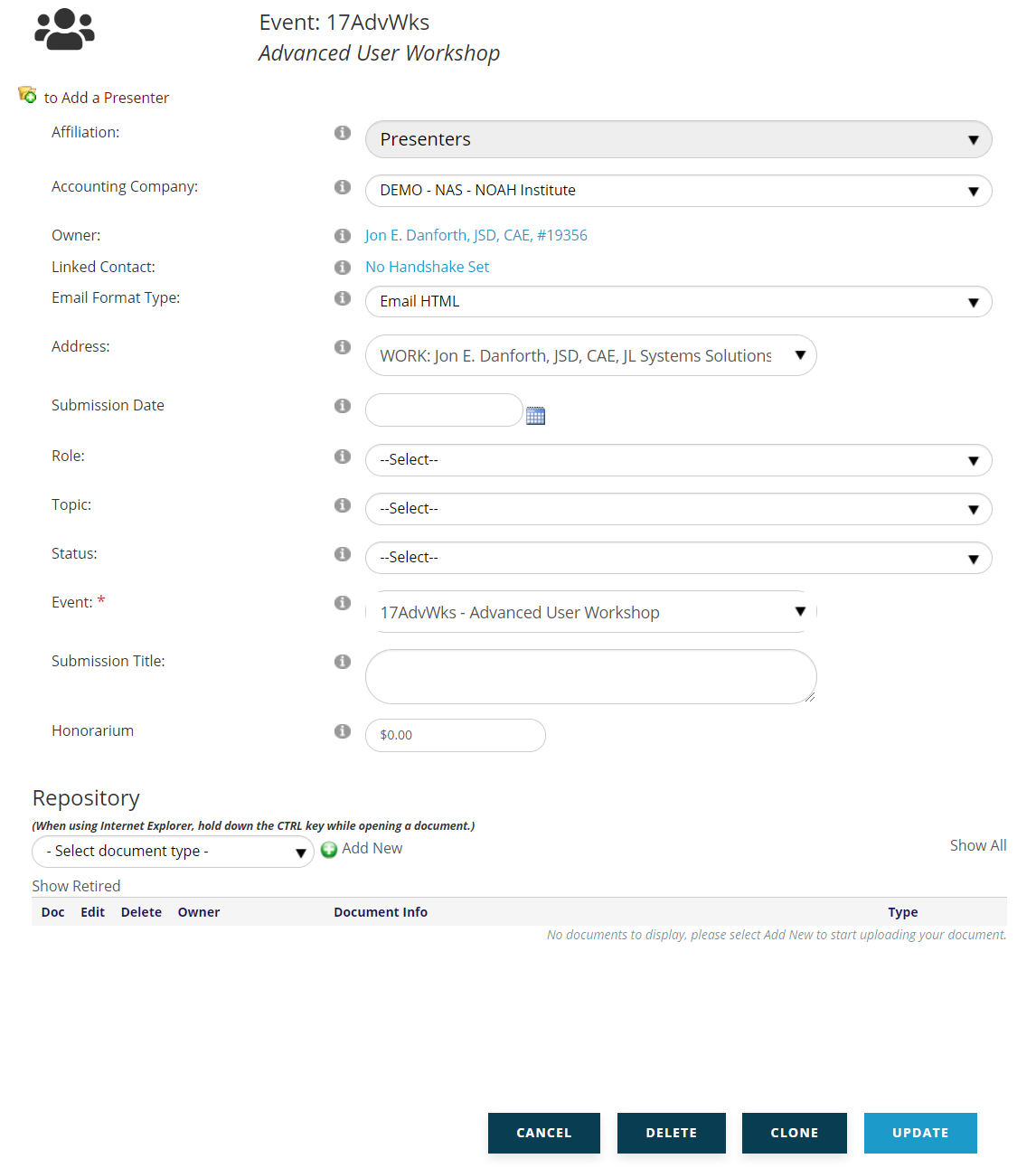
Affiliation, Accounting Company, Owner, Linked Contact, Email Format Type, Address and Submission Date are fields that are controlled by other areas of the system.
The following fields should be filled upon manually adding a Presenter.
The Role field is drop down menu where you define the Presenter’s role, such as Author, Co-Author, Moderator and so on.
Topic is an optional field that is available for those who are using Tracks via the NOAH Presenter Center.
Status is another optional field to be used in connection with the Presenter Center to define the status of submission documentation.
The Event field is where you select which Event the contact has been approved for a Presenter Role, so that it is clear which date and time the presentation will take place. The drop down defaults to the Event under which you opened the Presenter tab to add this folder, but double check it to make sure it’s the one you want to assign to this Presenter.
If you are using the Presenter Center, uploaded materials will be viewable in the Repository control at the bottom of the screen.
Then click the blue Update button to save your entries. The gray Delete button deletes the entire Presenter record, whereas Cancel nullifies the data you have entered, but keeps the Presenter folder intact.
These Presenter data fields can be edited from the event’s Presenter tab by clicking on the edit icon or in the presenter's contact record in the AMS under the Folders tab.