
The Employees control is for companies and institutions, and allows you to quickly add, delete and expire employees of an organization. It also allows you to easily designate the key contact and membership contact, as well as assign admin rights to any employee.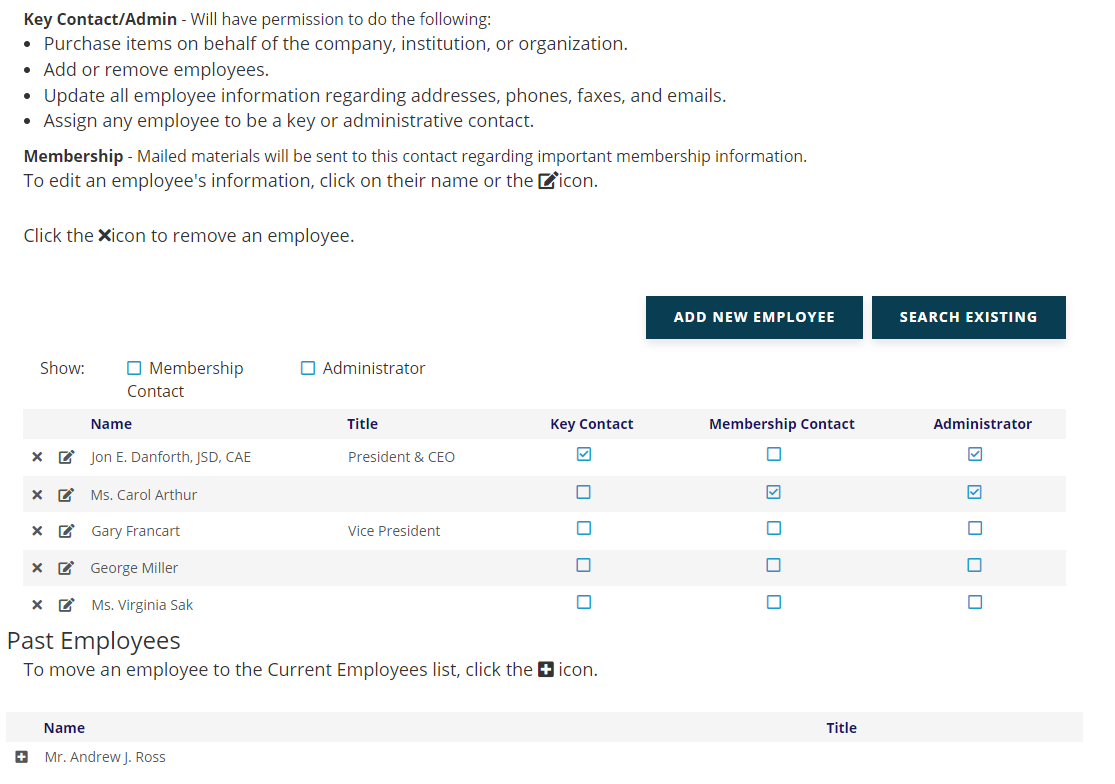
The main screen shows lists of current and past employees separately. To move an employee record from Current to Past Employee status, click the  remove icon at the far left of their record in the first grid. To move an employee record from Past to Current status, click on the plus sign at the far left of their record in the Past Employees list.
Among current employees, one must be designated Key Contact for the organization. An employee that is Key Contact cannot be deleted or moved to Past Employees until another current employee is designated Key Contact. Only one employee can be Key Contact.
An employee can be designated as a Membership Contact and/or an Administrator as well. If necessary, the same contact could be designated Key Contact, Membership Contact and Administrator. Some employees will have none of these designations.
The Key Contact of an organization is the default person chosen when no others are known for a particular purpose, and that person has access rights to the company’s record within your website.
If the company is an organizational member, one employee may be designated as the Membership Contact and all membership mailings and invoices will be directed to that person. This does not automatically grant access rights to the company’s record within your website, as that is only permitted by the Key Contact and those designated as Administrators.
The Administrator box is used to designate multiple employees as having access rights to the company’s record within your website. One or more employees can be designated as an administrator, and the Key Contact is always an administrator even if the Administrator box is not checked for that person. The Key Contact & Administrator will have permission to do the following:
- Purchase items on behalf of the company, institution, or organization
- Add or remove employees
- Update all employee information regarding addresses, phones, faxes, and emails
- Assign any employee to be a key or administrative contact
The Key Contact & Administrator will also receive automated notification emails when employees are added or removed on the website.
Additional designation columns can be added as needed, such as Voting Member, Journal Recipient and so forth.
If you need to find the Membership Contact and/or your Administrators among a long list of current employees, you can filter the list to search for either of those designations. Check boxes for each are found right above the top left corner of the Current Employees Grid. Click the check box immediately to the left of the designation by which you wish to filter the list.
The Search Existing button is used to attach the record of an individual that is already in the database to a company record. If an employee’s record isn’t already in the database, click on the Add New Employee button. This will invoke the same wizard described in the section entitled Add Contact.