
The Folders control is used to manually create or update a folder. Folders are assigned to track the participation and entitlements of all of your members and constituents. Folders are typically used to manage memberships, committees, presenters, exhibitors, certifications, speakers and more. There is no limit to the number or types of folders you can create and add to any contact.
All folders separately track the levels or codes of participation, such as the membership group and type or committee/subcommittee, along with all entitlement categories, their effective dates and any other relevant data.
Once you click on Folders in the Profile drop down, the types and number of folders of each type already attached to the selected contact are displayed. Some folders are only available for Individual contacts, and some are only available for Company contacts. Some can be tracked for both, such as Memberships and Work Folders. Let’s begin by exploring folders for individual people first.
In the next screen shot, you can see all existing folders listed for the selected contact to the left. Click on any folder type to see a chart of all entries for that type on the right.
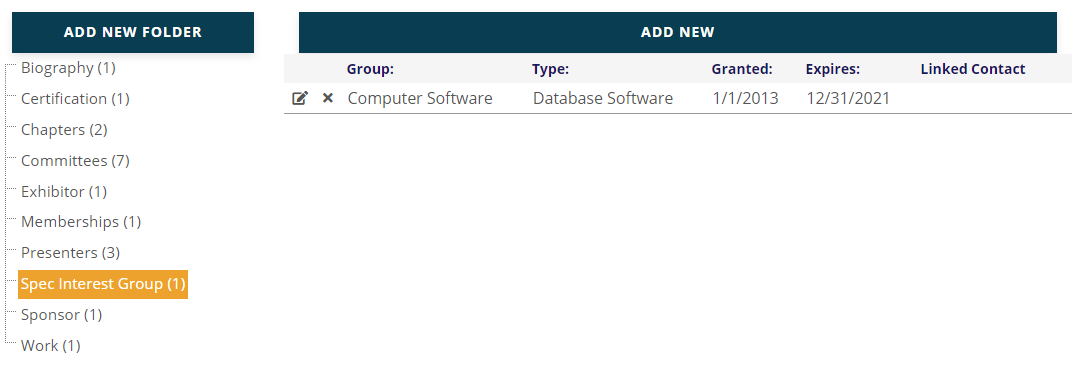
To add a folder of any type, click on the Add New Folder button above the folder tree to select the folder to be added. Where applicable, in the case of Memberships for example, all financial transactions automatically update the folders, and do not require manual updating.
Other folders, such as Governance folders, are not connected to a financial transaction and thus must be processed manually.
Each type of folder has its own layout (controlled under Page Layouts), thus some will have more or less data displayed when selected. In the case of the Membership folder shown below, much more data is displayed and tracked.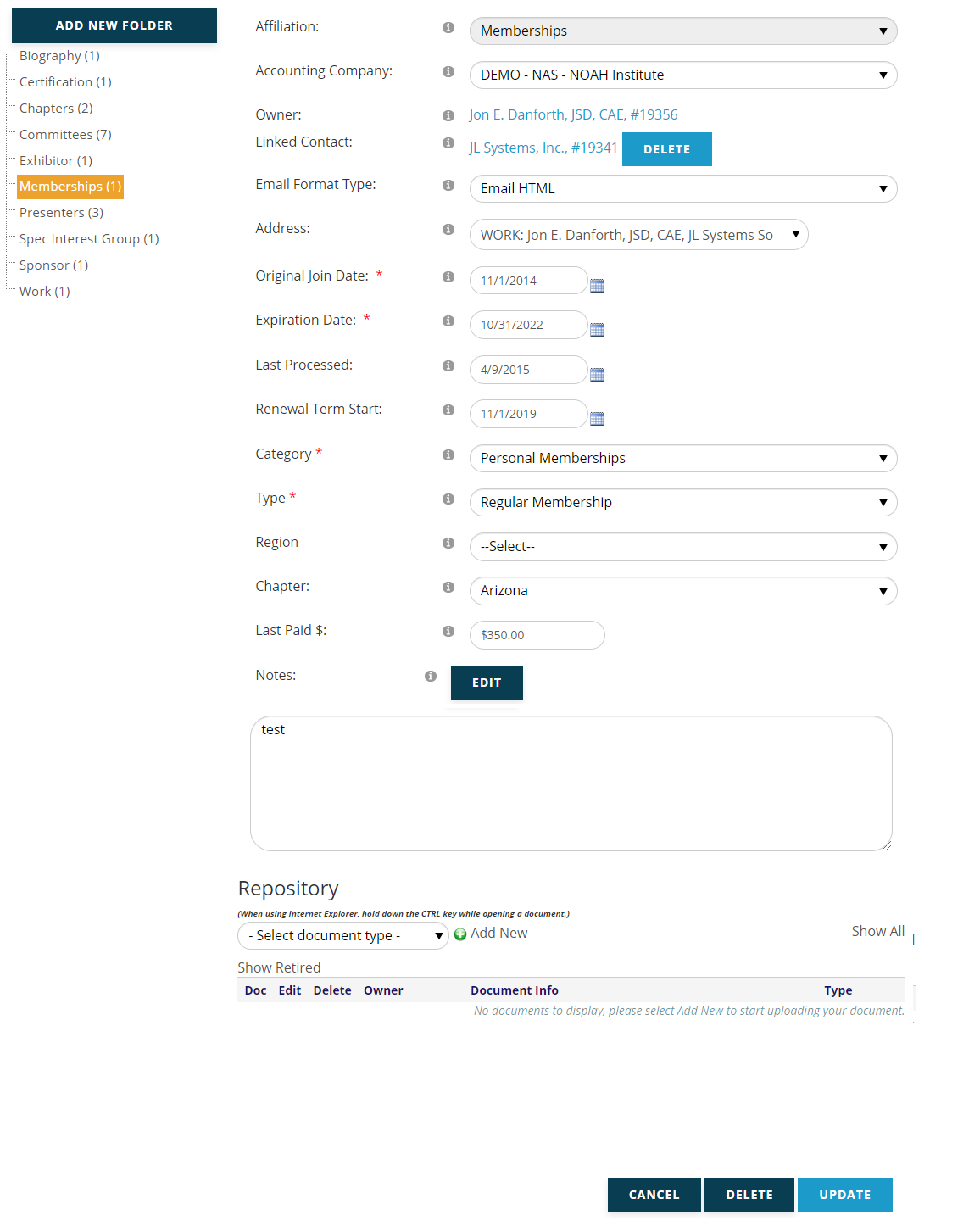
The Original Join date is the date the member first joined, the Expiration Date is the membership’s expiration date, the Last Processed date is the date the contact last paid for membership and the Renewal Term Start date is the date their current term started if they have renewed.
NOTE: A contact may only have one entry in their Membership folder. Historical information is available by looking at invoices, and different memberships, like Chapters and SIGs, are done in other folders.
Work folder tracks employment data, thus that data is more easily managed in the Employees control on the Company’s profile, but you may manually update a person’s Work Folder as needed.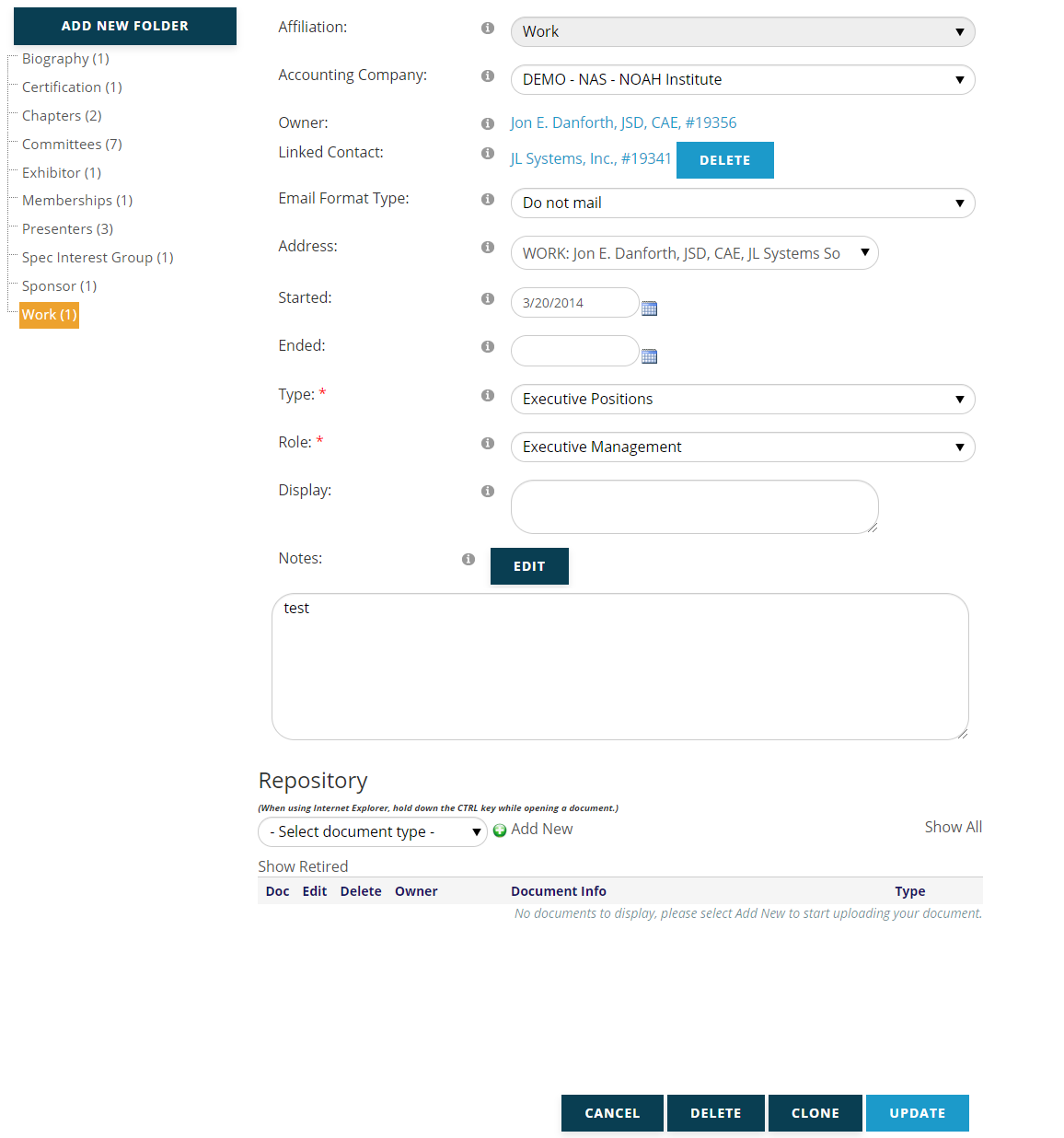
Other folders and included data that Individual contacts commonly have are:
Awards – Here you can track the contact’s awards won and award nominations.
Chapters – A contact’s chapter affiliation can be designated here, when a member can belong to more than one chapter.
Committees – Committee names, position held and term start and end dates are tracked in this folder.
Presenters – If a contact has been or will be a presenter, the topic and event can be tracked here and when applicable, accompanying documents can be linked via the repository.
Special Interest Group (SIG) – If your association wants to track a contact’s membership in a group or community, they will have a SIG folder for each one to which they belong. These are typically automatically updated and managed exactly like the primary membership folder, with categories indicating the specific group, and the effective dates of their membership in that group.
Booth folders are created in when a booth is purchased, and track the show date, booth number, booth contact and program guide information.
Companies and Individuals can have Biography folders for biographical information. Options for individual records include a biographical statement and curriculum vitae upload. Companies can have a biographical statement. Extra fields can be added as needed for other information, such as products and services.
A Client Admin can add/modify the Folder types under Page Layouts.