
The Log File maintains all data that was updated in the AMS, whether the change was a new record, an edited or a deleted record, and what the before and after values are. The username of the user who made the change is recorded, along with the date and time of the change. This Log File can be queried, sorted and exported as needed.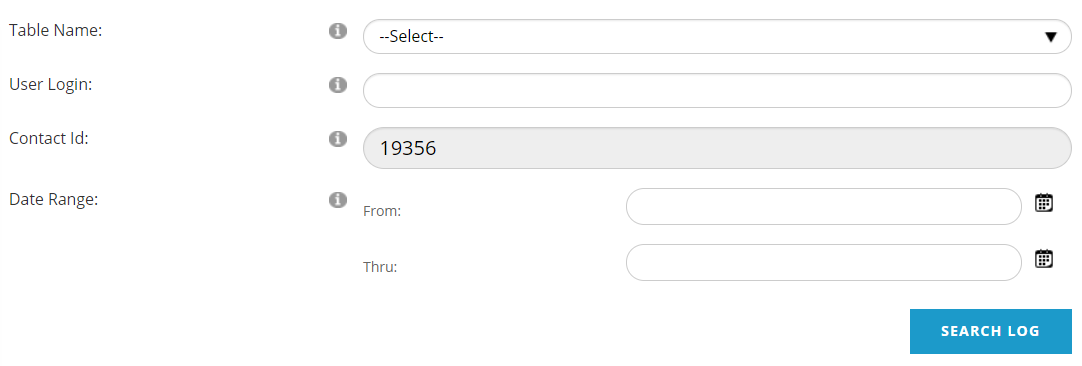
Click the down arrow in the Table Name box to select which data table you’d like to search for the contact you are currently viewing, or leave it blank to view all. There are over 60 tables to choose from. You may specify a particular User Login (staff or web site login) in the next box if you wish, or leave it blank to include all user activity. The Contact ID cannot be changed in this screen, but it does display the ID number of your currently selected contact. You can specify a Date Range from which to pull data by typing dates into the From and Thru fields, or by clicking the calendar icons to the right of each date field. Then click the Search Log button to retrieve data per your chosen parameters. It's always good to use a narrow date range and a specific user or contact and table when searching to limit the results that are returned.
The results will appear in a table below your parameters, which will remain in view, as in the next screen shot for a search on Events for our current contact, with no user login or date range specified.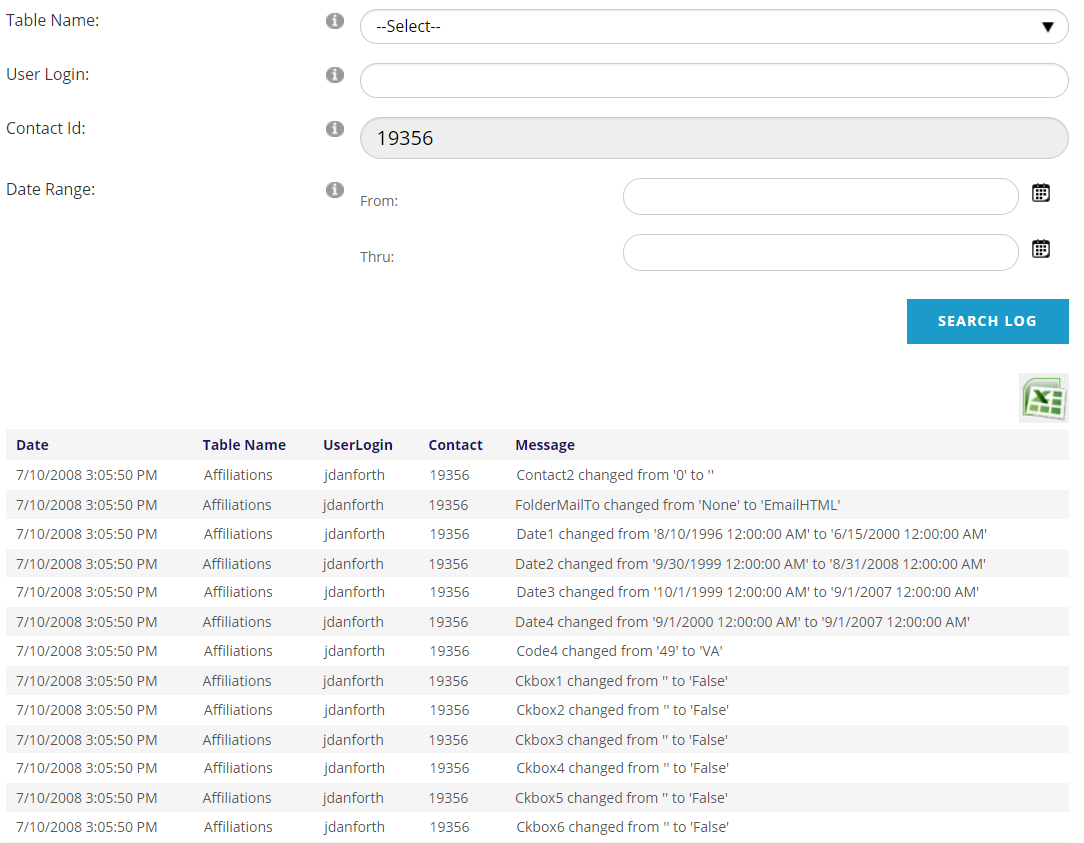
You may sort the results by clicking on the header/title of each column.
To export the results to Excel, click the green and white Excel icon at the top right of the results table. To run another search, change any search criteria at the top as needed, and once again click the Search Log button.