
The Profile Settings area of the NOAH System Configuration allows you to set information about your organization and some profile defaults.
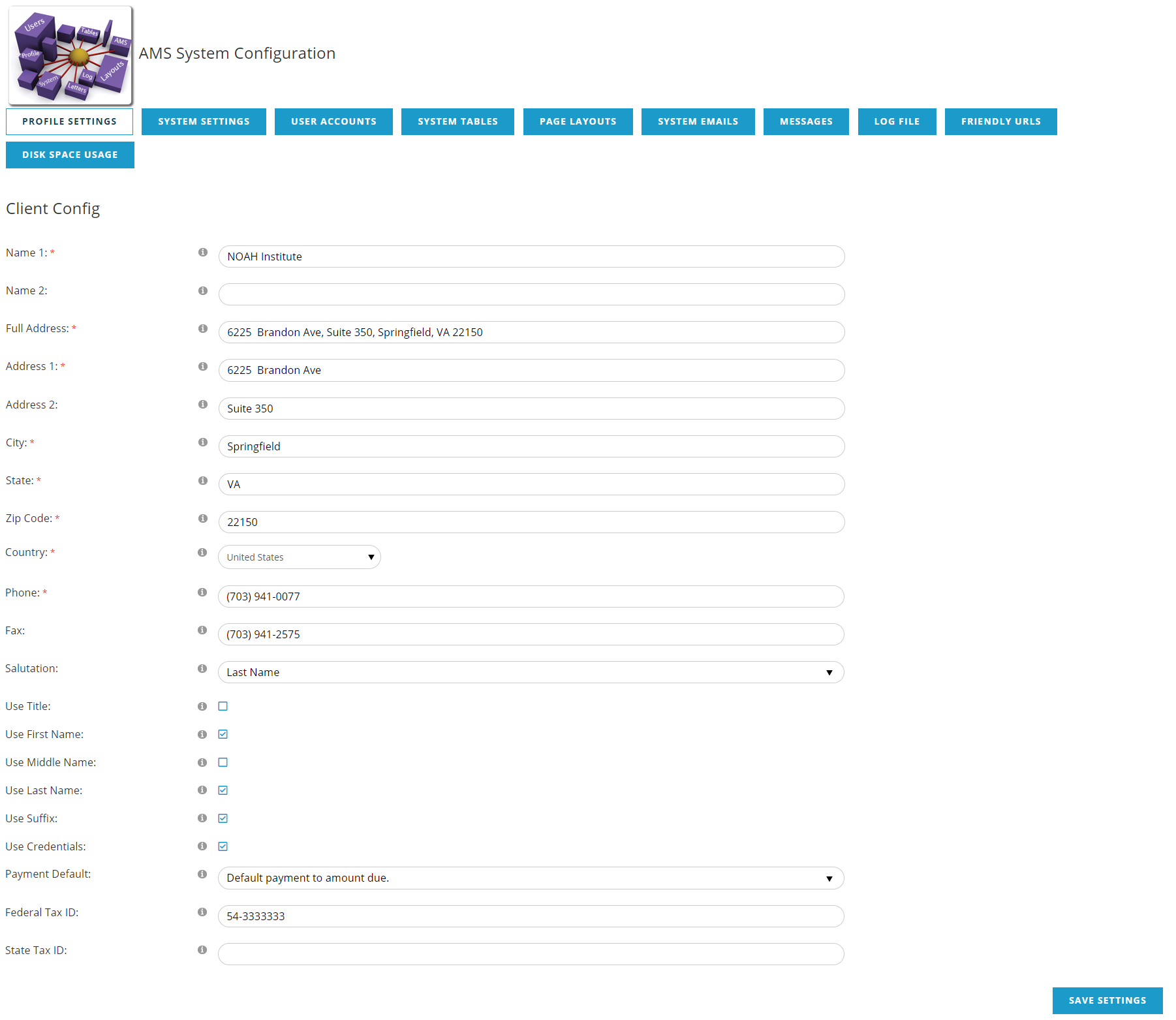
The first 11 fields are contact information for your organization and can be used elsewhere in the system, for example in invoice headers. Name 1 is your organization's name, and Name 2 can be used if the name is long and/or should be broken into two lines; each will hold 75 characters. Address is a single line address for your organization, whereas Address 1, Address 2, City, State & Zip Code, are the individual address field; these are usually used on invoices and notices through out the system. Country is a drop-down to choose the country. Phone and Fax numbers also need to be entered. Those fields with a red asterisk (*) are required.
Website should be the URL to your website. It should not have http:// or https://, so for example: www.jlsystems.com. This is used on invoices and internal links on your website.
Salutation is a setting to set the default Salutation when an Address is created. Options are
- First Name- uses the contact's First Name as the default Salutation, for example: Jon
- Known As- uses the contact's Badge Name if their previous badge was updated to use a different first name
- Last Name- combine the contact's Title and Last Name for the default Salutation, for example: Mr. Danforth. Note: If a contact does not have a Title defined, the First Name will be used.
These are the default values when an Address is created and can be changed at anytime on a contact's Address.
The next 6 fields are defaults for check boxes on the Profile when creating a new individual. These only set the default for these fields on the profile name and can be changed on an individual when creating or editing a contact.
Payment Default is a choice for what amount is due by default on payment screens:
- Default payment to 0
- Default payment to amount due
Finally are field for your organization's Federal Tax ID and State Tax ID. Click Save Settings to save any changes. Navigating away from this screen without saving will not save any changes.