
The Summary control displays various tiles with information for the selected contact. The information displayed will vary, depending on the information pertaining to the selected contact and the specific information your association chooses to display. 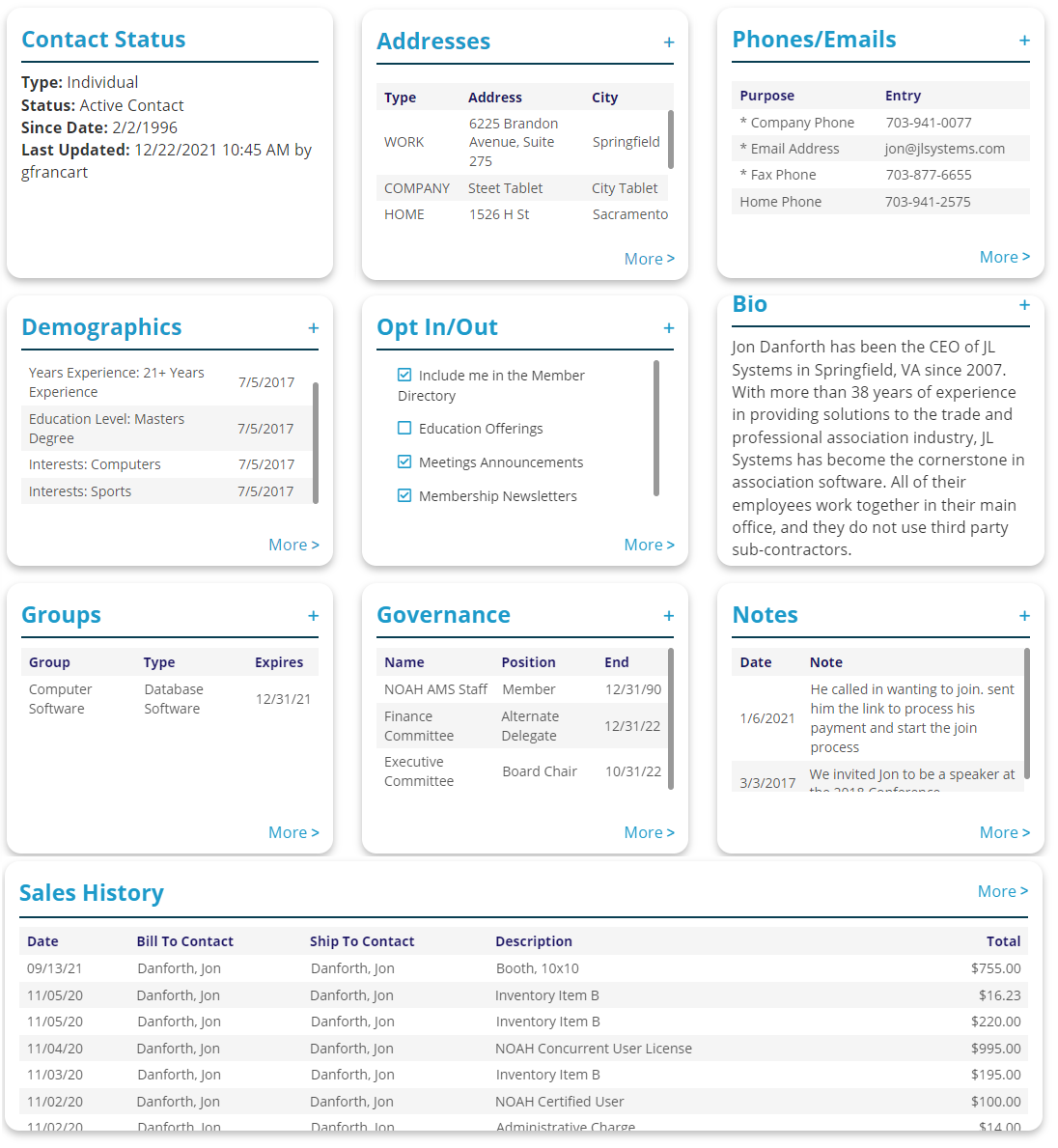
The information on each tile is view only. A More link at the bottom of a tile goes to the related area of the profile, which are described in subsequent sections of this guide. You may use the  plus icon to add a new item to the tiles related area.
You can configure the summary screen layout to match your individual preferences. Scroll to the bottom of the summary screen and you will see a button labeled Set Your Summary View. Click on it to open the settings page as shown below.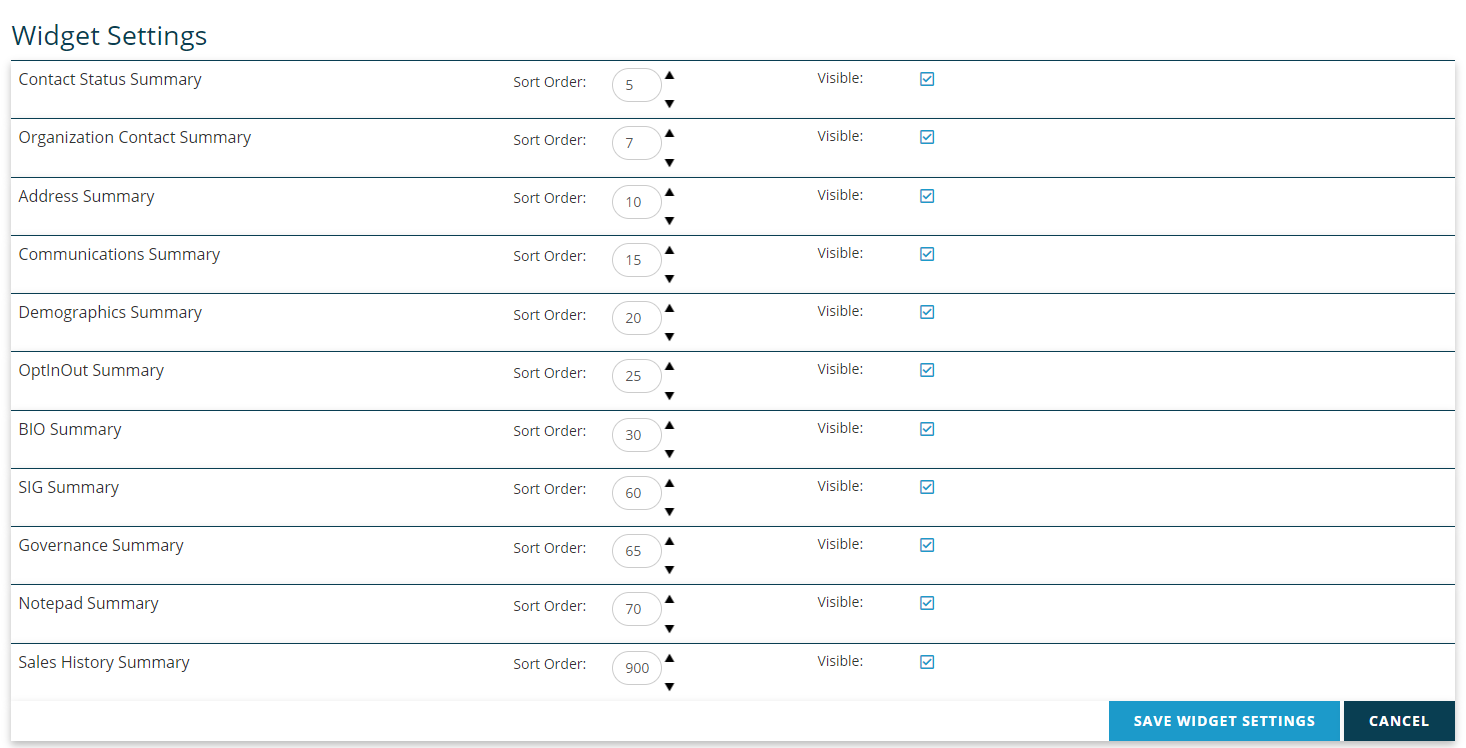
You can turn on/off any summary box you wish by clicking on the Visible check box for each. You can also change the order in which the boxes are displayed on the screen by changing their sort order. We recommend leaving gaps in the sort values to allow for inserting new values to avoid having to renumber them all when you make changes. Click on the Save Widget Settings button to save your changes.
Below are the standard widgets and a summary of what they show. To add an entry, use the plus at the top right; to view items click on More at the bottom right.
- Contact Status Summary- Shows a contact's Type, SubType, Contact Status, Since Date (when the record was created) and Last Updated date and the updating user.
- Organization Contact Summary- Show relationships (tree) between organizations their subsidiaries and parents.
- Address Summary- Shows a contact's Address Type, Address Line 1 and City.
- Communications Summary- Displays all of contact's communication Purpose and Entries; an asterisk will designate the Key entry.
- Demographics Summary- Shows a contact's Demographics with a Description, made up of the description of the codes and values
- OptInOut Summary- Shows check boxes to denote which options a user has opted in and out of.
- BIO Summary- Shows the text of a contact's Bio.
- SIG Summary- Shows the contact's SIG participation with Start and End dates.
- Governance Summary- Shows a contact's current governance committee Names, Positions, and End Date.
- Notepad Summary- Show Notepad entries for the contact with the Date (most recent first) and the entered Note.
- Sales History Summary- Shows the contact's sales history.