
Promotion Codes allow you to setup discounts tied to a promo code used when purchases are made. These can be percentages or a fixed amount. There are two pieces to setting up a discount: Setting up the Program Code & Setting up the Promotion Code.
Setting up Program Codes is covered in the Program Codes section of the knowledge base. The Program, Category and Type defined on the Program Code would be defined by your organization. You may want them in their own separate area, or with the Program Codes they discount.
The Format Code on the Program Code must be Discounts. The List value on the Program Code will determine the discount applied. If you will be using a percent discount, the value will be 1 or less; thus a 25% discount would be entered as .25. If your discount is a fixed amount, you would enter the amount; thus a $10 discount would be entered as 10.
You will also want to define the correct CR_GLAccount and AR_GLAccount for your discount; deferral information isn't necessary.
Once you have the Program Code setup, you will then create the Promotion Code, which are found in the Money Dictionary. To open the Money Dictionary, click on the AMS Menu, Money, and then Dictionary.
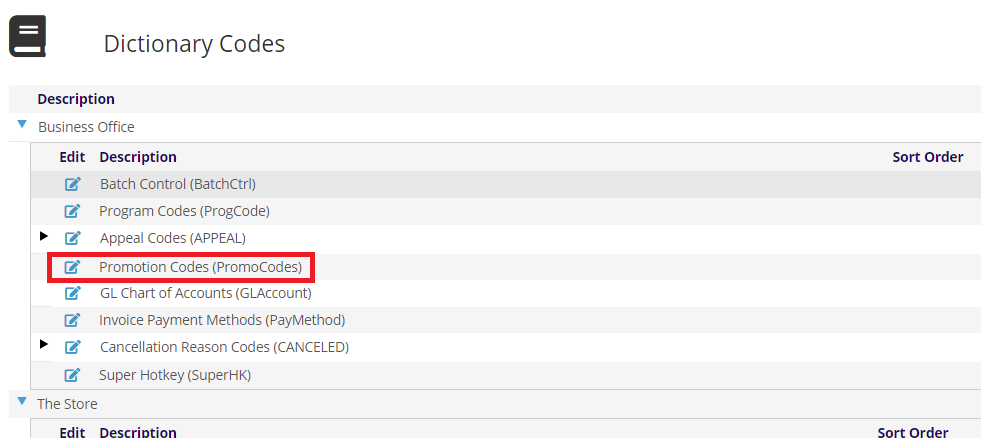
Once the Dictionary page opens, click the  edit icon next to the Promotion Codes (PromoCodes).
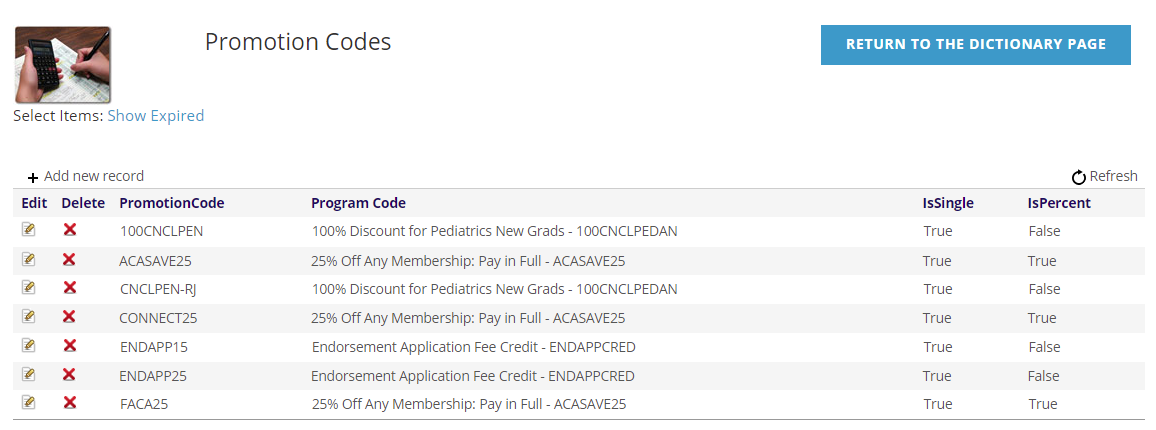
To add another Promotion Code, click the + Add new record at the top left of the grid. To edit and existing Promotion Code, click the  edit icon on the left side of the grid next to the account you want to edit. You can click the
 delete icon to delete a Promotion Code, but it is better if you update the End Date to maintain history.
Either adding or editing will open similar area about the Promotion Code.
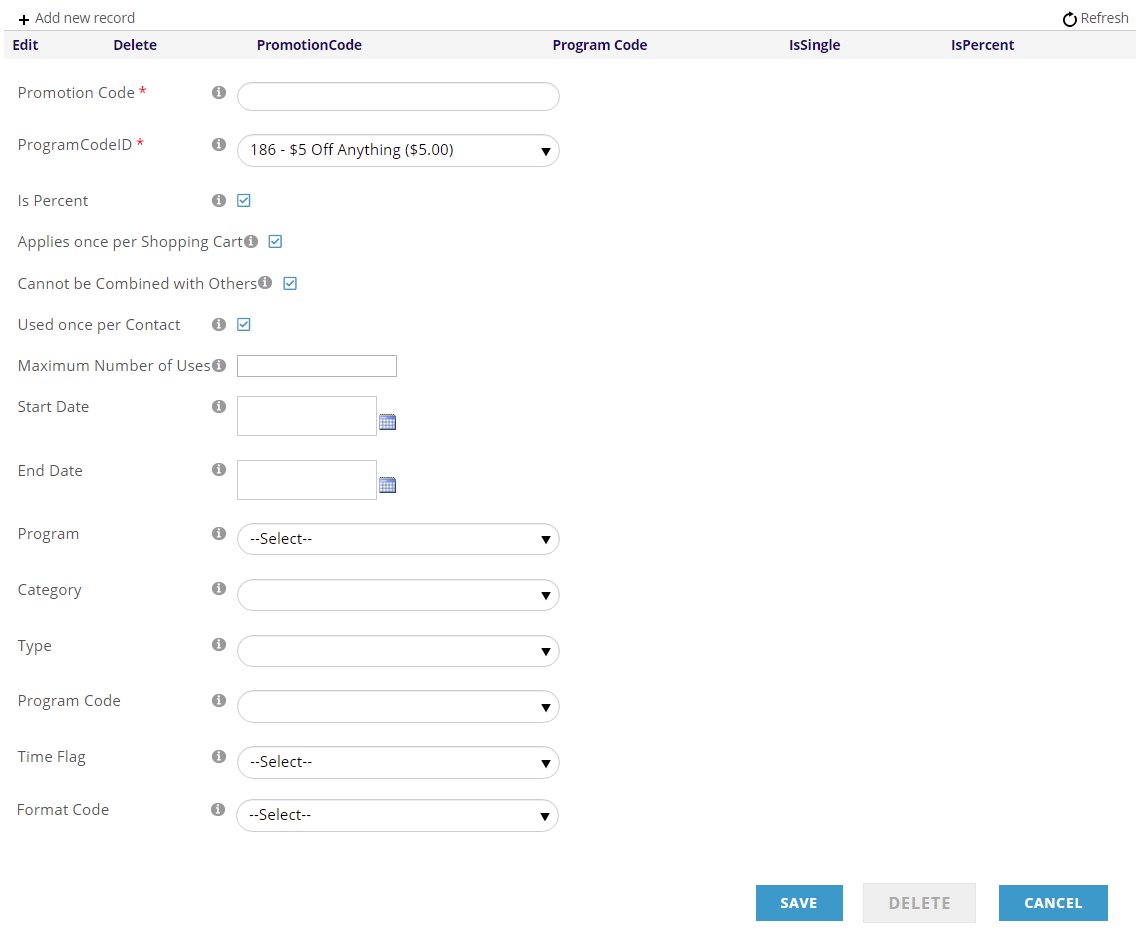
The Promotion Code that you will give to users to enter in the shopping cart, up to 10 characters in length. Numbers and letters only, no special characters or spaces.
Select the ProgramCodeID that will be added to the shopping cart when the promotion code is entered (the discount Program Code you created above). The description from the discount Program Code will display on the invoice. If you don't see yours in the drop-down, make sure you made the Format Code Discount on the Program Code.
By default Is Percent is checked. The actual discount is based on the List price you created on the discount Program Code. Usually a percentage is used, but if you are using a flat rate, uncheck this box.
The other default settings are Applies once per Shopping Cart, Cannot be Combined with Others (promotion codes), and Used once per Contact. Deselect the options that do not apply to this promotion.
Maximum Number of Uses is the total times the promotion code can be used by anyone. An example might be something like free to the first 50 registrants. Or, you can give the promotion code to one contact and set the maximum number of uses to one to make sure it is only ever used once. The default is blank.
You must always enter a Start Date and End Date for the promotion. This can be changed to extend or reopen a promotion. If the end date is past (or missing), click the Show Expired, under the image at the top of the page, to see old promo codes in the grid.
Next you to specify what Program Codes are valid for the promotion. Best practice is to always indicate some type of Program Code. It can be very broad. For instance, by selecting the FormatCode you could indicate all memberships, meetings or store items. For memberships, you could further narrow it down to new, renewing or rejoining members only by also selecting TimeFlag. Or, you can narrow it down to a specific program code.
Selecting the Program|Category|Type, for example, Advertising|Website|Event, allows the promotion to be used for any program code under Event listings in the program code tree. Remember, the program code tree is unique to your association.
Click Save to save your changes, or Cancel when you are done.
If setup correctly, when the Promotion Code is used with a purchase, the related Program Code will be added to the invoice for the related discount amount.