
 The AMS is integrated with Real Magnet from Higher Logic (also know as Higher Logic's Communications Enterprise), in order to provide an automated transfer of your subscribers, interest groups and opt-in preferences to Real Magnet. In addition, basic email history for each subscriber from Real Magnet is displayed within the contact’s profile.
All transfers to Real Magnet of interest group subscribers and opt in/out preferences occur within the NOAH Reporter module, via your self-created Library Card selection queries. You continue to build groups based on all data stored in the AMS so that you can target them to your exact purposes. When you have created the group you then transfer it to Real Magnet with the click of a single button. In addition, all of the Opt-In lists that you maintain that are specific to email communications are sent to Real Magnet all at once with a single click. You will then manage which group, and which opt in categories apply to each group, within Real Magnet as part of your marketing automation processes and mailings.
Transferring a Group to Real Magnet
You continue to use Library Cards within the Reporter to build selection queries against all of the data in the AMS.
Once you have created a library card you will have a standard export to use in the Outputs section of the card that is pre-formatted for use within Real Magnet. By default the export contains the individual’s name, their company name and title, their key communication info and their key membership info. This export can be customized to include additional information if desired. When you first initialize your integration we will discuss the data to be included in this export. If you wish to have it modified once live please reach out to our support team for assistance.
If you select to add an Export output product you will notice that the export called “Real Magnet Export” will be one of the choices. Select this to add it to each library card you wish to transfer to Real Magnet. Once selected you will see it listed in your group of outputs as shown in the following example.
Before proceeding, if you wish to make sure your target group is current based on real-time data be sure to click on “Run this Job”. Otherwise your group will be preserved based on the last time you did so. This is intentional as many clients wish to preserve their group as is regardless of changes in the database. If you know you always want the real-time results of your selection query then always click on “Run this Job” when you first come to this page.
To begin the transfer process click on the magnifying glass icon in the first column of the export row to view the Real Magnet Export. You will then see the following screen with the information from your specific library card.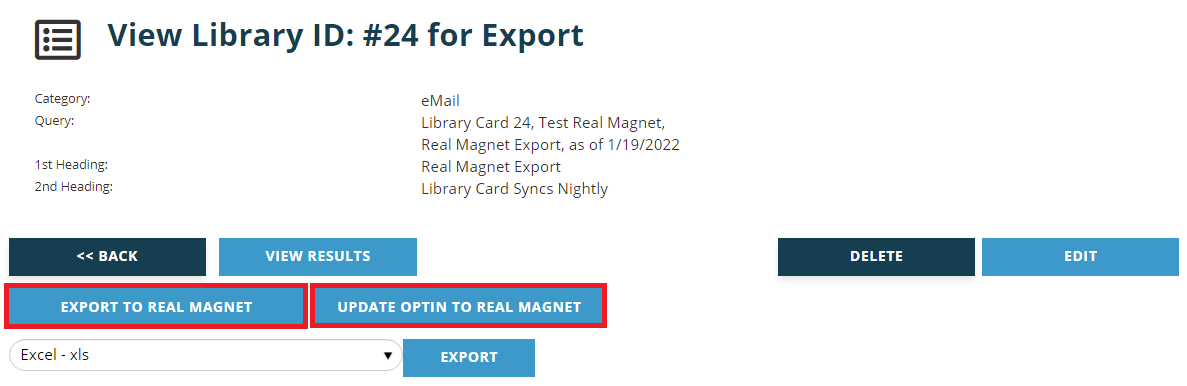
It is strongly recommended that you first click on “View Results” to verify the individuals included in the group is correct. If not, you can adjust your criteria in the library card query to select the correct individuals.
Once you are certain your group is correct, click on the Export to Real Magnet button. The transfer will run in the background. The transfer is a complete replacement of the group, thus anyone that may have been in the group previously that are no longer in it will not remain. Any that are now in the current group will appear. NOTE: only those contacts with a key email address are sent in the export to Real Magnet.
If you then login to your Real Magnet account you will be able to view your target group. Within Real Magnet go to Manage Groups under the Contacts menu. You will then see a screen similar to the following.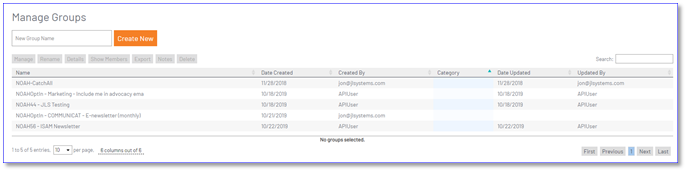
All groups from Library Cards in NOAH become Groups in Real Magnet. The name of the group is “NOAH” plus the Library Card ID, followed by your description of the Library Card. In the example above the Library Card ID is 21, and its description is “JLS Test”. Thus the Group in Real Magnet would be “NOAH21 – JLS Test”. You can then select the group to view the individuals within it.
Next you will need to update the Opt In subscribers for all email options. To do so, click on the Update OptIn to Real Magnet button. The transfer will run in the background. You can perform this task from any Real Magnet Export on any Library Card, and All of Opt In lists created in the AMS will be processed. This will also setup a nightly refresh of all these groups.
The Opt In groups are created as Interests Target Groups in Real Magnet as well. From the screen shot above, the two Opt In groups that were created by NOAH are “NOAHOPtIn – Marketing – Include me in advocacy ema” and “NOAHOptIn – COMMUNICAT – E-newsletter (monthly)”. The names are taken directly from your description for each opt in category. Within Real Magnet you would then apply whichever Opt In group you wish depending on the specific email you are sending.
Please note, the Opt In group is the list of those opting IN, regardless of the default settings for your list in NOAH. Thus if your default for a list is that they are IN unless they opt OUT, then all individuals are included except those that opted out. If the default is they are OUT unless they opt IN, then only those that have opted in are included. You would then combine your selected target group in Real Magnet with the applicable Opt In group in Real Magnet, and only send email to those in BOTH groups. Please see the Real Magnet user documentation for more help on using these features in their system.
You will continue to use your Opt In/Out lists in NOAH to manage all subscriber preferences via the online profiles of your individuals in your NOAH website. The unsubscribe link you will use in your emails sent within Real Magnet will direct them to their profile in NOAH. Depending on your NOAH configuration the unsubscribe link that you will compose within all emails in Real Magnet will differ. The exact link to be used will be given to you as part of your setup when initializing your use of the NOAH integration for Real Magnet.
Auto Updating the Group in Real Magnet
Once you have added the export and first pushed your group to Real Magnet you can set the library card to auto-sync with Real Magnet on a nightly basis. This allows for your group and all automation rules in Real Magnet to be based on the most recent members of the group automatically on a daily basis.
In the export settings, click on the check box labeled “Sync nightly with Higher Logic” to include it in the overnight sync.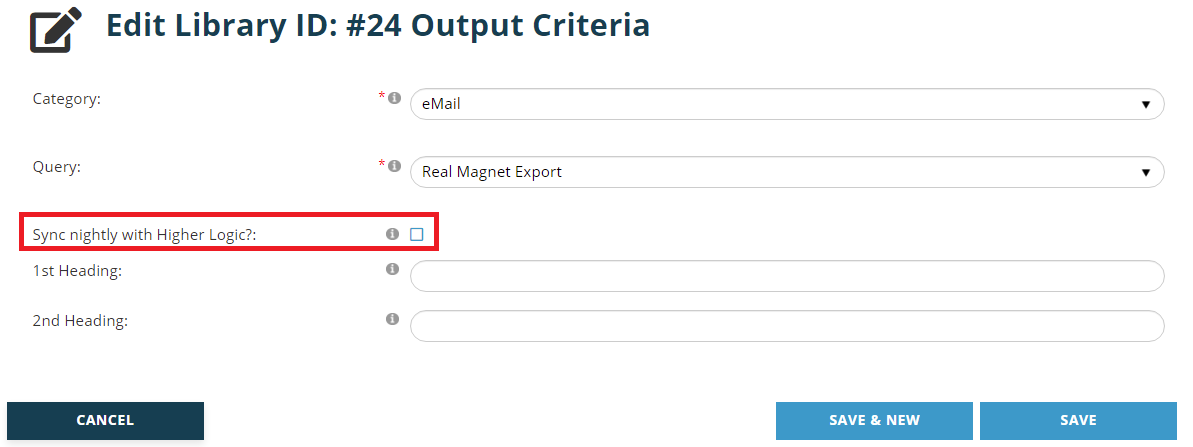
Global Unsubscribe Update
Both NOAH and Real Magnet maintain a global setting for individuals unsubscribing from all email. In NOAH it is managed by unchecking the “OK to Broadcast” check box in each email record. In Real Magnet the individual emails are marked as having “Unsubscribed”. NOAH executes an automated update of all emails that are set to not broadcast to set them as unsubscribed in Real Magnet on a nightly basis. There is nothing you need to do to update this list in Real Magnet.
If an individual has globally unsubscribed in NOAH, they will not be included in any group export from any library card at the time you transfer the group to Real Magnet as described above. Thus even if the overnight update has not yet occurred, if you transfer the group to Real Magnet they will not be included when exported to Real Magnet. As stated above, the transfer is a complete replacement of the group, thus if they have been globally unsubscribed they will not be in the group after the transfer. They will not yet be in the “Unsubscribed” list in Real Magnet until the next overnight update, but as they are not in the group they will not be sent an email.
If you schedule your email for delivery at a later date in the future it is possible that a global unsubscribe may have occurred that day, thus you can refresh your target group from NOAH near the time of the email delivery if you wish. They will be processed as a global unsubscribe with the next overnight update.
Setup
If you want to setup this integration, please contact support so we can get it configured for you. We will need the API Key and UserID from Higher Logic so we can send data to your Real Magnet instance.
Real Magnet can support up to 30 custom personalization fields sent over for each contact via an integration. Our standard integration takes advantage of the first ten, and the standard fields sent are:
- Key Email Address
- First Name, Last Name
- Key Address line 1, line 2, city, state, postal code
- Company Name (from the Contact's Profile)
- custom1 - Contact ID
- custom2 - Full Name
- custom3 - Middle Name
- custom4 - Job Title (from the Contact's Profile)
- custom5 - Prefix
- custom6 - Suffix
- custom7 - Credentials
- custom8 - Membership Description
- custom9 - Join Date
- custom10 - Expiration Date
If you need other fields, they can be added. These fields are used to personalize your messages; segmenting into groups is done with the library cards you create in the Reporter, so you don't need information for that here.
NOTE: Higher Logic will need to know what the custom fields are so they can set them up on their side for the integration to work.
Once you have manually exported data to Real Magnet and confirmed the data is coming over correctly, we will turn on the nightly sync.