
Recurring invoices can be created to set up invoices and fees to be charged at a date in the future. For example, if you sell advertising in a publication that has monthly issues, you may want to set up the insertion orders and fees for each ad placement for a company for the entire year of ads they are purchasing, all at once at the beginning of the year. Another common use is to set up pledge reminders that convert into invoices internally in order to post pledge receipts as they are received in the future, especially in the case of a multi-year pledge.
Once you have created recurring invoices you then use the routine under Money to generate any pre-defined invoices for the class of fees and month you are in, which automatically converts your pre-defined charges into real invoices in the accounting batch you specify. Thus, once you have done the work of setting up recurring invoices, you generate them at the prescribed date all at once automatically.
The invoices can be set to occur once for each instance, and they can be set to repeat at any interval and for any duration you wish. More information on recurring Invoices can be found in the Contacts and Money chapters of this knowledge base.
The Recurring Criteria tab in the Reporter allows you to then filter your target contact group based on the recurring invoices you have created.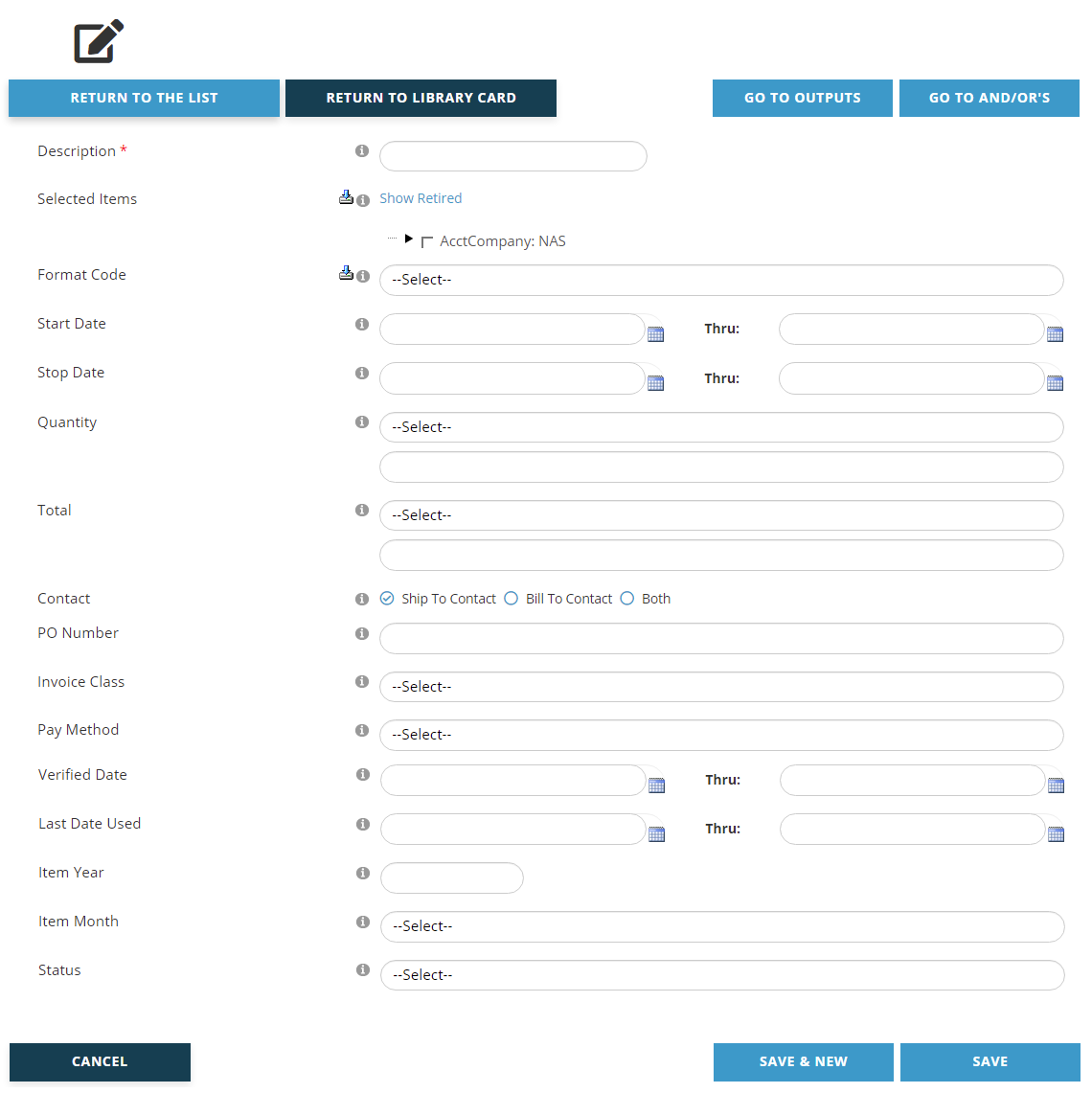
A Description of the purpose of the criteria must be entered in the first field, which is a mandatory text box. Enter this value before entering any criteria. This description should match the exact criteria you are creating. For example, if your criteria is targeting companies that have recurring invoices scheduled for advertising insertion orders, you would need to name this criteria “Recurring Ads” or something similar. Descriptions become important later when you are applying the And/Or logic to your criteria, where each criteria being named for their exact filter makes it easier to set up the logic to be applied.
As with Money Criteria, you can specify the exact program codes you need in order to query based on the exact items added to a recurring invoice. Simply expand the tree via the carrot for the accounting company you wish to use. You can toggle between active program codes or all including those retired, by clicking on the link Show Retired or Hide Retired.
You can also specify a Format Code to include a category of program codes such as Advertising or Contributions.
Start Date and Stop Date refer to the dates set in your recurring invoices as to when the recurring invoice is in effect. If you have been using recurring invoices for a length of time you will want to specify dates here so as to only include invoices that would be in effect at a specific time, otherwise you may be including many prior years of invoices in your criteria.
Invoice Class is used to categorize your recurring invoices. Examples are to identify invoices that pertain to Advertising, Pledges, Grants, Sponsorships or Membership. If you have a number of different types of recurring invoices with different classes be sure to select only those you want included in your criteria.
Item Year and Item Month pertain to the pre-defined month and year that the recurring invoices are to be converted to actual invoices, which are then due and ready for payment. As with Start and Stop dates, if you have been using recurring invoices for a length of time you will want to specify values here so as to only include invoices that would be in effect at a specific time, otherwise you may be including many prior years of invoices in your criteria.
Status is used to indicate if a recurring invoice has been converted to an actual invoice, is yet to be invoiced, or has been canceled but not deleted. Be sure to indicate a status if you want to be certain you are limiting your criteria to a specific case.
Clicking the Save button brings up a View page for the new criteria. The same process applies when an existing Recurring Criteria has been edited. Double check the criteria to make sure the fields were set correctly. If you need to make changes, click on the Edit button below the summary. If everything is correct, click on the Go to And/Or’s button and set your And/Or preferences. That process is described later in this section.