
Before creating a submission document in the Repository, it is recommended that your staff have a clear idea of what the purpose of the document is, a list of all of the questions the applicants need to answer, and a list of the answers to any multiple choice questions from which one or more should be chosen by the applicant. If reviewers will be assigned to analyze and/or provide feedback on submissions, make sure your submission questions solicit all of the information they will need to inform their review. You can hide certain collected data from reviewers that is critical to your staff’s knowledge of the pool of applicants, such as age, gender, education level, and other demographic information.
The first step for your staff is to create an electronic submission document in the AMS, into which users will enter information in the web version of the Repository. This document consists of question(s) to be answered and specific documents to be uploaded by the user during their session with the submission document.
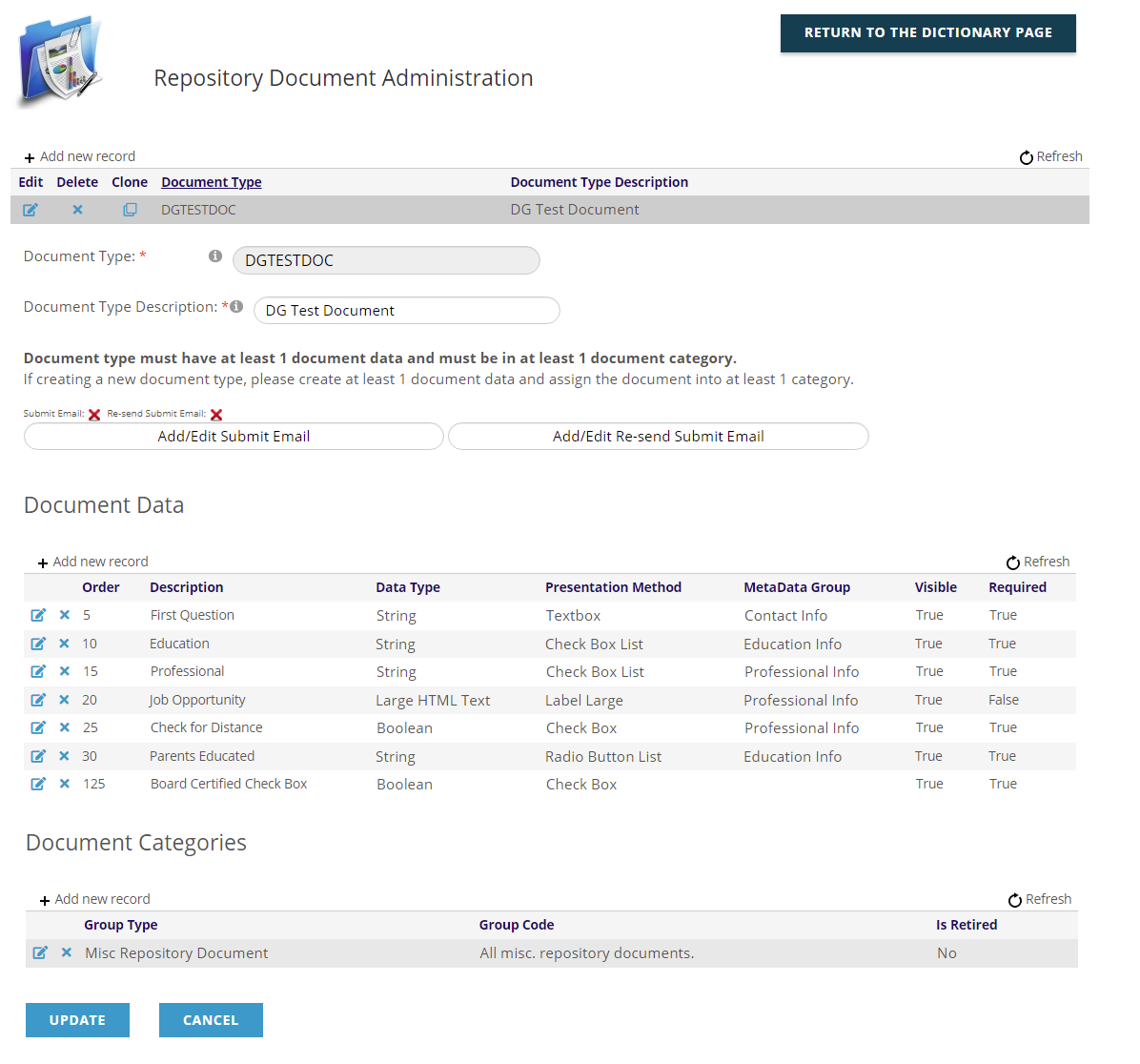
The design of the document is basically the same for all Repository functions, but can vary in terms of what information is asked for and where the information is stored. The next screen shot gives you a look at a sample submission document, as created in the Repository in the AMS.
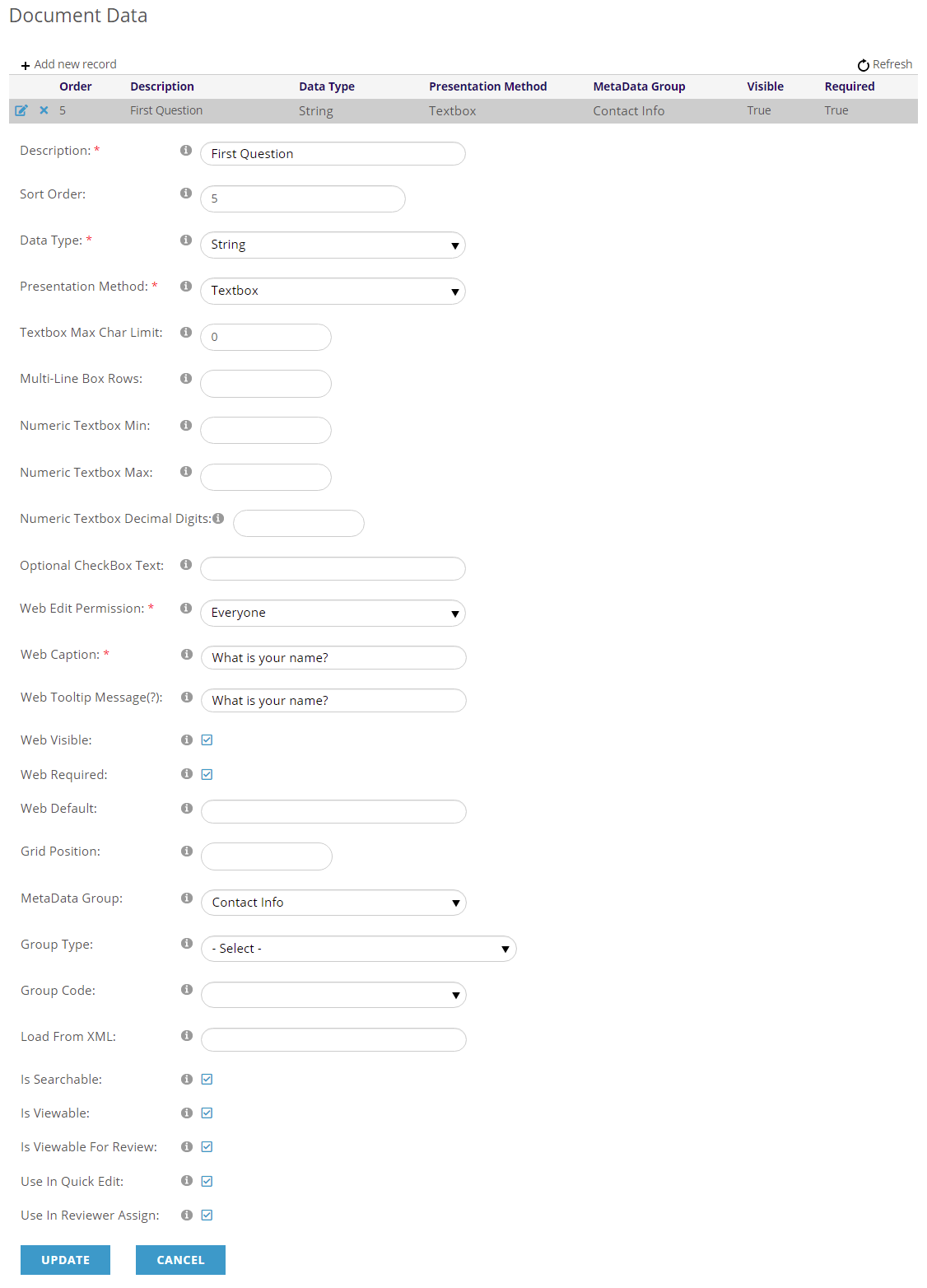
The following screen shot is a typical image of the fields used to create a question under the Document Data section.
What a user sees on the website once a specific submission document is loaded on a web page by reflects a particular use of the Repository module. The following list describes three different uses.
- If you need the user to just upload an electronic document, such as a certificate, the user will open the document, answer a question or two that you have created, and then upload the document.
- If the user is answering questions for an award committee, they will typically answer all questions you have created.
- If the user is looking for information in a document library, the user can typically see the documents, and in some cases download documents to their own computer.
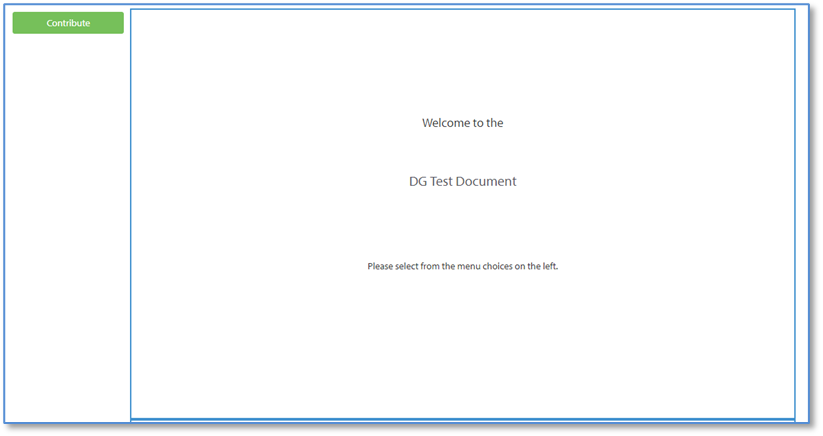
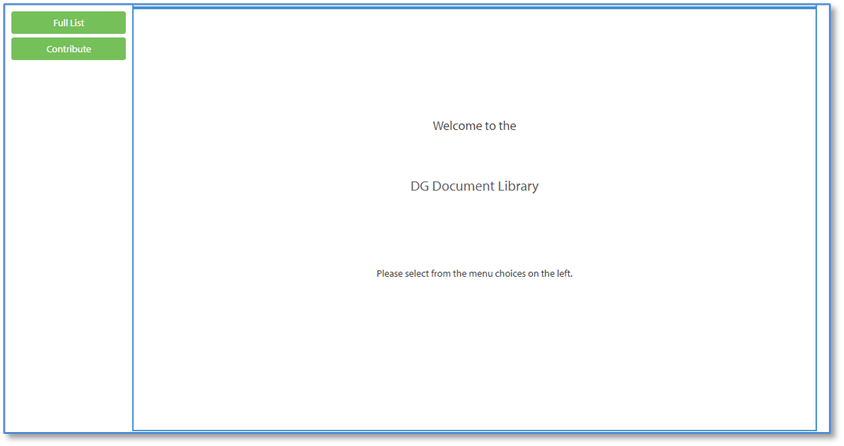
The following screen shots are typical images of what a user might see on the website. Their cosmetic appearance on your website will likely vary, as your style sheets will have different parameters than the ones in these examples. But the placement of the components and corresponding information from the submission document will be similar.
The first is an information gathering module’s typical welcome page.
The second is an example of a typical welcome page where the user can access a list of documents on a particular subject.
The following is a typical image of a user’s view of a question and answer functionality in the document.
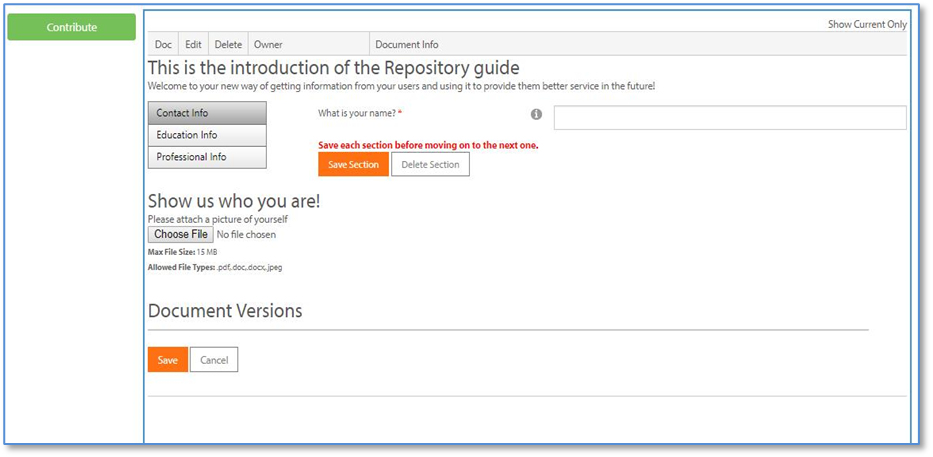
In the case above, staff exercised the option when creating the submission document to define separate tabs for “Contact Info”, “Education Info” and “Professional Info” to render in the web form, with different sets of submission questions to be asked and answered in each tab. The use of tabs is optional, but is strongly recommended when there are many questions to be asked, and/or obvious groupings of the questions to be answered.
The following is a typical image of the web version of a Repository option created to allow users to purchase one or more documents from a list of those made available by an association.
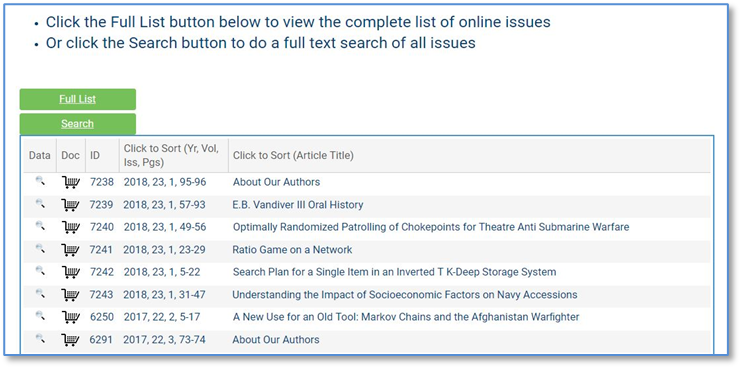
When the user clicks on the shopping cart image, the document in that row will be added to the user’s shopping cart for purchase.
You can also use the Repository to allow users to download documents free of charge in a manner similar to that seen in the previous screen shot.
The use of the Repository in conjunction with Presenter Center, when the Repository function needs to be integrated with a meeting or event in the AMS, is discussed in the Presenter Center section of the knowledge base.