
Once you have submission and/or reviewer data entered for a Repository function you can run the built-in reports and exports provided in NOAH AMS. A list of these built in reports, accessed from the main menu via Repository>>Reports and Exports, is in the next screen shot.
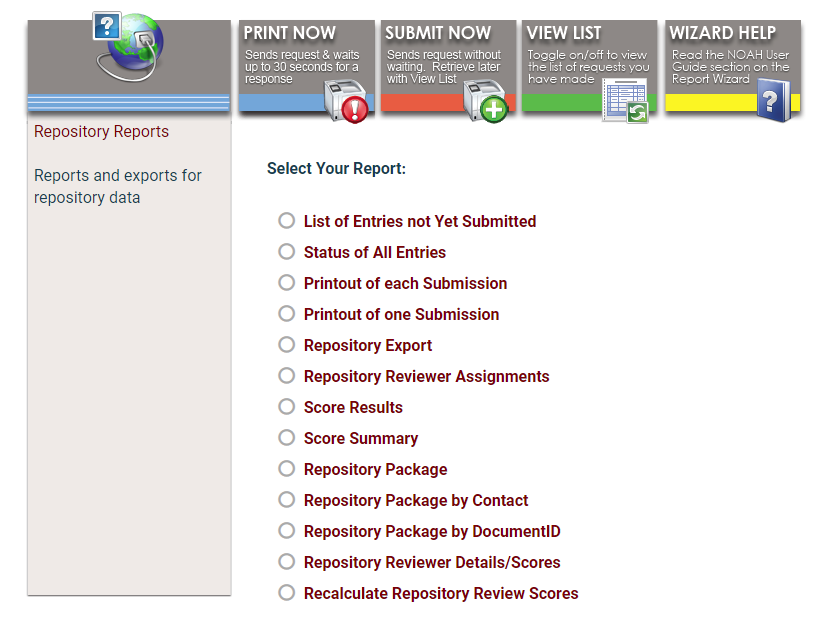
Once you select one the options in this radio button list, the fields will load below the list where you select the parameters of the report or export you want to run, and one or more options for your output file format appear.
All of the options in the list above except Printout of one Submission and Repository Reviewer Details/Scores have the first three mandatory drop down fields in common, as seen in the next screen shot.
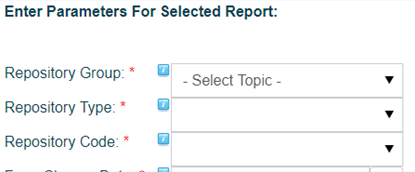
Choose the Repository Group and Type under which the repository document about which you need a report or export was created. Those selections will determine which submission documents will load into the Repository Code drop down menu.
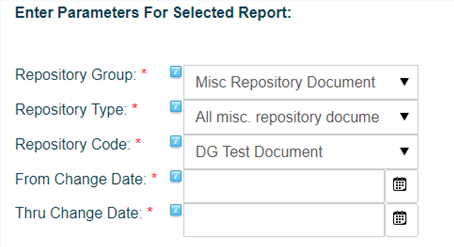
Repository Code is the Document Type Description of the submission document for which you wish to run your report or export.
Other mandatory and/or optional fields appear depending on the report you selected, and will be described as needed for each option.
- List of Entries not Yet Submitted- gives you a list of submissions for a single repository submission document that have been created but not submitted yet. This can be useful when you need to know as a submission deadline approaches how many unfinished submissions there are. There are additional required fields for this report that are used to set a Change Date range.
- Status of All Entries- provides a quick way to get the status of all entries for a particular repository document within a date range. There are additional required fields for this report that are used to set a Change Date range.
- Printout of Each Submission- gives you a pdf of the data entered in an easily readable format for each submission document submitted within your selected date range. You can optionally limit the results to submitted documents to view only those that are complete and ready for proofing. There are additional required fields for this report that are used to set a Change Date range.
- Printout of one Submission- generates a pdf of the particular submission document when the corresponding Document ID is entered in the only field displayed, which is mandatory.
- Repository Export- generates a spreadsheet listing each entry and its metadata for the document selected under Repository Code. This includes all submissions in all statuses.
- Repository Reviewer Assignments- provides a quick way to get an export of the reviewer assignments, and to send emails to those reviewers which includes a list of their assignments.
Note that for this report there is an additional mandatory drop down field where you choose to export or email based on the status of the reviews themselves. The choices are “All” entries (reviews submitted and not by the reviewers), only those that are started but “Not Submitted” or only those that are “Submitted.”
If you wish to simply export all of the assignments for the selected status then choose the export option. If you wish to email the assignments to the reviewers themselves, choose the Send Individual Emails option.
If you select to Send Individual Emails, you can click on the Edit Email icon to view and edit the email message as needed. The assignments will be a .pdf attachment automatically appended to the email message you compose. You can Test the email, which will include the assignments, as you wish before sending live emails. Be sure to only select “Live” when you are ready to email the reviewers. Only those reviewers with a valid default email address will be able to receive the emails. A pdf file of all of those that do not have email addresses on file will be automatically created and added to your View List of generated reports. - Score Results- gives you a breakdown of each score response given by each assigned reviewer for each submission for a particular submission document’s review process. It only scores based on responses to fields in the review document that have the Include in Overall Score- check box field checked. You can optionally limit the results to submitted reviews to view only those that are complete.
- Score Summary- lists the average and total score across all reviews for every reviewed submission. It only scores based on responses to fields in the review document that have the Include in Overall Score check box field checked. You can optionally limit the results to submitted reviews to view only those that are complete.
- Repository Package- For a selected Repository Document Code, prints all the repository submissions, each with a cover page, entries, and associated PDF documents. NOTE: only PDF submissions can be included.
- Repository Package by Contact- For a selected contact, prints all the repository submissions, each with a cover page, entries, and associated PDF documents. NOTE: only PDF submissions can be included.
- Repository Package by DocumentID- For a selected DocumentID, prints the repository submission, with a cover page, entries, and associated PDF documents. NOTE: only PDF submissions can be included.
- Repository Reviewer Details/Scores- generates a spreadsheet of all review metadata that sorts by each submission document’s Document ID, so you can see all the reviews grouped together for any particular submission. Excel allows you to re-sort the document by other fields as needed. This includes all fields from the review form, including comments and other non-numeric responses.
- Recalculate Repository Review Scores- is used to recalculate all of the individual scores, totals and averages across all selected submission documents. This is only necessary when you add or remove a field from being included in the scoring, by checking or un-checking one of the review fields Include in Overall Score check box, or adding and removing review questions that have/had the Include in Overall Score check box checked. Additionally, you only need to use this recalculation routine once reviewers have begun completing their reviews.