
The Requirements tab lets you view, edit and add as many setup requirements as you need for the selected event from the Dictionary, such as Audio Visual Resources and Food. This list may contain entries generic to the event as well as entries specifically assigned to a presenter. 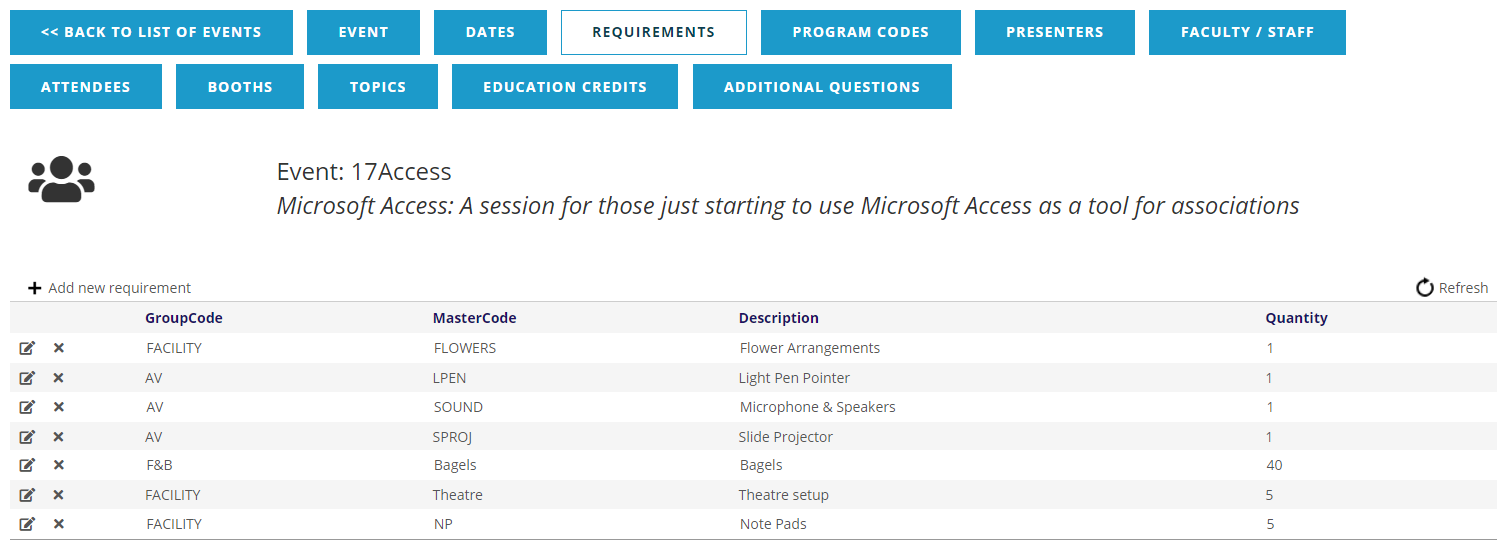
Each requirement has six required fields, which are available when you click on the + Add new requirement or click on the  edit icon at the far left of its row to edit an existing requirement.
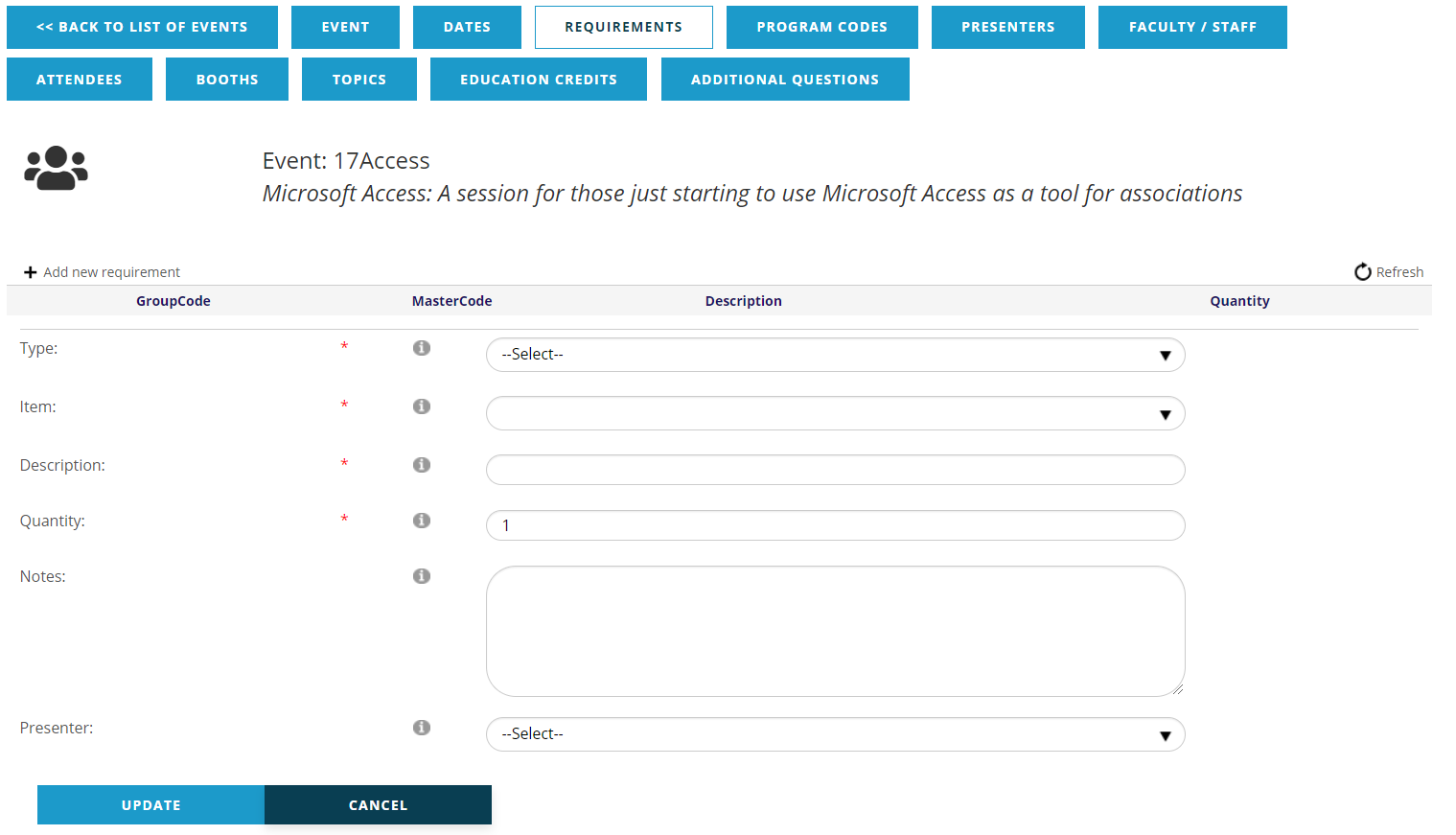
The first Requirements field is Type, which provides a drop down menu of customized choices. Some examples include Audio Visual Resources, Facility Resources, Food and Beverage and Format for the Meeting Guide.
Once you select the Requirement Type, the form will load the corresponding dictionary choices to be selected from the Item field’s drop down menu.
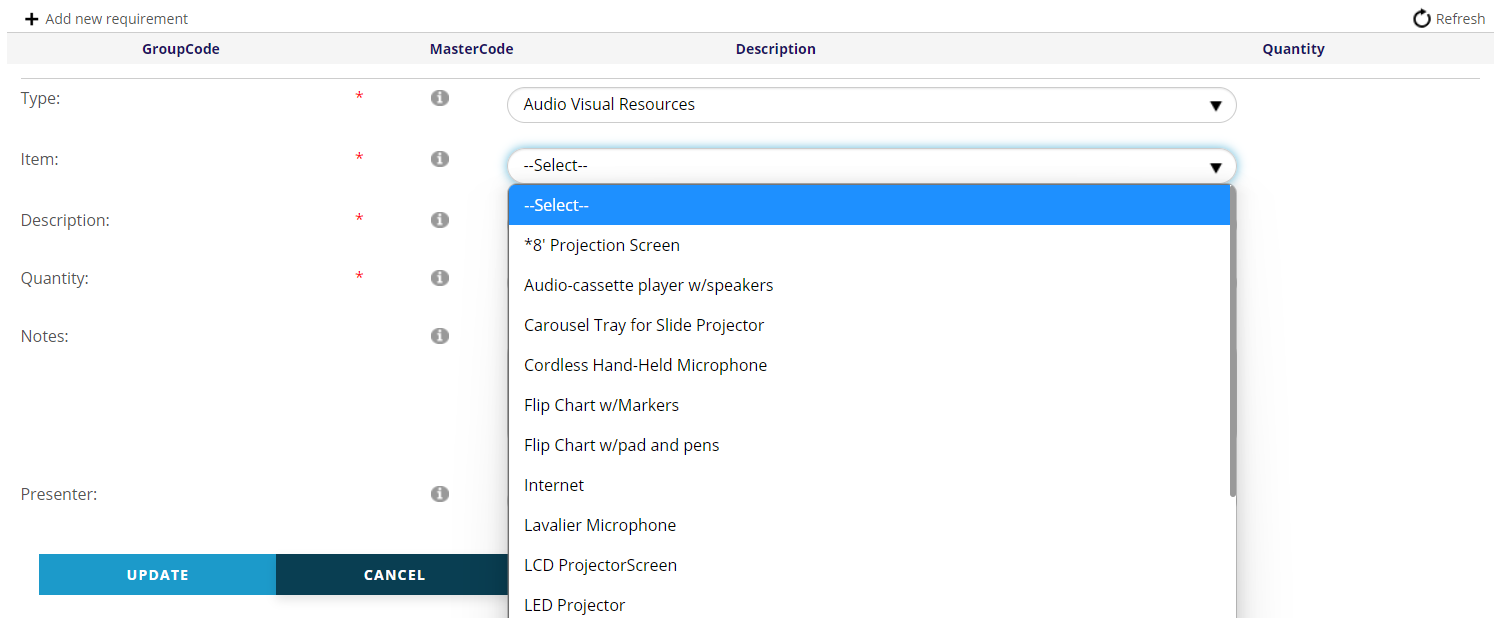
Again, these choices are customizable within each Type. Once an Item has been selected, the Description will pre-fill from the Dictionary and the Quantity will default to one, but can be increased.
If the requirement is to be provided by a presenter you may link the request to that person using the Presenter field’s drop down list once presenters have been created for the event.
Click the Update button to save the entries to the requirement, or click the Cancel button to discard any changes made, or to exit having made no changes.
In the next screen shot, you will see a sample of multiple requirements that have been created for a particular event that is part of a larger meeting.
A requirement can be edited by clicking on the edit icon to the far left in its row. The same fields mentioned above will appear, and at the bottom, a Delete button will be available should the requirement need to be deleted. But a requirement can also be deleted from the event’s full list of requirements by clicking the red  icon found in the Delete column in its row, immediately to the right of the Edit column, as seen in the previous screen shot.
Reports can be run to generate a list of event requirements, and are covered in the Facility Requirements section of this knowledge base.