
The Repository lets your staff assign submission documents to the individuals or committees that you have chosen to be reviewers. You can assign multiple submitted application records to the same reviewer, and you can assign multiple reviewers to the same application record. The Presenter Center has its own reviewer assignment routine, only use this one within the Repository for submission documents that are managed by the Repository itself.
Once you have built all of the review questions in a review document and have received submitted documents from applicants, you can assign reviewers to one or more documents.
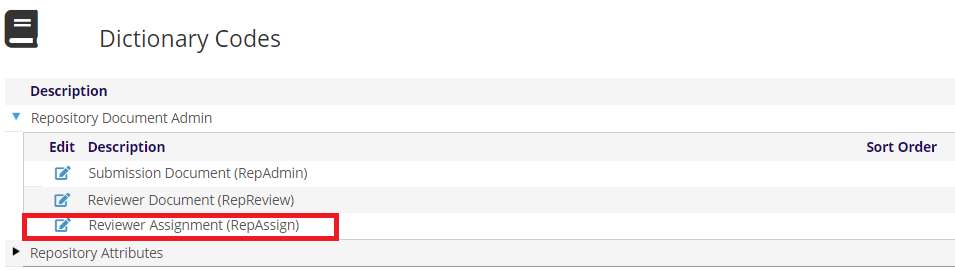
Click on the  edit icon to the left of “Reviewer Assignment”, found under “Repository Document Admin” on the Repository Dictionary landing page.
The page will reload with a grid of submission documents that have a reviewer document available as seen in the next screen shot.
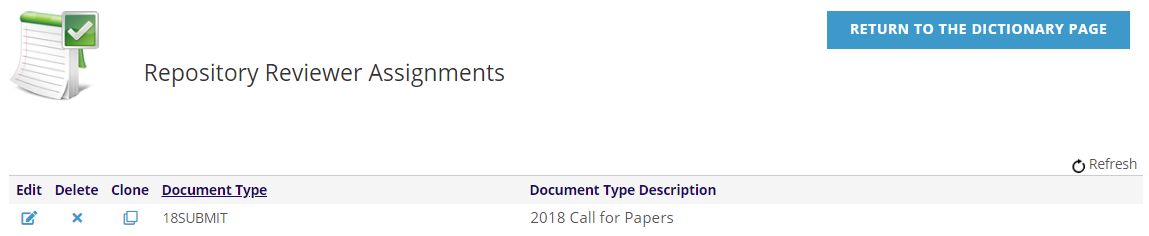
Note there is no function to add or create a document here. Once a reviewer document has been created, the AMS automatically adds an entry in this grid for its corresponding submission document. Click on the edit icon in the same row as the submission document you wish to assign to reviewers. The page will reload and display a form with different sections, the top of which is shown in the next screen shot.
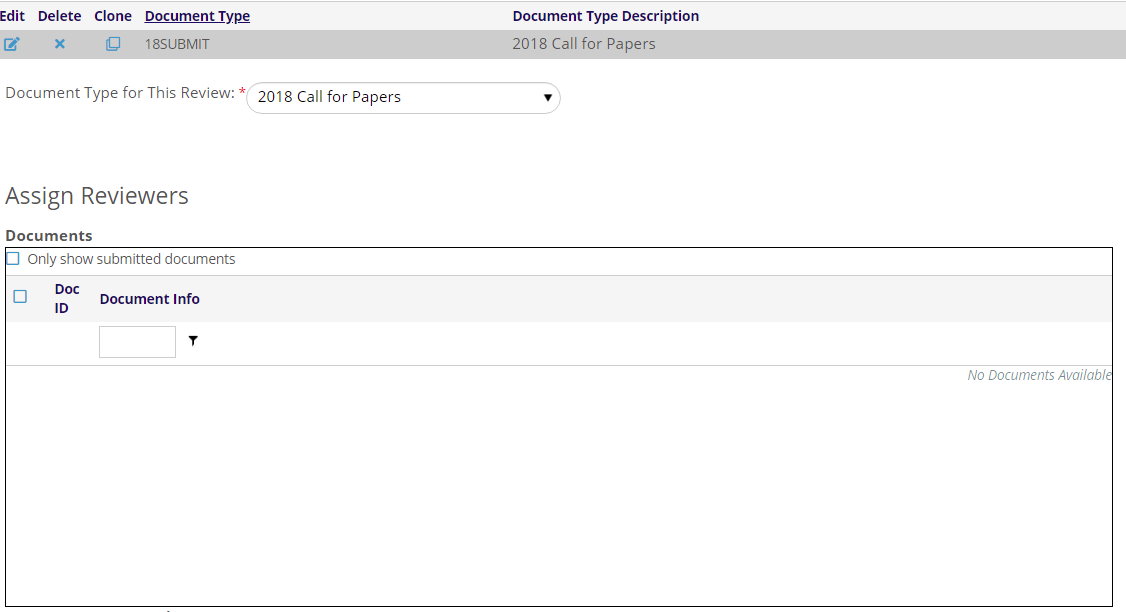
The first field displays the submission document you selected for assignment.
Then the next section of the form called “Assign Reviewers” will populate the Documents grid with existing documents. This grid can include incomplete submissions, but you can check the “Only show submitted documents” check box and the grid will repopulate with only completed submission documents in a view similar to the one in the next screen shot.
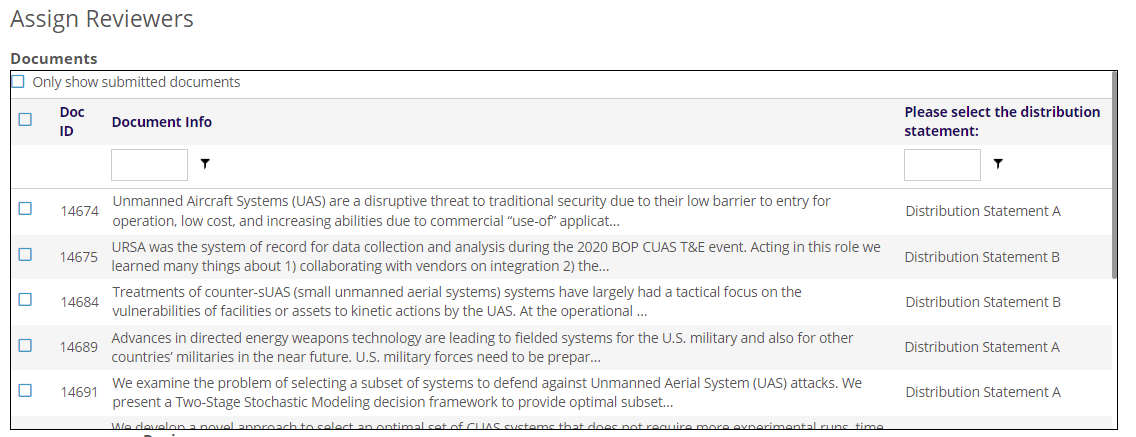
Note that there are check boxes at the far left of the row for each submitted document which are used to select which submissions to be assigned. The next two fields show the Document ID and Document Info. You can include additional fields from the submission document in the grid to show more info about each submission. Refer to the section of this chapter on building Document Data to learn how to select fields to include in this display.
Some lists of submissions can get quite long, and you can use the funnel  box at the top of each column to filter the list by data in the corresponding column. These approaches can be helpful if, for example, a particular reviewer should be assigned submissions that have a common entry in one of your submission fields.
Once you have clicked the check box for the submissions to be assigned, go to the next part of the form to select Reviewers, seen in the next screen shot.
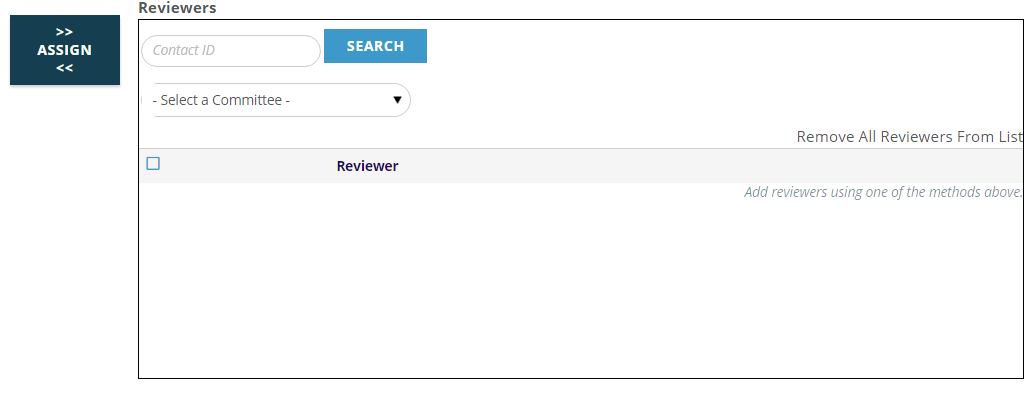
At this point you have two options for populating the Reviewers grid with those you wish to be reviewers, but in either case they must have a contact record in your database. If you know your reviewer(s) are on a particular committee and the committee has already been created in NOAH, you can select that committee in the drop down menu seen in the next screen shot. Only those with current terms for the committee will be shown.
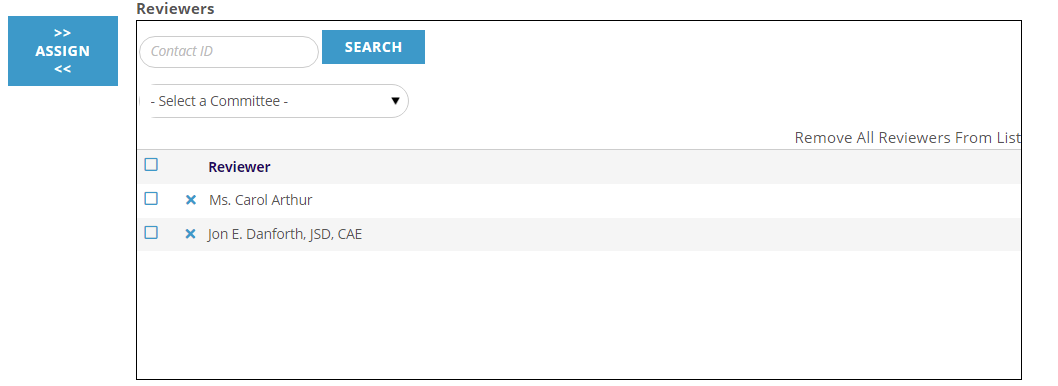
You can also populate the list of reviewers with one or more individual contacts by searching for Contacts in the NOAH search control above the committee drop down. You can enter their Contact ID if you know it and click Search to find it, or click on the Search button without an ID to search by their name. You can add as many reviewers as you wish in this fashion.
Click the check boxes to the left of each row to select the corresponding person to be included in the next reviewer assignment. If more than one reviewer is to be assigned to the same set of selected submission documents, you can check the boxes for each reviewer to assign the documents to all of them at the same time. To discard your entire reviewer list, click on the “Remove All Reviewers From List” link found at the top right of the grid. You can Delete individual reviewers by clicking on the red  next to their names.
Once the submission documents to be assigned have been checked, and the desired reviewers have been selected that should be assigned to review those documents, click on the Assign button found to the left of the Reviewer grid. Then the third grid for Assignments will reload with these newest assignments added to the grid. Don’t forget to click on the Save Document Review button found below the Assignments grid to save your work. Click on the Cancel button to discard work entered since the last save.
The list defaults to displaying the assignments in the order assigned. The same column sorting and filter options that are available in the submission grid are also available here if you need to view all assignments in a desired order.
If multiple reviewers are reviewing multiple submissions, the Assignments list can grow to be very long, so NOAH by default displays them across multiple pages. There are page controls at the bottom of the grid to scroll or jump to other pages, and you can also change the number of assignments per page. Note that at the far right there is a count of the total number of assignments in the list and how many pages there are for them.

To sum up, the Reviewer Assign process includes these steps:
- Select “Edit” for the Reviewer Assignment that you need to work on.
- Check off the submission(s) that you want to assign to reviewers.
- Add reviewers to the list of potential reviewers and check the box next to the name(s) of those individuals whom you wish to assign to the selected submission(s).
- Select the ASSIGN button to make the association of reviewer and submission and make sure they appear in the assignments grid once the form reloads.
- Click on the button at the bottom of the entire form to Save Document Review.
Once these steps have been completed, the reviewers will be able to access the submission documents assigned to them in the web form for reviewers, to be discussed in the next section of this chapter. You can also export a list of all assignments, and send the reviewers notifications of the submissions they have been assigned.