
Once you have set up all your Library Card criteria, when you click the Save button on your And/Or settings, the following Output page will load. The Outputs button on the Library Card, and the Go to Outputs button on each criteria landing page also lead here. 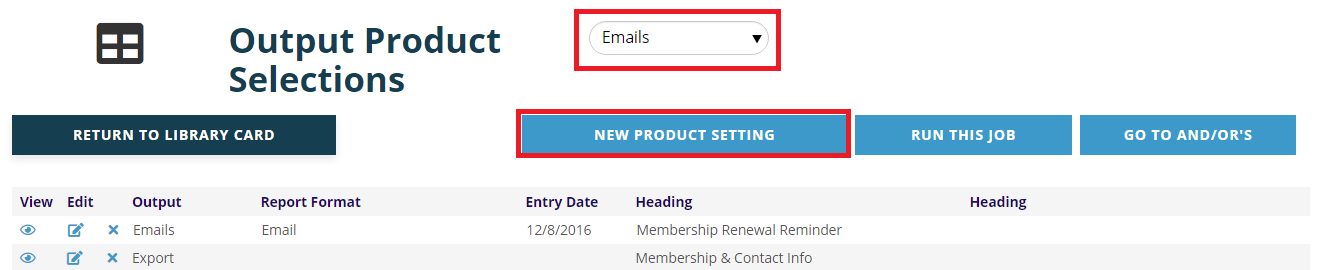
There is a critical step to take before selecting the output for your data and that is to click the Run this Job button.
When you click on the Run this Job button, the system runs the query on the Library Card you are currently using to find contact records that fit the card’s criteria. This can take some time, so don’t exit or click any other buttons while the data is being compiled. Once the records that fit the criteria are pulled in accordance with the card’s And/Or/Not settings, the records will be de-duped. Once this process completes, the Output page will reload and the number of Total Records found by the card will appear on the left above the grid, as seen in the next screen shot.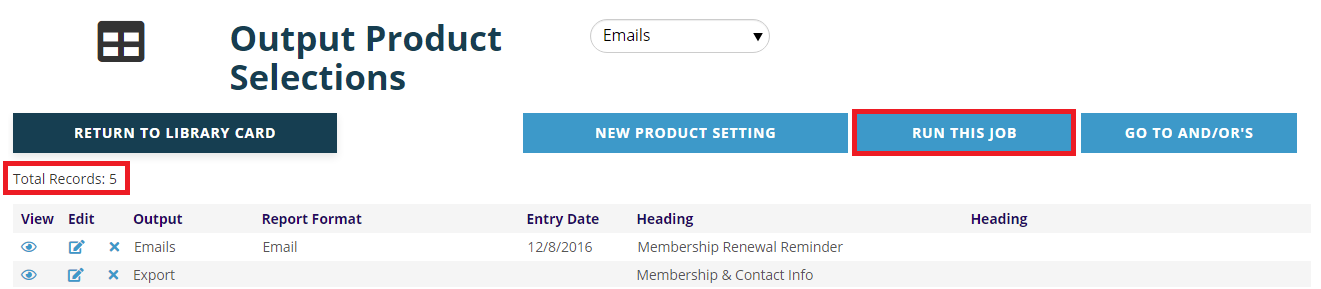
This is an important step in the process as it allows you to confirm that running the card has returned the number of contacts you expect. If the number doesn’t seem correct, there is probably something wrong with your criteria, your And/Or/Not operator settings, or possibly a problem with both. Those mistakes should be corrected before you generate output, since you don’t want to use an incorrect or incomplete group of contact records.
If you run a Library Card that you know is set up correctly and it yields 0 (zero) results, then you have not saved on the And/Or’s screen at least once.
If you want fresh results, you need to run the job every time you use the Library Card. If you want to freeze your group and not update based on current data, then do not run the job again.
Run the job anytime you have changed the criteria or And/Or/Not settings to get fresh results. Also run the job when enough time has passed that any relevant data would have changed, for example, due to someone registering to a meeting or joining as a new member.
Once you are comfortable with the number of records validated by running the job, you can create your output.