
When you “Run the Job” for a Library Card, a step explained in the next section of this chapter, NOAH pulls records for each individual criteria on the card into separate groups. Think of these groups as separate “piles” of contact records. You may or may not want all of the records from each group, depending on what you are trying to accomplish. You must set “And”, “Or” and “Not” operators on every card to get the groups to merge in the way you need to accomplish your end goal. The system will de-dupe the final results since a contact record could qualify for more than one of your criteria.
Every Library Card has a And/Or’s button, and all Criteria and Output landing pages have a Go to And/Or’s button. You must go to the And/Or’s page once all criteria have been added to a new card, or when you delete a criteria. NOAH will prompt you with pop up boxes reminding you to set your And/Or’s, and while you can wait until you’ve finished making all of your additions and changes to criteria, don’t forget to go to And/Or’s before you run the job and create output.
For cards with multiple criteria, the resulting group of contact records for each criteria will be merged when you run the job using either an AND or an OR logical operator. When two groups are merged with an AND, contact records must be in both groups to be selected. When two groups are merged with an OR operator, the contact record may be in either group to be selected. AND operators usually result in a smaller group of contact records than either of the two merge groups, while the OR usually results in a larger group.
Let’s look at a specific example to understand exactly how this step in the process works. It’s best to begin with a practical goal, so we will use one that is quite common among associations that have annual conferences: You need to send a blast email to the contacts in your database who attended the 2017 annual conference but have not yet registered for your 2018 annual conference to encourage them to register. First you create a new library card, if one for this purpose doesn’t already exist, then add two separate Money Criteria to the card. One criteria should be set to pull records of 2017 Conference Attendees, and the other should pull the records of 2018 Conference Attendees. Once those criteria have been created, click on the Go to And/Or’s button and a new page loads.
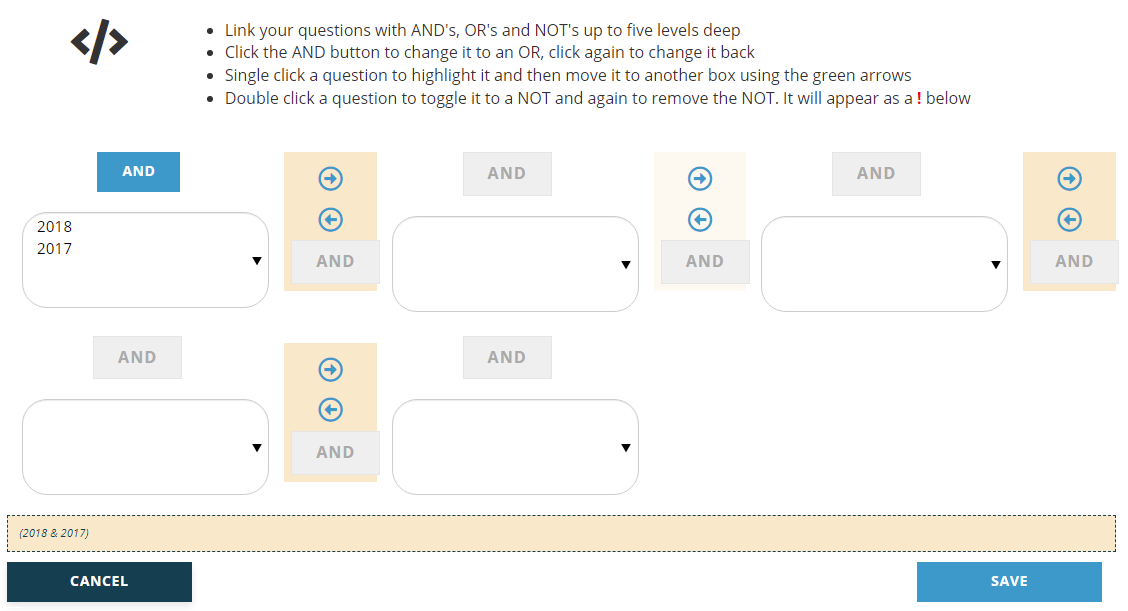
Both criteria appear in the first box and have by default been connected with an “And” operator. If you saved this page as is, running the job for this card would result in a list of contacts who both attended the 2017 conference AND are also already registered for the 2018 conference. But that works against your end goal.
If you want to get a list of anyone who has registered to attend either conference, you would click on the “And” button to toggle it to “Or”. This would then give you any contact in either criteria. That is not working toward the example goal, but that is how you toggle between “And” and “Or”.
To return to our goal, double click on “2018 Conference Attendees” in that first box to add a “Not” function to that criteria. Make sure the operator above the box still says “And”, as you must always use the “And” operator with “Not”. The page will reload with the 2018 description now highlighted in red, and the “Not” is represented in the summation in parentheses below the grid by a “!” red exclamation point. Now your card will search for contacts who attended the 2017 conference AND who have NOT yet registered for the 2018 conference, which is the audience you want for your blast email.
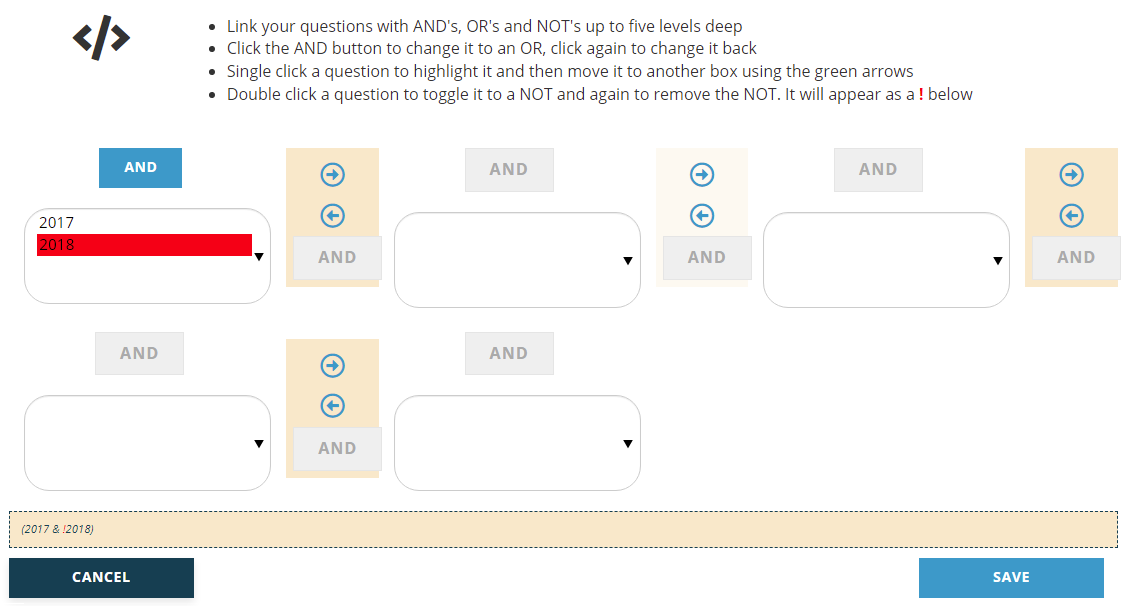
Let’s add another criteria to this card to further explore these operators. You could send a special version of this blast email to those who meet the above criteria who are also current members of your association. Once you add the proper Membership Folder criteria to the card, you must revisit the And/Or’s page, which will now look like this.
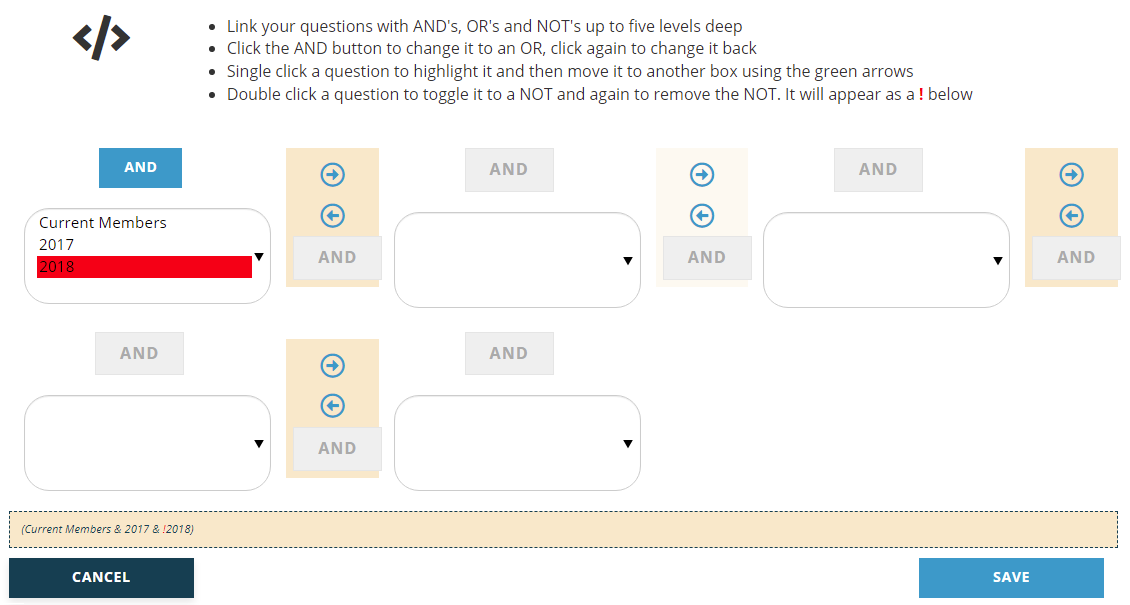
At this point if you leave it as is you will get only current members that attended the 2017 meeting AND are NOT yet registered for the 2018 meeting.
However, if you want to get all current members OR anyone that attended the 2017 meeting AND have NOT registered for the 2018 meeting, then you will need to move one of the criteria to another box to group them appropriately. This would give you a list of non-members that attended in 2017, and all current members, all of which have not registered yet for 2018.
Since you want to extract the group of people that have registered for the 2018 meeting you need to move that criteria into its own box or set of parentheses. Click on the criteria, which turns it blue, then click on the green right arrow to move it to the box to the right. You then need to toggle the operator above the first box to switch it to the “Or” operator in evaluating the “Current Members” and “2017 Conference Attendees” criteria. Finally, make sure the operator between the two boxes is set to “And”, the one right below the green arrows, as you must always use “And” when applying the “Not” condition that is in the second box.
When finished you should see the set up in the following screen shot. To recap, it is now set to get all current members “Or” anyone that attended the 2017 conference (including non-members), “And” then remove anyone that has already registered for the 2018 conference based on “Not” having yet registered.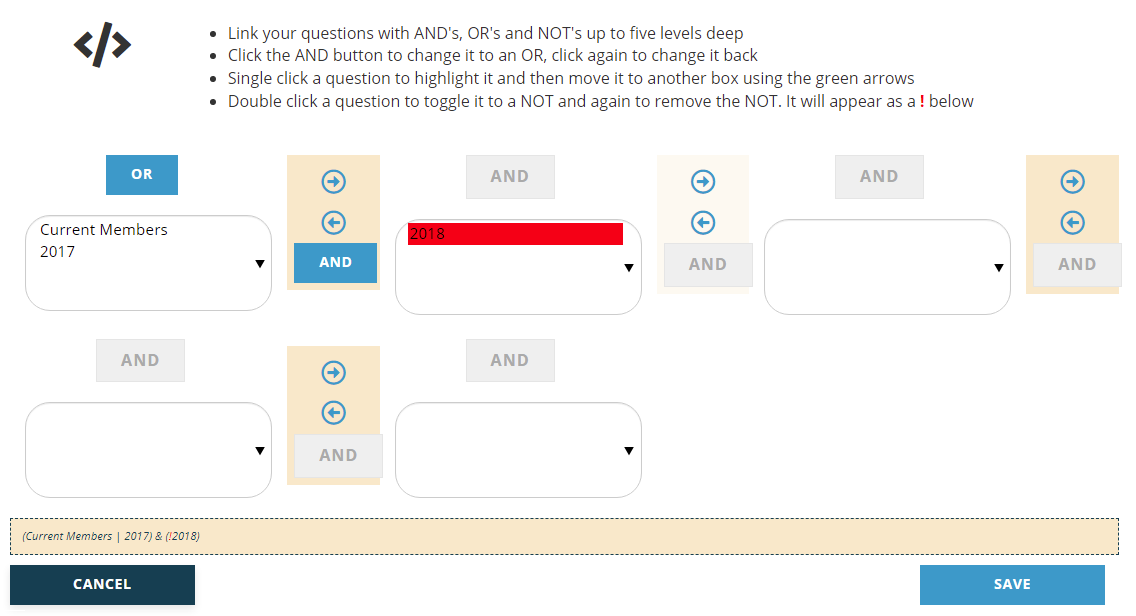
Note that the “Or” operator is represented in the summation in parentheses below the grid by a “|”, a black vertical line.
The following instructions for setting And/Or/Not operators appear above the boxes to remind you how to navigate the boxes.
- Link your questions with AND's, OR's and NOT's up to five levels deep
- Click the AND button to change it to an OR, click again to change it back
- Single click a question to highlight it and then move it to another box using the green arrows
- Double click a question to toggle it to a NOT and again to remove the NOT. It will appear as a ! below
Once you have finished setting your operators for all criteria on a Library Card, click on the Save button. To discard any changes made since the last save, click the Cancel button. Even if you only have one criteria, you must always save at least the first time you are on the And/Or’s screen to get any results. If you run a Library Card that you know is set up correctly and it yields 0 (zero) results, then you have not saved on the And/Or’s screen at least once.