
The Simple Event Registration allows a user to register for an event. If your event is more complex with various pricing and options, you will want to use the Conference Module. When the NOAH Events module is set to EventReg you will have many options for the registration process, found on the NOAH Event Settings tab of the control.
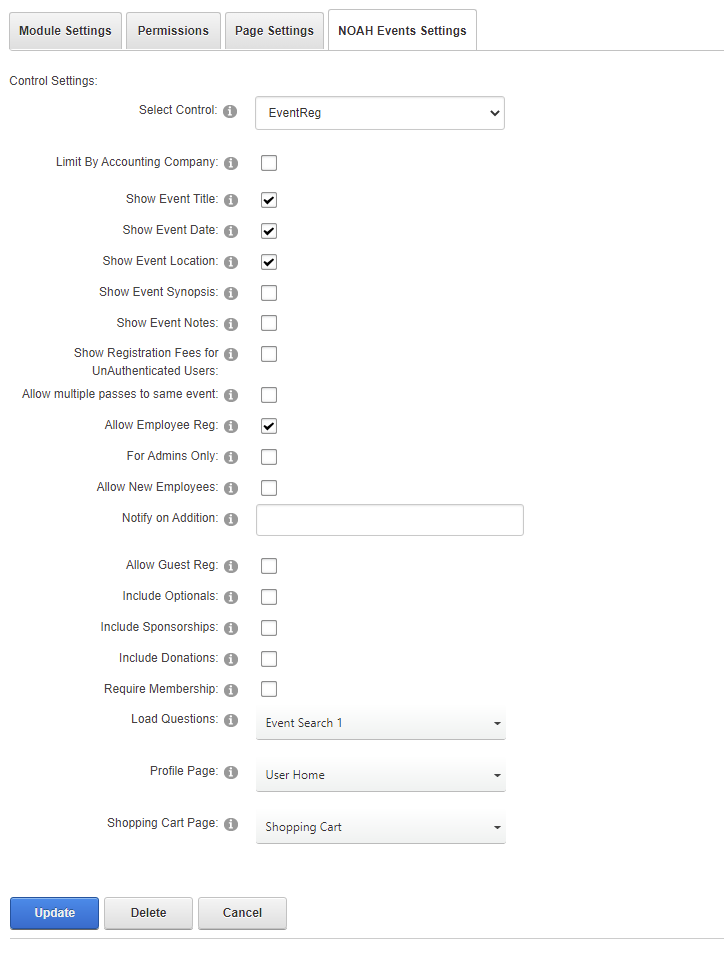
There are several options as to what is displayed and allowed:
- Limit By Accounting Company- is not related to this version of the control and should be left unchecked.
- Show Event Title- Select if you wish to display event title on the screen.
- Show Event Date- Select if you wish to display event date and time on the screen.
- Show Event Location- Select if you wish to display event location on the screen.
- Show Event Synopsis- Select if you wish to display event synopsis on the screen.
- Show Event Notes- Select if you wish to display event notes on the screen.
- Show Registration Fees for UnAuthenticated Users- Select if you wish to display registration fees to unauthenticated users.
- Allow multiple passes to same event- Select if you wish to allow registering to the same event more than once.
- Allow Employee Reg- Select if you wish to allow other employees registrations.
- For Admins Only- Select if you wish to allow other employees registrations for admins only.
- Allow New Employees- Select if you wish to allow adding new employees to the company record.
- Notify on Addition- Specify email address if you wish to receive email notification upon addition of a new employee. (Leave blank for no notification); if using multiple email addresses, use a semicolon (;) to separate them.
- Allow Guest Reg- Select if you wish to allow guest registrations.
- Include Optionals- Select if you wish to display any optional items during registration.
- Include Sponsorships- Select if you wish to display sponsorships during registration.
- Include Donations- Select if you wish to display donations during registration.
- Require Membership- Select if membership is required in order to be able to register for events.
- Load Questions- Select the group from which to load the questions for the registration page. Select Event Search 1 to use the event ID passed to the control as the group for event specific questions- this is the typical selection. NOTE: Make sure all questions have response codes or this control will not work.
- Profile Page- Select the profile page in your website.
- Shopping Cart Page- Select the shopping cart page in your website where the purchase will be completed.
When linking directly to a webpage with this control on it, you will need to pass an event ID in the URL. For example, if the webpage URL is
https://www.myassociation.org/Event-Registration
The event ID would be passed as
https://www.myassociation.org/Event-Registration/EventID/1170
Where 1170 is the event ID a user would be registering for.
The HotKey(s) will need to follow the pattern setup for your organization using its last 3 characters; these determine which are presented to the logged in user. If multiple HotKeys have the same pattern, they will all be presented on the screen for a user to select from. For example if you have 2 options (registration & registration with special offer) that members may choose from when registering at the early rate, the hotkeys would both end in 0EM.
Trouble Shooting Messages
- There are no registration options available for this event. This message is shown when the system can't find a HotKey for registration to present to the logged in user. Here are some things to check:
- Looking at the Event Setup and the EarlyBird and Advance Cutoff dates; for today's date, make sure you have setup the related HotKey(s) for that timeframe.
- Most clients have a specific HotKey pattern defined for their meeting registration needs. Make sure you are following that pattern.
- Make sure the user has pricing setup. For example, if you only have member pricing setup, and a non-member is on the registration page, they will see this message.
- There is a problem with the registration setup. Check the Accounting Company on the Meeting screen an make sure it matches the Accounting Company for which the web portal is setup.
- The registration for this event is closed. Check that the event and meeting have the On The Web check box checked and that the event's Status is Registration Open.