
Super HotKeys, Kit Codes or Bundles, are a way to group products together for purchase. These are setup in the Money Dictionary under Super Hotkey (SuperHK).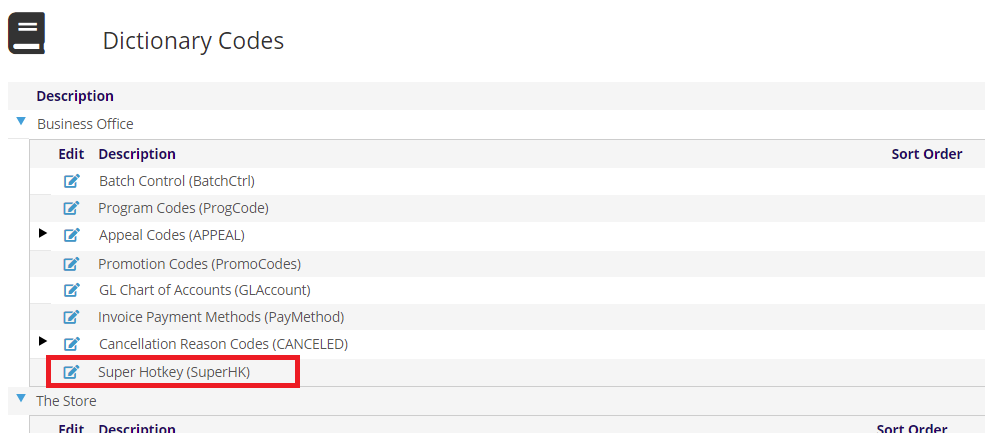
Clicking on the edit  icon will open the Super Hotkeys & Bundles page. You can click the Add New button to create a new Super HotKey, or select an existing Super HotKey from the drop down.
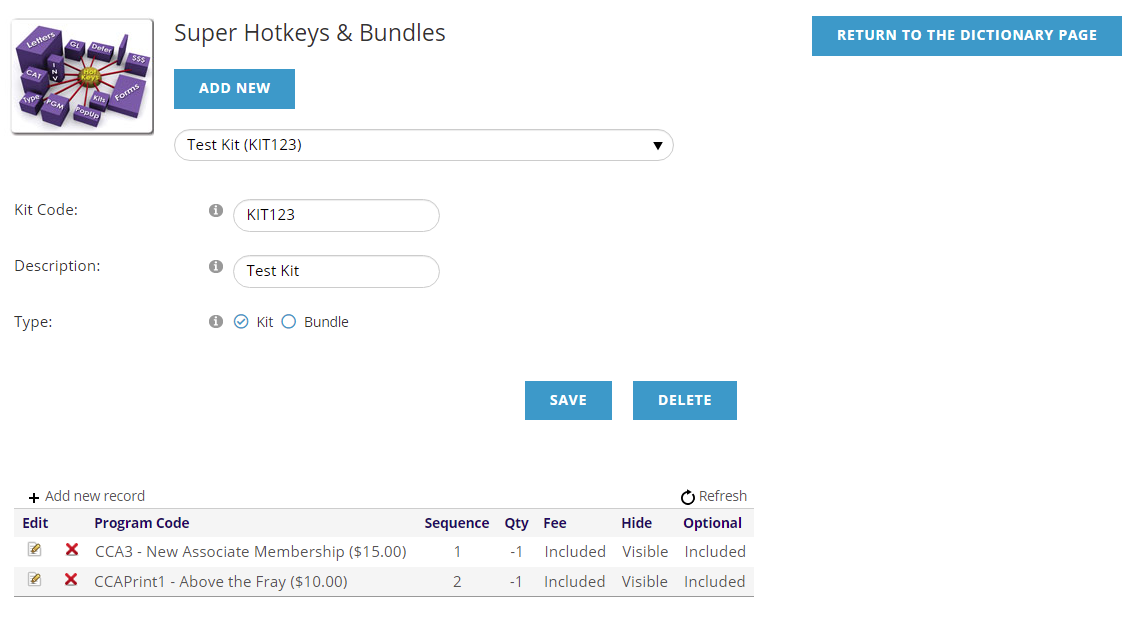
The Kit Code is the Super HotKey used to reference this combination (letters and numbers only, no spaces or special characters). The Description is what is what will show when referenced. The Type is either
- Kit- a group of Program Codes that are linked in a contact’s financial history.
- Bundle- a transparent grouping of Program Codes; there is no historic information captured in the AMS that reflects that the purchased items are in any way related.
Once you have created the Super HotKey, you will use the grid below to add items using the + Add new record, or you can use the  edit icon to edit an existing Program Code, or the
 delete icon to remove it from the Super HotKey.
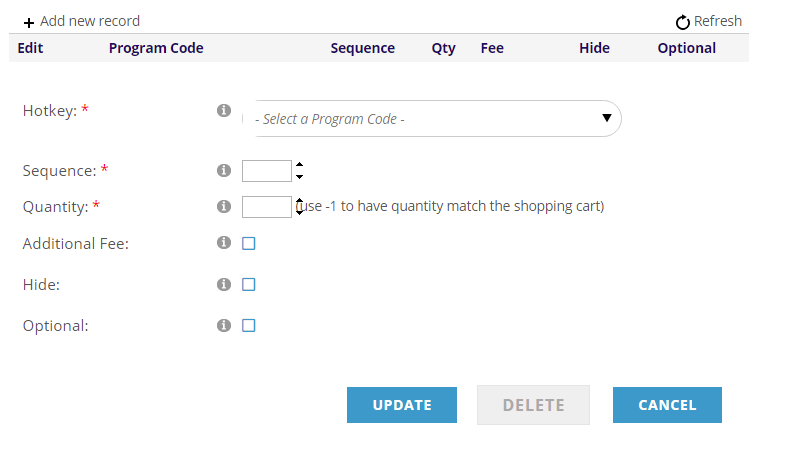
For the HotKey, you will select an existing Program Code from the drop down to be included in this Super HotKey. NOTE: this drop down searches for what you type in and shows the first 25 matches; if you don't see your HotKey, type in more letters of it.
The Sequence controls the order items in this Super HotKey will be listed on an Invoice. The Quantity is how many of these HotKeys are included with the Super HotKey, and using -1 will match the quantity of the Super HotKey in the shopping cart. These items with the red asterisk (*) are required. There are also check boxes for
- Additional Fee - is it included in the Super HotKey price (i.e. $0), or is it an additional fee (the HotKey's price is charged)?
- Hide - should the item be hidden in the Invoice and Emails?
- Optional - is the item included or optional (it can be removed)?
Use the Update button below the grid (not the Save above it) to save your changes to the included Program Codes. The Cancel button will discard your changes, and the Delete button will delete the Program Code from the Super HotKey.
Once you have the Super HotKey created, you will then attach it to a Program Code as a KitCode, that when purchased will add the items in the Super HotKey to the invoice.